A WordPress migration plugin is the easiest way to move a site to new hosting, a new domain or a fresh server without copying files and databases by hand. This guide is for small business owners, bloggers, news publishers and freelancers in Bangladesh who need to move a WordPress site safely, whether it is a shop, a portfolio or a busy news portal. We cover why moves go wrong, how to plan one, what the tool must handle and a step-by-step routine you can follow.
Sooner or later almost every site moves. The shared hosting you started on gets slow as traffic grows, a client changes their brand and domain, or a freelancer builds a site on a local computer and needs to put it live. A move done in a hurry can break images, links and logins, and for an online shop it can mean lost orders. A move done with a plan and the right tool is usually quiet and boring, which is exactly how it should feel.
Our example tool is All in One WP Migration Pro Plugin 2026, a well-known plugin for moving, cloning, backing up and restoring WordPress sites. Themeve provides access to the Pro version; the plugin itself is developed by ServMask. We will look at how it works after the planning section, because a smooth move starts long before you click export.
Why Moving a WordPress Site Goes Wrong
A WordPress site is two things working together: files and a database. The files hold WordPress itself, your theme, plugins and uploaded media. The database holds posts, pages, settings, users, orders and the site address. A manual move means copying files by FTP, exporting the database, creating a new one on the new server, importing it and then editing configuration files. Each step is a chance to make a mistake, especially for someone who does it twice a year.
The most common problem is the site address. WordPress stores full URLs in many places in the database, including inside serialized settings that break if edited carelessly. Move a site from a temporary address to a real domain without fixing those references and you get missing images, broken menus and pages that redirect to the old server. Upload limits on shared hosting cause the second big problem: the import simply stops halfway when the backup file is too large.
Planning a WordPress Website Migration
Check both servers first
Before any WordPress website migration, look at both ends. Note the WordPress version, PHP version and disk usage on the old site, and confirm the new hosting supports the same or a newer PHP version and has enough space for your files plus a backup copy. Update WordPress, themes and plugins on the old site first, so you are moving a clean, current setup rather than old problems. Delete plugins you no longer use.
Pick the right time
Choose a quiet time for the move. For a shop, that might be late at night after the day's orders are packed; for a news site, a slow hour between big stories. Tell your team that no one should publish, edit products or change settings during the move, because changes made on the old site after the export will not appear on the new one. Lower the DNS TTL a day in advance if your domain panel allows it, so the switch spreads faster.
Write down every outside service the site depends on: email sending, payment gateway settings, courier plugins, Google Search Console, analytics, CDN and caching. Some of these are tied to the domain or the server address, and they may need a small update after the move. The WordPress documentation has helpful pages on moving WordPress and on backups if you want to understand what happens under the hood.
What a Good WordPress Migration Plugin Should Do
A good WordPress migration plugin packs everything into one file: database, media, themes and plugins. It should replace the old address with the new one throughout the database, including tricky serialized data, without you running search-and-replace queries by hand. It should handle large sites without stopping at the upload limit of cheap hosting, and it should work on the common hosting types, from shared plans to VPS and cloud servers.
The same tool should also cover backups and restores. Moving and backing up are really the same job: you create a full copy of the site and later put it back, either on the same server or a new one. If a single plugin does both well, you learn one routine and use it for everything, from monthly safety backups to cloning a live site for testing to moving a client project from your laptop to their hosting.
How All in One WP Migration Handles the Move
All in One WP Migration turns the whole process into a single export and a single import. With a few clicks it exports the entire site, including files, themes, plugins, database and media, into one package. That package can then be imported into any WordPress installation. There is no need for FTP access, database editing or command-line tools, which is why non-technical owners can handle complex moves with confidence.

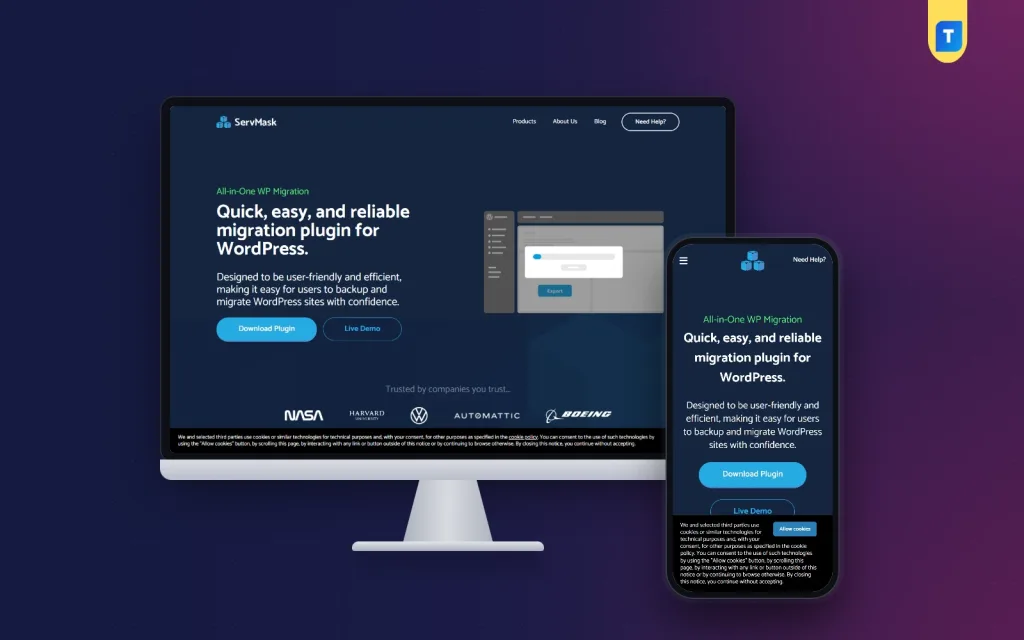
During migration the plugin automatically handles search and replace. When you move to a new domain or server, it adjusts URLs, file paths and database references, which removes the broken links and settings problems common with manual moves. The developer's own page, shown above, describes it as designed to be user-friendly and efficient for backing up and migrating WordPress sites, with a simple export screen at the centre of the process.
The Pro version removes the limits found in the free version. Its biggest advantage is unlimited site size, so large websites, online stores, portfolio sites and business sites can be moved without worrying about upload limits or server restrictions. The migration process is built to reduce server load and avoid timeouts, and the plugin is regularly updated to stay compatible with new WordPress versions.

Beyond moving, the plugin is a practical site management tool. You can restore a site from a backup in minutes if it gets hacked, crashes or hits a server problem. Developers use it to clone a live site into a staging copy and test updates safely before touching the real one. It works with shared hosting, VPS, cloud hosting and managed WordPress hosting, and it supports popular themes, page builders and plugins without conflicts.
Moving Your Site Step by Step
Step one is a safety backup. Export the full site with the plugin and also keep the backup your hosting provides, then download the file to your computer. Step two: on the new hosting, install a fresh copy of WordPress, using a temporary address or the hosts file if your domain still points to the old server. Install and activate the same migration plugin there, including the Pro version if your site is large.
Step three is the import. Upload the exported file on the new site and let the plugin finish without closing the browser tab. When it is done, open Settings, Permalinks and click save to refresh the link rules. From then on, log in with the username and password from the old site, because the database you imported carries the old site's users along with everything else.
Step four is testing. Open the homepage, a few posts, a category page, the contact form and, for a shop, the cart and checkout. Check images, menus and widgets. If your site uses premium plugins or a page builder such as Elementor Pro Plugin – Design Freedom 2025, open a few designed pages and confirm the licence is active on the new domain. Only then switch the DNS and watch the site for a day.
Bangladesh Tips for a Smooth Move
Internet connections and power in Bangladesh are not always steady, and a large backup file uploaded from home can fail halfway. Use a stable office or fibre connection for the upload, keep your laptop on charge or a UPS, and avoid moving on a day with planned load shedding in your area. If the backup is very large, ask your new host whether they can help place the file on the server directly.
For online shops that take cash on delivery or bKash and Nagad payments, plan around your order flow. Pause ad campaigns for the hour of the move, post a short notice on your Facebook page, and after the move place a test order to confirm notifications and payment instructions still work. News sites that import stories with Auto News Sync — Automatic News Importer for WordPress should pause import schedules until the new server is live, so no stories land on the old one.
Common Mistakes in a WordPress Website Migration
The most damaging mistake is starting without a downloaded backup. If the new server fails and the old hosting has already expired, there is nothing to restore. Never cancel the old hosting until the new site has run smoothly for at least a week. The second mistake is editing content on the old site after exporting, which means those changes vanish. The third is forgetting email: if mail runs through the old host, update the MX records with care.
Other mistakes include moving a site full of unused plugins and old spam comments, which makes the backup larger and the move slower, and skipping the permalink save after import, which leads to puzzling 404 errors. Also avoid cracked copies of premium plugins downloaded from random sites. They often carry hidden code, and a migration tool that injects malware into your backup can spread the problem to every site you move.
Frequently Asked Questions
Do I need the Pro version of a WordPress migration plugin?
For small sites the free version may be enough. The Pro version removes its limits, most importantly by allowing unlimited site size, so large shops, news portals with years of photos and business sites can move without hitting upload limits or server restrictions on the new hosting.
Will my links and images break after moving to a new domain?
The plugin handles search and replace automatically during migration, adjusting URLs, file paths and database references to the new address. Still, test a few pages, images and menus after the import, and save permalinks once, before switching the DNS for real visitors.
Can I use it for backups as well as moves?
Yes. The same export creates a full backup of files, themes, plugins, database and media, and you can restore it in minutes if the site is hacked or crashes. Many owners keep a monthly backup routine with it and store copies on their computer and in cloud storage.
Does it work on shared hosting?
Yes. It works with shared hosting, VPS, cloud hosting and managed WordPress hosting. Shared plans often have small upload limits, which is where the unlimited site size of the Pro version helps most when the site has grown over the years.
Final Thoughts
A safe move comes down to a downloaded backup, a quiet time slot, a careful import and honest testing before the DNS switch. With a reliable tool that packs the whole site into one file and fixes addresses for you, even a large site can move in an evening. If you need a WordPress migration plugin that also covers backups, restores and staging copies, get access to All in One WP Migration Pro Plugin 2026 and run a test move on a staging site first.