 −50%
−50%
Environment Diagnostics – WordPress System Info Plugin
 −50%
−50%
✦ Key features
- WordPress and PHP versions
- Database server version
- Active theme and its version
- List of active plugins
- Memory limit and max upload size
- Multisite, debug mode and HTTPS status
- Administrators only
- Read-only, changes nothing
- Ready to copy for support requests
- Works on any WordPress site
Overview
Environment Diagnostics is a WordPress system info plugin that shows your PHP, WordPress and database versions, upload limit, debug mode, HTTPS and more, for admins only.
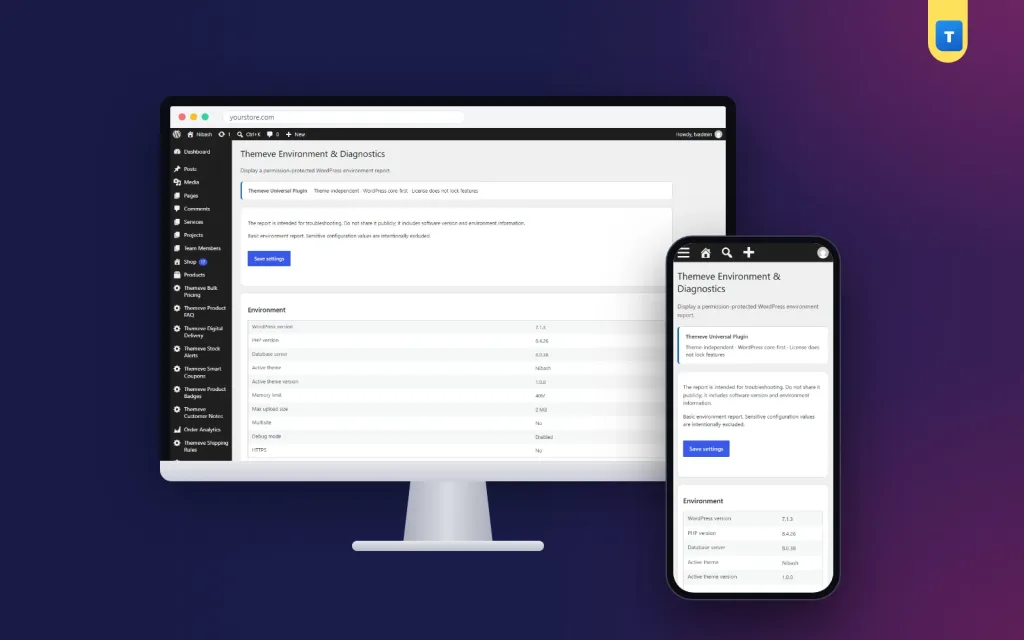
Environment Diagnostics is a WordPress system info plugin that gathers the technical facts a developer or hosting provider asks for when something goes wrong. One report shows your WordPress version, PHP version, database server version, theme, memory limit, upload size, debug mode, HTTPS status and active plugins.
Only administrators can see it, under Settings › Environment & Diagnostics.
Why system information matters
When a plugin will not install, an upload fails or a page shows an error, the first questions are always the same. Which PHP version? Which WordPress version? What is the upload limit? Is debug mode on? Most site owners do not know where to find these answers, and support conversations stall while everyone searches.
A single report answers them in seconds, so problems get solved faster.
What the report shows
Versions
WordPress version, PHP version and database server version. These decide which plugins and themes your site can run and are the first thing any support team checks.
Theme and plugins
Your active theme with its version, and the list of active plugins. Conflicts between plugins and themes are a common cause of errors, so this list is essential when troubleshooting.
Server settings
Memory limit, maximum upload size, whether the site is a multisite, whether debug mode is on, and whether the site runs on HTTPS. These settings explain many everyday problems, from failed uploads to security warnings.
Practical uses
Before installing a plugin, check its PHP requirement against your version. When an image or theme upload fails, check the upload limit. When a client reports an error, check whether debug mode is accidentally on. When you contact your host, copy the report into your message.
Each of these takes seconds with the report open, instead of minutes of searching.
A quick example
A shop owner cannot upload a new theme zip. The report shows a small maximum upload size. The owner sends that line to the hosting provider, who raises the limit the same day, and the upload works.
Admins only, and private
The report contains technical details about your server. Only administrators can open it, and you should never post it publicly, for example in open Facebook groups. Share it only with people you trust to help, such as your host or developer.
Debug mode in particular should be off on a live site. If the report shows it on, ask your developer to switch it off once they finish testing.
What this WordPress system info plugin is, and is not
Environment Diagnostics is a read-only report. It does not change settings or fix problems by itself. It gives you the facts so you or your helpers can fix them quickly.
For a lighter everyday summary, Site Monitor shows the main versions, plugins and memory limit on one screen. For login protection and security headers, Security Center covers the basics.
To check recommended PHP and database versions, see the WordPress documentation.
Who it suits
Small shops that rely on one hosting provider and one freelancer, and want every support request to be quick and clear.
Site owners who want to give clear information to their host or developer. Freelancers and agencies who support many client sites. Anyone who has ever been asked which PHP version they use and did not know where to look.
Good habits
Open the report after every hosting change or major update and note the key values. Compare them with the requirements of any new plugin before you install it. Keep a copy of the report with your site records.
How to write a good support request
Describe what you tried to do, what happened and when it started. Mention anything you changed recently, such as a new plugin or an update. Then paste the report below your message.
With a WordPress system info plugin, that last step takes seconds, and your helper can often answer on the first reply instead of sending a list of questions back.
Licence, updates and setup
Environment Diagnostics needs an active Themeve licence key. Without it, the report does not open and only the lock screen and License screen are available. Enter the key from My Account › Licenses and the report becomes available. Updates arrive in Dashboard › Updates while the licence is active.
After activation, open Settings › Environment & Diagnostics and read your report. That is all the setup there is.
Keep this WordPress system info plugin ready for the day something goes wrong, and you will save time on every support request.
Reviews
0.0
Write a review
★★★★★
0 reviews from buyersNo reviews yet — be the first to share your experience after buying.
Frequently Asked Questions
01What does the report include?
WordPress, PHP and database versions, active theme and version, active plugins, memory limit, max upload size, multisite, debug mode and HTTPS status.
02Who can see it?
Only administrators.
03Can I share the report?
Share it privately with people you trust, such as your host or developer. Never post it publicly.
04Does it fix problems?
No. It is a read-only report that gives you the facts.
05How is it different from Site Monitor?
Site Monitor is a quick summary. Environment Diagnostics adds server details such as database version, upload size, debug mode and HTTPS.
06Does it work with any theme?
Yes. It works on any WordPress site.
07Does it need a licence?
Yes. Without an active Themeve licence key the report does not open and only the lock and License screens are available.
Delivery & Support
1Place your orderAdd to cart, sign in and pay with bKash, Nagad or Rocket.
2Payment verified automaticallyEnter your Transaction ID — the payment is matched automatically, usually within seconds.
3Get your productYour license key and download appear in My Account → Licenses.
- Secure automatic payment verification
- Delivery to your account & e-mail
- Friendly WhatsApp support
Refund Policy
This policy applies to every product in our store.
You get a refund when the product does not work as described and we cannot fix it, when your license will not activate your website, or when a manually delivered product is late and you cancel before delivery. A working license, or a single license already used on a live domain, is not refundable. Approved refunds go back to the number you paid from within one working day, minus the Send Money charge.
More items
View all →


