A WordPress system info plugin collects the technical facts about your site and server in one report, so you can answer support questions in seconds. This wordpress system info plugin guide is for owners of shops, blogs and business websites in Bangladesh who are not developers, but who regularly need to talk to hosting providers and freelancers when something goes wrong.
We will look at the questions support always asks, what each answer means, how to run a quick PHP version check, how to share information safely, and how Environment Diagnostics puts these facts in one admin-only report.
The questions support always asks
Whether you contact your hosting provider, a theme author or a freelancer, the first reply is usually a list of questions. Which version of WordPress? Which PHP version? Which theme and plugins are active? What is the memory limit? What is the maximum upload size? Is debug mode on?
If you do not know where to find these answers, the conversation slows down. Days can pass while messages go back and forth. Having the answers ready turns a long support thread into a quick fix.
What the facts mean
WordPress, PHP and database versions
WordPress runs on PHP and stores content in a database. Each has a version. Plugins and themes list minimum versions they support. An old PHP or database version can stop a new plugin from working or cause errors after an update.
Theme and plugins
Many errors come from conflicts: two plugins trying to do the same thing, or a plugin that does not work with your theme. Knowing exactly what is active is the starting point for finding a conflict.
Memory limit and upload size
The memory limit decides how much memory PHP may use. Too low, and busy pages fail. The maximum upload size decides how large a file you can upload. Too small, and theme, plugin or video uploads fail with confusing messages.
Debug mode, multisite and HTTPS
Debug mode shows technical errors, which is useful for a developer while fixing problems but should be off on a live site. Multisite tells helpers whether your installation runs several sites together. HTTPS shows whether your site uses a secure connection, which browsers expect today.
How to run a PHP version check
A php version check is simple once you know where to look. Before installing a plugin, read its requirements on its download page and note the minimum PHP version. Then compare it with the PHP version your site uses. If yours is lower, ask your host to upgrade, after checking that your theme and other plugins support the newer version.
Do the same check after your host announces a server upgrade. A sudden change of PHP version can affect older plugins, so check your site after any change.
How the WordPress system info plugin works
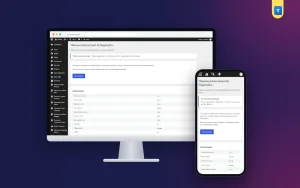
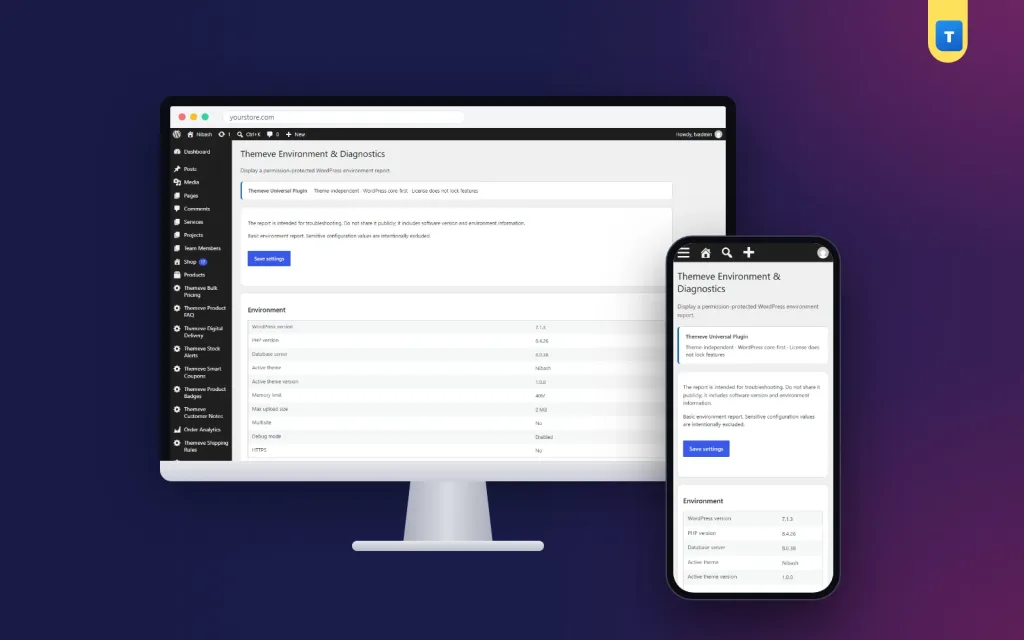
Environment Diagnostics adds a report under Settings, Environment & Diagnostics. It lists your WordPress version, PHP version, database server version, active theme and theme version, memory limit, maximum upload size, whether the site is a multisite, whether debug mode is enabled, and whether the site uses HTTPS. Below that, it lists your active plugins.
Only administrators can open the report. It is read-only: it changes nothing and fixes nothing by itself. It simply gives you and your helpers the facts in one place.
Setting it up
Upload the zip from Plugins, Add New, Upload Plugin, and activate it. The plugin needs an active Themeve licence key. Until the key is entered, the report does not open and only the lock screen and License screen are available. Paste the key from My Account, Licenses, and the report becomes available. While the licence is active, updates arrive in Dashboard, Updates.
Open the report and save a copy of today's values with your site records. The WordPress documentation lists the recommended PHP and database versions, so you can compare.
Sharing the report safely
The report contains details about your server that you should not publish. Share it only with people you trust to help, by private message or email. Never paste it into open Facebook groups or public forums. If someone asks for full admin access to read it, consider sending the report instead.
If the report shows debug mode enabled on your live site, ask your developer to switch it off once their work is done. Error messages visible to visitors can reveal information you would rather keep private.
Everyday checks versus deep reports
For a quick monthly look, a short summary is often enough. Site Monitor shows the main versions, active plugins, theme and memory limit on one screen. Environment Diagnostics adds the deeper details, such as database version, upload size, debug mode and HTTPS, that matter during troubleshooting.
Security is part of a healthy environment too. Security Center limits login attempts, adds security headers and lets you switch off XML-RPC.
A worked example
Imagine a shop owner trying to upload a new theme. Each attempt fails with a vague message. The owner opens the report and sees that the maximum upload size is smaller than the theme file. The owner sends that line to the hosting provider, who raises the limit within an hour. The upload works on the next try.
A month later, a new payment plugin refuses to activate. The report shows an old PHP version, below the plugin's requirement. The owner checks the theme's requirements, asks the host to upgrade PHP, and the plugin activates without trouble. Two problems, each solved in a single message because the facts were ready.
Tips for Bangladeshi site owners
Many hosting control panels let you change the PHP version and some limits yourself. Ask your host where these settings are and whether they recommend a version. Keep your hosting login details safe and your contact email current, so you receive upgrade notices.
When you hire a freelancer for a fix, send the report at the start. It shows you are organised and helps them quote accurately.
Writing a support request that gets answered
A clear request saves everyone time. Start with what you were trying to do, such as installing a plugin or uploading a product image. Then describe exactly what happened: the message you saw, or what the page did instead. Note when the problem started and anything that changed shortly before, like an update, a new plugin or a hosting change.
After that, paste the report. Your helper now knows your versions, limits, theme and plugins without asking. If the problem is visible, add a screenshot of the error. Finally, say what you have already tried, so nobody suggests the same step twice.
Requests written this way often get solved in a single reply. Requests that say only my site is not working usually lead to several rounds of questions and days of waiting, which is frustrating for you and for the person trying to help.
Before and after big changes
Open the report before any big change: moving to a new host, upgrading PHP, changing theme or installing a large plugin. Save a copy. After the change, open the report again and compare. If something stops working, the difference between the two reports is often the clue you need.
This habit is especially useful when a freelancer or agency makes changes for you. You have a clear record of the environment before and after their work, which makes any follow-up conversation much simpler.
Keeping records over time
Keep a simple folder or document with dated copies of the report. Once every few months is enough. Over a year, you will see how your site has changed: PHP upgrades, new plugins, a higher memory limit. When a problem appears that seems connected to an old change, your records show exactly when that change happened.
Records are also useful when you sell or hand over a website, or bring in a new developer. They show the site's history at a glance and help the next person start with confidence. A few minutes of record keeping now can save hours of detective work later.
Common mistakes
The first mistake is guessing versions. A WordPress system info plugin gives exact answers, so use them. The second is sharing technical reports publicly. Keep them private. The third is leaving debug mode on after a fix.
The fourth mistake is upgrading PHP without checking theme and plugin compatibility. Check first, then upgrade, then test your site.
Frequently asked questions
What does the report include?
Versions, theme, plugins, memory limit, upload size, multisite, debug mode and HTTPS status.
Who can open it?
Only administrators.
Can it change my settings?
No. It is a read-only report.
Should I post it in a support group?
No. Share it privately with people you trust.
WordPress System Info Plugin guide: final thoughts
Most WordPress problems are solved faster when the facts are ready. Know your versions, limits and active plugins, check requirements before installing, share details privately and keep debug mode off on live sites. To have those facts in one admin-only report, try Environment Diagnostics.