 −50%
−50%
Site Monitor – WordPress Site Health Plugin
 −50%
−50%
✦ Key features
- WordPress version at a glance
- PHP version at a glance
- List of active plugins
- Active theme
- PHP memory limit
- Everything on one screen
- Handy for support requests
- No setup needed
- Works on any WordPress site
- Light and quick to open
Overview
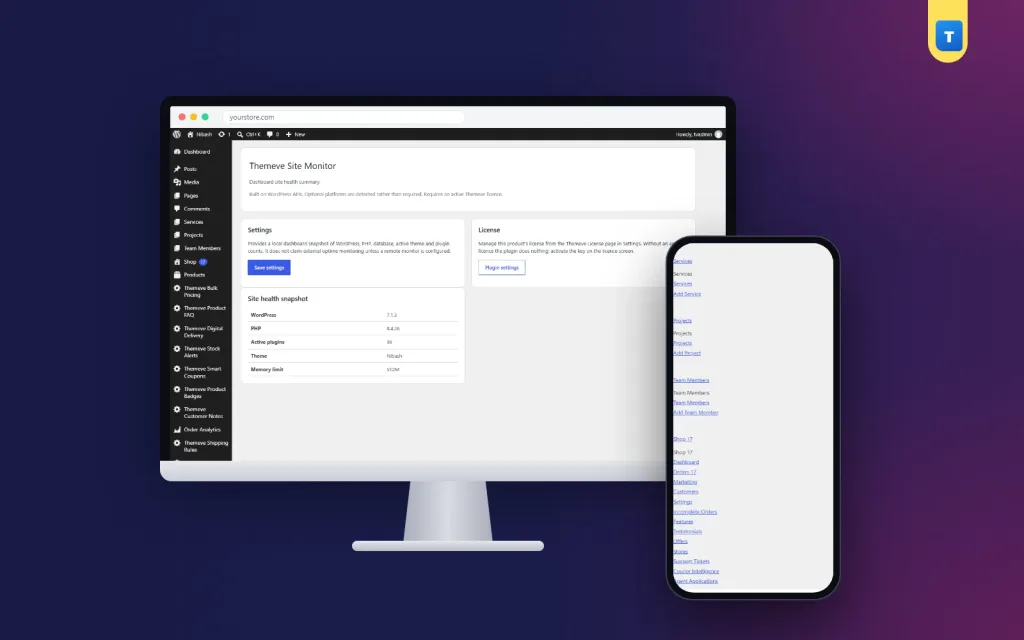
Site Monitor is a simple WordPress site health plugin that shows your WordPress version, PHP version, active plugins, theme and memory limit together on one clear screen.
Site Monitor is a simple WordPress site health plugin that puts the facts you check most often on one screen. Your WordPress version, PHP version, active plugins, active theme and memory limit are listed together, so you can see the state of your site in seconds.
It works on any WordPress site and opens under Settings › Themeve Site Monitor.
Why a quick health screen helps
Most site problems start with something simple. An old PHP version that a new plugin does not support. A memory limit too low for a busy shop. A plugin someone activated months ago and forgot. Finding these facts usually means clicking through several admin screens or asking your hosting provider.
When everything is on one page, you spot the problem faster and can tell your developer or host exactly what you see.
What Site Monitor shows
WordPress and PHP versions
See which version of WordPress you run and which PHP version your server uses. Outdated versions are a common cause of errors and security risks, and many plugins list a minimum PHP version.
Active plugins and theme
See every active plugin and your active theme in one list. It is the quickest way to spot a plugin you no longer need or to check what is running before you add something new.
Memory limit
See how much memory PHP may use. Shops with many products and sites with page builders often need more than the minimum. If you see memory errors, this number is the first thing your host will ask about.
When to open it
Before installing a new plugin, check your PHP version against its requirements. After an update, confirm the new versions. When something breaks, take a screenshot of this screen and send it with your support request. Once a month, review the plugin list and remove what you do not use.
These small checks prevent many problems and make the rest easier to solve.
What this WordPress site health plugin is, and is not
Site Monitor is a summary screen. It does not check your site's uptime from outside, and it does not send alerts when the site goes down. For uptime monitoring, use a service designed for it or ask your hosting provider.
WordPress also has its own Site Health tool with deeper tests. Site Monitor is the quick view; Site Health is the detailed one.
Pair it with deeper tools
For a fuller technical report, Environment Diagnostics shows PHP, WordPress and server settings for troubleshooting, for administrators only. For login protection and security headers, Security Center covers the basics.
To learn about WordPress requirements and updates, see the WordPress documentation.
Who it suits
Shop and business owners who are not developers but want to understand their site. Freelancers who manage several client sites and need a quick status check. Teams where several people install plugins and someone needs to keep an eye on the list.
A quick example
A shop owner wants to install a new payment plugin that needs a recent PHP version. Instead of contacting the host, the owner opens Site Monitor and sees the PHP version straight away. It is too old, so the owner asks the host to upgrade it first, and the new plugin installs without errors.
A monthly habit
Open Site Monitor on the first day of each month. Check the versions, scan the plugin list, and note the memory limit. If anything looks out of date, plan the update before it causes trouble.
What to do with what you see
If WordPress is out of date, take a backup and update. If PHP is old, check that your theme and plugins support a newer version, then ask your host to upgrade. If a plugin is no longer needed, deactivate it, check the site, then delete it. If memory is low and you see errors, ask your host to raise it.
Change one thing at a time and check your site after each step. A WordPress site health plugin shows you where to look; careful, one-step-at-a-time changes keep your site stable while you fix things.
Licence, updates and setup
Site Monitor needs an active Themeve licence key. Without it, the screen does not open and only the lock screen and License screen are available. Enter the key from My Account › Licenses and the screen becomes available. Updates arrive in Dashboard › Updates while the licence is active.
After activation, open Settings › Themeve Site Monitor and look over your site. That is all the setup there is.
A clear WordPress site health plugin like this turns guesswork into a quick, confident check.
Reviews
0.0
Write a review
★★★★★
0 reviews from buyersNo reviews yet — be the first to share your experience after buying.
Frequently Asked Questions
01What does Site Monitor show?
Your WordPress version, PHP version, active plugins, active theme and memory limit, on one screen.
02Does it monitor uptime?
No. It is a summary screen and does not check your site from outside.
03How is it different from WordPress Site Health?
Site Monitor is a quick summary. WordPress's own Site Health tool runs deeper tests.
04Does it send alerts?
No. Open the screen whenever you want to check.
05Where do I find it?
Under Settings › Themeve Site Monitor.
06Does it work with any theme?
Yes. It works on any WordPress site.
07Does it need a licence?
Yes. Without an active Themeve licence key the screen does not open and only the lock and License screens are available.
Delivery & Support
1Place your orderAdd to cart, sign in and pay with bKash, Nagad or Rocket.
2Payment verified automaticallyEnter your Transaction ID — the payment is matched automatically, usually within seconds.
3Get your productYour license key and download appear in My Account → Licenses.
- Secure automatic payment verification
- Delivery to your account & e-mail
- Friendly WhatsApp support
Refund Policy
This policy applies to every product in our store.
You get a refund when the product does not work as described and we cannot fix it, when your license will not activate your website, or when a manually delivered product is late and you cancel before delivery. A working license, or a single license already used on a live domain, is not refundable. Approved refunds go back to the number you paid from within one working day, minus the Send Money charge.
More items
View all →