A WooCommerce product badges plugin puts a small, eye-catching label on your product cards so shoppers notice your offer before they even open a product. This woocommerce product badges plugin guide is for online shop owners in Bangladesh who run festival campaigns, delivery offers and seasonal sales, and want those campaigns to be visible on every page of the shop.
We will look at why badges work, which words to use, how to plan badges around your campaign calendar, and how Product Badges shows your badge text on product cards in WooCommerce and Themeve Commerce stores.
Why badges work
Most shoppers do not read; they scan. On a phone, they scroll through a grid of photos with their thumb, stopping only when something catches their eye. A small coloured label breaks the pattern. It tells the shopper, in two or three words, that something is different today.
Badges also repeat. A shopper who sees Free Delivery on one card might miss it. A shopper who sees it on every card cannot miss it. That repetition is what makes a store-wide badge so effective during campaigns.
Choosing badge words
Short wins. Two or three words fit on any card and are readable on small screens. Festival badges like Eid Offer, Puja Special or Boishakh Sale tell shoppers that a campaign is running. Service badges like Free Delivery or COD Available answer the questions buyers ask most often in Bangladesh, before they even message you.
Urgency badges like Limited Stock or Ends Sunday encourage quicker decisions, but use them only when they are true. Newness badges like New Arrival or New Season bring regular customers back to look.
The honest sale badge
A sale badge is a promise. If the label says Eid Offer, there must be a real offer behind it: lower prices, a bundle, free delivery or a gift. Shoppers who click a sale badge and find normal prices feel tricked, and they remember. An honest badge builds trust that lasts beyond the campaign.
Planning badges around your calendar
Write down your campaign calendar for the year: Eid, Pohela Boishakh, Puja, winter, school opening, and any shop anniversaries. For each, decide the offer and the badge text. Change the badge on the day the campaign starts and switch it back or off when it ends.
Between campaigns, consider a calm badge such as New Season or Free Delivery Dhaka, or switch badges off entirely. A badge that never changes soon becomes invisible, so giving shoppers a break makes the next campaign stand out more.
How the WooCommerce product badges plugin works
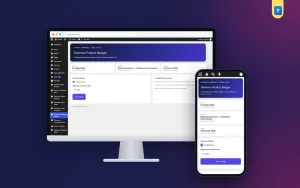
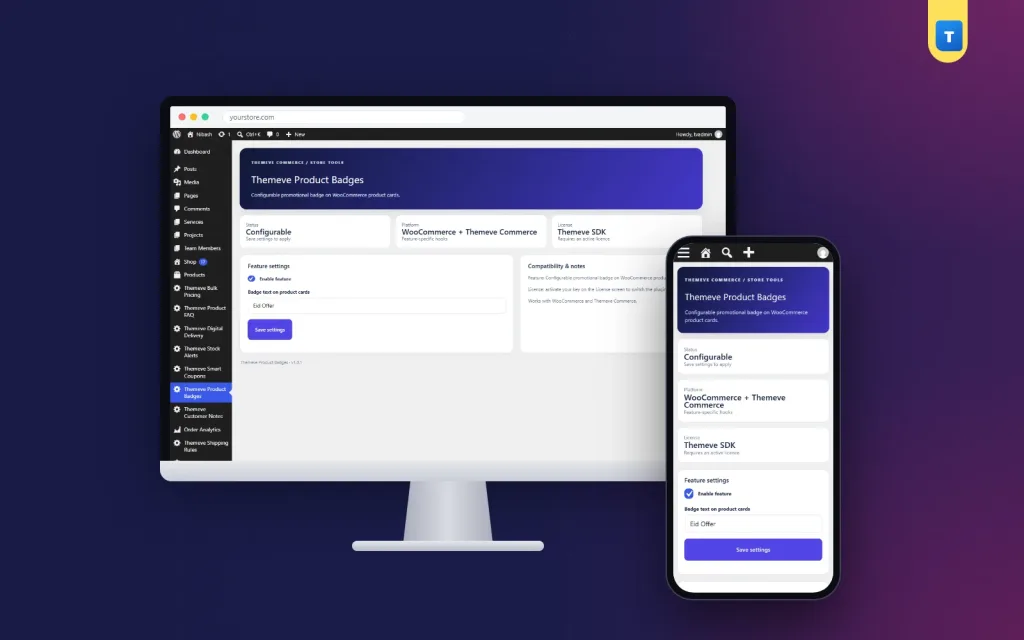
Product Badges adds a screen called Themeve Product Badges to the left admin menu. Type your badge text, turn the switch on, and a rounded badge appears on product cards in your shop lists, above the product title. The style is clean and fits most themes.
The plugin shows one badge text across your shop lists. That makes it ideal for store-wide campaigns where every product is part of the offer. When the campaign ends, change the text or switch the badge off. Your setting is saved, so the next campaign takes seconds.
Themeve Commerce stores
On Themeve Commerce stores, the badge appears where the theme's product card supports it. After switching it on, open your shop page and check how it looks with your theme.
Setting it up
Upload the zip from Plugins, Add New, Upload Plugin, and activate it. The plugin needs an active Themeve licence key. Until the key is entered, no badge is shown and only the lock screen and License screen open. Paste the key from My Account, Licenses, and the settings become available. While the licence is active, updates arrive in Dashboard, Updates.
Type your first badge text, switch it on, and open your shop on a phone. Check that the text is readable and does not cover important parts of the product photo. If it feels too long, shorten it. The WooCommerce documentation explains how shop pages and product lists are built, if you want to know more.
Badges and your other offers
A badge brings shoppers to a product. The offer and the product page do the rest. If your campaign is buy more, save more, Bulk Pricing applies a fixed discount once the cart reaches a set number of items, and a badge like Buy 3 Save tells shoppers about it on every card.
Once a shopper opens a product, answer their questions there. Product FAQ shows questions and answers under the product, so buyers do not need to message you about size, delivery or warranty before ordering.
Badges on Facebook and in ads
Your badge text should match your social media. If the shop says Eid Offer, your Facebook posts and ads should say the same. Shoppers who click an ad and land on a shop full of matching badges feel they are in the right place, and they are more likely to stay.
Use the same words in your page cover photo and pinned post during the campaign. Consistency makes a small shop look organised and trustworthy.
Measuring the effect
Compare a week with a badge and a similar week without one. Look at visits to product pages, add-to-cart clicks and orders. Badges usually lift clicks from the shop grid; whether those clicks become orders depends on the offer and the product page.
Try different words for different campaigns and note which ones performed best. Over a year, you will learn which badge words your buyers respond to. Keep a simple list of each campaign, its badge text, the dates and the result. Before the next festival, read the list and reuse what worked best instead of starting from a blank page.
Design tips for readable badges
Keep the text in plain, everyday words your buyers use. Avoid long English phrases if your audience prefers Bangla, and avoid abbreviations that only your team understands. Check the badge on a small, older phone, because many of your buyers use one. If the badge wraps onto two lines, shorten it.
Make sure your product photos leave a little room near the top of the card. If the badge covers a logo or an important detail, adjust your photo framing for the next upload. Clean photos and a short badge together make the shop grid look tidy and professional.
When not to use a badge
Badges lose their power when they are always on with the same message. If your shop has no campaign running, it is often better to switch the badge off for a while. A quiet period makes the next badge more noticeable.
Also skip badges that repeat what is already obvious. If every product page already says COD available, a COD badge adds little. Use badge space for the one message you most want shoppers to see right now.
A year of badges for a fashion shop
Here is how one small fashion shop might plan its badges across a year. In the weeks before Eid, the badge says Eid Offer, backed by a bundle discount. After Eid, it changes to New Season for a month while fresh stock arrives. Before Pohela Boishakh, it reads Boishakh Special with red and white collections featured in posts.
During the monsoon, when deliveries slow down, the shop switches the badge off and focuses on clear delivery messages instead. In winter, the badge returns as Winter Sale for shawls and jackets. Before the year ends, a short Limited Stock badge helps clear the last pieces.
Each change takes a minute, but together they give the shop a rhythm that regular buyers learn to follow. People start checking the shop at the start of each season because they expect something new, and the badge confirms it the moment they arrive.
Common mistakes
The first mistake is long badge text. A WooCommerce product badges plugin works best with two or three words; longer text gets cut or becomes unreadable on phones. The second mistake is a misleading sale badge. Always back the badge with a real offer.
The third mistake is never changing the badge. Rotate it with your campaigns. The fourth is not checking how it looks with your theme on a phone. Always check before announcing a campaign.
Frequently asked questions
Can each product have its own badge?
No. The plugin shows one badge text across your shop lists, which suits store-wide campaigns.
Where exactly does the badge appear?
On product cards in shop lists, above the product title.
Does it work on Themeve Commerce?
Yes, where the theme's product card supports it.
Can I switch it off between campaigns?
Yes. The switch keeps your text saved for next time.
WooCommerce Product Badges Plugin guide: final thoughts
A short, honest badge on every product card is one of the easiest ways to make a campaign visible. Choose clear words, match them to a real offer and your social posts, change them with your calendar, and check how they look on phones. To show your campaign text across your shop, try Product Badges.