A user role editor plugin helps you give each person on your website the access they need, and no more. This user role editor plugin guide is for owners of shops, news sites and business websites in Bangladesh who work with staff, writers or freelancers, and who have been tempted to make everyone an administrator just to get things done.
We will look at how roles and capabilities work, why too much access is risky, how to plan access for your team, and how User Role & Access Manager lets you add capabilities to a role and hide admin menus for staff.
Roles in plain words
Every WordPress user has a role. Administrators can do everything, including installing plugins and changing settings. Editors manage all content. Authors publish their own posts. Contributors write but cannot publish. Subscribers can only manage their profile. Shops add roles such as Shop Manager and Customer.
Roles exist so that each person can do their job without being able to change everything. A writer does not need to install plugins; a packer does not need to edit the theme.
WordPress user capabilities explained
Behind every role is a list of permissions called capabilities. wordpress user capabilities include things like editing posts, publishing posts, uploading files, managing categories, editing theme options and managing settings. A role is simply a bundle of these capabilities.
Sometimes a bundle is almost right but missing one piece. An editor who manages content might also need to update the main menu, which normally requires a capability editors do not have. Adding that one capability solves the problem without giving the editor full administrator power.
Why too much access is risky
Making everyone an administrator feels convenient. It is also the most common way small sites get into trouble. An administrator can delete plugins, change settings, remove other users and install anything. One mistake, or one stolen password, can affect the whole site.
With the right roles, a mistake by a writer affects only their posts, and a stolen writer password cannot install malicious plugins. Limiting access is one of the simplest security steps you can take.
Planning access for your team
List the people who use your admin and what each one does. A content writer writes and edits posts. An editor manages all posts and maybe menus. A shop assistant adds products and handles orders. A freelancer fixes one design issue. Next to each job, write the lowest role that fits.
Then note what is missing. If the editor needs menus, that is one capability to add. If the shop assistant sees confusing menus they never use, those menus can be hidden for their role. Plan the smallest changes that make everyone's work possible.
Freelancers and temporary access
Give freelancers their own account with the lowest role that lets them do the job. If they truly need administrator access for a technical task, give it for the shortest time and remove the account afterwards. Never share your own login.
How the user role editor plugin works
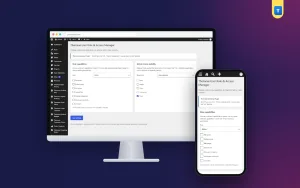
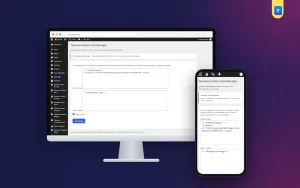
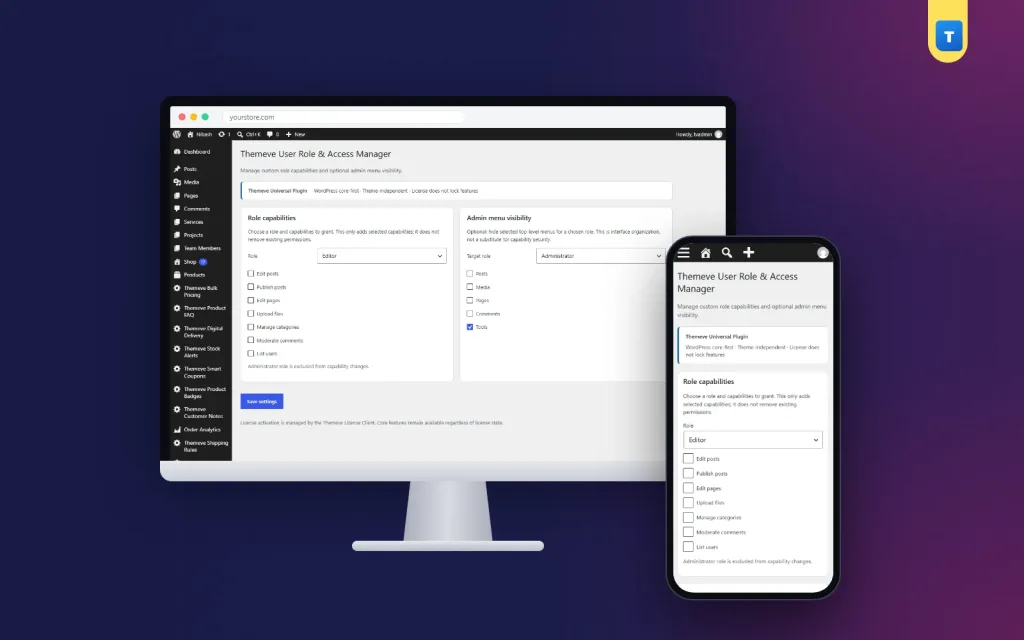
User Role & Access Manager adds a screen under Settings, User Role & Access Manager. There you choose an existing role and give it extra capabilities, for example letting Editors manage menus. You can also choose a role and hide admin menus that its users do not need. Administrators always see everything, so you cannot lock yourself out.
The plugin works with the roles on your site, including shop roles. It adjusts existing roles rather than creating new ones, which keeps the setup simple.
Two important limits
The plugin adds capabilities. Removing a capability again is done by hand, for example by your developer, so plan carefully and keep notes. And hiding a menu is a convenience, not a security control: a user who knows a page address may still reach it if their role allows. To truly restrict an action, keep the role's capabilities limited.
Setting it up
Upload the zip from Plugins, Add New, Upload Plugin, and activate it. The plugin needs an active Themeve licence key. Until the key is entered, no change is applied and only the lock screen and License screen open. Paste the key from My Account, Licenses, and the settings become available. While the licence is active, updates arrive in Dashboard, Updates.
Make one small change at a time. Create a test user with the role you changed, log in as that user in a private browser window, and check what they can see and do. The WordPress documentation lists each role and its default capabilities.
Seeing how access is used
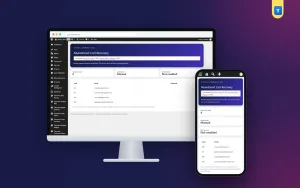
Roles decide what people can do; a log shows what they actually did. Activity Log records logins, content saves and deletes, and plugin activation with the user and time. If something unexpected happens, the log shows which account was involved.
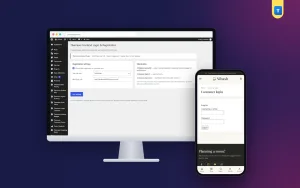
For members and customers who sign in from the front of your site, Frontend Login & Registration provides branded login and registration pages and lets you choose a safe default role for new users.
A worked example
Imagine a news site in Sylhet with one owner, a senior editor and four writers. All six used administrator accounts because the editor needed to update the menu and nobody knew another way. The owner changes the writers to Authors and the senior editor to Editor, then adds the menu capability to the Editor role.
Next, the owner hides the Tools and Plugins menus for Editors, so the editor's admin is cleaner. Each change is tested with a test account. Now only the owner can install plugins or change settings, the editor can still manage menus, and writers can publish their own articles. The site is safer, and nobody lost the access they need.
Tips for Bangladeshi teams
Family businesses often share one administrator login among several people. Create separate accounts instead, with suitable roles. It takes a few minutes and makes your site much safer. When staff leave, remove their account the same day.
Write down your access plan in a short document: who has which role, which capabilities you added and which menus you hid. Review it every few months or whenever your team changes.
Roles for online shops
Shops have their own roles. A Shop Manager can manage products, orders and shop settings, while a Customer can only see their own orders and account. Many small shops give packing staff or order assistants the Shop Manager role, which is often more than they need. Think about what each person does each day.
Someone who only adds products and updates stock needs product access, not shop settings. Someone who only confirms orders needs order access. Start with the lowest role that fits, then add only the missing capability. Hide menus such as Marketing, Settings or Tools for roles that never use them, so the admin stays focused on daily work.
Test each role on a quiet day, not during a sale. Log in as a test user, try the daily tasks and make sure nothing important is missing. Fix gaps before your team relies on the new setup.
Reviewing access over time
Teams change. People join, leave and change jobs. Every few months, open your user list and check each account. Remove accounts nobody uses. Lower roles for people whose job became smaller. Check that freelancers who finished their work no longer have access.
Compare the list with your access plan document and update both. It takes ten minutes and closes many of the doors that cause trouble on small sites: old accounts with weak passwords, forgotten administrator logins and staff who left months ago.
Passwords and roles work together
Even the best role setup fails if passwords are weak. Ask every user with admin access to use a long, unique password that they do not use anywhere else. Change passwords when someone leaves the team or when you suspect a problem. Roles limit the damage a stolen password can do; strong passwords make theft less likely in the first place.
Common mistakes
The first mistake is making everyone an administrator. A user role editor plugin exists so you do not need to. The second is adding many capabilities at once without testing. Change one thing, test, then continue.
The third mistake is treating hidden menus as security. Use capabilities to restrict actions. The fourth is not keeping notes, which makes changes hard to undo later.
Frequently asked questions
What can the plugin change?
It adds capabilities to existing roles and hides admin menus for a role.
Can administrators lose access?
No. Administrators always see everything.
Can it remove capabilities?
It adds capabilities; removing one again is done by hand.
Does hiding a menu block access?
No. It makes the admin cleaner. Limit capabilities to restrict actions.
User Role Editor Plugin guide: final thoughts
Good access control is simple: separate accounts, the lowest role that fits each job, small additions where needed, and a clear record of changes. Your site becomes safer and your team works with fewer distractions. To add capabilities and hide menus for staff, try User Role & Access Manager.