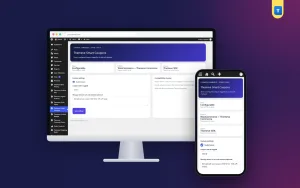
A header footer code plugin gives you a safe, tidy place to add the small pieces of code that tools ask you to paste into your website. This header footer code plugin guide is for owners of shops, blogs and business websites in Bangladesh who are asked to add a tracking code, a verification tag or a chat widget, and who are not sure where it should go or how to avoid breaking anything.
We will look at what these snippets do, why editing theme files is risky, where header and footer code belongs, how to stay safe, and how Global Code Manager keeps every snippet in one admin-only screen.
What these snippets are
Many online tools need a small piece of code on your site to work. A search tool asks for a verification tag to prove you own the site. An analytics tool gives you a tracking code to count visitors. An advertising platform gives you a pixel to measure ads. A chat service gives you a script that shows a chat bubble.
Each tool's instructions usually say something like paste this code into the head of every page or just before the closing body tag. That is exactly what header and footer code means.
Why editing theme files is risky
The quickest way to add code is to open your theme's files and paste it in. It works, but it causes problems later. When the theme updates, your changes are usually overwritten, and the code silently disappears. A small typo in a theme file can break the whole site. And months later, nobody remembers which snippets were added where.
A dedicated place for snippets solves all three problems. Code survives theme updates, mistakes are easier to undo, and every snippet is visible in one list.
How to add code to WordPress header and footer
When you need to add code to wordpress header sections, first read the tool's instructions. Verification tags and many analytics codes belong in the head. Chat widgets and some tracking scripts belong in the footer, near the end of the page. Copy the code exactly as the tool gives it, without changing anything.
Paste it into the matching place, save, and check your site. Then go back to the tool and confirm that it detects the code. Most tools have a test or verify button for this.
One snippet at a time
Add snippets one at a time and check your site after each. If something breaks, you know exactly which snippet caused it. Adding five snippets at once and then finding a problem leaves you guessing.
How the header footer code plugin works
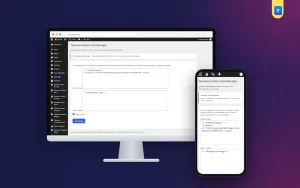
Global Code Manager adds a screen under Settings, Global Code Manager. It has a header box and a footer box. Code in the header box appears in the head of every page; code in the footer box appears near the end of every page. One switch turns all added code on or off at once.
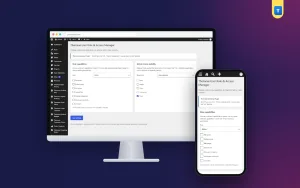
Only administrators can edit the screen. Editors, authors and other staff cannot see or change it. Because the code is stored in the plugin rather than in theme files, it survives theme updates and theme changes.
Safety first
Code in the header and footer can change how your whole site behaves, and malicious code can steal data. Paste code only from sources you trust, such as the official dashboard of the tool you use. Never paste code sent by strangers or copied from random blogs.
Setting it up
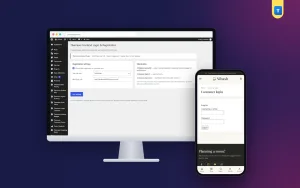
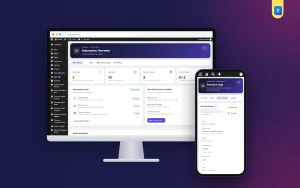
Upload the zip from Plugins, Add New, Upload Plugin, and activate it. The plugin needs an active Themeve licence key. Until the key is entered, no code is added and only the lock screen and License screen open. Paste the key from My Account, Licenses, and the settings become available. While the licence is active, updates arrive in Dashboard, Updates.
If you previously pasted snippets into theme files, move them into the plugin one at a time and remove them from the theme, so nothing runs twice. The WordPress documentation explains why child themes and plugins are safer than editing a theme directly.
Keeping a snippet list
Keep a short document listing every snippet: what it is, which tool it belongs to, who asked for it, the date and whether it is in the header or footer. Add a comment line above each snippet in the plugin with the same information, if the tool allows comments.
Review the list every few months. Remove code for tools you no longer use. Old scripts slow down pages and may keep collecting data you no longer need.
Snippets and privacy
Tracking and advertising code often uses cookies and collects data about visitors. Tell visitors about it. Consent & Privacy Manager shows a cookie banner in your own words, with Accept and Reject buttons and a link to your privacy policy. Mention each tracking tool in that policy.
Search tools and page details work together. After verifying your site with a search tool, use SEO Manager to set clear titles and descriptions for your important pages.
A worked example
Imagine a shop owner who runs Facebook ads, wants to verify the site in a search tool and add a chat widget. A freelancer had once pasted an analytics code into the theme, which vanished after a theme update. The owner installs Global Code Manager and adds the verification tag to the header box, then checks the search tool, which confirms the site.
Next, the owner adds the analytics code to the header and checks that visits appear. Finally, the chat script goes into the footer box. Each snippet gets a line in the owner's snippet list. When the theme updates the next month, all three keep working.
Tips for Bangladeshi website owners
Freelancers often add snippets quickly in theme files. Ask them to use a dedicated place instead, and to tell you what each snippet does. Before giving anyone administrator access just to add code, consider adding it yourself from the tool's official instructions.
Avoid installing many chat or popup scripts at once. Each one adds weight to every page, and visitors on mobile data feel the difference.
Troubleshooting
If your site looks broken after adding code, turn the switch off first. If the site recovers, the problem is in one of the snippets. Turn the switch back on and remove snippets one by one until you find the culprit, then get a fresh copy of that code from its official source.
If a tool cannot detect its code, check that you pasted it in the right box and that the switch is on. Clear any caching your host uses, then test again.
Choosing which tools to add
Every snippet you add has a cost. It adds weight to every page, may slow down loading on mobile data and may collect visitor data you need to explain. Before adding a new tool, ask what question it answers for your business and whether you will actually look at its reports.
For most small sites, a short list is enough: one analytics tool to count visitors, verification for one or two search tools, an advertising pixel if you run ads, and perhaps one chat widget. More than that rarely adds value and often adds clutter. When a freelancer or marketing service asks you to add a new script, ask them what it does and how long it is needed.
Review your list after every campaign. Pixels and scripts added for a single campaign are easy to forget, and they keep loading on every page long after the campaign ends.
Working with freelancers and agencies
When someone else adds code for you, ask them to use the plugin screen and to write a one-line note about each snippet. Keep their access limited and remove it when the work is done. Your snippet list then stays complete, and you always know what runs on your site.
Common mistakes
The first mistake is pasting code into theme files, where it disappears on update. A header footer code plugin keeps it safe. The second is pasting code from untrusted sources. Only use official code from tools you trust.
The third mistake is adding many snippets at once. Add one, test, then add the next. The fourth is never removing old code.
Frequently asked questions
Where does each box place code?
The header box puts code in the head of every page; the footer box puts it near the end of every page.
Who can edit it?
Only administrators.
Will my snippets survive a theme change?
Yes. They are stored in the plugin, not in the theme.
Can I switch all code off quickly?
Yes. One switch turns all added code on or off.
Header Footer Code Plugin guide: final thoughts
Tracking codes, verification tags and chat widgets are part of running a modern website. Keep them out of theme files, add them one at a time, use only trusted sources, tell visitors about tracking and review your snippets regularly. To manage all of them in one admin-only screen, try Global Code Manager.