A WordPress database cleanup plugin removes leftover data that builds up as you edit and run your site. This wordpress database cleanup plugin guide is for owners of blogs, news sites, shops and business websites in Bangladesh whose sites have been running for a few years, whose backups have grown large and slow, and who want to tidy up without risking the data they actually need.
We will look at what fills a WordPress database, what is safe to remove, why backups come first, how often to clean, and how Database Cleaner removes post revisions and expired transients with a confirmation step.
What lives in your database
Your WordPress database holds almost everything except images and files: posts, pages, products, orders, comments, users and settings. It also holds data you never see, created by WordPress and plugins as they work. Some of that data is useful; some is leftover clutter.
A clean database is smaller, so backups run faster and moving the site to a new host is easier. On very cluttered sites, some admin screens may also feel quicker after a cleanup. The goal is to remove clutter while leaving everything important untouched.
Revisions: helpful, then heavy
Every time you save a post, page or product, WordPress keeps a revision, a full copy of the earlier version. Revisions are useful: if you make a mistake, you can go back. But they add up. An article edited thirty times has thirty copies. A shop with a thousand products, each edited a few times, can have thousands of revisions.
Once content is final and stable, most of those copies are never used again. That is why many site owners choose to delete post revisions every few months, keeping the database lean while current content stays exactly as it is.
When to keep revisions
If you are in the middle of editing important pages, or you might need to roll back recent changes, wait until the work is finished before cleaning. Revisions are your undo button while editing is in progress.
Transients: temporary data that lingers
Plugins and themes store temporary data called transients, such as cached results or update checks. Each transient has an expiry time. When it expires, it should disappear, but many expired transients stay in the database until something removes them.
Expired transients are safe to delete, because they are already out of date. Transients without an expiry are different: some plugins rely on them to work, so they should be left alone.
Backups come first
Any cleanup deletes data for good. Before running one, take a full backup of your site and database, and make sure you know how to restore it. Many hosting control panels include a backup tool; ask your host if you are unsure. Store a copy somewhere other than your hosting account.
Never skip this step, even for a small cleanup. A backup turns a mistake into a short delay instead of a disaster. Write down the date and time of each backup, so you always know which copy is the newest one before you clean.
How the WordPress database cleanup plugin works
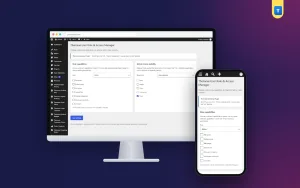
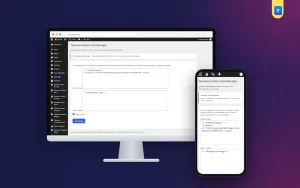
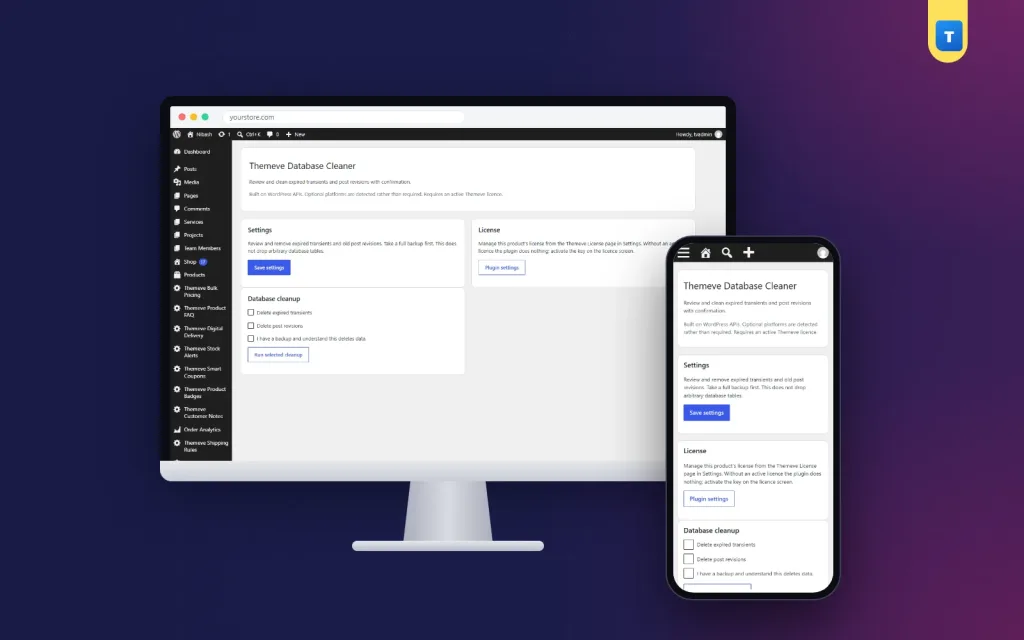
Database Cleaner adds a screen under Settings, Themeve Database Cleaner. Tick what you want to clean: expired transients, post revisions or both. Then tick the confirmation box to say you have a backup and understand that the cleanup deletes data. Only then does it run.
It uses WordPress's own functions to delete revisions and expired transients, so it follows the same rules WordPress follows and works on every database WordPress supports. Revisions are removed in batches, which keeps large cleanups smooth even on older hosting. Transients without an expiry are never touched, and no database tables are dropped.
What it does not do
Database Cleaner cleans two well-understood kinds of clutter and stops there. It does not run automatically, does not remove unknown data and does not optimise tables. That narrow focus is deliberate: it keeps the risk low.
Setting it up
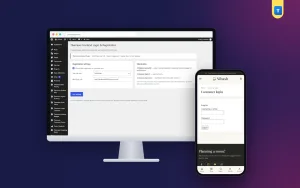
Upload the zip from Plugins, Add New, Upload Plugin, and activate it. The plugin needs an active Themeve licence key. Until the key is entered, no cleanup runs and only the lock screen and License screen open. Paste the key from My Account, Licenses, and the settings become available. While the licence is active, updates arrive in Dashboard, Updates.
Take your backup, choose what to clean, confirm and run. Afterwards, open a few posts, pages and products to check that everything looks normal. The WordPress documentation explains revisions and how WordPress stores content.
How often to clean
Most small sites need a cleanup every few months. Busy sites with many daily edits, such as news sites, may clean monthly. Sites that rarely change may clean once or twice a year. There is no benefit in cleaning every day; revisions only build up as you edit.
Put the cleanup on your maintenance calendar together with updates and backup checks. A regular, calm routine is safer than an occasional big cleanup done in a hurry.
Cleanups and overall site health
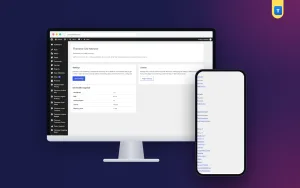
A smaller database is one part of a healthy site. Site Monitor shows your WordPress version, PHP version, active plugins and memory limit on one screen, which helps you spot other issues during maintenance. Speed Optimizer removes scripts most sites do not need and adds lazy loading to images.
Together with regular updates and tested backups, these habits keep a site lean and easy to manage.
A worked example
Imagine a Bangla news site that has published daily for five years. Each article was edited several times before and after publishing, and the nightly backup has grown slow. The owner takes a full backup through the hosting panel, downloads a copy to a computer, and opens Database Cleaner.
The owner ticks post revisions and expired transients, ticks the confirmation box and runs the cleanup. Afterwards, the owner opens a few recent and old articles to check them, and everything looks normal. The database is noticeably smaller, and the next nightly backup finishes much sooner. The owner adds a reminder to repeat the cleanup every three months.
Tips for Bangladeshi website owners
Many local hosting plans have limited storage and slower backups on larger databases. A periodic cleanup helps you stay within limits and keeps backups manageable. Ask your host whether they keep automatic backups and how many days they store, but always keep your own copy too.
If a freelancer offers to clean your database, ask what they will remove and whether they will take a backup first. Unclear, aggressive cleanups are a common cause of broken sites, and a clear answer to those two questions protects you from most of them.
Checking your site after a cleanup
After every cleanup, spend five minutes checking. Open your homepage, a few recent posts, an older post, a product page and the checkout if you run a shop. Edit a post and save it, to make sure editing still works. Look at the admin dashboard for any warnings. If everything looks normal, you are done.
If something looks wrong, do not panic and do not run more cleanups. Restore your backup, or ask your host to restore it, and then look for the cause calmly. In practice, removing revisions and expired transients rarely causes problems, but checking is a good habit that makes every cleanup safer.
Planning a maintenance routine
Database cleanups work best as part of a regular routine. Each month, update WordPress, your theme and plugins after a backup. Every three months, clean revisions and expired transients, then review your plugin list and remove anything you no longer use. Once a year, test a full restore of your backup on a staging copy or ask your host to help.
Write the routine down and set reminders. A site that is maintained a little at a time rarely needs emergency repairs, and its owner always knows what has changed and when.
Common mistakes
The first mistake is cleaning without a backup. A WordPress database cleanup plugin deletes data permanently, so a backup is essential. The second is cleaning in the middle of an editing project, when you might still need recent revisions.
The third mistake is using tools that delete data they do not understand, such as transients without an expiry or unknown tables. Stick to well-understood clutter. The fourth is never checking the site after a cleanup.
Frequently asked questions
What can I clean?
Expired transients and post revisions.
Will my posts and products change?
No. Only older saved versions and expired temporary data are removed.
Does it clean automatically?
No. You choose, confirm and run it yourself.
Does it work on my database?
Yes. It uses WordPress's own functions, so it works on every database WordPress supports.
WordPress Database Cleanup Plugin guide: final thoughts
A tidy database means smaller backups, easier moves and a site that is simpler to maintain. Back up first, remove only well-understood clutter like revisions and expired transients, check your site afterwards and repeat every few months. To clean safely with a confirmation step, try Database Cleaner.