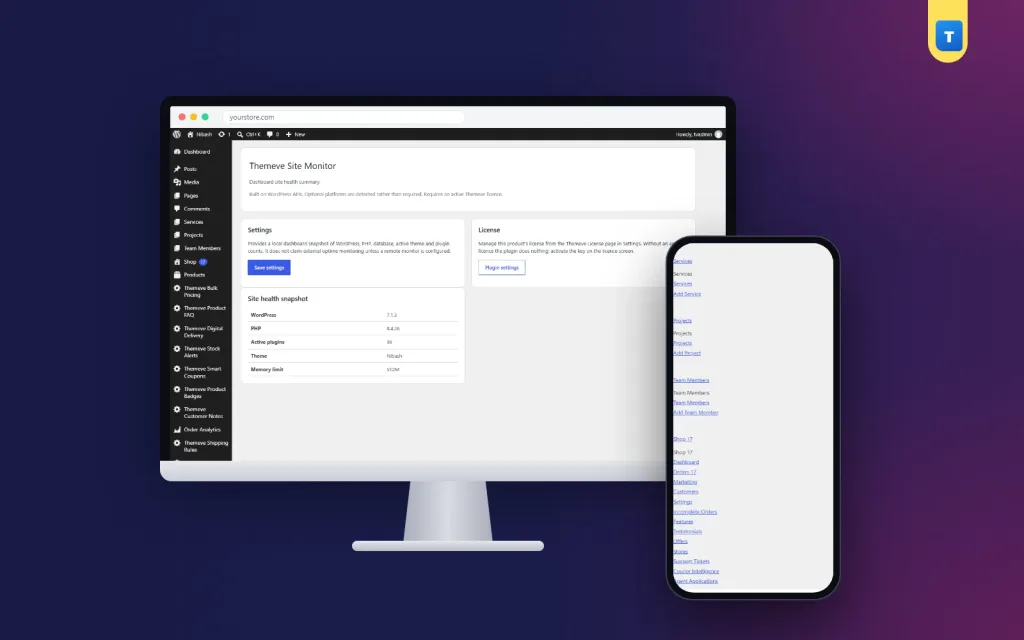
A WordPress site health plugin shows the basic facts about your site in one place, so you can spot problems before they become emergencies. This wordpress site health plugin guide is for owners of shops, blogs and business websites in Bangladesh who are not developers, but who want to understand their site well enough to keep it healthy and to talk clearly with their hosting provider or freelancer.
We will look at the facts that matter, what they mean, a simple monthly routine, what to do when something looks wrong, and how Site Monitor puts those facts on one screen.
Why small problems become big ones
WordPress sites rarely break all at once. Problems build up quietly. A PHP version stays old for years while plugins move on and stop supporting it. A memory limit that was fine for twenty products is too low for five hundred. A plugin installed for a single campaign stays active, slows pages and never gets updated.
Each of these is easy to fix when you notice it early. The trouble is that the facts are spread across different admin screens and hosting panels, so most owners never look until something fails.
The facts that matter
WordPress version
Updates bring security fixes and new features. Running an old version leaves known holes open. Check that you are on a current version and update regularly, after taking a backup.
PHP version
PHP is the language WordPress runs on, and your server decides which version you use. Newer versions are faster and more secure, and many plugins require a minimum version. If yours is old, ask your host to upgrade it, after checking that your theme and plugins support the new version.
Active plugins and theme
Every active plugin adds code that runs on your site. Some are essential; some were installed once and forgotten. Knowing exactly what is active helps you remove what you do not need and spot conflicts when something breaks.
Memory limit
The memory limit decides how much memory PHP may use for each request. Busy shops, large catalogues and page builders need more. If you see errors about memory, this number is the first thing to check.
How to run a site health check
A site health check does not need to be complicated. Once a month, open a screen that shows the facts above and ask four questions. Is WordPress up to date? Is PHP a supported, recent version? Is every active plugin still needed and updated? Is the memory limit sensible for the size of the site?
Write the answers down in a simple note with the date. Over a few months, you will see trends, such as a growing plugin list, and you will have a record to share if you ever need help.
How the WordPress site health plugin works
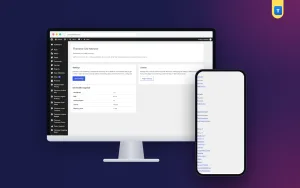
Site Monitor adds one screen under Settings, Themeve Site Monitor. It lists your WordPress version, PHP version, active plugins, active theme and memory limit together. There is nothing to configure: open the screen and read it.
Because everything is in one place, it is easy to take a single screenshot and send it to your host or developer when you need help. That alone can save a long back-and-forth of questions.
What it does not do
Site Monitor is a summary screen. It does not check uptime from outside and does not send alerts when the site goes down. WordPress also includes its own Site Health tool under Tools, which runs deeper tests; Site Monitor is the quick view you open in seconds.
Setting it up
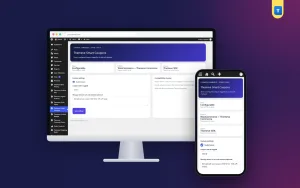
Upload the zip from Plugins, Add New, Upload Plugin, and activate it. The plugin needs an active Themeve licence key. Until the key is entered, the screen does not open and only the lock screen and License screen are available. Paste the key from My Account, Licenses, and the screen becomes available. While the licence is active, updates arrive in Dashboard, Updates.
Open the screen and note today's facts as your starting point. The WordPress documentation lists the current recommended PHP version and explains how updates work.
What to do when something looks wrong
If WordPress is out of date, take a backup and update. If PHP is old, check your theme and plugins for compatibility, then ask your host to upgrade, ideally on a staging copy first. If a plugin is no longer needed, deactivate it, check the site, then delete it. If memory is low and you see errors, ask your host to raise the limit.
Make one change at a time and check your site after each. If something breaks, you will know exactly which change caused it and can undo it quickly.
Going deeper when you need to
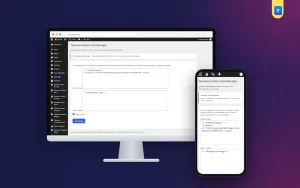
Sometimes a quick summary is not enough. When a developer is troubleshooting a difficult problem, they need server settings and more detail. Environment Diagnostics shows a fuller report of PHP version, WordPress version and server settings, visible to administrators only.
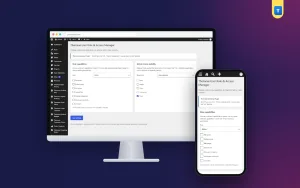
Health also includes security. Security Center limits login attempts, adds security headers and lets you switch off XML-RPC, which covers common attacks on WordPress sites.
A worked example
Imagine a shop owner whose site has become slow and sometimes shows a white screen during busy hours. The owner opens Site Monitor and sees three things: an old PHP version, a low memory limit, and twenty-two active plugins, several of which were used for past campaigns.
The owner takes a backup, deactivates six plugins that are no longer needed and checks the site. Then the owner sends a screenshot of the screen to the hosting provider and asks for a newer PHP version and a higher memory limit. The host makes the changes the same day. The white screens stop, and pages feel quicker during evening sales.
Tips for Bangladeshi site owners
Many local hosting plans are set up once and never changed. Ask your host what PHP versions they offer and how to switch; many control panels let you change it yourself. Keep your hosting account details safe and up to date so you receive their notices about server upgrades.
If a freelancer built your site, ask them for a short handover note listing which plugins are essential and why. That note, together with a monthly check, makes it much easier to maintain the site yourself or to hand it to someone new.
Building a simple maintenance calendar
Health checks work best as part of a routine. On the first day of each month, open the summary screen and note the facts. Once a week, look at Dashboard, Updates and install what is waiting, after a backup. Every three months, review your plugin list in detail and ask whether each one still earns its place. Once a year, review your hosting plan, PHP version and backup arrangements with your host.
Put these dates in your phone calendar with reminders. A routine that runs by itself is much more reliable than good intentions. If you have staff, give one person responsibility for the monthly check and ask them to send you a short note with what they found.
Keep your notes in one place: a document or notebook with the date, the versions, the number of active plugins and anything you changed. Over a year, that simple record becomes a history of your site, which is very useful when you change host, hire a developer or try to understand why something started going wrong.
Talking to your host or developer
When you ask for help, clear facts save time. Instead of saying my site is broken, send a screenshot of the summary screen and describe what happens, when it started and what you changed recently. Most support teams can solve problems much faster with that information, and you will usually get a clear answer on the first reply.
Common mistakes
The first mistake is never looking until something breaks. A WordPress site health plugin is only useful if you open it regularly. The second is updating PHP without checking theme and plugin compatibility. Check first, then upgrade.
The third mistake is keeping plugins just in case. Every active plugin is code that runs and needs updates. The fourth is making several changes at once, which makes problems hard to trace.
Frequently asked questions
What does the screen show?
WordPress version, PHP version, active plugins, active theme and memory limit.
Will it warn me if my site goes down?
No. It is a summary screen, not an uptime monitor.
Is it the same as WordPress Site Health?
No. Site Monitor is a quick summary; the built-in Site Health tool runs deeper tests.
Is there anything to set up?
No. Activate the licence and open the screen.
WordPress Site Health Plugin guide: final thoughts
Healthy WordPress sites are usually the ones whose owners look at them regularly. A monthly check of versions, plugins and memory takes five minutes and prevents many emergencies. Write down what you see, fix one thing at a time and keep your host in the loop. To see those facts on one clear screen, try Site Monitor.