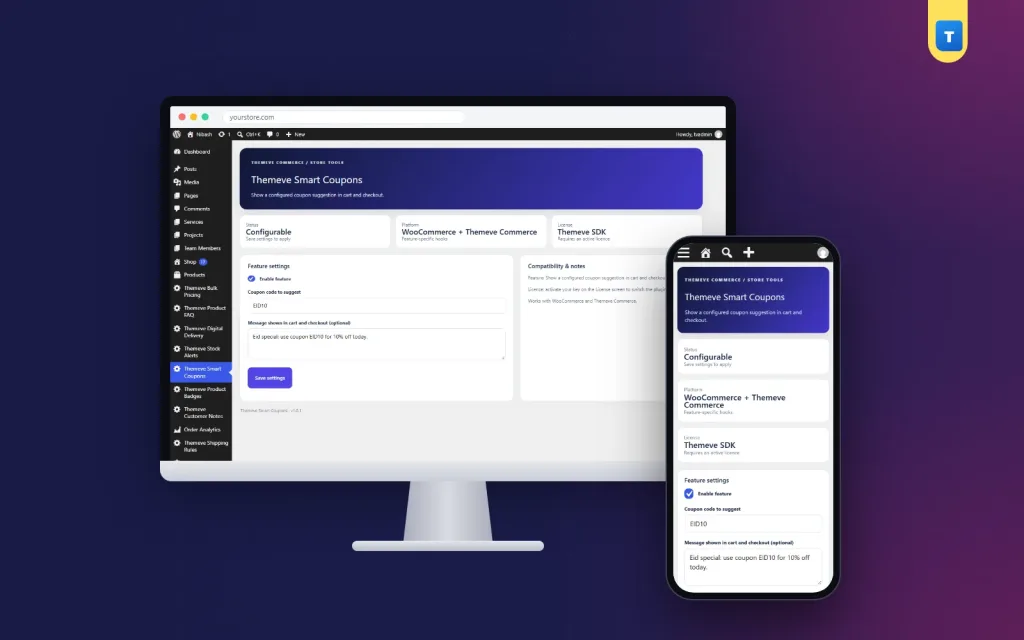
A coupon suggestion plugin shows your coupon code on the cart and checkout, exactly where buyers need it. This coupon suggestion plugin guide is for online shop owners in Bangladesh who run coupon campaigns on Facebook and other channels, and who notice that many buyers either forget the code at checkout or never knew it existed.
We will look at how coupons help and hurt, how to plan a campaign, how to write coupon messages, and how Smart Coupons shows those messages on WooCommerce and Themeve Commerce checkouts.
What coupons are good for
Coupons give buyers a reason to act now. A festival code, a first-order discount or a free delivery code can turn a maybe into a yes. They also let you reward specific groups, such as new customers or loyal buyers, without lowering prices for everyone.
Coupons are also measurable. Each code tells you where an order came from, so you can see which posts, ads or messages actually brought in sales. That makes them a useful tool for small shops with limited marketing budgets.
Where coupon campaigns go wrong
The biggest problem is memory. A buyer sees your Eid post with the code, browses for ten minutes, reaches the checkout and cannot remember whether it was EID10 or EID20. They open Facebook to find the post, get distracted by a friend's message, and the cart is forgotten.
The second problem is reach. Many visitors arrive from Google, from a friend's link, or from an older post, and never see the campaign. They would happily use a coupon but have no idea one exists. An empty coupon box at checkout can even make them feel they are missing out, and some leave to search for codes elsewhere.
Why you should show coupon code in cart
When you show coupon code in cart and on the checkout, both problems disappear. Buyers who forgot the code see it again. Buyers who never saw the campaign learn about it at the best possible moment, right when they are deciding whether to complete the order.
It also reduces messages. Fewer people write to ask for the code, and fewer complain that they missed an offer. Your team can spend that time on orders instead.
Planning a coupon campaign
Decide the goal first. Do you want more first orders, bigger carts, or more sales during a slow week? Then choose the offer: a percentage off, a fixed amount, or free delivery. Set limits that protect your margin, such as a minimum cart total or a usage limit per customer, and choose clear start and end dates.
Pick a short, memorable code. EID10, WELCOME or FREEDEL are easy to type on a phone. Avoid codes with confusing characters like O and 0, or I and 1.
Writing the message
A good message is short and complete: what the offer is and the code to use. Eid offer, use EID10 for 10% off works well. New here? Use WELCOME on your first order is friendly. Keep it under a dozen words so it fits on small screens.
How the coupon suggestion plugin works
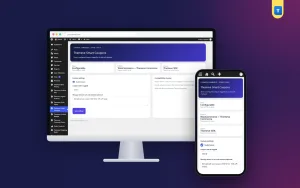
Smart Coupons adds a screen called Themeve Smart Coupons to the left admin menu. Type your message, such as Use coupon code: EID10, and save. The message appears on the cart and checkout pages.
It works on the WooCommerce block cart and block checkout, on the WooCommerce classic checkout, and on the Themeve Commerce cart and checkout. That matters because many newer themes use block pages, while older ones use the classic checkout. Whatever your store uses, buyers see the suggestion.
What it does not do
The plugin suggests a code; it does not create the coupon or apply it automatically. You create the coupon in WooCommerce or Themeve Commerce with its amount, limits and dates, then type the same code in the message. The buyer enters the code in the coupon box, and your shop system checks the rules and applies the discount.
Setting it up
Upload the zip from Plugins, Add New, Upload Plugin, and activate it. The plugin needs an active Themeve licence key. Until the key is entered, no message is shown and only the lock screen and License screen open. Paste the key from My Account, Licenses, and the settings become available. While the licence is active, updates arrive in Dashboard, Updates.
Create your coupon first. The WooCommerce documentation explains coupon settings such as minimum spend and usage limits. Then type your message in Smart Coupons, add a product to a test cart and check that the message appears on both the cart and checkout. Finally, enter the code to confirm the coupon works.
Coupons and your other offers
Coupons work best when they are special. If you already run an automatic discount for bigger carts with Bulk Pricing, keep coupons for festivals, first orders or win-back campaigns, so buyers do not stack too many discounts.
Coupons are also a natural follow-up for shoppers who left the checkout. Abandoned Cart Recovery saves the emails typed on the classic checkout; send those shoppers a friendly message with a code, and the cart reminder will be waiting when they return.
A campaign calendar
Plan coupons around your year. Eid, Pohela Boishakh, Puja and winter sales are natural moments. Between festivals, a standing welcome code for first orders keeps the cart message useful. Write the dates, codes and messages in a simple calendar so you never forget to change the message when a campaign ends.
Each change takes seconds in Smart Coupons. The important part is remembering to do it. Set a reminder on your phone for the start and end of every campaign.
Measuring coupon results
After each campaign, count how many orders used the code and compare total sales with a similar period without a coupon. Check the average order value too. A coupon that brought many small orders may be less valuable than one that brought fewer, larger orders.
Look at new versus returning customers. Welcome codes should bring new buyers; loyalty codes should bring regulars back. If a code reaches the wrong group, change the message or the offer next time.
Protecting your margin
Every coupon is a cost. Before launching one, calculate the profit on a typical order after the discount and after delivery. If the number is too small, add a minimum cart total or lower the discount. A coupon that brings orders at a loss is not a success, even if sales go up.
Limit how often each customer can use a code, and set an expiry date. Codes without limits get shared in coupon groups and used long after the campaign ends. Your shop system's coupon settings handle these limits; the coupon suggestion plugin simply shows the code to the right people at the right time.
Coupons for different kinds of shops
A fashion shop does well with festival codes and a welcome code for first orders, because buyers often try a new page for a special occasion. A grocery shop benefits more from free delivery codes on larger baskets, since the delivery charge is the main barrier for small weekly orders. A gadget shop might offer a fixed amount off accessories when someone buys a phone or a power bank.
Service-based sellers, such as printing or custom gift shops, can use codes to fill quiet weeks: a small discount on orders placed this week, ready before the weekend. Whatever you sell, match the code to the reason buyers hesitate. If price is the barrier, offer a discount; if delivery is the barrier, offer free delivery.
Talking about coupons with buyers
Your team should know every active code. When buyers message to ask about offers, staff can reply with the code and a reminder that it also shows on the cart. When a buyer complains that a code did not work, check the coupon limits first: minimum spend, expiry date or usage limit. Most problems come from those settings, and a quick, friendly explanation keeps the buyer happy.
Common mistakes
The first mistake is promoting a code that does not work. Always test the coupon before writing the message. The second is forgetting to change the message after a campaign. An expired code at checkout frustrates buyers more than no code at all.
The third mistake is using too many codes at once. One clear message beats three competing ones. The fourth is giving discounts that do not fit your margin. Plan the numbers before you plan the post.
Frequently asked questions
Does the plugin apply the coupon for the buyer?
No. It shows the code; the buyer enters it and your shop system applies the discount.
Does it work on block checkouts?
Yes. It works on the WooCommerce block cart and checkout, the classic checkout, and Themeve Commerce.
Where do I create the coupon?
In WooCommerce or Themeve Commerce, as usual.
Can I write the message in my own words?
Yes. Any short message works, as long as it includes a valid code.
Coupon Suggestion Plugin guide: final thoughts
A coupon only works if buyers remember it at the right moment. Plan clear campaigns, choose short codes, protect your margin, and remind buyers on the cart and checkout. The result is fewer forgotten codes, fewer abandoned carts and campaigns you can measure. To show your coupon code on every cart and checkout, try Smart Coupons.