Learning how to customize login page in WordPress is one of the quickest ways to make a website look finished and trustworthy. The default login screen shows the WordPress logo, a plain white box and a link back to wordpress.org. That is fine for an administrator, but it feels strange to a customer, a student or a member who just wants to sign in to your site.
This guide shows the main ways to change that screen, from small tweaks to a full front-end login on your own page. You will see what each method needs, where it can go wrong, and how to choose the one that fits your site. The steps are written for beginners, with examples for small businesses in Bangladesh.
Why you should customize the login page
The login page is a door to your site. If the door looks wrong, people hesitate. Common problems with the default screen:
- It carries the WordPress logo, not your brand.
- It looks nothing like your header, footer or colours.
- Customers often do not know it is the right place to sign in.
- It sends non-admin users to the dashboard, which confuses them.
- It makes a membership or shop look unfinished.
A login page that matches your design feels safe. Visitors know they are still on your website, and they are more likely to finish signing in or registering.
Decide who needs to log in first
Before you change anything, ask who will use the screen. The answer changes the best method.
- Only you and your staff: a small branding change to the default page is enough.
- Customers of a shop: they need a login and account page that look like your shop.
- Students or members: they need login, registration and password reset, all on normal pages.
- Clients of an agency: they need a simple page that leads to a private area.
If only staff log in, do not spend a lot of time here. If the public logs in, a front-end login page is worth the effort.
Method 1: Change the logo and colours of the default page
Staff-only sites can stay with the default screen and only brand it.
The simplest option is to keep the default login page but replace the logo and adjust the look. This is a light touch.
- Prepare a logo image, around 320 pixels wide, with a clear background.
- Check whether your theme has a login option in its settings. Some themes include one.
- If not, add a small piece of code or use a plugin that changes the login logo.
- Change the logo link so it points to your home page, not wordpress.org.
- Test the page in a private browser window.
The result is better than the default, but it is still a separate screen. Visitors still leave your site design when they sign in. For private staff use that is acceptable. For customers, it is only a partial fix.
Method 2: Build login pages inside your site with shortcodes
The stronger method is to place the login form on a normal WordPress page. That page then has your header, footer, menu and colours around it. The usual steps are:
- Create a new page called Login.
- Add a login form shortcode to the page body.
- Create more pages for Register, Password Reset and My Account.
- Add each page to your menu or footer.
- Set where users go after they log in.
- Test with a normal user account, not your admin account.
This is the method most small businesses should choose. It does not touch theme files, and the pages stay in place when you change themes.
How to customize login page in WordPress with a plugin
Doing the shortcode method by hand needs a plugin that provides the forms. Look for these points when you compare options:
- Separate forms for login, registration, password reset and account.
- Forms that use your theme's styling instead of loading a new design.
- A setting to open or close public registration.
- A setting for the role new users receive.
- A setting for where users go after login.
- A way to keep normal users away from admin screens.
- Short, neutral error messages that do not reveal which part was wrong.
- Minimal code and no extra tracking.
Avoid plugins that load many extra scripts, add features you will never use, or ask for settings you do not understand. A small tool that does four jobs is easier to keep secure than a large one.
A ready-made option for front-end login
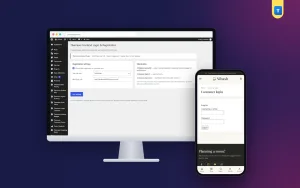
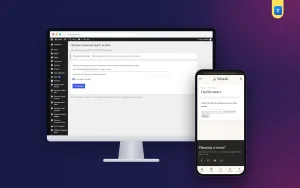
Frontend Login & Registration is one plugin that follows this approach. It adds four shortcodes: one for login, one for registration, one for password reset and one for the account page. You place each on a normal page and the forms use your theme's styling.
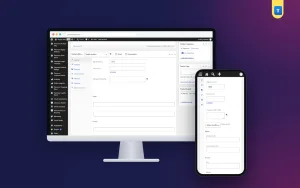
In its settings you choose whether registration is open, which role new users get, and where users are sent after login. It can also keep non-admin users away from the dashboard screens. It works with any WordPress theme, and you can leave registration closed until you are ready.
It does not add social logins or extra profile fields, so it suits sites that want a clean, simple sign-in. You can read the full details on the Frontend Login & Registration page.
Step by step: set up the pages
Whichever plugin you use, the page setup is nearly the same. Follow this order.
- Go to Pages, then Add New, and title it Login. Add the login shortcode and publish.
- Create a page called Register and add the registration shortcode.
- Create a page called Lost Password and add the password reset shortcode.
- Create a page called My Account and add the account shortcode.
- Open the plugin settings and decide whether public registration is on.
- Choose the role for new users. Pick the lowest role that fits.
- Choose the page users see after login, such as a notices page, a members page or the shop.
- Add the Login and My Account pages to your menu.
- Log out and test every page as a visitor.
Keep the page titles simple. People search the menu for words like Login, Sign in and My Account.
Choose the right role for new users
When you let people register, each new account gets a role. This is a security decision, so take it seriously.
- Subscriber: the safest choice for members and readers.
- Customer: the right role on a shop.
- Contributor, Author or Editor: only for trusted people, and only by hand.
- Administrator: never for public sign-ups.
You can always raise a trusted user later. You cannot easily undo the damage if a stranger registers with editing power.
How to customize login page in WordPress and keep it safe
A custom login page is also a chance to improve security. Some habits help:
- Require strong passwords. A minimum of 12 characters is a good rule.
- Keep registration closed if you do not need it.
- Use a short, neutral error message, so attackers do not learn which username exists.
- Keep WordPress, your theme and plugins updated.
- Send ordinary users to a front-end page and away from the dashboard.
- Use a separate administrator account that nobody shares.
These steps do not make a site impossible to attack, but they remove the easiest openings.
Check the pages on a phone
Most visitors in Bangladesh browse on a phone, so test your login pages there. Open each page and look for these points:
- The form fits the screen without sideways scrolling.
- The buttons are large enough to tap.
- The password field shows clearly and the keyboard does not hide it.
- The text is readable without zooming.
- The page loads quickly on mobile data.
Because the forms use your theme's styling, the look depends on your theme. If something looks off, adjust the page layout or spacing in the page editor.
Examples for small businesses in Bangladesh
Here are three realistic cases.
- A coaching centre: students register, log in and are sent to a notices page. Registration opens at the start of each batch and closes after.
- A clothing shop: customers create accounts to see orders and track delivery. The My Account page sits in the main menu next to the cart.
- A small news site: readers sign in to save comments, while editors use the normal admin login behind the scenes.
In each case the person never sees the WordPress logo, and the site feels like one product from start to finish.
Customizing the home page works the same way
Many owners who ask how to customize home page in wordpress want the same result: a site that feels like their own. The idea is similar. Use normal pages, your theme's own settings and simple building blocks, and avoid editing theme files directly.
You can set a static home page under Settings, then Reading. Then edit that page with your theme's options, add sections and link them to your login and account pages. A matching home page and login page make the whole site feel consistent.
If you are still learning how to customize home page in wordpress, finish the login and account pages first, then design the home page around them. Add a clear Login link in the header so returning visitors find it at once.
Fixing common login page problems
After you set things up, a few problems may appear. Most have a quick fix.
- The login page shows a blank area. The shortcode may be mistyped. Copy it again from the plugin instructions and paste it into a shortcode block.
- Users are sent to the dashboard. Check the after-login setting and save it again.
- The form looks different from the rest of the site. Your theme may style forms lightly. Adjust the page width or add spacing in the page editor.
- Nobody can register. Public registration is probably switched off. This is the safe default.
- Emails for password reset do not arrive. Ask your host about email sending, and ask users to check the spam folder.
- A cache shows an old page. Clear the cache of your caching plugin or host after each change.
When you are not sure what caused the problem, switch off other plugins one at a time and test again.
Plan your login flow before you build
A little planning saves rework. Draw the journey a visitor takes, from first visit to a signed-in page. For a shop it might be: product page, cart, login, checkout, order confirmation. For a school it might be: home page, login, notices, logout.
Write the answers to these questions before you start:
- Who is allowed to register, and who must be added by you?
- What should a new user see right after signing in?
- What should happen when someone forgets a password?
- Which menu will hold the Login and My Account links?
- What message will you show on the account page?
With these answers, the setup becomes a short task, not a long experiment.
Common mistakes to avoid
- Locking yourself out. Test the new login while still logged in as admin in another browser.
- Giving new users a strong role. Use Subscriber or Customer.
- Forgetting the password reset page. Users will get stuck without it.
- Hiding the login link. Put it in the menu or footer.
- Editing theme files. Your changes vanish when the theme updates.
- Installing several login plugins. They can conflict. Use one.
- Skipping a backup. Back up before testing new login settings.
If you want to read more on the technical side, the official WordPress documentation is a good, reliable reference.
Frequently asked questions
How to customize login page in WordPress without coding?
Use a plugin that gives you shortcodes for login, registration and password reset. Place them on normal pages and the forms appear inside your own design, with no code to write.
Can I change the WordPress logo on the login page?
Yes. Some themes include a setting for it, and small plugins or code snippets can replace it. A front-end login page avoids the default logo altogether.
Is a front-end login page safe?
It can be, if you use strong passwords, give new users a low role and keep everything updated. Keep registration closed when you do not need it.
Will it work with my theme?
A plugin that follows your theme's styling works with most themes. Check each page after adding the shortcode and adjust the layout if needed.
Where do users go after they log in?
You choose. Many sites send members to a members page, students to a notices page and shop customers to their account page.
What is the best way to learn how to customize login page in WordPress safely?
Test on a staging copy or a spare site first. Keep a backup, test with a normal user account and keep one administrator login open in another browser.
Does a custom login page affect site speed?
A simple shortcode form adds very little. Avoid plugins that load many scripts, and your login pages will stay fast.