A low stock alert plugin warns you before a product runs out, while there is still time to reorder. This low stock alert plugin guide is for online shop owners in Bangladesh who manage stock themselves, often from a small warehouse or a room at home, and who have been caught out by a best seller selling out in the middle of a campaign.
We will look at why stockouts hurt, how to set sensible low levels, how to build a reorder routine, and how Stock Alerts shows a clear notice in your WooCommerce or Themeve Commerce admin.
What a stockout really costs
The obvious cost is the lost sale. The hidden costs are bigger. Your Facebook ads keep spending money and sending people to a product they cannot buy. Buyers who were ready to order find a competitor and may stay with them. Staff spend time apologising and offering alternatives.
For cash on delivery shops, there is another risk. Phone or Messenger orders may be taken for items that are no longer on the shelf, leading to cancelled orders and unhappy buyers. A few days of warning prevents most of this.
How to set low stock levels
A low level is the quantity at which you need to act. To choose it, think about two things: how many you sell per day, and how many days your supplier needs to deliver. If you sell three a day and restocking takes four days, you need at least twelve on the shelf when you reorder. Add a small buffer for busy days.
Fast sellers need higher levels; slow sellers can use lower ones. If your shop uses one level for everything, choose one that protects your most popular products, since those hurt most when they run out.
Seasonal changes
Sales speed changes around Eid, winter and other seasons. Before a big campaign, raise your low level so warnings arrive earlier. After the season, lower it again. A level that worked in a quiet month may be far too low in a festival week.
What a good woocommerce low stock notification looks like
A useful woocommerce low stock notification is impossible to miss, clear about which product is low and how many are left, and quick to act on. It should also disappear once the problem is solved, so the admin does not fill up with old warnings that everyone learns to ignore.
Many shops rely on email warnings that get lost among order emails. A notice inside the admin, where staff work all day, is often more effective for small teams.
How the low stock alert plugin works
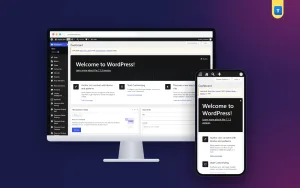
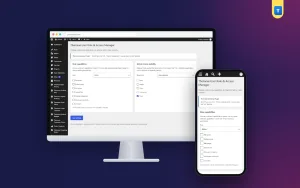
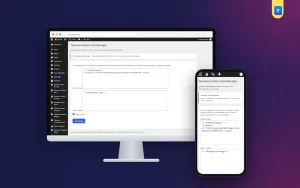
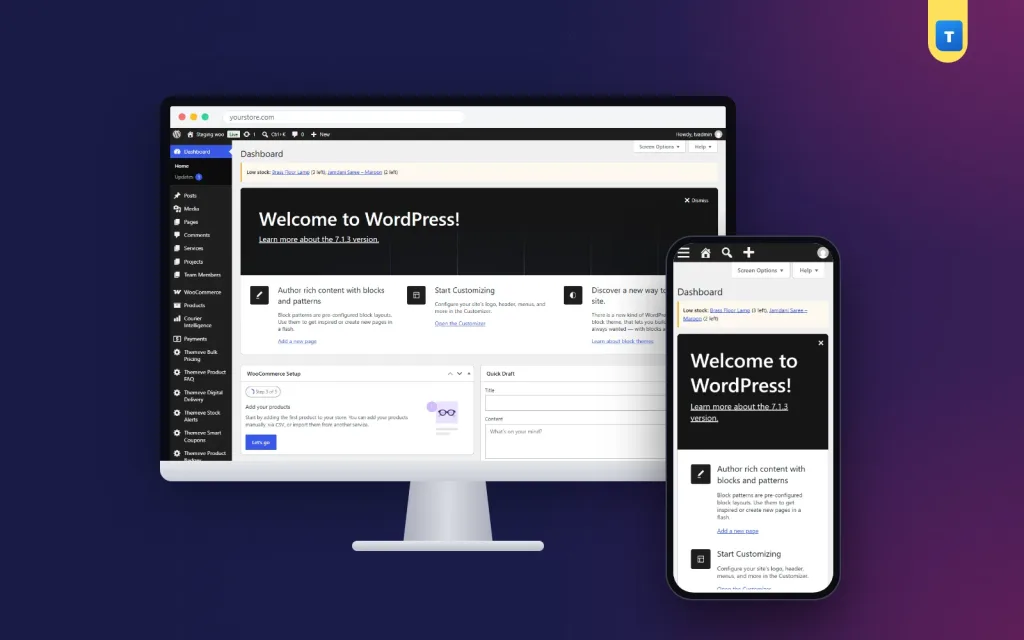
Stock Alerts adds a screen called Themeve Stock Alerts to the left admin menu, where you set the stock level that counts as low. When a product's stock falls to that level, a Low stock notice appears at the top of the admin. It shows the product name, the quantity left and an edit link to the product.
When you restock and update the quantity above the low level, the notice clears itself. There is nothing to dismiss and no list to clean. The plugin works on WooCommerce and Themeve Commerce, using the stock quantities you already track in your shop system.
What it does not do
The plugin shows an admin notice only. It does not send emails or SMS. It also needs stock management turned on for each product you want to watch, because it reads the quantity your shop system tracks. The WooCommerce documentation explains how to turn on stock management for products.
Setting it up
Upload the zip from Plugins, Add New, Upload Plugin, and activate it. The plugin needs an active Themeve licence key. Until the key is entered, no notice is shown and only the lock screen and License screen open. Paste the key from My Account, Licenses, and the settings become available. While the licence is active, updates arrive in Dashboard, Updates.
Set your low level, then check your products. Any product without stock management will not be watched, so turn it on for the items that matter. Products already at or below the level will show a notice straight away, which is a quick way to see what needs restocking today.
Building a reorder routine
An alert only helps if someone acts on it. Decide who checks the admin each morning and what they do with each notice. A simple routine might be: note every low product, contact suppliers before noon, and pause or adjust ads for products with very little left.
Keep a short supplier list with phone numbers and usual delivery times. When a notice appears, the person in charge knows exactly whom to call. For imported items with long lead times, reorder earlier or keep a larger buffer.
Pausing ads and promotions
When a product is low, consider pausing its Facebook ads or removing it from campaign posts until stock arrives. Sending paid traffic to a product that will sell out in hours wastes money and creates disappointed buyers.
Using sales data to plan stock
Alerts tell you what is low today. Sales data tells you what will be low next week. Order Analytics shows top products for any date range, so you can see which items move fastest and set your low level to protect them.
For large or unusual orders that may drain stock suddenly, Smart Order Automation can email the admin or flag the order for review, giving you an early heads-up before the stock count drops.
Stock tips for Bangladeshi shops
Count your physical stock regularly and compare it with the shop system. Small differences add up when items are sold through Facebook, phone and the website at the same time. Update the shop system whenever you sell through another channel, so the quantity stays accurate and alerts stay meaningful.
For clothing, remember that low stock often means low stock in one size. If your shop tracks stock per variation, watch your most popular sizes closely. For groceries and cosmetics, check expiry dates when you restock, and sell older stock first.
Measuring the improvement
Before using alerts, note how many times last month a product sold out unexpectedly. After a month with alerts and a reorder routine, count again. Also watch customer messages: fewer questions like is this available, when will it come back usually mean your stock is in better shape.
Over time, you will learn the right levels for your shop. Adjust them as your sales grow, and your best sellers will spend far fewer days out of stock.
A worked example
Imagine a small cosmetics shop that sells about four bottles of a popular face wash per day. Its supplier in Chawkbazar delivers in three days. Four bottles a day for three days is twelve, plus a buffer of four for busy days, so the owner sets the low level to sixteen.
On Tuesday morning, the admin shows a Low stock notice: face wash, fifteen left. The owner calls the supplier before noon. Stock arrives on Friday, just before the weekend campaign. The owner updates the quantity and the notice disappears. The campaign runs without a single out-of-stock message, and the ad money goes to a product people can actually buy.
Without the alert, the owner might have noticed only when the last bottle sold on Thursday night, leaving the weekend campaign pointing at an empty shelf. One number and one daily check made the difference.
Talking to buyers when stock is low
Sometimes stock runs low despite your best planning. Be honest with buyers. If only a few are left, say so on the product page or in your replies; it encourages quick decisions without false urgency. If an item is about to sell out, offer a similar product or take a pre-order with a clear expected date.
Never take cash on delivery orders for items you do not have. A delayed parcel is often refused, and the buyer remembers the disappointment. A short, truthful message keeps their trust for the next order.
Common mistakes
The first mistake is setting the low level too low. If the notice appears when only one item is left, there is no time to reorder. The second is forgetting to turn on stock management, so a low stock alert plugin has no quantity to watch.
The third mistake is ignoring notices on busy days, which are exactly the days stock runs out. The fourth is not updating stock after selling through other channels, which makes every number in the admin unreliable.
Frequently asked questions
Does the plugin send an email?
No. It shows a Low stock notice at the top of the admin.
What does the notice include?
The product name, the quantity left and an edit link.
Do I need to clear old notices?
No. Notices clear themselves when you restock above the low level.
Does it work with Themeve Commerce?
Yes, on both WooCommerce and Themeve Commerce.
Low Stock Alert Plugin guide: final thoughts
Stockouts are one of the most avoidable losses in online retail. Set sensible low levels, keep stock counts accurate, build a simple reorder routine and act on warnings every morning. Your best sellers stay available, your ads stay useful and your buyers stay happy. To see clear low stock notices in your admin, try Stock Alerts.