−50%
−50%
Frontend Login & Registration – Frontend Login Plugin
 −50%
−50%
✦ Key features
- Login form by shortcode
- Registration form by shortcode
- Password reset form by shortcode
- Account page by shortcode
- Uses your theme's styling
- Open or close registration
- Choose the role for new users
- Choose where users go after login
- Keeps users away from admin screens
- Works with any WordPress theme
Overview
Frontend Login & Registration is a frontend login plugin with shortcodes for login, registration, password reset and account pages that use your own theme's design.
Frontend Login & Registration is a frontend login plugin that keeps your members, students and customers on your own website when they sign in. Instead of sending them to the plain WordPress login screen, place login, registration, password reset and account forms on normal pages with simple shortcodes.
The forms use your theme's styling, so they look like the rest of your site.
Why the default login screen is not ideal
The standard WordPress login page is designed for site administrators. It shows the WordPress logo, looks nothing like your site, and feels like a back door. When customers, students or members see it, many feel unsure whether they are in the right place.
Login and sign-up pages that match your design feel trustworthy and keep visitors inside your brand from the first click.
Four shortcodes, four pages
Login
Place [themeve_login] on a page called Login, and users sign in there with your header, footer and colours around them.
Registration
Place [themeve_register] on a Register page to let new users create an account, when you allow registration.
Password reset
Place [themeve_password_reset] on a page for users who forgot their password, so they never have to see the admin screens.
Account
Place [themeve_account] on a My Account page where logged-in users can see their account area.
You control who joins and where they go
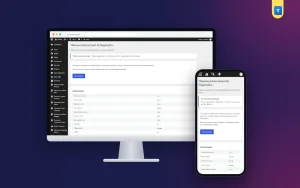
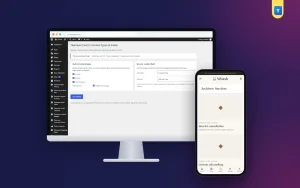
Under Settings › Frontend Login & Registration, choose whether registration is open, which role new users receive, and where users are sent after they log in. A coaching centre might send students to a notices page; a membership site might send members to a members-only page.
Keeping registration closed until you are ready is just as easy as opening it.
Choosing the right role
New users should get the lowest role that fits, usually Subscriber or Customer. Never give new sign-ups editing powers. You can raise a trusted user's role later by hand.
What this frontend login plugin is, and is not
The forms use your theme's styling. That keeps them consistent with your site, but it also means their look depends on your theme. Check each page after adding the shortcode, and adjust the page layout if needed.
The plugin handles login, registration, password reset and the account page. It does not add social logins or extra profile fields.
Pair it with access control and contact
User Role & Access Manager lets you add capabilities to a role or hide admin menus for a role. Contact Form gives visitors who cannot log in a simple way to reach you.
To learn about user roles in WordPress, see the WordPress documentation.
Who it suits
Coaching centres and schools with student logins. Membership and community sites. Shops that want customer login pages matching their design. Agencies and businesses with a client area. Any site where people other than staff need to sign in.
A quick example
A coaching centre creates Login, Register and Forgot Password pages with the shortcodes, opens registration with the Subscriber role, and sends students to a Notices page after login. Students sign in on a page with the centre's logo and colours, and the plain WordPress screen is never seen.
Tips
Add Login and Register links to your main menu or header. Write a short line above each form explaining what users get. Test every page on a phone, where most users will sign in.
If your audience prefers Bangla, write the page titles and help lines in Bangla. Short, friendly words make the pages feel welcoming to first-time users.
Keep registration safe
Open registration only when you need it, such as during an enrolment period, and close it again afterwards. Review new accounts regularly and remove obvious fakes. Make sure your site's emails arrive, because password reset messages are useless if they land in spam.
These small habits keep a frontend login plugin working for your real users while keeping unwanted sign-ups out. Combined with a safe default role, they protect both your site and the people who trust it with their details.
Licence, updates and setup
Frontend Login & Registration needs an active Themeve licence key. Without it, the shortcodes do not work and only the lock screen and License screen open. Enter the key from My Account › Licenses and the settings become available. Updates arrive in Dashboard › Updates while the licence is active.
After activation, create the four pages, add the shortcodes, set your registration options and test with a new account. A well-placed frontend login plugin makes signing in feel like part of your site, not a trip to the back office.
Reviews
0.0
Write a review
★★★★★
0 reviews from buyersNo reviews yet — be the first to share your experience after buying.
Frequently Asked Questions
01Which shortcodes are included?
[themeve_login], [themeve_register], [themeve_password_reset] and [themeve_account].
02Can I close registration?
Yes. Choose whether registration is open in the settings.
03Which role do new users get?
The role you choose in the settings. Pick the lowest role that fits, such as Subscriber or Customer.
04Can I send users to a page after login?
Yes. Choose the redirect page in the settings.
05Will the forms match my design?
Yes. They use your theme's styling. Check each page after adding the shortcode.
06Does it add social login?
No. It handles login, registration, password reset and the account page.
07Does it need a licence?
Yes. Without an active Themeve licence key the shortcodes do not work and only the lock and License screens open.
Delivery & Support
1Place your orderAdd to cart, sign in and pay with bKash, Nagad or Rocket.
2Payment verified automaticallyEnter your Transaction ID — the payment is matched automatically, usually within seconds.
3Get your productYour license key and download appear in My Account → Licenses.
- Secure automatic payment verification
- Delivery to your account & e-mail
- Friendly WhatsApp support
Refund Policy
This policy applies to every product in our store.
You get a refund when the product does not work as described and we cannot fix it, when your license will not activate your website, or when a manually delivered product is late and you cancel before delivery. A working license, or a single license already used on a live domain, is not refundable. Approved refunds go back to the number you paid from within one working day, minus the Send Money charge.
More items
View all →