 −50%
−50%
User Role & Access Manager – User Role Editor Plugin
 −50%
−50%
✦ Key features
- Add capabilities to an existing role
- Example: let Editors manage menus
- Hide chosen admin menus for a role
- Administrators always see everything
- Cleaner admin for staff
- Fewer accidental changes
- Avoids unnecessary administrator accounts
- One simple settings screen
- Works on any WordPress site
- Works with shop roles too
Overview
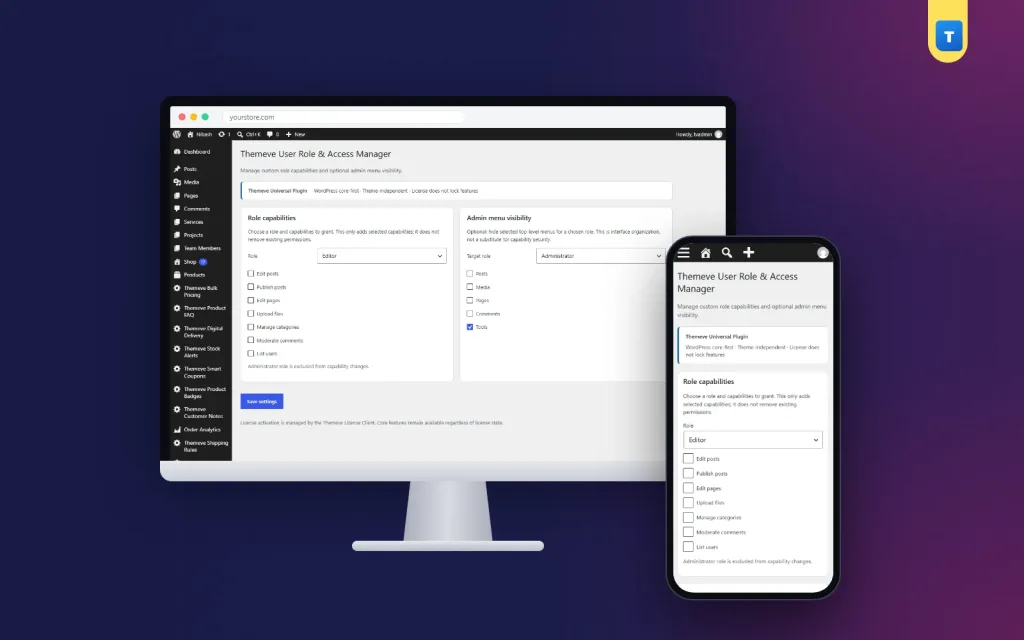
User Role & Access Manager is a simple user role editor plugin: give an existing role extra capabilities and hide chosen admin menus for that role, so staff see only what they need.
User Role & Access Manager is a simple user role editor plugin for site owners who want staff to have exactly the access they need. Give an existing role an extra capability, for example letting Editors manage menus, and hide admin menus that a role does not need to see.
Administrators always see everything. Settings live under Settings › User Role & Access Manager.
Why roles matter
WordPress gives every user a role: Administrator, Editor, Author, Contributor, Subscriber, and on shops, roles like Shop Manager and Customer. Each role comes with a set of capabilities that decide what the user can do. The defaults work for many sites, but not all.
Often an owner wants one small change: an editor who can also manage menus, or a staff member who should not see menus they never use. Without a tool, the usual answer is to make everyone an administrator, which is risky.
Add a capability with this user role editor plugin
Choose an existing role and give it an extra capability. A common example is letting Editors manage menus, so your content editor can update the main menu without full administrator access.
Change only what you need. Each extra capability gives every user in that role more power, so add the smallest change that solves the problem.
Taking a capability back
The plugin adds capabilities. Removing a capability again is done by hand, for example by your developer, so plan changes carefully and keep a note of what you added and why.
Hide admin menus for a role
The WordPress admin can feel crowded. Staff who only add products or write posts do not need to see Tools, Appearance or plugin settings. Choose a role and hide the menus it does not need. The admin becomes simpler for them, and they make fewer accidental changes.
Administrators always see every menu, so you can never lock yourself out.
A convenience, not a lock
Hiding a menu makes the admin cleaner; it is not a security control. A user who knows a page's address may still reach it if their role allows it. To truly restrict an action, keep the role's capabilities limited.
Working with WordPress user capabilities
Think of capabilities as permissions: edit posts, publish posts, manage options, edit theme options, and so on. Roles are bundles of these permissions. This tool lets you add to a bundle, so a role fits your team better without creating risky administrator accounts.
Before making changes, list who does what on your site, then match each job to the lowest role that fits, adding only the capabilities that are missing.
Pair it with visibility and logins
Activity Log records logins, content changes and plugin changes with the user and time, so you can see how access is used. Frontend Login & Registration gives members and customers branded login pages with a safe default role.
To learn about roles and capabilities, see the WordPress documentation.
Who it suits
Shops with staff who add products but should not change settings. News sites with editors and writers. Businesses that hire freelancers for content. Any owner who has been tempted to make everyone an administrator just to solve one small permission problem.
A quick example
A news site wants its senior editor to update the main menu. Instead of making the editor an administrator, the owner adds the menu capability to the Editor role and hides the Tools and Plugins menus for editors. The editor gets what they need, and nothing more.
Good habits
Keep a short note of every capability you add and every menu you hide. Review it when staff change. Give each person their own account with the lowest role that fits.
Planning access for your team
Write down every person who uses the admin and what they do: writing, editing, adding products, handling orders or fixing design. Next to each, write the lowest role that fits. Then note what is missing, such as menu access for an editor, and add only that.
Give freelancers their own account with the smallest role that lets them finish the job, and remove it when they are done. Never share your own login. With a clear plan, a user role editor plugin turns a risky all-admin setup into a safe one in an afternoon.
Licence, updates and setup
User Role & Access Manager needs an active Themeve licence key. Without it, no change is applied and only the lock screen and License screen open. Enter the key from My Account › Licenses and the settings become available. Updates arrive in Dashboard › Updates while the licence is active.
After activation, make one small change, log in as a test user with that role and check the result. A careful user role editor plugin like this lets every person do their job without handing out the keys to everything.
Reviews
0.0
Write a review
★★★★★
0 reviews from buyersNo reviews yet — be the first to share your experience after buying.
Frequently Asked Questions
01What can I change?
Add extra capabilities to an existing role, and hide chosen admin menus for a role.
02Can I lock myself out?
No. Administrators always see every menu.
03Can I remove a capability with the plugin?
The plugin adds capabilities. Removing one again is done by hand, so note what you add.
04Is hiding a menu a security feature?
No. It makes the admin cleaner. To restrict an action, keep the role's capabilities limited.
05Can I create new roles?
No. You adjust existing roles.
06Does it work with shop roles?
Yes. It works with the roles on your site, including shop roles.
07Does it need a licence?
Yes. Without an active Themeve licence key no change is applied and only the lock and License screens open.
Delivery & Support
1Place your orderAdd to cart, sign in and pay with bKash, Nagad or Rocket.
2Payment verified automaticallyEnter your Transaction ID — the payment is matched automatically, usually within seconds.
3Get your productYour license key and download appear in My Account → Licenses.
- Secure automatic payment verification
- Delivery to your account & e-mail
- Friendly WhatsApp support
Refund Policy
This policy applies to every product in our store.
You get a refund when the product does not work as described and we cannot fix it, when your license will not activate your website, or when a manually delivered product is late and you cancel before delivery. A working license, or a single license already used on a live domain, is not refundable. Approved refunds go back to the number you paid from within one working day, minus the Send Money charge.
More items
View all →