A custom post type plugin lets your WordPress site hold different kinds of content in separate, organised sections. This custom post type plugin guide is for owners of agencies, consultancies, construction firms, coaching centres and other businesses in Bangladesh whose websites have outgrown plain posts and pages, and who want services, projects and team members to each have a proper home.
We will look at what content types are, why they help, how to plan your sections, how custom fields keep details consistent, and how Custom Content Types & Fields adds ready Services, Projects and Team Members sections.
Posts, pages and their limits
WordPress comes with two main kinds of content. Posts are for news and articles, shown newest first. Pages are for fixed content like About and Contact. Many business sites try to fit everything into these two, and it gets messy. Services become blog posts that slide down the feed. A portfolio becomes one huge page that is painful to update. Team members are listed in a long paragraph on the About page.
Visitors notice the mess. They cannot find all your services in one place or browse your projects easily, and your site looks less professional than your business really is.
What a content type is
A content type is a separate kind of content with its own list in the admin and its own pages on the site. Services become a section with one page per service and an overview page listing them all. Projects become a portfolio. Team members become a team section. Each type is edited like a post, so staff need no new skills.
The benefit is order. Each kind of content lives in its own place, appears in its own list, and can be linked from menus, ads and social posts.
Planning your sections
Start by listing what your business wants to show. Most service businesses need a list of services. Most businesses that deliver visible work, such as builders, designers, photographers and event planners, need a portfolio of projects. Teams that clients meet in person, such as clinics, coaching centres and agencies, benefit from a team section.
Do not create sections you will not fill. An empty Projects page looks worse than none. Enable what you can keep up to date.
Naming and order
Use clear, simple titles for each item: Bathroom Renovation, Logo Design, Dr. Rahman, Physics Tutor. Decide the order you want in menus and on overview pages, and add a short introduction at the top of each overview page if your theme allows.
Custom fields in WordPress, in plain words
Custom fields wordpress users talk about are extra boxes for structured details. Instead of writing the price range of each service somewhere in the text, you put it in a labelled field. Every service then has its price range in the same place, entered the same way.
Structured details are easier to keep accurate, easier to update and easier to display consistently. A short shortcode can show the value wherever you want it in your content.
How the custom post type plugin works
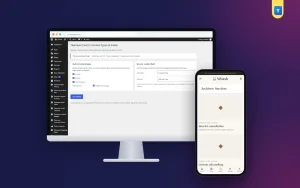
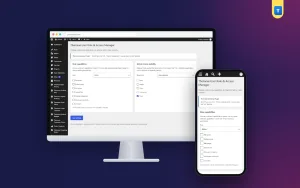
Custom Content Types & Fields adds a settings screen under Settings, Custom Content Types & Fields. There you switch on any of three ready content types: Services, Projects and Team Members. Each enabled type gets its own admin menu and its own archive page on the site.
The plugin also adds a structured field box to posts, pages and the three content types. You give the field a label that suits your site, such as Price range, Duration or Location, and fill it in for each item. Show the value anywhere in your content with the shortcode [themeve_custom_field].
What it does not do
The three content types are fixed; you choose which to enable, but you cannot create new types with your own names. How archives and single pages look depends on your theme. After enabling a type, view its pages and adjust your menus.
Setting it up
Upload the zip from Plugins, Add New, Upload Plugin, and activate it. The plugin needs an active Themeve licence key. Until the key is entered, nothing is added and only the lock screen and License screen open. Paste the key from My Account, Licenses, and the settings become available. While the licence is active, updates arrive in Dashboard, Updates.
Enable the types you need, set the label for the extra field, and add two or three items to each type. Then add the archive pages to your menu and check them on a phone. The WordPress documentation explains menus and permalinks if you need help placing the new sections.
Writing good service pages
Each service page should answer the questions a client asks before calling: what the service includes, who it is for, how long it takes, and a rough idea of cost or how pricing works. Use the extra field for the detail clients ask about most, such as a starting price or typical duration.
End each service page with a clear next step: call, message or fill in a form. Link to related projects that show the service in action.
Building a portfolio that sells
A good project page tells a short story: what the client needed, what you did and the result, with clear photos. Use the extra field for a key fact such as location or completion year. Add new projects regularly; a portfolio that stopped two years ago suggests a business that stopped too.
Choose your best work rather than everything. Ten strong projects impress more than fifty mixed ones.
Making content easy to find
Organised content is easier to search. Advanced Search places a search form anywhere, with an optional content-type choice so visitors can search just services or just projects. For shops that also sell products, Advanced Product Editor brings the same structured approach to product details.
A worked example
Imagine an interior design studio in Dhaka whose website has a single Services page and a gallery of mixed photos. The owner enables Services and Projects, sets the extra field label to Starting from, and creates four service pages: living rooms, kitchens, offices and full apartments, each with a starting price in the field.
Next, the owner adds twelve finished projects, each with a short story, photos and the area of Dhaka in the text. The main menu now links to Services and Projects, and each service page links to two matching projects. Clients who call now mention specific projects they liked, and conversations start from a clearer place.
Tips for Bangladeshi businesses
Many clients find businesses through Facebook first. Link your service and project pages from your posts, so people land on organised pages instead of a homepage. Use clear photos taken in good light, and write short descriptions in the language your clients use.
For team pages, include each person's role and one line about their experience. A friendly photo and a real name build trust, especially for clinics, schools and professional services.
Team pages that build trust
People like to know who they will deal with. A team section with real names, clear photos and short descriptions makes a business feel approachable. For a clinic, list each doctor's specialty and visiting days. For a coaching centre, list each teacher's subjects and classes. For an agency, list each person's role and one line about their experience.
Use the extra field for the detail clients care about most, such as specialty or subject, so every team page shows it in the same place. Keep photos consistent in style and size, ideally taken against the same background. Update the section when someone joins or leaves, because an outdated team page creates confusion when clients ask for someone who is no longer there.
Ask each person to approve their own page. It shows respect and avoids mistakes in names, titles and qualifications.
Common mistakes
The first mistake is enabling content types you never fill. A custom post type plugin organises content; it does not create it. The second is inconsistent details, such as prices written in different ways on each service. Use the extra field and agree on a format.
The third mistake is forgetting menus. New sections need links from your navigation, or visitors will not find them. The fourth is never updating the portfolio.
Frequently asked questions
Which content types does it add?
Services, Projects and Team Members, each with its own admin menu and archive.
Can I add a new type with my own name?
No. The three types are fixed; you choose which to enable.
How do I show the extra field?
Use the shortcode [themeve_custom_field] in your content.
Will it work with my theme?
Yes. Pages use your theme's styling; check them after enabling a type.
Custom Post Type Plugin guide: final thoughts
A business website feels professional when each kind of content has its own place. Separate services, projects and team members, keep key details in a consistent field, link everything from your menus and keep it up to date. To add those sections without custom development, try Custom Content Types & Fields.