 −50%
−50%
Database Cleaner – Best WordPress Database Cleanup Plugin
✦ Key features
- Delete post revisions in batches of 500
- Delete expired transients
- Choose what to clean
- Required confirmation before every run
- Uses WordPress own functions
- Works on every supported database
- Never touches data without an expiry
- Never drops database tables
- Nothing runs in the background
- Administrator-only screen
- Adds nothing to the front end
- Updates while the licence is active
Overview
Database Cleaner is the best WordPress database cleanup plugin for sites with years of edits. It deletes post revisions and expired transients in batches, uses WordPress functions, and asks you to confirm before it removes anything.
If you want the best WordPress database cleanup plugin for a site that has grown heavy over the years, start with one that does two jobs and does them carefully. Database Cleaner removes post revisions and expired transients, and it asks you to confirm before it deletes a single row.
It is built for owners who want a smaller database and faster backups, but who do not want a tool that guesses what to delete. Nothing runs in the background. You open one screen, choose what to clean, confirm that you have a backup and press one button. It works on any WordPress site and with any theme.
Best WordPress database cleanup plugin for which sites?
Any site that has been edited for a long time collects leftovers. These are common cases.
- Blogs and news sites with years of edited articles, where every article may have dozens of saved versions.
- Online shops with hundreds of products that have been edited many times.
- Business and company sites that were built years ago and have never been cleaned.
- School, clinic and agency sites where many staff edit pages.
- Freelancers and agencies that look after client sites and want a safe, repeatable clean-up routine.
- Anyone whose backups have become large and slow. A smaller database means a shorter backup.
Where database clutter comes from
Every time you save a post or a page, WordPress keeps a revision. A revision is a full copy of the older version. Edit a long article twenty times and you have twenty copies. Across hundreds of posts and products, revisions can outnumber your real content many times over.
Plugins and themes also store temporary data called transients. A transient has an expiry time. Once the time has passed, it should disappear, but many linger. Over time both kinds of leftovers make the database larger and backups slower.
What the plugin removes
Post revisions
These are the old saved copies of posts, pages and products created while you edited. Your current content stays exactly as it is. Only the older saved versions are removed. The plugin deletes them in batches of 500, so even a very large site is handled in steps instead of one huge request.
Expired transients
These are temporary values whose expiry time has already passed. Transients without an expiry are never touched, because some plugins depend on them to work properly.
What it does not touch
- It does not drop database tables.
- It does not remove unknown data from other plugins.
- It does not delete live posts, pages, products, comments or users.
- It does not run on a schedule. You start every clean-up yourself.
It cleans two well-understood kinds of clutter and stops there. That narrow scope is on purpose.
Back-end options: every screen and setting
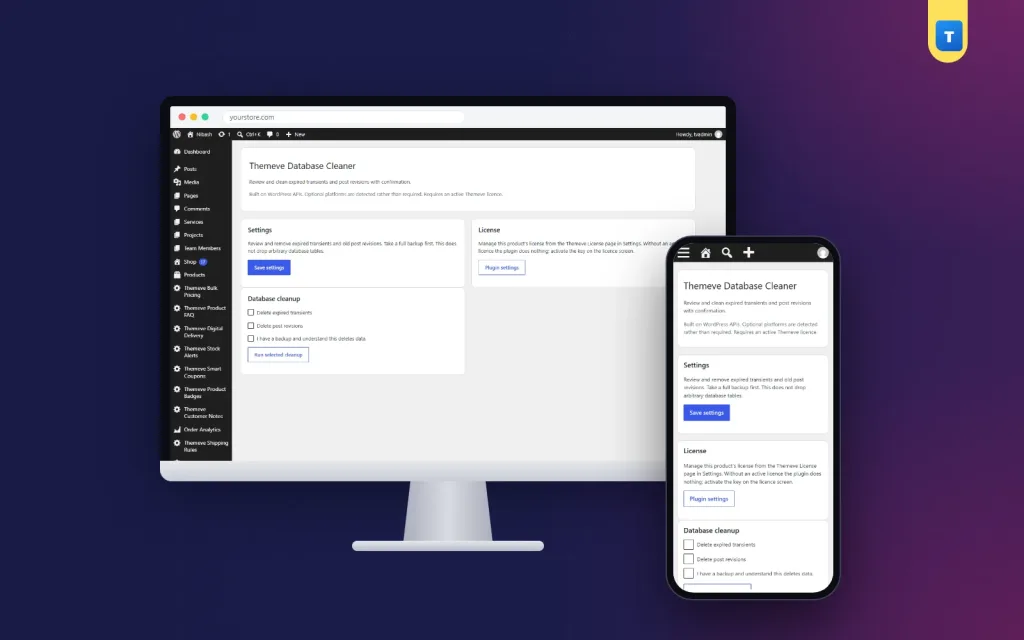
The plugin has one admin page under Settings in the dashboard. Only administrators can open it. The page has three parts.
1. The intro and safety note
At the top you see a short description of the tool and a reminder that it uses WordPress functions and needs an active licence. The Settings box repeats the key warning: take a full backup first.
2. The Settings box and the licence box
- Settings. Explains what the plugin removes and has a Save settings button. The plugin has no hidden switches. Its behaviour is set by the boxes you tick when you run a clean-up.
- Licence. A short note and a button that points to the plugin's own settings page. The licence itself is entered on the licence screen under Settings.
3. The Database cleanup box
This is where the work happens. It has three tick boxes and one button.
- Delete expired transients. Tick it to remove temporary values that have already expired.
- Delete post revisions. Tick it to remove old saved versions of your content.
- Confirmation box. The text says that you have a backup and understand that the clean-up deletes data. This box is required. The button does nothing until it is ticked.
- Run selected cleanup. Starts the clean-up for the options you ticked.
When the job finishes, the page reloads and shows the message "Cleanup completed". You can tick one option or both.
Built-in protections
- Only users who can manage options may run it.
- Every run is protected by a security token, so a stray link cannot start a clean-up.
- A missing confirmation stops the run.
- It uses WordPress's own functions for deleting revisions and expired transients. This works on every database type WordPress supports and follows the same rules WordPress itself follows.
What visitors see on the front end
Nothing. This is a dashboard tool. It adds no code, no styles and no scripts to your public pages, so it cannot slow down what your visitors load. The benefit is behind the scenes: a smaller database and shorter backups.
Why the best WordPress database cleanup plugin is a careful one
Some clean-up tools run raw database queries that work on only some database types and can remove more than you intended. This one avoids that. It asks WordPress to do the deleting, and it removes only items of two clear kinds. If you want peace of mind rather than the longest list of options, a narrow and predictable tool is the right choice.
A smaller scope also means fewer surprises. You know exactly what changed after each run, and you can explain it to a client or a teammate.
Practical examples
A news site
A news site with three thousand articles has tens of thousands of revisions. The owner takes a full backup, ticks post revisions and expired transients, confirms and runs the clean-up. The database shrinks, and the nightly backup finishes faster than before.
An online shop
A shop edits product prices and descriptions every week. Each edit adds a revision. After a year, the revisions are a large share of the database. A clean-up after the sale season brings the size back down.
A client site
A freelancer takes over a five-year-old site. Before moving it to a new host, the freelancer cleans revisions and expired transients, so the move file is smaller and the transfer is quicker.
How often to clean, and when to wait
- For most sites, every few months is enough.
- Busy sites with many daily edits may clean monthly.
- Always take a fresh backup before every run.
- Wait if you are in the middle of editing important pages. Revisions are your undo button while work is in progress.
- Wait if you have no working backup.
- Do not clean during a big sale or launch, when you want the site as stable as possible.
Pick a quiet day, take your backup, run the clean-up and check a few pages afterwards. Keep a short note with the date and what you removed. If anything looks different later, your notes show when the last clean-up happened.
What to check after a clean-up
- Open the home page and two or three posts to see that they load.
- Open the editor on a recent post. Your current content should be exactly as before.
- Look at your shop pages, forms and menus if you run them.
- Check the size of your next backup. It should be smaller.
- If anything looks wrong, restore the backup you took before the run.
Old revisions cannot be brought back by the plugin, which is why the backup comes first.
Take a backup first
A clean-up deletes data for good. Before you run one, take a full backup of your files and database, and make sure you know how to restore it. Most hosting control panels offer backups. If you are not sure, ask your host. This is the one rule that matters most with any database cleanup WordPress plugin.
How to set it up
- Go to Plugins › Add New › Upload Plugin, choose the zip file and press Install Now.
- Press Activate.
- Open the licence screen under Settings and enter the licence from My Account › Licenses.
- Take a full backup of your site and database.
- Open the plugin's page under Settings.
- Tick Delete expired transients, Delete post revisions, or both.
- Tick the confirmation box.
- Press Run selected cleanup and wait for the "Cleanup completed" message.
- Open your home page, a post and the dashboard to check that everything looks normal.
Why choose it over doing it by hand
- No need to open a database tool or write queries.
- No risk of typing a command against the wrong table.
- A required confirmation step makes accidental runs unlikely.
- It is safe on shared hosting, because deletion goes in batches.
- Expired items only. Items with no expiry are left alone.
- It fits a simple database cleanup WordPress plugin routine that anyone on your team can repeat.
Works well with other Themeve tools
Site Monitor shows your WordPress version, PHP version, plugins and memory limit on one screen. Speed Optimizer trims scripts and adds lazy loading for faster pages. Used with the best WordPress database cleanup plugin for your routine, a tidy database, a health check and a fast front end work well together. To read more about how revisions work, see the WordPress documentation.
What is included
- The plugin zip, ready to upload from Plugins › Add New.
- Post revision clean-up in batches.
- Expired transient clean-up.
- A required confirmation step before every run.
- Updates in Dashboard › Updates while your licence is active.
- Requirements: WordPress 6.2 or newer and PHP 7.4 or newer. Tested up to WordPress 7.1.
An active licence is needed. As a database cleanup WordPress plugin it is a paid tool. Without a licence no clean-up runs, and only the lock screen and the licence screen open. Once the licence is active, the cleanup screen is available. For anyone who wants the best WordPress database cleanup plugin that stays simple, careful and under their own control, this is the tool to add to a regular maintenance routine.
Database Cleaner is built on the official WordPress documentation standards, and you can browse more of our WordPress plugins.
Reviews
0.0
Write a review
★★★★★
0 reviews from buyersNo reviews yet — be the first to share your experience after buying.
Frequently Asked Questions
01What does the plugin delete?
Old post revisions and expired transients. Current content and transients without an expiry are left alone.
02Is this the best WordPress database cleanup plugin for a large site?
It deletes revisions in batches of 500, so large sites are handled in steps. It does only two jobs, which keeps it predictable.
03Is it safe?
It uses WordPress functions and needs a ticked confirmation. Take a full backup first, because deleted data cannot be restored by the plugin.
04Does it run automatically?
No. You start every clean-up yourself from the settings page.
05Which is the best WordPress database cleanup plugin if I run a shop?
Shops with many edited products collect revisions fast. Back up, tick revisions and expired transients, confirm and run.
06Will it drop tables or remove other plugin data?
No. It never drops database tables or removes unknown data.
07How often should I clean?
Every few months for most sites, monthly for very busy ones. Back up each time.
08Does it slow my front end?
No. It adds nothing to public pages.
Delivery & Support
1Place your orderAdd to cart, sign in and pay with bKash or Rocket.
2Payment verified automaticallyEnter your Transaction ID — the payment is matched automatically, usually within seconds.
3Get your productYour license key and download appear in My Account → Licenses.
- Secure automatic payment verification
- Delivery to your account & e-mail
- Friendly WhatsApp support
Refund Policy
This policy applies to every product in our store.
You get a refund when the product does not work as described and we cannot fix it, when your license will not activate your website, or when a manually delivered product is late and you cancel before delivery. A working license, or a single license already used on a live domain, is not refundable. Approved refunds go back to the number you paid from within one working day, minus the Send Money charge.
More items
View all →