What is database optimization, and why does every WordPress site owner hear about it sooner or later? In short, it is the routine work of keeping your site's database small, tidy and quick to read, so that pages load faster and backups finish sooner.
This guide explains the idea in plain words. You will learn what fills a WordPress database, which clean-up jobs are safe, which are risky, and how to build a simple routine that you can repeat every few months. No technical background is needed.
What is database optimization in simple words?
Your WordPress site stores almost everything in a database: posts, pages, comments, settings, menus, orders and user accounts. Think of it as a large filing cabinet. Each time you publish, edit or install something, a few more papers go into the cabinet.
Database optimization means taking out the papers you no longer need and keeping the cabinet in good order. It usually covers three kinds of work:
- Removing clutter such as old post revisions, expired temporary data, spam comments and trashed items.
- Tidying tables so that the database does not hold empty gaps left behind by deleted rows.
- Keeping settings lean by checking that plugins do not load large amounts of data on every page view.
The goal is not magic speed. The goal is a database that does not carry weight it does not need.
Why a WordPress database grows over time
Before you can answer what is database optimization for your own site, it helps to see where the extra data comes from.
A new site has a small database. After a year or two of work it can be many times bigger, even if you added only a few posts. These are the usual causes.
- Post revisions. Every time you save or update a post, WordPress keeps a full copy of the older version. Edit a long article twenty times and you have twenty extra copies.
- Transients. These are short-lived values that plugins and themes store to avoid repeating slow work. Each one has an expiry time. Many expired ones stay in the database.
- Spam and trashed comments. Busy blogs collect thousands of them.
- Trashed posts and drafts. Items you deleted may still sit in the trash.
- Leftovers from removed plugins. Some plugins leave their settings and tables behind after you delete them.
- Orphaned data. Information that no longer belongs to any post or user.
None of this breaks your site on day one. It builds up slowly, which is why many owners never notice until backups become slow or the admin area feels heavy.
What is database optimization good for?
It helps in a few clear ways, and it is worth being honest about the limits too.
What you can expect
- Smaller backups. Less data means a smaller file and a shorter backup time. This matters if your host limits storage.
- Faster restores. If something goes wrong, a lean database comes back sooner.
- A lighter admin area. Screens that list many posts or revisions can respond a little faster.
- Easier maintenance. When you export or move the site, there is less to carry.
What you should not expect
- A clean database will not fix a slow host, huge images or a heavy theme.
- It will not rank your site higher by itself.
Treat it as one part of site care, next to good hosting, caching and image compression.
Take a backup before you touch anything
This is the most important rule of the whole topic. Every clean-up deletes data, and deleted data cannot be brought back unless you have a copy. Before any optimization job:
- Take a full backup of your files and your database.
- Download the backup to your own computer or another safe place.
- Check that you know how to restore it, or ask your host to show you.
- Only then start the clean-up.
Most hosting control panels have a backup tool. If you are unsure, ask your hosting support before you begin. A few minutes spent here can save days of trouble.
The safe clean-up jobs, one by one
Not every item in a database is equal. Some are plain leftovers. Others are real content. Here is how to think about each one.
Post revisions
Revisions are old saved versions of your content. Your live post is never one of them. Deleting old revisions is among the safest jobs, and it often removes the largest share of clutter on a news site or a blog with many edits. You can also limit how many revisions WordPress keeps in future by adding a setting to your site's configuration file, or by asking your developer to do it.
Expired transients
These are temporary values whose time has already passed. They are meant to disappear and are safe to remove. Be careful with transients that have no expiry, because some plugins depend on them to work.
Spam and trashed comments
Empty your spam folder and the comment trash from the WordPress dashboard. Read through legitimate pending comments before you delete anything in bulk.
Trashed posts and pages
WordPress empties the trash on its own after a set number of days. You can also empty it by hand. Check the items first, because a deleted post is gone for good.
Unused plugin and theme data
This is the risky area. Settings from a plugin you removed may look useless, but names in the database are often unclear. Delete this kind of data only when you are sure what it is, and only with a backup in hand.
A simple checklist for a first clean-up
Use this list the first time. It keeps the job small and safe.
- Take a full backup and store a copy off the server.
- Note the current database size in your hosting panel.
- Delete old post revisions.
- Remove expired transients.
- Empty spam comments and the comment trash.
- Empty the post trash after a quick look.
- Open your site and test the home page, one article, the search box and any contact form.
- Check the database size again and write down the difference.
If something looks wrong after the test, restore the backup first and ask questions later.
Manual methods compared with plugins
Once you know what is database optimization at its core, the next question is who does the work and with which tool.
You have two broad paths. Both work. The right one depends on your comfort level.
Working by hand
Some owners use a database tool in the hosting panel and run queries. This gives full control, but one wrong command can delete live content. It also needs knowledge of how WordPress names its tables. It is best left to a developer.
Using a plugin
A plugin gives you a normal settings screen with tick boxes. It is easier and more repeatable. The risk is picking a tool that does too much. Look for these signs of a careful plugin:
- It tells you exactly what it will delete before it runs.
- It asks you to confirm that you have a backup.
- It uses WordPress's own functions instead of raw queries.
- It does not run in the background without you knowing.
- It does not drop tables or remove data it cannot identify.
How to optimize WordPress database tables step by step
If you are asking how to optimize WordPress database tables in practice, follow the same order every time. A fixed order keeps you from skipping the safety steps.
- Plan the time. Pick a quiet hour, so that no editor is saving posts while you work.
- Back up. Make a full copy and download it.
- Clean the clutter. Remove revisions, expired transients, spam comments and the trash.
- Check the tables. Some hosting panels offer a repair or optimize button for each table. It reclaims empty space left by deleted rows. Use it only if your host recommends it.
- Test the site. Visit the main pages, log in and out, and send one test form.
- Record the result. Write down the date and the size before and after.
Done this way, database optimization becomes a short, calm job instead of something you fear.
A ready-made option for the basic jobs
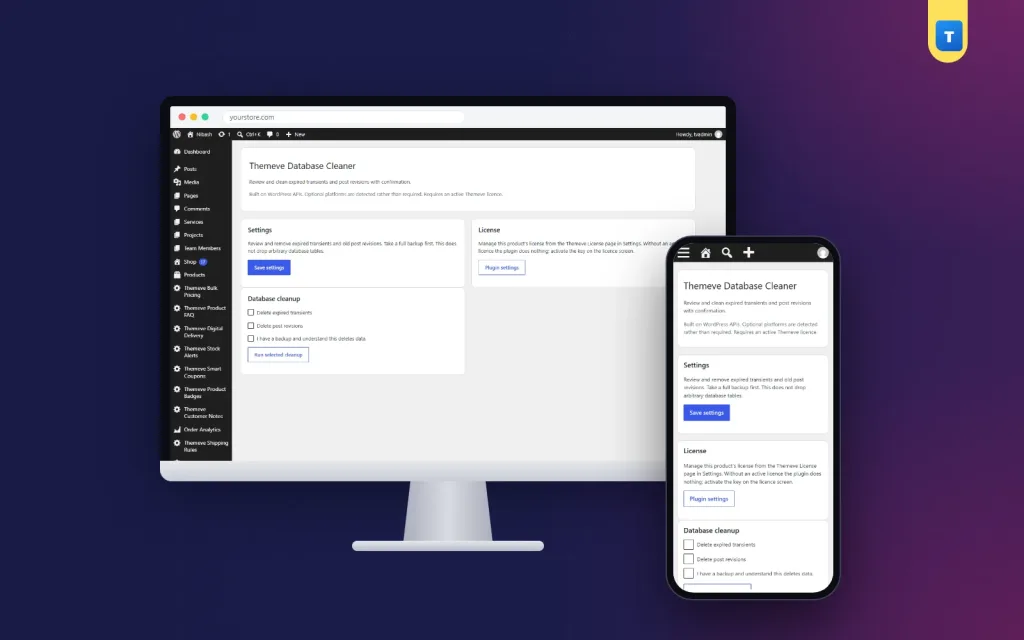
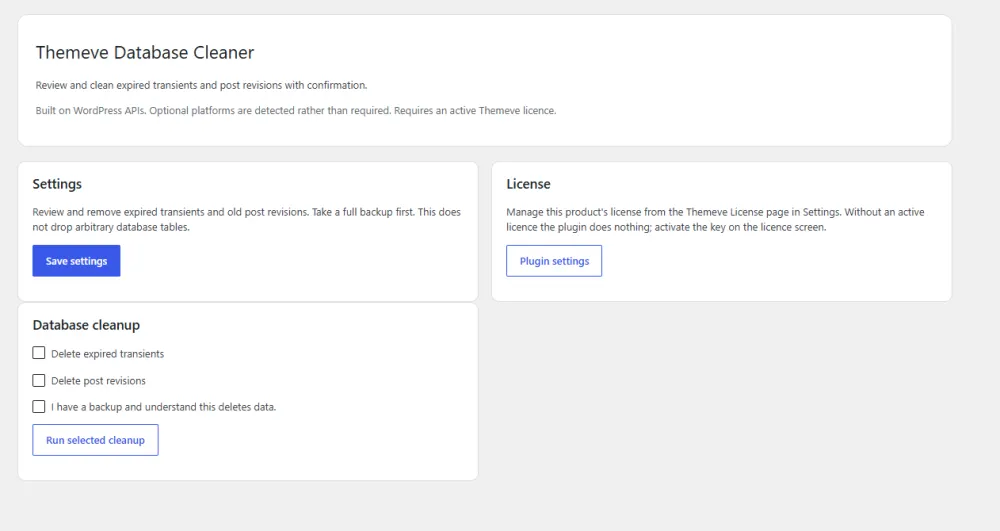
If you want a plain tool for the two most common jobs, Database Cleaner is one choice. It deletes post revisions and expired transients, and it does nothing else.
You open one settings screen, tick what you want to clean and tick the confirmation box that says you have a backup. Only then does the clean-up run. Nothing happens automatically, and nothing runs in the background.
- It uses WordPress's own functions, so it works on every database WordPress supports.
- It never touches transients that have no expiry.
- It deletes revisions in batches of 500, so a large site is handled in steps.
- It never drops database tables.
- It adds nothing to your public pages.
It is a narrow tool by design. If you also want to remove spam comments or look at unused plugin data, you can do that by hand from the dashboard.
The reason to choose a small tool is control. You always know what it will do, because it does only two things. For many sites, that clarity matters more than a long list of options. You can read more about it on the Database Cleaner product page before you decide.
How often should you clean your database?
There is no single answer, but this rule of thumb suits most people.
- Quiet brochure site: twice a year is enough.
- Active blog or news site: every two to three months.
- Online shop with many product edits: every one to two months.
- Before moving to a new host: once, to keep the move light.
Put the date in a calendar. A routine you remember is better than a perfect plan you forget. Whatever the schedule, the answer to what is database optimization stays the same: small, regular, careful clean-ups.
Signs your site needs a clean-up sooner
You do not need to wait for the calendar if you see any of these signs.
- Your backup file has grown much faster than your content.
- Your host warns that the database or disk space is almost full.
- The post list in the dashboard loads slowly.
- You edit posts often, and some posts have dozens of revisions.
- You have tested and removed many plugins over the years.
Any one of these is a good reason to take a backup and begin.
Database optimization tips for sites in Bangladesh
Many local sites run on shared hosting with limited disk space and slow disks. That makes a small database more useful, not less.
- If your host charges for extra storage or limits backups, a lean database keeps you inside the plan.
- If you run a Bangla news site with several editors, revisions pile up very fast. Clean them on a schedule.
- If you take orders through bKash, Nagad or cash on delivery, keep order data safe. Never delete anything that looks like an order, even if the name is unclear.
- If you build sites for clients, add a clean-up to your monthly care package and keep a log of what you removed.
Pair the clean-up with other habits: compress images before upload, use a caching plugin, and keep WordPress, themes and plugins updated.
A real example: a Bangla news blog after three years
Imagine a news blog with four writers. It publishes ten stories a day. Each story is saved, edited and corrected about eight times before it is final. After three years, the site holds around 11,000 stories and roughly 88,000 saved revisions. The live content is a small share of what the database stores.
The owner notices that the nightly backup now takes much longer and the hosting plan is close to its storage limit. A clean-up of old revisions and expired transients, done after a full backup, cuts the database down to a fraction of its size. The owner then limits future revisions and sets a calendar reminder for every three months.
The numbers in this example are only an illustration. Your own site will differ. The lesson is the same: the more you edit, the sooner clutter builds, and the more a regular routine helps.
Common mistakes to avoid
- Skipping the backup. This is the mistake that causes real damage.
- Running several clean-up tools at once. They can overlap, and it becomes hard to know what changed.
- Deleting tables you do not recognise. An odd name does not mean it is unused.
- Cleaning too often. Doing it every day gives almost no gain.
- Expecting a miracle. A tidy database helps, but a slow site usually has other causes as well.
- Testing nothing afterwards. Always open the main pages and forms once the job is done.
Beyond clean-up: other ways to keep the database healthy
What is database optimization if not a habit? Clean-up is only half of the picture. A few habits stop the clutter from coming back.
- Limit the number of revisions kept for each post.
- Remove plugins you do not use, rather than only turning them off.
- Pick plugins that clean up after themselves when removed.
- Keep an eye on your site's health screen for warnings about the database.
- Use a good host with a recent database version.
These steps cost nothing and take a few minutes. Over a year they keep the database from growing out of control.
If you want to read more on the technical side, the official WordPress documentation is a good, reliable reference.
Frequently asked questions
What is database optimization in WordPress?
It is the regular removal of old, unused data such as post revisions and expired transients, so that the database stays small and backups stay quick.
Is it safe to optimize a WordPress database?
It is safe when you take a full backup first and use a careful tool that deletes only well-understood data. Without a backup, any deletion carries risk.
Will it make my site faster?
It can make the admin area and backups a little faster. It will not fix a slow host or large images, so treat it as one part of site care.
How often should I do it?
Every two to three months suits most blogs and news sites. Quiet sites can do it twice a year.
Can I do it without a plugin?
Yes, but it needs database queries and good knowledge of WordPress tables. Most owners are safer using a plugin that shows a confirmation step.
Does cleaning the database delete my posts?
No, not when you remove only revisions and expired transients. Your live posts and pages stay as they are.
What is database optimization worth for a small site?
A small site gains less, but the habit still helps. It keeps backups small and prevents slow growth over the years. A little care now saves effort later.