 −50%
−50%
Site Monitor – Site Health WordPress Plugin
✦ Key features
- WordPress version at a glance
- PHP version at a glance
- Count of active plugins
- Name of the active theme
- PHP memory limit
- All five facts in one table
- Handy for support requests
- No setup needed
- No outside calls or accounts
- Nothing added to public pages
- Administrators only
- Works with any WordPress theme
Overview
Site Monitor is a simple site health WordPress plugin. It shows the WordPress version, PHP version, active plugin count, active theme and memory limit on one admin screen, so you can check your site in seconds.
Site Monitor is a simple site health WordPress plugin that puts the facts you check most often on one screen. Your WordPress version, PHP version, number of active plugins, active theme and memory limit sit together in one table. You see the state of your site in a few seconds.
It is made for owners who are not developers but still want to understand their website. It also suits freelancers who look after several client sites and need a quick status check before they start work.
Why a quick site health screen helps
Most site problems start with something simple. An old PHP version that a new plugin does not support. A memory limit that is too low for a busy shop. A plugin someone activated months ago and forgot. Finding these facts normally means clicking through several admin screens or asking your hosting provider.
When the facts are on one page, you spot the problem faster. You can also tell your developer or host exactly what you see, which saves a round of emails.
Who can use this site health WordPress plugin
The plugin works on any WordPress site and with any theme. It does not depend on WooCommerce or any other add-on. Typical users are:
- Shop and business owners who want to check their site without help.
- Freelancers and small agencies with many client sites.
- Teams where several people install plugins and one person keeps an eye on the list.
- Bloggers and publishers who want to know their PHP version before adding a new tool.
- Support staff who need exact version numbers to give to a hosting company.
Light and quick to open
Site Monitor has no front-end code. It adds nothing to the pages your visitors load. The plugin has a single small admin stylesheet, and that file loads only on its own screen.
The numbers are read live from WordPress and PHP each time you open the screen. The plugin does not run background checks and does not call any outside service, so it cannot slow the site down.
What the site health screen shows
The screen lists five facts in a clear table. Each one answers a question people ask when something goes wrong.
WordPress version
See which version of WordPress your site runs. Old versions are a common cause of errors and security risks, and many plugins list a minimum WordPress version.
PHP version
See which PHP version your server uses. Many plugins and themes need a recent PHP, and this is the number your host will ask about first.
Active plugins
See how many plugins are active. If the number is higher than you expected, it is a good moment to review the full list in the normal Plugins screen and remove what you no longer use.
Active theme
See the name of the theme your site uses right now. This is useful when you manage several sites and cannot remember which theme each one runs.
Memory limit
See how much memory PHP may use. Shops with many products and sites with page builders often need more than the minimum. If you see memory errors, this number is the first thing to check.
Back-end screen in detail
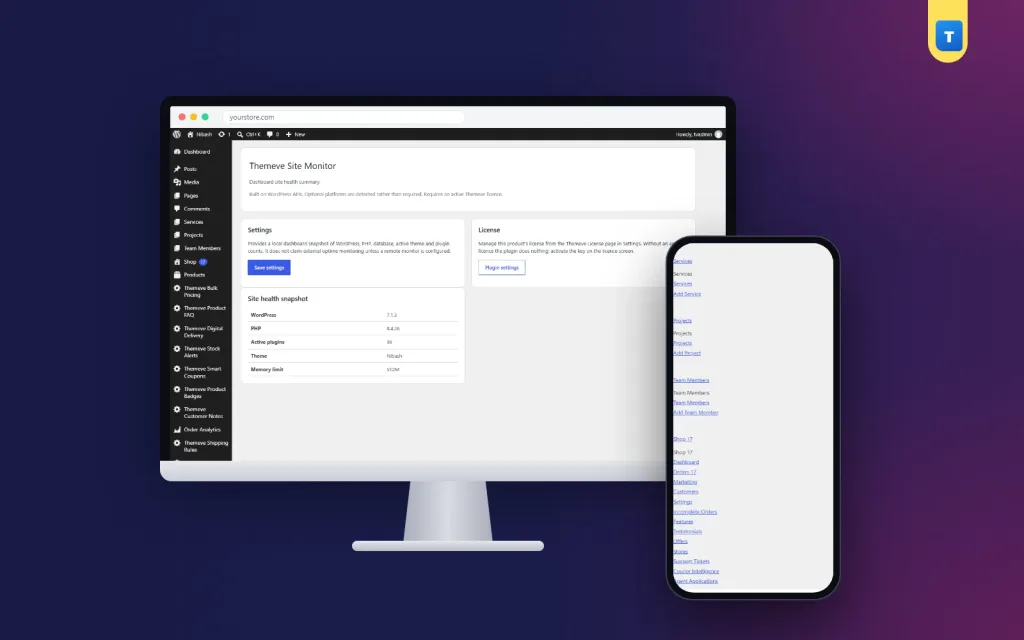
The plugin adds one page under Settings in your dashboard. It opens for administrators only. Here is what is on it:
- Header area. A title and a short line saying what the screen does.
- Settings card. A short note explaining that the screen shows a local snapshot of WordPress, PHP, the active theme and plugin counts, with a Save settings button. There are no extra options to set up, so you can use the screen as soon as it opens.
- License card. A reminder that the plugin works only with an active licence, with a button back to the plugin screen.
- Site health snapshot. The table with WordPress, PHP, Active plugins, Theme and Memory limit.
The screen is honest about its limits. It does not claim to watch your site from outside, and it does not send alerts.
What visitors see
Nothing. This is a back-end tool. No widget, badge or script is added to your public pages, and no cookies are set for visitors.
Who in your team should use it
Give access to the people who already manage the dashboard. The screen opens for administrators only, so editors and shop staff do not see it. That keeps technical details with the right people.
- The site owner opens it once a month as a health habit.
- The developer opens it before and after any big update.
- The support person opens it when a customer reports an error.
- The new manager opens it on day one to learn what the site runs on.
Because the screen is plain and short, nobody needs training. If you can read a table, you can use this site health WordPress plugin.
When to open it
Small, regular checks prevent many problems and make the rest easier to solve.
- Before installing a new plugin, check your PHP version against its requirements.
- After an update, confirm the new version numbers.
- When something breaks, take a screenshot of this screen and send it with your support request.
- Once a month, look at the plugin count and review the full list.
- Before a site move, note the memory limit so you can ask the new host for the same or more.
Two real examples
A freelancer takes over a client site and has no handover notes. Within a minute the freelancer opens Site Monitor and learns the WordPress version, the PHP version, the theme name and how many plugins are active. The first meeting with the client then starts with facts, not guesses.
A shop owner wants to install a new payment plugin that needs a recent PHP version. Instead of contacting the host, the owner opens Site Monitor and sees the PHP version straight away. It is too old, so the owner asks the host to upgrade it first. The new plugin then installs without errors.
What to do with what you see
Seeing the numbers is only the first step. Each fact points to a simple action, and you can handle most of them yourself.
- If WordPress is out of date, take a backup and update.
- If PHP is old, check that your theme and plugins support a newer version, then ask your host to upgrade.
- If a plugin is no longer needed, deactivate it, check the site, then delete it.
- If memory is low and you see errors, ask your host to raise the limit.
Change one thing at a time and check your site after each step. A site health WordPress screen shows you where to look. Careful, one-step-at-a-time changes keep the site stable while you fix things.
What it is, and what it is not
Site Monitor is a summary screen. It does not check your uptime from outside, and it does not send an alert when the site goes down. For uptime monitoring, use a service built for it or ask your hosting provider.
WordPress also has its own Site Health tool in the Tools menu, with deeper tests. Site Monitor is the quick view. The built-in tool is the detailed one. Many owners keep both bookmarked.
Set up this site health WordPress plugin in four steps
- In your dashboard, go to Plugins, then Add New, then Upload Plugin. Choose the zip file and install it.
- Activate the plugin.
- Enter your licence key on the License screen.
- Open Themeve Site Monitor under Settings and look over your site.
That is all the setup there is. There are no connections to make and no accounts to create.
Why a single screen beats clicking around
You can find these facts in WordPress already, but they live in different places. The version is in one corner, the PHP version in a technical report, the plugin list on another page. A site health WordPress plugin with one clear table saves time every time you need them, and it gives you something clean to send to a developer.
- Five key facts in one table.
- No setup, no accounts, no outside calls.
- Works with any theme.
- Nothing added to your public pages.
- Good for owners who are not technical.
Pair it with deeper tools
For a fuller technical report, a diagnostics tool can show PHP, WordPress and server settings for administrators. For login protection and security headers, a security plugin covers the basics. Site Monitor works well as the first stop before you open those.
Think of it as a thermometer, not a hospital. It tells you quickly whether something looks wrong. It does not diagnose or repair. If a number looks off, you then know which question to ask your host or developer, and you can ask it in one short message with the exact figure attached.
Licence, updates and requirements
Site Monitor needs an active licence key. Without it the screen does not open, and only the lock screen and the License screen are available. Enter the key from your account and the screen becomes available. Updates arrive in Dashboard, then Updates, while the licence is active.
- WordPress 6.2 or newer, tested up to WordPress 7.1.
- PHP 7.4 or newer.
- Works with any WordPress theme.
- Six months of support.
What is included
- The plugin zip file, ready to upload in Plugins, then Add New.
- Your licence key and lifetime updates while the licence is active.
- Documentation after purchase.
- Unlimited re-downloads from your account.
A clear site health WordPress plugin like this turns guesswork into a quick, confident check.
Site Monitor is built on the official WordPress documentation standards, and you can browse more of our WordPress plugins.
Reviews
0.0
Write a review
★★★★★
0 reviews from buyersNo reviews yet — be the first to share your experience after buying.
Frequently Asked Questions
01What does this site health WordPress plugin show?
Your WordPress version, PHP version, number of active plugins, active theme and memory limit, in one table.
02Is Site Monitor a good site health WordPress plugin for non-developers?
Yes. There is nothing to configure. Open the screen under Settings and read the table.
03Does it monitor uptime?
No. It is a summary screen and does not check your site from outside.
04How is it different from the built-in WordPress Site Health tool?
Site Monitor is a quick summary. The built-in tool runs deeper tests.
05Does it send alerts?
No. Open the screen whenever you want to check.
06Where do I find it?
Under Settings, in the Themeve Site Monitor screen. It opens for administrators only.
07Does it need a licence?
Yes. Without an active licence key the screen does not open and only the lock and License screens are available.
Delivery & Support
1Place your orderAdd to cart, sign in and pay with bKash or Rocket.
2Payment verified automaticallyEnter your Transaction ID — the payment is matched automatically, usually within seconds.
3Get your productYour license key and download appear in My Account → Licenses.
- Secure automatic payment verification
- Delivery to your account & e-mail
- Friendly WhatsApp support
Refund Policy
This policy applies to every product in our store.
You get a refund when the product does not work as described and we cannot fix it, when your license will not activate your website, or when a manually delivered product is late and you cancel before delivery. A working license, or a single license already used on a live domain, is not refundable. Approved refunds go back to the number you paid from within one working day, minus the Send Money charge.
More items
View all →You may also like
−50%
 −50%
−50%
 −50%
−50%
 −12%
−12%
