Learning how to check site health in WordPress is one of the cheapest ways to avoid trouble later. A slow page, a white screen or a failed update rarely comes from nowhere. Most of the time the warning signs were already on your site, in the version numbers, the plugin list and the server limits.
This guide shows you what to look at, where to find it and how often to check. It is written for shop owners, bloggers and freelancers who are not developers. You do not need to write code. You only need to know which facts matter and what to do when one of them looks wrong.
What "site health" really means
Site health is the technical condition of your website. It is not about design or content. It is about whether the software underneath is current, safe and given enough room to work.
A healthy WordPress site usually has these traits:
- A supported version of WordPress, kept up to date.
- A supported version of PHP, the language your server uses to run WordPress.
- Only the plugins you actually use, each one updated.
- A theme that is maintained and compatible with your WordPress version.
- Enough memory for PHP to handle your pages and orders.
- A working secure connection (HTTPS) and a recent backup.
If one item fails, the others often suffer too. An old PHP version can stop a new plugin from working. A low memory limit can break a busy shop at the worst time, such as during a sale.
Why a Bangladeshi shop owner should care
Many small businesses in Bangladesh move from a Facebook page to a real website. Orders come by phone, bKash, Nagad or cash on delivery, and the website becomes the main shop. When it stops working on a Friday night before Eid, you lose real orders.
Shared hosting is common here because it is cheap. It is also where memory limits are often low and PHP versions are sometimes old. Checking your site health tells you whether your plan is still enough, before customers tell you it is not.
How to check site health in WordPress with the built-in tool
WordPress already includes a Site Health screen. It is the best place to start, and it costs nothing.
- Log in to your WordPress admin area.
- Open Tools, then Site Health.
- Wait for the status check to finish. You will see a score and a list of items marked Critical, Recommended or Good.
- Read each Critical item first. Click it to see a plain explanation.
- Open the Info tab to see your versions, themes, plugins and server details.
The tool tests many things, including your PHP version, whether background updates work and whether your site uses HTTPS. Do not panic about every Recommended item. Fix the Critical ones first, then decide which of the others are worth your time.
The five facts to check first
If you only have two minutes, check these five facts. They explain most common problems.
1. WordPress version
Each release fixes bugs and security holes. Running an old version leaves known holes open. Update when a new release appears, after taking a backup.
2. PHP version
Newer PHP versions are faster and safer. Old versions stop receiving security fixes. Many plugins list a minimum PHP version, so an old one can block new features. Your hosting panel usually lets you change the PHP version in a few clicks.
3. Active plugins
Every plugin adds code, and every extra plugin adds a little risk. List what is active and ask a simple question about each one: do I still use this? Remove what you do not need.
4. Active theme
Check that your theme is still updated by its author and works with your WordPress version. An abandoned theme is a slow-growing problem.
5. PHP memory limit
This is how much memory a page may use. Sites with many products, page builders or heavy plugins need more. If you see a "memory exhausted" error, this number is the first thing to look at.
A quick health check you can do in one minute
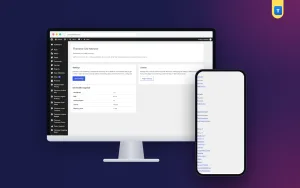
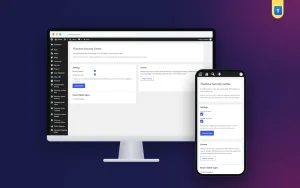
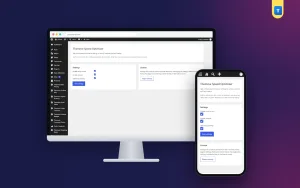
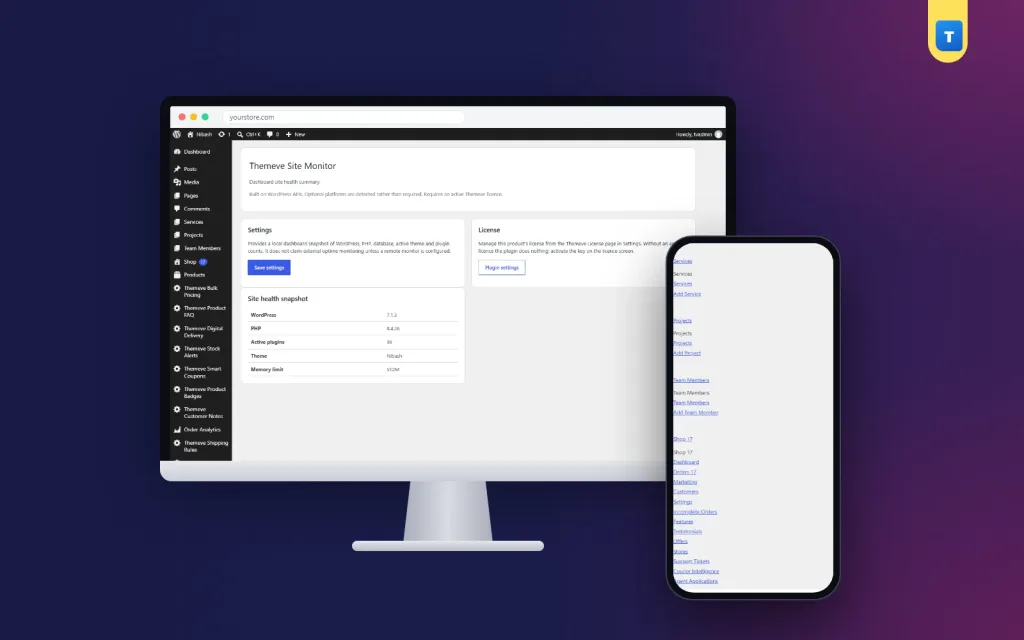
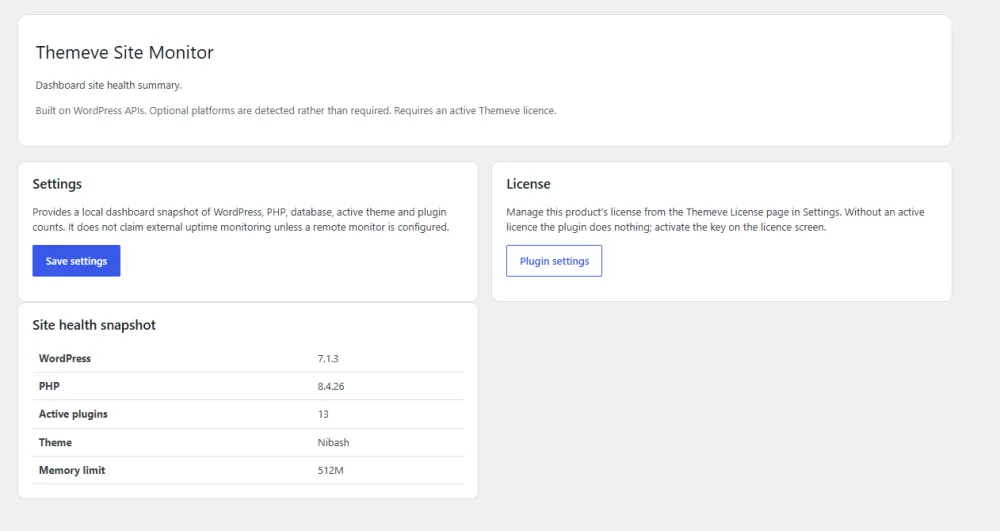
The built-in tool is thorough, but it takes several clicks. For a fast look, a single summary screen is easier. Site Monitor is a simple plugin that shows these five facts together on one page, under Settings. It does not replace the detailed WordPress tool. It gives you the quick view, and the detailed tool gives you the deeper one.
Use whichever you prefer. What matters is that you look, and look regularly.
How to check site health in WordPress every month
A habit beats a big clean-up once a year. Here is a simple monthly routine that takes about fifteen minutes.
- Take a fresh backup, or confirm your host made one this week.
- Open the Site Health screen and read the Critical items.
- Check the WordPress and PHP versions.
- Look at the plugin list. Remove anything unused.
- Apply updates one at a time, then open your homepage, a product page and your checkout.
- Place a test order if you run a shop, using a payment method you can cancel.
- Write the date and anything you changed in a small note.
The note matters more than it sounds. When something breaks next month, you will know what changed.
Monthly checklist
- Backup exists and can be restored.
- WordPress core is up to date.
- PHP version is supported by your host and your plugins.
- Unused plugins and themes are deleted, not only switched off.
- No plugin shows an update that has been waiting for months.
- Memory limit is enough for your busiest page.
- Site loads over HTTPS without warnings.
- Contact form and checkout both work.
Common problems and what they usually mean
Use this list when something looks wrong.
- White screen after an update. Usually a plugin or theme that does not match your PHP or WordPress version. Switch off the last plugin you updated.
- "Allowed memory size exhausted". Your memory limit is too low for the task. Ask your host to raise it, or remove heavy plugins.
- Slow admin area. Often too many active plugins, or a low-powered hosting plan.
- Admin shows many update notices. You have fallen behind. Back up first, then update in small steps.
- Warnings about the PHP version. Your server runs a version that is no longer supported. Change it in the hosting panel.
Uptime is a different question
Site health looks inside your site. Uptime asks whether visitors can reach it at all. People often search for how to uptime monitor WordPress theme problems or the whole site, and the two ideas get mixed up. A health screen cannot tell you that your site was down at 3 a.m., because it only runs when you open it.
For uptime, use an outside monitoring service that visits your site every few minutes and sends you a message when it fails. Many offer a free plan for a handful of sites. Your hosting provider may also offer alerts. Combine the two: an outside service for "is it up?", and a health check for "is it in good shape?".
Security basics that belong in every check
A health check is also a security check. These habits cost little and prevent most attacks on small sites:
- Use a long, unique password for every admin account.
- Delete user accounts that are no longer needed.
- Keep only plugins from sources you trust, and delete the rest.
- Limit login attempts so passwords cannot be guessed all day.
- Keep backups outside your website folder, for example in cloud storage.
If you want help with the login side, a security plugin can limit attempts and add basic protection headers. Pick one and keep it updated.
A ready-made option
If you want the key facts without hunting through menus, Site Monitor is a light option. It shows your WordPress version, PHP version, active plugins, active theme and memory limit on one clear screen. It works on any WordPress site, needs no setup and opens under Settings.
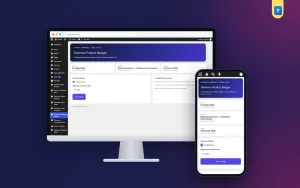
It is handy when you ask a developer or host for help. Take a screenshot of the page and send it with your message, and they will see your setup straight away. To be clear about its limits, it is a summary screen. It does not monitor uptime from outside and it does not send alerts. You can read more about Site Monitor on its product page.
What to tell your host or developer
When you ask for help, give facts instead of "my site is broken". A good message contains:
- What you were doing when the problem began.
- The exact error text, or a screenshot.
- Your WordPress version and PHP version.
- The list of active plugins and your theme.
- What you changed in the last few days.
You will usually get a faster, more accurate answer, and you will pay for fewer hours of guessing.
Mistakes to avoid
- Updating everything at once with no backup.
- Leaving unused plugins switched off but installed. They can still be a risk.
- Ignoring a Critical item because the site still seems fine.
- Testing only the homepage and never the checkout.
- Assuming cheap hosting limits are fixed. Many hosts raise them on request.
- Checking only when something goes wrong.
How to read the Info tab without getting lost
The Info tab of the built-in tool is long, and most people never open it. You do not need to understand every line. Open only the sections that help you.
- WordPress. Shows your version and whether the site language and permalinks are set as expected.
- Active Theme. Shows the theme name, its version and whether it is a child theme.
- Active Plugins. Lists each plugin with its version number and author.
- Server. Shows the PHP version, the web server and the maximum upload size.
- Database. Shows the database version. You rarely need to change anything here.
- Constants. Shows limits such as the memory limit and whether debug mode is on.
Debug mode deserves a note. It should be off on a live site, because it can show error messages to visitors. If you see it switched on and you are not fixing a problem, ask your developer to turn it off.
Health checks for a small online shop
A shop has more to lose than a blog, so add a few extra checks to your routine:
- Open a product page on your phone, not only on your computer. Most of your customers will use a phone.
- Add a product to the cart and go through checkout up to the payment step.
- Check that the order confirmation email arrives and does not land in spam.
- Confirm that your courier or delivery settings still show the right areas and prices.
- Look at your payment instructions for bKash, Nagad or bank transfer and make sure the numbers are correct.
- Run these steps again after every plugin or theme update.
It is a short list, but it catches the problems that cost real money. A site can look fine while the checkout quietly fails.
When to ask for help
You can do most checks yourself. Ask a professional when you see any of these:
- A Critical item you do not understand and cannot fix after reading the explanation.
- Repeated white screens or server errors.
- A site that loads slowly even after you remove unused plugins.
- Signs of a hack, such as pages you did not create or redirects to other sites.
The earlier you ask, the cheaper the fix usually is. If you still wonder how to uptime monitor WordPress theme or plugin failures after an update, your host can tell you which monitoring options come with your plan.
In short, knowing how to check site health in WordPress gives you calm. You stop reacting to surprises and start fixing small things on a day you choose.
If you want to read more on the technical side, the official WordPress documentation is a good, reliable reference.
Frequently asked questions
How often should I check site health in WordPress?
Once a month is enough for most small sites. Check again after any big update, after installing a new plugin and before a busy sale period.
Where is the built-in site health tool?
In your admin area, open Tools and then Site Health. The Status tab shows the tests and the Info tab shows your technical details.
Does a health check slow my site?
No. The checks run only when you open the screen, so visitors are not affected.
What is a safe PHP memory limit?
Many small sites run well at 256 MB, and simple blogs may manage with less. Shops with many products or page builders often need more. If you see memory errors, ask your host to raise the limit.
Is a health plugin the same as uptime monitoring?
No. A health screen shows the state of your software. Uptime monitoring checks from outside whether visitors can reach the site. You may want both.
Do I need a plugin to learn how to check site health in WordPress?
No. The built-in Site Health tool is enough to start. A small plugin only saves clicks by showing the main facts together.
What should I fix first?
Take a backup, then deal with Critical items, then update an outdated PHP or WordPress version, then remove unused plugins.