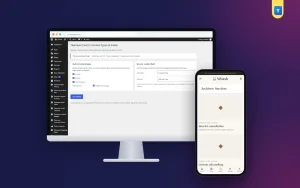
 −50%
−50%
User Role & Access Manager – Best WordPress User Role Editor Plugin
✦ Key features
- Add capabilities to an existing role
- Seven capabilities to choose from
- Role drop-down includes shop roles
- Hide Posts, Media, Pages, Comments or Tools
- Choose the target role for hidden menus
- Administrators always see everything
- Cleaner dashboard for staff
- Fewer accidental changes
- No extra administrator accounts needed
- One simple settings screen
- Adds nothing to the front end
- Updates while the licence is active
Overview
User Role & Access Manager is the best WordPress user role editor plugin for small teams. Add seven capabilities to any role, hide five admin menus for chosen roles, and keep staff away from settings they do not need.
The best WordPress user role editor plugin is one that lets staff do their job without handing them the keys to the whole site. User Role & Access Manager does two simple things: it adds extra capabilities to an existing role, and it hides chosen admin menus for a role, so people see only what they need.
It is made for owners and managers, not for developers. There is one settings screen, a few clear options and no code. Administrators are never limited, so you cannot lock yourself out. The plugin works on any WordPress site, with any theme.
Best WordPress user role editor plugin for which teams?
Anyone who shares the dashboard with other people can use it. These are the usual cases.
- News sites and blogs with editors, authors and contributors who need slightly different access.
- Online shops where staff add products or answer comments but should not change settings.
- Agencies and freelancers who give clients a simpler dashboard.
- Schools, clinics and companies with several people updating pages.
- Owners who hire freelancers for content and want to give them the smallest role that fits.
- Anyone who has been tempted to make everyone an administrator just to fix one small permission problem.
Why roles matter
WordPress gives every user a role: Administrator, Editor, Author, Contributor or Subscriber. Online shops can add roles such as Shop Manager and Customer. Each role has a set of capabilities, and capabilities decide what the user can do.
The default sets work for many sites, but not for all. Often the owner wants one small change. An author who can also upload files. A staff member who should not see the menus they never use. Without a tool, the usual answer is to make the person an administrator. That is risky, because an administrator can change or delete almost everything.
Add a capability with this user role editor plugin
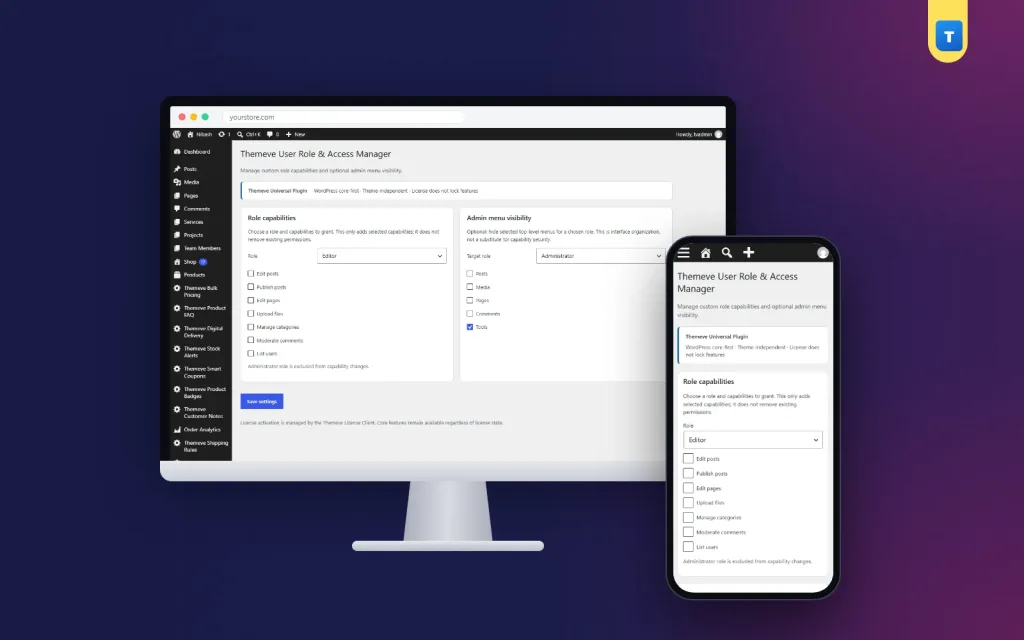
Choose an existing role and tick the extra capabilities it should have. The plugin adds the capabilities you ticked to that role. These seven are available:
- Edit posts. Lets the role write and change posts.
- Publish posts. Lets the role publish posts without waiting for approval.
- Edit pages. Lets the role change pages.
- Upload files. Lets the role add images and documents to the media library.
- Manage categories. Lets the role create and edit categories.
- Moderate comments. Lets the role approve, reply to and remove comments.
- List users. Lets the role see the list of users.
Change only what you need. A simple user role editor plugin WordPress site owners can trust keeps the changes small. Every extra capability gives all users in that role more power. Add the smallest change that solves the problem.
Hide admin menus for a role
The WordPress dashboard can feel crowded. A person who only writes posts does not need Tools or Comments in the sidebar. Choose a role and hide the menus it does not need. The dashboard becomes simpler, and staff make fewer accidental changes.
You can hide these top-level menus:
- Posts
- Media
- Pages
- Comments
- Tools
Hiding applies only to users who have the target role and who cannot manage site options. Administrators always see every menu.
Back-end options: every setting explained
All options sit on one page under Settings in the dashboard. Only administrators can open it. The page has two boxes and one Save button.
Box 1: Role capabilities
- Role. A drop-down list of every role on your site, including roles added by other plugins such as a shop plugin. The default choice is Editor.
- Capability tick boxes. The seven capabilities listed above. Tick the ones to grant.
- Administrator note. The Administrator role is excluded from capability changes. It is left as it is.
The plugin only adds capabilities. It does not remove permissions that a role already has. The changes are applied the next time an administrator opens the dashboard after saving.
Box 2: Admin menu visibility
- Target role. A drop-down list of roles. The default choice is Subscriber.
- Menu tick boxes. Posts, Media, Pages, Comments and Tools. Tick the ones to hide for the target role.
Save settings
Press Save settings once to store both boxes. Your choices stay until you change them again.
A convenience, not a lock
Hiding a menu makes the dashboard cleaner. It is not a security control. A user who knows the address of a page may still reach it if the role allows it. To truly stop an action, keep the role's capabilities limited. Use menu hiding for neatness and capabilities for permission.
What visitors see on the front end
Nothing changes for visitors. The plugin works in the dashboard only. It adds no code, styles or scripts to your public pages. Your staff see the difference: a shorter menu and the extra tools you chose to give them.
Taking a capability back
This plugin adds capabilities. Unticking a box and saving does not remove one that was already added. Taking a capability away again is done by hand, for example by your developer. So plan your changes, add one at a time and write down what you did and why.
Practical examples
A news site
The owner wants contributors to upload images for their own stories. The owner picks the Contributor role, ticks Upload files and saves. The owner then picks Contributor as the target role and hides Tools and Comments. Contributors get what they need and see a shorter menu.
A shop
A shop assistant answers customer comments but should not touch pages. The owner ticks Moderate comments for that role and hides Pages and Tools in the menu.
A client site
An agency gives a client's editor a cleaner dashboard. It hides Media and Tools for the Editor role. The client calls less often because there are fewer buttons to press by mistake.
A team with freelancers
The owner gives a freelance writer an Author account, ticks Upload files for Authors and removes the account when the job ends.
Plan access for your team
- Write down every person who uses the dashboard and what they do: writing, editing, adding products, handling comments or fixing design.
- Next to each name, write the lowest role that fits.
- Note what is missing, such as permission to upload files.
- Add only that capability to the role.
- Hide the menus the role never uses.
- Log in as a test user with that role and check the result.
Give each person their own account. Never share your own login. Review the list whenever staff change. With a clear plan, a user role editor plugin WordPress owners can run themselves turns a risky all-admin setup into a safe one in an afternoon.
How to set it up
- Go to Plugins › Add New › Upload Plugin, choose the zip file and press Install Now.
- Press Activate.
- Open the licence screen under Settings and enter the licence from My Account › Licenses.
- Open the plugin's page under Settings.
- In Box 1, choose a role and tick the capabilities to add.
- In Box 2, choose the target role and tick the menus to hide.
- Press Save settings.
- Open the dashboard once as an administrator so the capability changes are applied.
- Log in as a test user with that role and check what they can see and do.
Best WordPress user role editor plugin for small teams, and why
- Staff get only the access the job needs.
- Fewer accidental changes to settings, themes and plugins.
- No need for extra administrator accounts that you must watch.
- One short settings page that a non-technical owner can use.
- Administrators are never affected, so you cannot lock yourself out.
- It works with roles from shop and membership plugins too.
Be clear about its limits. It has seven capabilities and five hideable menus. It does not create new roles and it does not remove permissions. If you need a full capability matrix or new custom roles, a larger tool will suit you better. For small, safe changes, this user role editor plugin WordPress teams can learn in minutes is faster to use.
Good habits for access control
- Keep a short note of every capability you add and every menu you hide.
- Give each person an account of their own, with the lowest role that fits.
- Remove accounts when people leave or when a freelance job ends.
- Test each change by logging in as a user with that role, in a private browser window.
- Review the list every few months, or whenever your team changes.
- Take a backup before you change roles on a busy site.
Pair it with logs and logins
Activity Log records logins, content changes and plugin changes with the user and the time, so you can see how access is used. Frontend Login & Registration gives members and customers branded login pages with a safe default role. To learn more about roles and capabilities, see the WordPress documentation.
What is included
- The plugin zip, ready to upload from Plugins › Add New.
- Role capability settings with seven capabilities.
- Admin menu hiding for five menus.
- A role drop-down that includes roles added by other plugins.
- Updates in Dashboard › Updates while your licence is active.
- Requirements: WordPress 6.2 or newer and PHP 7.4 or newer. Tested up to WordPress 7.1.
An active licence is needed. Without it, no change is applied, and only the lock screen and the licence screen open. Once the licence is active, the settings page is ready. For a team that wants the best WordPress user role editor plugin to keep things simple, the aim is the same every time: let every person do their job, and nothing more.
User Role & Access Manager is built on the official WordPress documentation standards, and you can browse more of our WordPress plugins.
Reviews
0.0
Write a review
★★★★★
0 reviews from buyersNo reviews yet — be the first to share your experience after buying.
Frequently Asked Questions
01What can I change?
Add seven capabilities to a role: edit posts, publish posts, edit pages, upload files, manage categories, moderate comments and list users. Hide five menus for a chosen role.
02Is this the best WordPress user role editor plugin for beginners?
It has one screen and clear tick boxes, so non-technical owners can use it. It does not create new roles or build a full permission matrix.
03Can it remove a capability?
No. It only adds capabilities. Taking one away is done by hand, for example by a developer.
04Can I lock myself out?
No. Administrators are excluded from capability changes and always see every menu.
05Does hiding a menu make the site secure?
No. It makes the dashboard cleaner. Keep capabilities limited to truly restrict an action.
06Which is the best WordPress user role editor plugin for a shop?
The role list includes roles added by shop plugins, so you can adjust a shop role the same way as an Editor.
07Does it change anything for visitors?
No. It works in the dashboard only.
08Does it need a licence?
Yes. Without an active licence no change is applied and only the lock and licence screens open.
Delivery & Support
1Place your orderAdd to cart, sign in and pay with bKash or Rocket.
2Payment verified automaticallyEnter your Transaction ID — the payment is matched automatically, usually within seconds.
3Get your productYour license key and download appear in My Account → Licenses.
- Secure automatic payment verification
- Delivery to your account & e-mail
- Friendly WhatsApp support
Refund Policy
This policy applies to every product in our store.
You get a refund when the product does not work as described and we cannot fix it, when your license will not activate your website, or when a manually delivered product is late and you cancel before delivery. A working license, or a single license already used on a live domain, is not refundable. Approved refunds go back to the number you paid from within one working day, minus the Send Money charge.
More items
View all →You may also like
−50%
 −50%
−50%
 −27%
−27%
Plugins
Elementor Pro Plugin 1 Year with Library Access – Elementor Pro Buy in Bangladesh
৳400
৳550Save −27%
 −50%
−50%
