Product FAQ – WooCommerce Product FAQ Plugin

★ New item Plugins v1.0.1
Product FAQ – WooCommerce Product FAQ Plugin −50%

✦ Key features

  • FAQ box in the product editor
  • Works in WooCommerce and Themeve Commerce
  • Different FAQ for every product
  • One question and answer per line
  • Shown under the product with a Product FAQ heading
  • Plain text, all answers visible on phones
  • Global on/off switch
  • No front-end script or stylesheet
  • Nothing printed when a product has no FAQ
  • No coding needed

Overview

Product FAQ is a WooCommerce product FAQ plugin that adds a question and answer box to each product and shows it on the product page. Write answers once, cut repeat messages and help shoppers decide faster.

Product FAQ is a WooCommerce product FAQ plugin that adds a question-and-answer box to every product and shows it on the product page. You write the answers once, in the product editor, and every shopper can read them at the moment they decide to buy.

Most shops answer the same questions all day. Is the colour like the photo? Does it come in a bigger size? How long does delivery take? Can I pay on delivery? This plugin moves those answers from Messenger and the phone onto the page where the question starts. It is a small tool with one job, and it does that job without any coding.

Who can use this WooCommerce product FAQ plugin

Any shop that gets repeat questions about its products can use it. The plugin runs on two kinds of store, so it fits both common set-ups:

  • A WordPress shop that runs on WooCommerce.
  • A shop built on our Themeve Commerce plugin, where products are edited in the product studio.

It suits many kinds of business:

  • Clothing and shoe shops that get size, fabric and fit questions.
  • Electronics and gadget sellers who answer warranty, box contents and compatibility questions.
  • Furniture and home shops with questions on size, assembly and delivery to upper floors.
  • Cosmetics and skin care shops that explain skin type, ingredients and expiry.
  • Grocery and food sellers who need to say how an item is stored or packed.
  • Handmade and Facebook-page shops that sell by message and want to cut the back and forth.

What you get at a glance

Here is the short list of what the plugin adds to your shop.

  • A Product FAQ box inside the product editor.
  • A different FAQ for every product.
  • Plain text input: one question and its answer per line.
  • The FAQ shown on the product page with a clear Product FAQ heading.
  • A global on/off switch on one settings screen.
  • Support for WooCommerce and Themeve Commerce.
  • No front-end script and no extra front-end stylesheet to load.

Light on your pages

The FAQ is printed as simple HTML text. The plugin adds no JavaScript to your shop pages and loads no front-end stylesheet of its own. The only file it loads is a small admin stylesheet, and only on its own settings screen. Your product pages stay as light as they were before.

The text comes from the product record itself, so there is no extra database table and no outside service involved.

Front end: what shoppers see

On a WooCommerce product page

  • A section titled Product FAQ appears below the product summary, after the product tabs.
  • Each line you wrote is shown as it is, with line breaks kept.
  • If a product has no FAQ text, nothing is printed. There is no empty heading.

On a Themeve Commerce product page

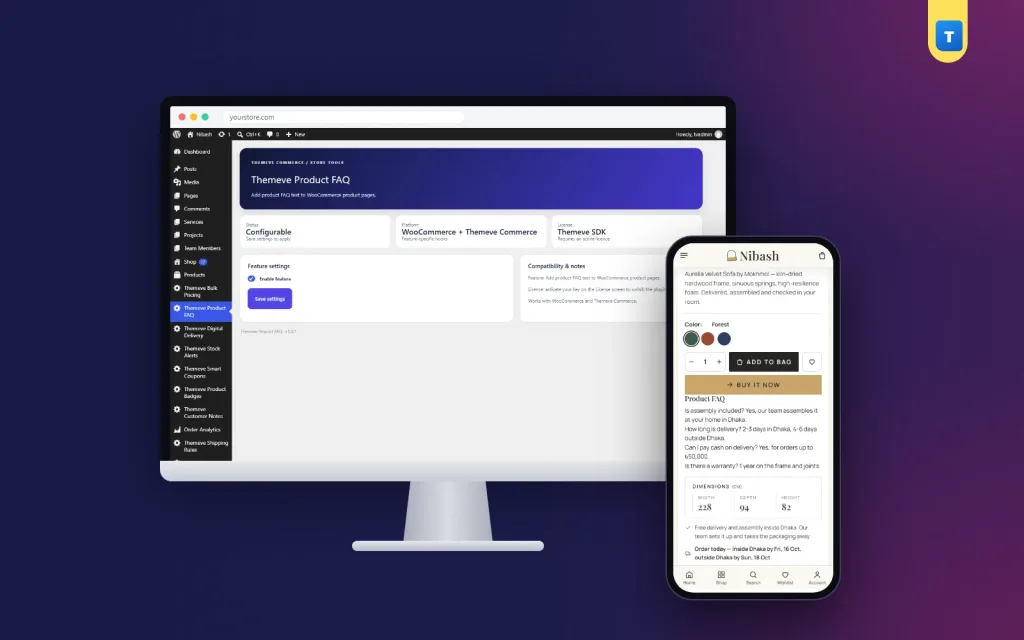
  • The Product FAQ block appears right after the buy buttons, under a Product FAQ heading.
  • Shoppers see the answer next to the Add to Cart button, which is where doubts usually appear.

Plain text by design

Many sellers expect a folding accordion, so it is worth saying clearly what you get here. The plugin prints your lines as a readable block under a heading, and nothing more.

There is no accordion and no tabs to tap. Every question and answer is visible at once, which suits shoppers on phones who do not want to open panels one by one. The text is escaped for safety, so HTML tags typed in the box are shown as text and do not run. Keep the list short, about five to eight lines, so it stays easy to read.

The FAQ takes its fonts and colours from your theme. If you want a different look, a few lines of your own CSS on the class names the plugin prints will do it.

Back end: every screen and option

The Themeve Product FAQ settings screen

After activation you will find Themeve Product FAQ in the left admin menu. The screen has three parts:

  • Header and status tiles. Three small tiles show the plugin status, the platform it supports (WooCommerce and Themeve Commerce) and the licence state.
  • Feature settings card. It holds one setting: the Enable feature checkbox. Tick it to show the FAQ box and the FAQ on product pages. Untick it to hide both. A Save settings button stores the choice.
  • Compatibility and notes card. A short side panel that explains what the plugin does and reminds you that the licence must be active.

Switching the feature off does not delete anything. The questions you saved stay with each product and come back when you switch it on again.

The FAQ box in the WooCommerce product editor

  • Open any product and go to Product data, General tab.
  • A text area called Themeve Product FAQ is added there.
  • A help tip tells you to write one question and answer per line.
  • Save or update the product and the text is stored for that product only.

The FAQ box in the Themeve Commerce product studio

  • The product studio gets a section called Themeve Product FAQ.
  • It has the same text area, five lines high, and the same one-line-per-item rule.
  • The text is saved when you save the product.

Who can open the settings

On WooCommerce, users with the manage WooCommerce capability can open the settings screen. On a Themeve Commerce store without WooCommerce, store administrators can open it.

The licence screen

The plugin needs an active Themeve licence. Until you activate it, the FAQ box is not added and only the lock screen and License screen open. Once you enter your licence, the settings and the box become available. Updates arrive in Dashboard, Updates while the licence is active.

How this WooCommerce product FAQ plugin helps you sell

Buyers who find an answer quickly order more often, and they message you less. That frees your team for real conversations and order handling. A clear answer about size or delivery also cuts returns, because people know what they are buying.

Good answers also help the shop beyond sales. The page text is part of your product page, so useful questions and answers add helpful content for every product. You do not need to promise anything to anyone. Just write what you already say on the phone.

What to write in a product FAQ

  • Clothing: sizes run true or small, fabric, washing, and whether the colour matches the photo.
  • Electronics: warranty period, what is in the box and what it works with.
  • Furniture: exact size, assembly and delivery to upper floors.
  • Cosmetics: skin type, shade guide and expiry date.
  • For every product: delivery areas, delivery time and payment options such as cash on delivery.

A quick example

A shoe shop adds four lines to each product. Sizes run true. Wide feet should choose one size up. Delivery inside Dhaka takes two days. Unworn shoes can be exchanged. Messages about size drop, and fewer pairs come back for the wrong fit.

Keep the answers fresh

A WooCommerce product FAQ plugin is only as good as the answers you type into it, so treat the text as part of your shop service.

When a new question keeps arriving in your inbox, add it to the product. When delivery times or policies change, update the text the same day. A wrong answer is worse than none. Ask your team to tell you whenever they answer the same question twice in a week. That question belongs on the page.

Setup in six steps

  1. Make sure WooCommerce or Themeve Commerce is installed and active on your site.
  2. Go to Plugins, Add New, Upload Plugin. Choose the zip file and install it.
  3. Activate the plugin.
  4. Open the License screen and enter your licence. The plugin switches on once it is accepted.
  5. Open Themeve Product FAQ in the left menu, check that Enable feature is ticked and click Save settings.
  6. Edit your best-selling product, add four to six questions with answers, save it and view the product page.

Start with your top ten products. After that, add a FAQ to every new product as you list it. Over a few weeks, a WooCommerce product FAQ plugin like this turns your most-asked questions into answers that work for you around the clock, even at night when nobody is online to reply.

Why use a plugin instead of the product description

  • The questions live in their own box, so the description stays clean.
  • Every product page shows the FAQ in the same place with the same heading.
  • One switch hides or shows the FAQ on the whole shop.
  • It is a simple product FAQ for WooCommerce that anyone on your team can learn in a few minutes.
  • Your team can edit the FAQ without touching the description or theme files.
  • It works on both WooCommerce and Themeve Commerce, so you can move between them and keep your habit.

Think about the product page the way a shopper does.

They arrive from a Facebook post or a search, look at the photo, read the price and then look for the one detail that decides the order. If that detail is in a FAQ right under the buy area, they stay. If it is not, they open Messenger, wait for a reply, and sometimes forget to come back. Product FAQ for WooCommerce shops keeps that decision on the page.

It is also honest about its limits. It is not an accordion, it does not build a shop-wide help centre and it does not add questions by itself. It does one thing and does it plainly.

Pair it with other Themeve plugins

  • Product Badges shows campaign text on product cards to bring shoppers in. The FAQ answers their questions once they arrive.
  • Advanced Product Editor adds extra product fields by shop type, such as fashion, grocery or electronics.

What is included

  • The WooCommerce product FAQ plugin zip, ready to upload in Plugins, Add New.
  • Updates in Dashboard, Updates while the licence is active.
  • Documentation after purchase.
  • Six months of support.
  • Requirements: WordPress 6.2 or newer, PHP 7.4 or newer. Tested up to WordPress 7.1.

Product FAQ is made for shops that want fewer repeat questions and clearer product pages. Try it on a staging site first if you like, then roll it out to your top products.

Product FAQ is built on the official WordPress documentation standards, and you can browse more of our WordPress plugins.

From our blog · 11 min readHow to Add FAQ in WordPress: Easy Steps for Any Site

Reviews

0.0
★★★★★
0 reviews from buyers
Write a review

No reviews yet — be the first to share your experience after buying.

Frequently Asked Questions

01What is a WooCommerce product FAQ plugin?

It adds a FAQ box to each product so you can write common questions and answers once and show them on the product page.

02Where do I write the FAQ?

In the Themeve Product FAQ box. On WooCommerce it is in Product data, General tab. On Themeve Commerce it is a section in the product studio.

03Where does the FAQ appear for shoppers?

On the product page, with a Product FAQ heading. On WooCommerce it is below the product summary. On Themeve Commerce it is right after the buy buttons.

04Is it an accordion?

No. It is plain text, so every question and answer is visible at once.

05Can each product have its own FAQ?

Yes. Each product has its own box. Products with no FAQ show nothing.

06Does this WooCommerce product FAQ plugin need WooCommerce?

It works with WooCommerce or with Themeve Commerce. Install one of them first.

07How should I format the questions?

Write one question and its answer per line, in plain text. Five to eight lines usually work best.

08Does it need a licence?

Yes. Until the licence is active, the FAQ box is not added and only the lock and License screens open.

Delivery & Support

1Place your orderAdd to cart, sign in and pay with bKash, Nagad or Rocket.
2Payment verified automaticallyEnter your Transaction ID — the payment is matched automatically, usually within seconds.
3Get your productYour license key and download appear in My Account → Licenses.
  • Secure automatic payment verification
  • Delivery to your account & e-mail
  • Friendly WhatsApp support

Refund Policy

This policy applies to every product in our store.

You get a refund when the product does not work as described and we cannot fix it, when your license will not activate your website, or when a manually delivered product is late and you cancel before delivery. A working license, or a single license already used on a live domain, is not refundable. Approved refunds go back to the number you paid from within one working day, minus the Send Money charge.

Read the full policy →
More items

You may also like

View all →