Knowing how to add FAQ in WordPress is useful for almost every site, from a small shop to a personal blog. A good FAQ answers the questions people keep asking, so they do not have to write to you or leave the page to find out. This guide covers every common method, step by step, and helps you pick the right one.
You will learn how to add a FAQ with the block editor, with Elementor, with a plugin, and on WooCommerce product pages. You will also see how to write the questions, how to keep the page light, and which mistakes to avoid.
Why a FAQ section is worth adding
People come to a page with a question in mind. If they cannot find the answer in a few seconds, many of them leave. A FAQ puts the answers where the doubt starts.
- Fewer repeated messages. You stop typing the same reply on Messenger, WhatsApp and the phone.
- Faster decisions. A visitor who gets an answer is more likely to go ahead with an order or a form.
- Trust. Clear answers about delivery, returns or pricing show that you have nothing to hide.
- Better pages. Real questions and answers add useful content for your readers.
It also helps your own team. A shared FAQ gives everyone the same answer, so customers do not get two different replies.
Plan your questions before you start
The tool matters less than the content. Spend ten minutes on the list first.
- Open your inbox, Messenger and WhatsApp, and note the questions you answered this month.
- Count which ones appear most often.
- Pick the top 5 to 10 for each page. More than that makes the list hard to read.
- Write each question in the words a customer would use.
- Write each answer in two to four short sentences.
- Add a contact line at the end for questions not covered.
Good topics for a business site include delivery time, payment methods such as bKash, Nagad and cash on delivery, return rules, warranty, sizes or specifications, and how to reach you.
How to add FAQ in WordPress with the block editor
You can build a FAQ without any plugin. The block editor lets you do it in a few minutes, and it works well for a single FAQ page.
Option 1: simple headings and paragraphs
- Open the page in the editor.
- Add a Heading block for each question, using H3.
- Add a Paragraph block under it for the answer.
- Update the page.
This is the lightest option. All questions and answers are visible at once, which is also friendly for phones.
Option 2: the Details block
- Add a Details block. It makes a question that opens to show the answer.
- Type the question in the summary line.
- Type the answer inside the block.
- Repeat for each question and update the page.
The Details block is part of the editor in recent WordPress versions, so you do not need extra software. If you do not see it, update WordPress or use the simple headings method.
How to add FAQ in WordPress Elementor
If you build pages with Elementor, you can use its own widgets. Many owners ask how to add FAQ in WordPress Elementor because the visual builder feels easier than the block editor. Here is the process.
- Open the page with Edit with Elementor.
- Search for the Accordion or Toggle widget in the left panel.
- Drag it to the place where the FAQ should appear.
- Click each item and type the question as the title and the answer as the content.
- Use Add Item for more questions.
- Adjust colours, fonts and spacing in the Style tab.
- Click Update.
The Accordion opens one answer at a time. The Toggle lets several stay open together. Pick the one that suits your page. Some Elementor versions also offer a switch for FAQ schema in the widget settings, so check yours.
Keep the page light. Do not stack several heavy widgets on the same screen, and test the page on a phone.
How to add FAQ in WordPress with a plugin
A plugin makes sense when you want the same FAQ on many pages, or an easy editor for a team. Look for these features when you compare options:
- A simple editor where you add a question and an answer.
- A shortcode or block that places the FAQ anywhere.
- Clean output that loads little code on the front end.
- A way to switch the FAQ off without losing the text.
- Good support for mobile screens.
The general steps are the same for most FAQ plugins:
- Install and activate the plugin.
- Create a new FAQ group or item.
- Add your questions and answers.
- Copy the shortcode or insert the block on your page.
- Check the result on a phone and a computer.
Do not install several FAQ plugins together. One tool that does the job is enough, and it keeps the site fast.
Adding a FAQ to WooCommerce product pages
A shop has a special need. Questions are about one product at a time: Is the colour like the photo? Does it come in a bigger size? Is there a warranty? A single general FAQ page cannot answer all of that, so a separate FAQ for each product works better.
You can do this by hand in the product description, with headings and paragraphs. It works, but you must repeat the formatting for every product, and it is easy to make the layout different from one product to the next.
A product FAQ plugin makes the job cleaner. You write the answers once for each product in the product editor, and they appear on the product page, right where the buyer is deciding.
A ready-made option for WooCommerce shops
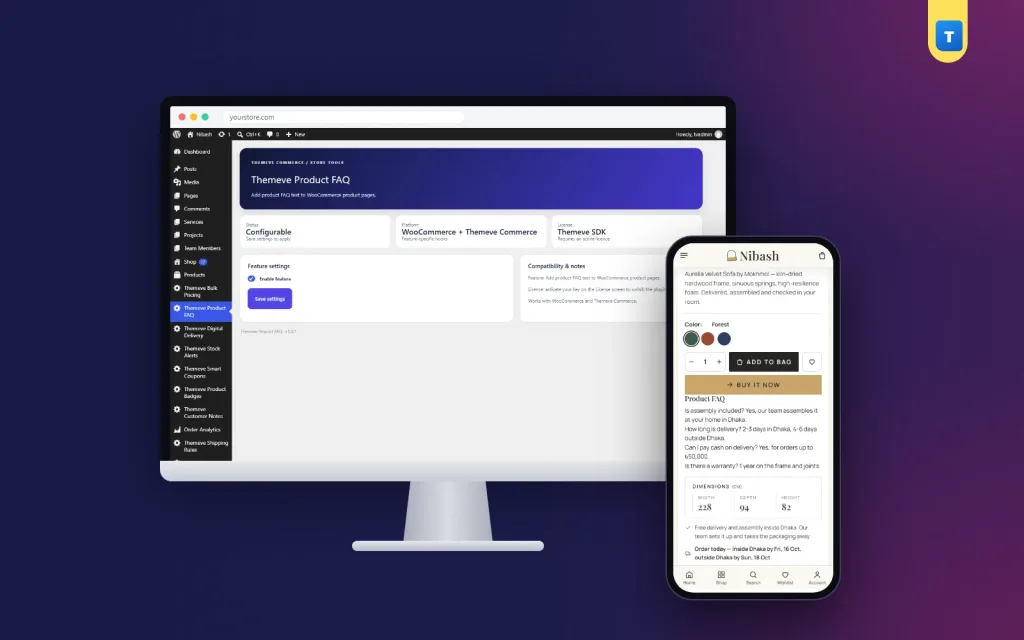
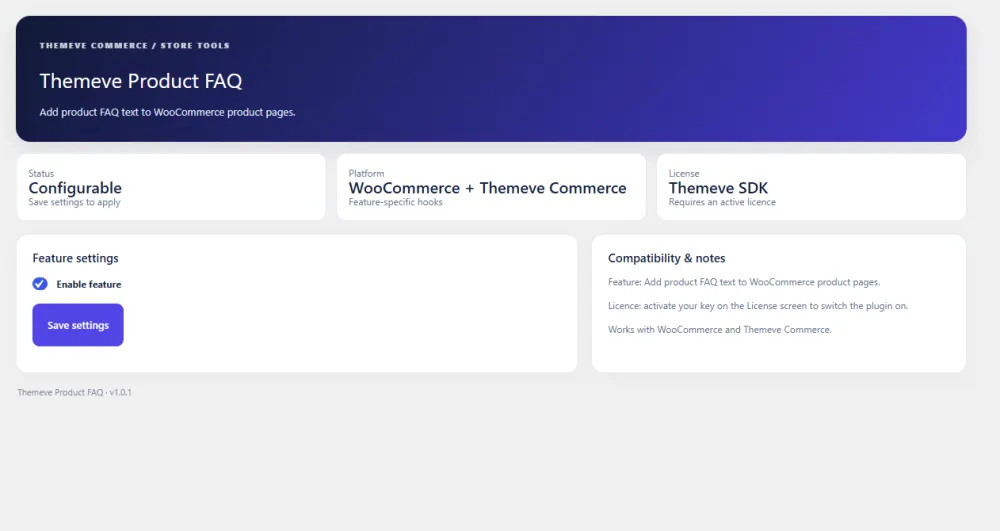
If you run a shop, Product FAQ adds a FAQ box to the product editor. You write one question and its answer per line, and they show on the product page under a clear Product FAQ heading.
The facts to know:
- A different FAQ for every product.
- Plain text input, one question and answer per line, so there is no builder to learn.
- Works in the WooCommerce product editor and in the Themeve Commerce product studio.
- A global on and off switch on one settings screen.
- No front-end script and no extra front-end stylesheet, so product pages stay as light as before.
- Everything is visible at once on phones.
It is built for product pages. If you need a FAQ on a normal page or post, use the block editor or Elementor methods above. You can read more on the Product FAQ plugin page.
How to write answers people trust
A FAQ is only as good as its answers. Follow these rules.
- Answer first. Start with yes, no or the key fact, then explain.
- Be specific. "Delivery takes 2 to 3 days in Dhaka and 4 to 5 days outside" is better than "Delivery is fast".
- Use plain words. Write like you talk to a customer.
- Keep it short. Two to four sentences are enough.
- Stay honest. If a product has a limit, say so. It prevents returns later.
- Update often. If your delivery time or price changes, change the answer on the same day.
Read each answer aloud before you publish it. If you stumble over a sentence, a customer will too. Ask a friend who does not know your business to read the list and tell you which answer is unclear. Their confusion shows you exactly where to improve the wording, and it only takes a few minutes of their time.
Sample FAQ ideas for a Bangladeshi shop
Here are questions that appear on many local shop pages. Adapt them to your own business.
- Do you offer cash on delivery?
- Can I pay with bKash or Nagad?
- How long does delivery take inside and outside Dhaka?
- What is the delivery charge?
- Can I return or exchange the product?
- Is the product original, and is there a warranty?
- Is the colour the same as in the photo?
- How can I contact you after the order?
Put the most common one at the top. Most visitors read the first two or three questions only.
Keep your FAQ fast and easy to read
- Avoid heavy widgets when plain text will do.
- Do not hide important answers inside long scrolling boxes.
- Use short questions that fit on one line on a phone.
- Make the question text bold or clearly larger than the answer.
- Test with a slow connection, since many visitors use mobile data.
- Check the page after every theme or plugin update.
Speed matters because visitors on slow networks leave quickly. A text-only FAQ costs almost nothing to load.
Where to place the FAQ on your page
Placement changes how many people read your answers. Think about where the doubt appears.
- Product pages: below the product summary or the description, close to the buy button.
- Service pages: after you describe the service and the price, before the contact form.
- Checkout or cart pages: a short note about delivery and payment, since that is where buyers hesitate.
- A dedicated FAQ page: linked from the menu and the footer, for general questions about the business.
- Landing pages: at the bottom, to catch the last objections before the call to action.
Do not put the FAQ at the very top of a page. Visitors should see what you offer first, and then find answers when they start to doubt.
It also helps to link between pages. A short answer on a product page can end with a line such as "See our delivery policy for details", linking to the full page. That keeps each answer short, and gives the reader a way to read more when they want it.
A short worked example
Take a small shop that sells school bags on Facebook. The owner notices the same five questions every day: the size, the material, the delivery time, cash on delivery and the return rule. She writes five short answers and adds them to each product page.
After a month, she counts her messages and finds that fewer of them ask about size and delivery. She then adds a sixth question about the warranty, because three buyers asked it that week. That is the right way to grow a FAQ: start small, watch what people ask, and add only what is useful.
Mistakes to avoid
- Writing questions nobody asks. Use real questions from your inbox.
- Making the list too long. Fifteen questions on one page overwhelm readers.
- Using the same FAQ everywhere. A product page needs product answers.
- Leaving old answers. Outdated delivery times damage trust.
- Using several FAQ tools at once. Pick one method.
- Not testing on a phone. Most of your visitors use one.
- Copying answers from another site. Write your own, based on your own policy.
Quick checklist
- You have a list of real questions from your customers.
- You chose one method: blocks, Elementor, a plugin or a product FAQ tool.
- Each answer is short, clear and honest.
- The FAQ reads well on a phone.
- You added a contact line at the end.
- You have a date in your calendar to review the answers.
If you want to read more on the technical side, the official WordPress documentation is a good, reliable reference.
Frequently asked questions
How to add FAQ in WordPress without a plugin?
Use the block editor. Add a Heading block for each question and a Paragraph block for each answer, or use the Details block to make answers that open and close. Update the page when you finish.
How to add FAQ in WordPress Elementor?
Open the page in Elementor, drag the Accordion or Toggle widget onto the page, type your questions and answers in the items, style it and click Update.
Do I need a plugin for a FAQ page?
No. A plugin helps when you need the same FAQ on many pages, or a different FAQ for each product in a shop. For one FAQ page, the editor is enough.
How many questions should a FAQ have?
Five to ten per page is a good range. Choose the questions that customers ask most often and keep each answer short.
Can I add a different FAQ to each WooCommerce product?
Yes. You can write it in each product description, or use a product FAQ plugin that adds a FAQ box to the product editor and shows it on the product page.
Will a FAQ slow down my site?
A text-based FAQ is very light. Slowness usually comes from heavy widgets or from running several FAQ plugins together.