−50%
−50%
Environment Diagnostics – System Info Plugin WordPress
 −50%
−50%
✦ Key features
- WordPress and PHP versions
- Database server version
- Active theme and its version
- List of active plugins
- Memory limit and max upload size
- Multisite, debug mode and HTTPS status
- Administrators only
- Read-only, changes nothing
- Easy to copy into support requests
- No front-end output
- Works on any WordPress site
Overview
Environment Diagnostics is a system info plugin WordPress admins can open to see PHP, WordPress and database versions, memory and upload limits, debug mode, HTTPS and active plugins in one private, read-only report.
Environment Diagnostics is a system info plugin WordPress site owners can open when something goes wrong and they need facts fast. One screen shows your WordPress version, PHP version, database version, active theme, memory limit, upload limit, debug mode, HTTPS status and the list of active plugins. Only administrators can see it.
It is a read-only report. It changes nothing on your site and it adds nothing for visitors. Its only job is to answer the questions your host, your developer or a plugin author will ask first.
Who can use this system info plugin WordPress offers
Anyone who runs a WordPress site and has ever been asked, "Which PHP version are you on?" and did not know where to look.
- Small shop owners who rely on one hosting company and one freelancer.
- Bloggers and news site owners who install plugins and themes on their own.
- Freelancers and agencies who support many client sites and need the same facts every time.
- Support teams who want clients to send a clear report instead of vague descriptions.
- Developers who want a quick check of a server before they install a theme or plugin.
Why system information matters
When a plugin will not install, an upload fails or a page shows an error, the first questions are always the same. Which PHP version? Which WordPress version? What is the upload limit? Is debug mode on? Most owners do not know where to find these answers, and the support conversation stalls while everyone searches.
A single report answers them in seconds. The helper gets what they need on the first reply, and your problem is solved sooner.
What the report shows
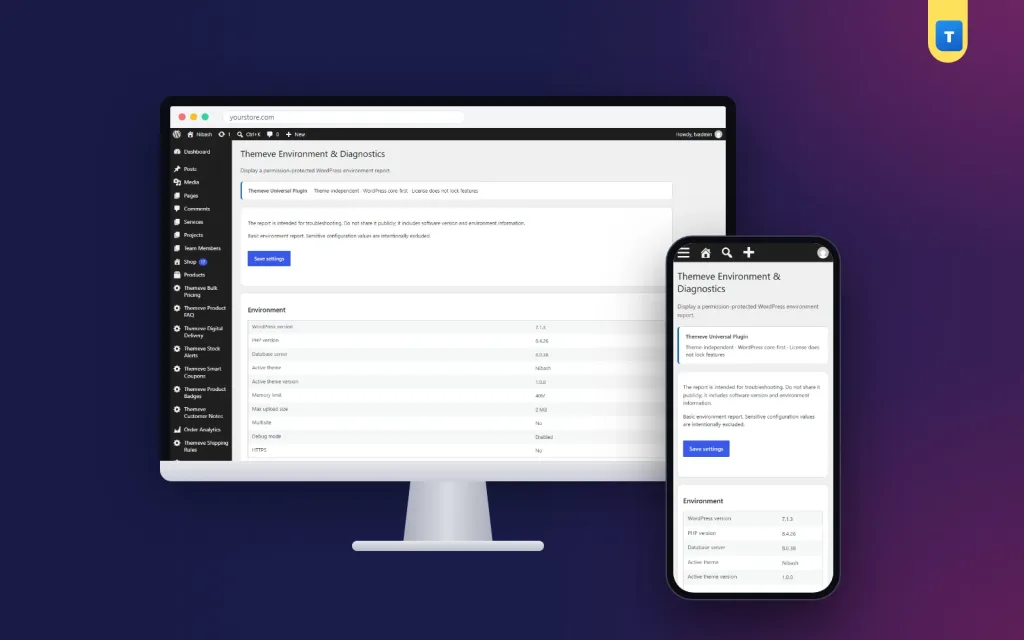
The report has a table called Environment and a list of active plugins. Every line is read from your own site when you open the page, so it is always current.
Versions
- WordPress version. The core version your site runs.
- PHP version. Decides which plugins and themes can run.
- Database server. The version of the database that stores your content.
Theme
- Active theme. The name of the theme in use.
- Active theme version. Useful when a bug was fixed in a later release.
Server settings
- Memory limit. The WordPress memory limit, or "Not defined" when none is set in the configuration.
- Max upload size. The largest file you can upload to the media library or the theme installer.
- Multisite. Yes or No.
- Debug mode. Enabled or Disabled. It should be off on a live site.
- HTTPS. Yes if your site runs over a secure connection.
Active plugins
- A list of every active plugin, shown by its folder and file name.
- Helps you and your developer spot conflicts between plugins.
- Lets you confirm that a plugin is really switched on.
How to read each line of the system info plugin WordPress report
- An old PHP version is a common reason a new plugin or theme will not activate. Ask your host how to move to a newer version, and take a backup first.
- A small memory limit can cause blank pages or "allowed memory size" errors when a site runs many plugins or a large shop.
- A small upload size blocks large images, zip files and backups. Your host can raise it.
- Debug mode enabled on a live site can show warnings to visitors. Switch it off after testing.
- HTTPS set to No means browsers may warn visitors. Ask your host for a certificate.
- Multisite set to Yes tells a helper that settings may be shared across several sites.
- A long plugin list is a hint to review. Fewer plugins usually mean fewer conflicts.
You do not need to be a developer to use these hints. They simply tell you what to ask for. Keeping system info WordPress hosts ask for in one place also means you can answer a support chat in under a minute, even on a phone.
Back-end screen, in detail
After activation, open Settings and choose Environment and Diagnostics. The page is made of a few simple parts.
- Heading and summary. A short line that explains the page is a troubleshooting report.
- Privacy note. A reminder not to share the report in public, because it includes software and environment details.
- Environment table. The ten rows listed above, in a striped table that is easy to scan.
- Active plugins list. One line per active plugin.
- Settings form. A basic form with a Save settings button. This report has no options to change, so the button changes nothing about the report.
Sensitive values, such as database passwords and security keys, are left out on purpose. Access is limited to users who can manage options, which means administrators.
Licence screens
- A lock screen appears when the licence is missing or expired.
- A License screen lets you activate the plugin once.
- Updates arrive in Dashboard, Updates, while the licence is active.
Practical uses of this system info plugin WordPress report
- Before installing a plugin, compare its PHP requirement with your PHP version.
- When a theme or image upload fails, check the maximum upload size.
- When a client reports a strange error, check whether debug mode is on by mistake.
- When you contact your host, copy the report into your message.
- After a hosting change or a major update, open the report and note the key values.
- Before you hire a freelancer, send the report so they can quote with the facts.
- When you move to a new host, compare the old and new reports line by line.
Each of these takes a few seconds with the report open, instead of minutes of searching.
A quick example
A shop owner cannot upload a new theme zip. The report shows a small maximum upload size. The owner sends that line to the hosting provider, who raises the limit the same day. The upload works.
How to write a good support request
- Describe what you tried to do.
- Say what happened and when it started.
- Mention anything you changed recently, such as a new plugin or an update.
- Select the report text and paste it below your message.
With a system info plugin WordPress owners keep installed, the last step takes seconds. Your helper can often answer on the first reply instead of sending a list of questions back.
A private, read-only system info plugin WordPress admins can trust
- Only administrators can open the page.
- The report is generated when you open it. It is not sent anywhere by the plugin.
- Nothing is shown on your public pages.
- Nothing on your site is changed by viewing the report.
Never post the report in an open Facebook group or public forum. Share it only with people you trust to help, such as your host or developer. If the report shows debug mode enabled on a live site, ask your developer to switch it off once they finish testing.
What this plugin is, and is not
- It is a report of facts. It does not fix problems by itself.
- It does not scan for malware or test your speed.
- It does not edit your configuration files.
- It does not send reports by email or schedule checks.
A system info plugin WordPress teams use should do one job and stay out of the way. This one gives you the facts, and you or your helpers do the fixing. For a lighter everyday summary, Site Monitor shows the main versions, plugins and memory limit on one screen. For login protection and security headers, Security Center covers the basics.
Setup steps
- In your WordPress dashboard, go to Plugins, Add New, then Upload Plugin, and choose the zip file.
- Click Install Now, then Activate.
- Open the License screen and enter your licence to switch the plugin on.
- Open Settings, then Environment and Diagnostics.
- Read the table and the plugin list.
- Copy the lines you need into your support message.
That is all the setup there is. There are no options to configure. The system info WordPress needs to show is read fresh each time you open the page, so you never have to refresh or rebuild anything.
Requirements
- WordPress 6.2 or newer, tested up to WordPress 7.1.
- PHP 7.4 or newer.
- Works on single sites and on multisite installs.
- An active licence, so the report can open and updates can arrive.
Good habits for site owners
A system info plugin WordPress owners open once a month builds a habit of knowing their own site. Small changes in the report, such as a new PHP version after a hosting update, explain many problems that appear a week later.
- Open the report after every hosting change and write down the key values.
- Compare them with the needs of any new plugin before you install it.
- Keep a copy of the report with your site records.
- Look at the plugin list now and then, and remove any plugin you no longer use.
What is included
- The plugin zip file, ready to upload in Plugins, Add New.
- One report screen under Settings with ten environment lines and the active plugin list.
- Documentation after purchase.
- Updates in Dashboard, Updates, while your licence is active.
- Six months of support, with help on WhatsApp.
For owners who want system info WordPress hosts and developers can read at a glance, keep this plugin ready for the day something goes wrong. It will save time on every support request.
Environment Diagnostics is built on the official WordPress documentation standards, and you can browse more of our WordPress plugins.
Reviews
0.0
Write a review
★★★★★
0 reviews from buyersNo reviews yet — be the first to share your experience after buying.
Frequently Asked Questions
01What does a system info plugin WordPress site owners install show?
It shows WordPress, PHP and database versions, theme, memory limit, upload size, debug mode, HTTPS status and active plugins.
02Who can see the report from this system info plugin WordPress adds?
Only administrators, under Settings, Environment and Diagnostics.
03Does it change anything on my site?
No. It is read-only and fixes nothing by itself.
04Does it show passwords or security keys?
No. Sensitive configuration values are left out on purpose.
05Can I send the report to my host?
Yes. Select the text and paste it into your message. Do not post it publicly.
06Does it add anything to my public pages?
No. Visitors see nothing from this plugin.
07Are there any settings to configure?
No. Activate the licence and open the report.
Delivery & Support
1Place your orderAdd to cart, sign in and pay with bKash, Nagad or Rocket.
2Payment verified automaticallyEnter your Transaction ID — the payment is matched automatically, usually within seconds.
3Get your productYour license key and download appear in My Account → Licenses.
- Secure automatic payment verification
- Delivery to your account & e-mail
- Friendly WhatsApp support
Refund Policy
This policy applies to every product in our store.
You get a refund when the product does not work as described and we cannot fix it, when your license will not activate your website, or when a manually delivered product is late and you cancel before delivery. A working license, or a single license already used on a live domain, is not refundable. Approved refunds go back to the number you paid from within one working day, minus the Send Money charge.
More items
View all →