Choosing a WooCommerce checkout field editor starts with a simple question: what do you really need to know from a buyer to deliver their order? This woocommerce checkout field editor guide is for Bangladeshi online shops that lose parcels to vague addresses, or lose buyers to long checkout forms, and want a checkout that asks exactly the right things.
We will look at which fields matter, which ones to remove, why delivery notes are so useful in Bangladesh, and how Checkout Builder adds Delivery instructions and Reference / note fields to WooCommerce and Themeve Commerce checkouts.
Why the checkout form matters
The checkout is where interest becomes an order. Every extra field is a small reason to give up, especially on a phone with a slow connection. At the same time, a missing field can cost you later, when the courier cannot find the house or the buyer forgets to mention that they will be at the office until evening.
The goal is balance. Ask for everything the order needs and nothing it does not. That sounds simple, but most default checkouts were designed for countries with postcodes and numbered houses, not for addresses described by landmarks.
Fields you probably do not need
Start by removing what your shop never uses. Company name is rarely needed for home buyers. A second address line often confuses people. A separate billing address makes little sense for cash on delivery orders. Postcode can be optional if your courier works by district and thana.
Fewer fields mean a faster checkout. Many shops find that a short form with name, phone, district, address and a delivery note covers everything. Check your theme and shop settings to see which fields you can hide or make optional.
Fields that save deliveries
Two pieces of information prevent many failed deliveries. The first is delivery instructions: landmarks, floor, gate colour, the best time to call, or a second contact person. The second is a free note where buyers can add anything else, from a gift message to an office reference number.
These are the custom checkout fields most Bangladeshi shops actually need. Without them, buyers squeeze landmarks into the address line, where they get cut off, or skip them entirely. With them, the courier gets clear directions and your team gets the context they need to pack correctly.
Why landmarks matter so much
Outside a few planned areas, addresses in Bangladesh are often descriptive. A rider who knows the parcel goes to the yellow building behind the pharmacy will find it. A rider with only a road name may call three times and then return the parcel. A dedicated field turns local knowledge into fewer returns.
How the WooCommerce checkout field editor add-on works
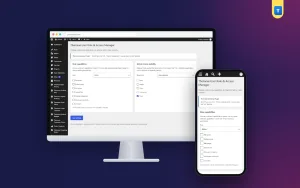
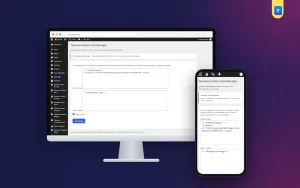
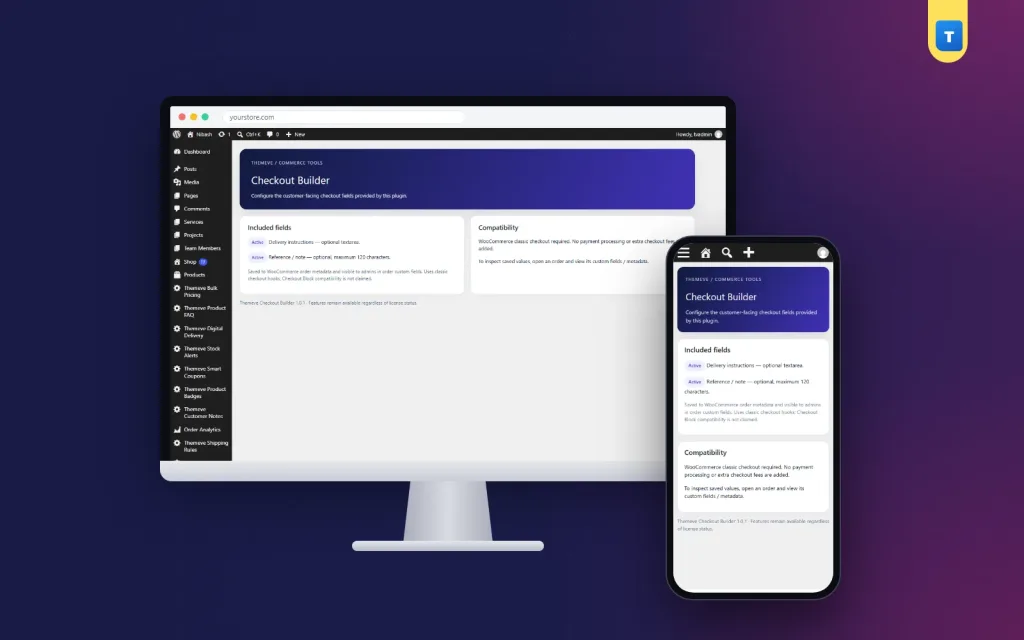
Checkout Builder adds two fields to your checkout: Delivery instructions and Reference / note. Both are validated when the order is placed and saved with the order, so your team sees them on the order screen. On Themeve Commerce stores, the same two fields are added to its checkout and saved with each order.
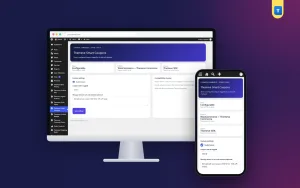
There is nothing to design. Once the licence is active, the fields appear. A Themeve Checkout Builder screen in the left admin menu holds the plugin's settings and licence status.
Honest limits
Checkout Builder is not a drag-and-drop form builder. The two fields are fixed, and you cannot create new field types with it. On WooCommerce, the fields appear on the classic checkout, not the block checkout. If your theme uses the block checkout, you can switch back to the classic checkout in WooCommerce. The WooCommerce documentation explains both checkout types.
Setting it up
Upload the zip from Plugins, Add New, Upload Plugin, and activate it. The plugin needs an active Themeve licence key. Until the key is entered, the fields are not added and only the lock screen and License screen open. Paste the key from My Account, Licenses, and the fields appear on your checkout. While the licence is active, updates arrive in Dashboard, Updates.
Test it with a real order. Open your checkout in a private window, add a product, fill in both new fields, and place the order. Open it in your admin and confirm that both values are saved. Then show your packing team where to find them.
Using delivery notes in your daily routine
Fields only help if someone reads them. Make it a rule that whoever books the courier copies the delivery instructions into the courier's note field. Many courier booking forms have a remarks box for exactly this. When the rider receives the parcel, the instructions travel with it.
Use the reference note for internal context. If a buyer writes that a friend recommended you, thank both of them. If an office buyer adds a purchase number, print it on the invoice. Small touches like these build loyal customers.
Prompt buyers with good examples
Many buyers do not know what to write. In your product descriptions and Facebook posts, mention that they can add a landmark or a preferred delivery time at checkout. Over time, buyers learn to use the field, and your delivery success rate improves.
Reducing checkout drop-offs
A good form is only part of the story. Show the delivery charge before the checkout so it is not a surprise. Let buyers order as guests. Make the phone field accept local formats. Keep the page fast and readable on small screens.
Some shoppers will still leave. Abandoned Cart Recovery saves the email typed on the classic checkout so you can follow up. And if cash on delivery is causing trouble for certain orders, Smart Checkout Rules can hide COD by order total or district.
Planning fields for different shop types
A fashion shop mostly needs landmarks and a delivery time. A gift shop needs room for a message and the name of the person receiving the gift. A furniture shop needs floor, lift access and whether the building allows deliveries at certain hours. An office supplies shop needs a purchase reference and the name of the person who will receive the parcel.
With two flexible fields, all of these fit. Use your product descriptions to tell buyers what to write in each field for your type of shop. Clear guidance turns two simple boxes into exactly the information your team needs.
Measuring the effect on deliveries
Before you add the new fields, note how many parcels came back last month for reasons like address not found or customer not reachable. Your courier report usually lists a reason for each return. After a month with delivery instructions on your checkout, compare the same numbers.
Also look at how many buyers actually use the fields. If very few do, your buyers may not notice them or may not know what to write. Add a short line on the product page or in your order confirmation message reminding people to add a landmark. If many do, read a sample each week; buyers often reveal problems with your packaging, delivery times or product descriptions in their notes.
Share what you learn with your courier contact. If many buyers ask for evening delivery, ask whether the courier can schedule evening runs in your busiest areas. Small changes based on real notes can lower your return rate more than any discount.
Keeping buyer notes private
Delivery instructions sometimes include personal details, such as a second phone number or the hours when a home is empty. Treat them carefully. Only staff who handle orders and courier bookings should read them. Do not post screenshots of orders in public groups, even to ask for advice, without hiding these details first.
When an order is complete, there is no need to copy the notes anywhere else. They stay with the order in your admin, which is the safest place for them.
Common mistakes
The first mistake is asking for everything just in case. Each field costs you some buyers. The second is never reading the notes buyers leave. A WooCommerce checkout field editor add-on is only useful when the answers reach the packing table and the courier.
The third mistake is using the block checkout and expecting classic-checkout add-ons to appear. Check which checkout your theme uses. The fourth is not testing on a phone. Most of your buyers will fill in the form on a small screen, so try it there first.
Frequently asked questions
Can I add my own new field types?
No. Checkout Builder adds two fixed fields, Delivery instructions and Reference / note.
Do the fields appear on the block checkout?
No. On WooCommerce they appear on the classic checkout.
Where does my team see the answers?
On the order screen, because both fields are saved with the order.
Does it work on Themeve Commerce?
Yes. The same two fields are added to the Themeve Commerce checkout.
WooCommerce Checkout Field Editor guide: final thoughts
A good checkout is short, clear and asks for the details your couriers actually need. Remove the fields you never use, add a place for delivery instructions and notes, and make sure your team reads them. To add those two fields to your WooCommerce classic checkout or Themeve Commerce store, see Checkout Builder.