A WordPress redirect plugin sends visitors from an old page address to the new one, so links you shared months ago still work. This wordpress redirect plugin guide is for owners of shops, blogs and business websites in Bangladesh who rename products, reorganise their site or move to a new design, and who do not want to lose visitors to not found pages.
We will look at why links break, what a 301 redirect is, how to plan redirects before a change, how to find broken links with a 404 log, and how Redirect Manager handles redirects one line at a time.
Why links break
Every page on your site has an address. When you change that address, every link pointing to the old one breaks. That includes your own Facebook posts, messages customers saved, search results, and other websites that linked to you. Visitors who click those links see a not found page, and most of them leave.
Addresses change for good reasons: a clearer product name, a better category structure, a new theme with different settings, or moving from an old site to a new one. The change itself is fine. The problem is forgetting to point the old address to the new one.
What a 301 redirect does
A 301 redirect tells browsers and search engines that a page has moved permanently. When someone visits the old address, they are sent to the new one automatically, usually so quickly they do not notice. Search engines also learn the new address over time and update their results.
There are other kinds of redirects for temporary moves, but for renamed or moved pages, a 301 redirect is the right choice. It is the standard way to say this page now lives here.
When you need redirects
You need a redirect whenever an address that people might use stops working. Common cases are renaming a product or post address, deleting a product and pointing buyers to a similar one, merging two blog posts into one, changing your permalink settings, and moving to a new domain or new website.
You do not need redirects for pages nobody ever visited or shared. Focus on addresses that appear in your posts, ads, search results or the 404 log.
Planning before a big change
Before a redesign or a move, make a list of your important addresses: homepage, top products, popular posts, category pages. For each one, write down the new address. That list becomes your redirect plan. After the change, add the redirects and test each one.
How the WordPress redirect plugin works
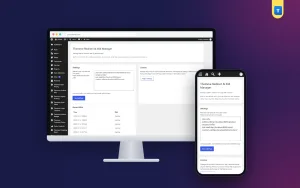
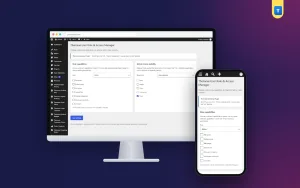
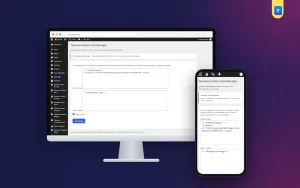
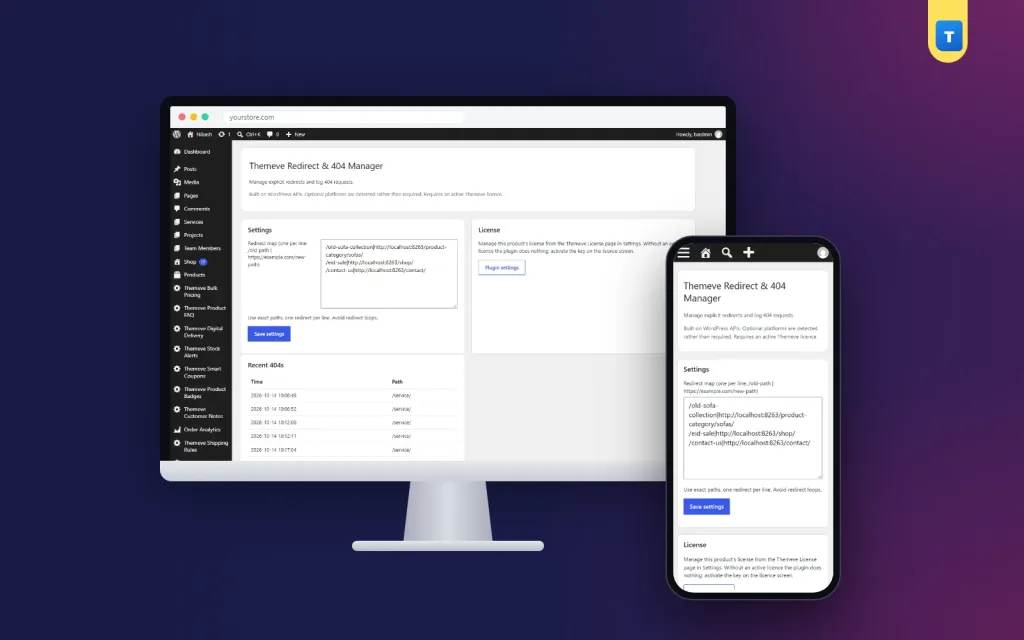
Redirect Manager adds a settings screen under Settings, Themeve Redirect Manager. Each line holds one redirect: the old path, a vertical bar, and the new full URL. Save, and the redirect works straight away as a 301. Because every redirect is one plain line, you can read your whole list at a glance and fix mistakes quickly.
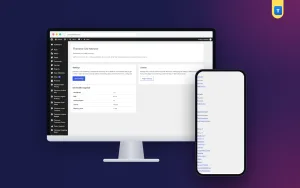
The plugin also logs requests that end in 404 not found. That log shows which missing addresses people actually try to reach, so you can decide which ones deserve a redirect.
Exact matches only
Redirects use exact path matches. There are no wildcard or pattern rules. Each old address needs its own line. For most small sites, that is clearer and safer, because nothing gets redirected by accident and every rule is visible.
Setting it up
Upload the zip from Plugins, Add New, Upload Plugin, and activate it. The plugin needs an active Themeve licence key. Until the key is entered, redirects do not run and only the lock screen and License screen open. Paste the key from My Account, Licenses, and the settings become available. While the licence is active, updates arrive in Dashboard, Updates.
Add your first redirect, save, and open the old address in a private browser window. You should land on the new page. Repeat for each redirect in your plan. The WordPress documentation explains permalinks and page addresses if you are planning a structure change.
Using the 404 log
A few days after setting up, open the 404 log. You will see a list of addresses that visitors requested but your site could not find. Some will be obvious typos. Some will be old product or post addresses. Some will be odd requests from bots, which you can ignore.
Look for addresses that appear repeatedly and look like real pages. Those are worth redirecting. Point each one to the closest matching page: the renamed product, a similar product, or the right category. Check the log every few weeks, especially after changes.
Redirects and search
When a page moves, search engines need time to notice. A 301 redirect helps them connect the old address to the new one. Google's Search Central documentation explains how site moves and redirects work.
Clear page details help too. SEO Manager adds an SEO title, meta description, canonical URL and robots setting to each post, so new pages are clearly described from the start. Keep an eye on your site's health with Site Monitor, which shows your WordPress version, PHP version, active plugins and memory limit.
A worked example
Imagine a clothing shop that renames its product addresses after Eid to make them clearer. The old address for a blue panjabi was shared in dozens of Facebook posts and Messenger chats. Before changing it, the owner writes down the old path. After the change, the owner adds one line to Redirect Manager: the old path, a vertical bar, and the full new product address.
The owner opens the old link from a Facebook post on a phone and lands on the new page. A week later, the 404 log shows another old address that people still use, a category page from the previous theme. The owner adds a redirect to the new category, and the log grows quieter.
Tips for Bangladeshi websites
Facebook posts live for a long time, and buyers often find old posts through shares. Before you change any address that appeared in a post or ad, plan its redirect. When you move to a new theme or a new shop system, ask your developer for a list of old and new addresses before launch.
Avoid changing addresses during big campaigns. If you must, add redirects the same day and test them from the campaign posts themselves.
Keeping your redirect list tidy
Over time, your list grows. Keep it organised by adding new redirects at the end and copying the full list into a note or document every few months as a backup. If you redirect a page to another page that later moves, update the first redirect to point straight to the final address. Chains of redirects work, but direct ones are faster and clearer.
Remove redirects only when you are sure nobody uses the old address any more. When in doubt, keep them; a redirect costs almost nothing and can keep sending visitors to the right page for years.
Redirects when you delete products
Shops remove products all the time: a design sells out, a supplier stops making an item, a season ends. Deleting the page leaves its address broken. Before deleting, decide where visitors should go instead. The best choice is a similar product, such as the same item in a new colour. The next best is the category page where similar items live.
Add the redirect when you delete the product, not weeks later. Buyers who saved the link, or who find an old post, still land somewhere useful and may buy the replacement. That small step turns a dead end into a second chance at a sale.
If a product is only out of stock for a while, keep the page and show that it will return, rather than deleting it. A redirect is for pages that are gone for good, not for products that will be back next week.
Common mistakes
The first mistake is changing addresses without adding redirects. A WordPress redirect plugin only helps if you use it at the moment of the change. The second is redirecting everything to the homepage. Send visitors to the closest matching page instead; a homepage redirect feels like a dead end.
The third mistake is typos in the new address. Always test. The fourth is ignoring the 404 log, which is the best free list of broken links you will ever get.
Frequently asked questions
What format do redirects use?
One per line: old path, a vertical bar, then the new full URL.
Is it a 301 redirect?
Yes. Redirects are permanent 301 redirects.
Can I redirect a whole folder with one rule?
No. Redirects use exact path matches, one line per address.
What does the 404 log show?
Requests for addresses your site could not find.
WordPress Redirect Plugin guide: final thoughts
Changing page addresses is normal; losing visitors because of it is not. Plan redirects before changes, add them the moment you change an address, test them, and check your 404 log regularly. Every link you ever shared keeps working. To manage 301 redirects one clear line at a time, try Redirect Manager.