A WordPress SMTP plugin is the usual fix when your site's emails go to spam or never arrive at all. This wordpress smtp plugin guide is for owners of shops, blogs and business websites in Bangladesh who have heard customers say I never got the email, and who want order confirmations, contact messages and password resets to reach people reliably.
We will look at why WordPress emails go missing, what SMTP is, how to find your settings, how to test delivery, and how Mail & SMTP sends every WordPress email through your own SMTP server.
WordPress email not sending: the usual reasons
When WordPress email is not sending, the problem is rarely WordPress itself. By default, WordPress passes emails to your hosting server's basic mail function. That server sends the message with little proof that it really comes from your domain. Gmail, Yahoo and business email providers are suspicious of such messages, so they mark them as spam or reject them quietly.
Some hosting providers also limit or block this kind of mail to fight spam. The result is the same: emails leave your site but never reach the inbox. You may not notice for weeks, because nothing on your site shows an error.
What SMTP is, in plain words
SMTP is the standard way email servers send messages to each other. When your site sends email through an SMTP server, it logs in with a username and password, just like an email app on your phone. The receiving server can see that the message came from a real, authenticated account, so it trusts it more.
Think of it as the difference between dropping an unsigned letter in a box and sending it through a post office with your name and address on the envelope. The second one is far more likely to be delivered.
Finding your SMTP details
You need five things: the SMTP host, the port, the encryption type (TLS or SSL), a username and a password. If you have business email with your domain, these are in your email provider's help pages or control panel. Many hosting plans include email accounts and show the SMTP settings in cPanel or a similar panel.
Choose a From address on your own domain, such as orders@yourshop.com or hello@yourcompany.com. Emails from your own domain look more trustworthy to both people and spam filters than emails from a free address.
How the WordPress SMTP plugin works
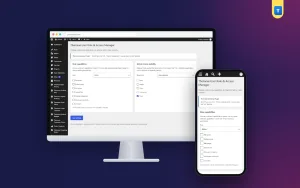
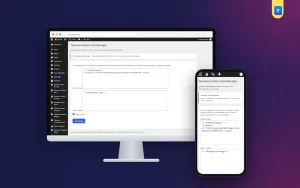
Mail & SMTP adds a settings screen under Settings, Themeve Mail & SMTP. Enter the SMTP host, port, TLS or SSL, username, password and From address, then save. From then on, every email WordPress sends goes through your SMTP server: shop order emails, contact form messages, new user emails, password resets and admin notifications.
Plugins that send email through the normal WordPress mail function are covered too, so you do not need separate settings for each one. A test email button on the settings screen lets you check delivery immediately.
What you need first
The plugin uses SMTP details from your email or hosting provider. It does not provide an email service of its own. If you do not have business email yet, set that up first with your hosting or email provider.
Setting it up
Upload the zip from Plugins, Add New, Upload Plugin, and activate it. The plugin needs an active Themeve licence key. Until the key is entered, emails are not routed through SMTP and only the lock screen and License screen open. Paste the key from My Account, Licenses, and the settings become available. While the licence is active, updates arrive in Dashboard, Updates.
Enter your SMTP details and From address and save. Then use the test email button: send a test to a personal address on a different provider, such as a Gmail account. Check the inbox and the spam folder. The WordPress documentation has more background on how WordPress sends email.
Testing delivery properly
One successful test is a good start, but test the emails that matter most too. Place a test order and check the confirmation email. Send a message through your contact form. Request a password reset for a test account. Each of these uses a different part of your site, and each should now arrive.
If a test lands in spam, check your From address. Using an address on your own domain and the same account you log in with for SMTP usually helps. Your email provider may also offer extra settings that improve trust; their help pages explain them.
Emails that matter for shops
For an online shop, email is part of the service. Order confirmations reassure buyers that their order went through. Status emails tell them when the parcel ships. If these go missing, buyers call or message you to ask, and some cancel because they think the order failed.
Automation makes reliable email even more important. Smart Order Automation can email the store admin or the customer when orders are created or change status. Those emails only help if they arrive, so set up SMTP before relying on them.
Contact forms and enquiries
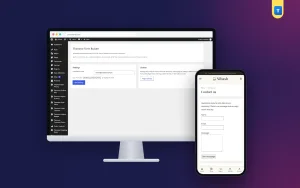
A contact form that silently loses messages is worse than no form, because visitors think they reached you. Contact Form emails each message to the address you choose, with Reply-To set to the sender, so you can answer with one click. With SMTP set up, those messages reach your inbox reliably.
Test your form after setting up SMTP and again whenever you change email provider or password.
Keeping your SMTP details safe
Your SMTP password gives access to send email as your domain. Only administrators should see the settings screen. Use a strong, unique password for the email account. When staff who know the password leave, change it and update the plugin.
Some providers let you create a separate password just for apps. If yours does, use one for your website, so you can change it without affecting your phone or computer email.
Tips for Bangladeshi website owners
Many local sites use a free Gmail address for everything. For a business, an email on your own domain looks more professional and works better with SMTP. Most hosting plans sold in Bangladesh include email accounts; ask your provider if you are not sure.
If your hosting provider blocks certain ports, ask which SMTP port and encryption they recommend. Write the working settings down in a safe place, so you can restore them quickly if something changes.
A worked example
Imagine a small cosmetics shop. Several buyers message to ask whether their order went through, because they never received a confirmation. The owner places a test order and finds the confirmation in the spam folder of a Gmail account. A second test to a work email never arrives at all.
The owner logs in to the hosting control panel, finds the email account orders@ on the shop's domain, and copies the SMTP host, port and encryption from the email settings page. In Mail & SMTP, the owner enters those details, the email address as username, its password, and the same address as the From address, then saves.
The test email arrives in the Gmail inbox within seconds. A new test order confirmation arrives too, and so does a password reset. The next week, the questions about missing confirmations stop. The whole fix took about fifteen minutes, most of it spent finding the right settings page.
When to check again
Email settings can break quietly. Check delivery whenever you change hosting, change your email provider, change the email password or move your domain. A quick test email after each change avoids weeks of lost messages. Many owners also send themselves one test each month, simply to be sure. It costs nothing and catches problems early.
Common mistakes
The first mistake is not noticing the problem. Test your site's emails regularly, especially order and contact emails. The second is using a From address that does not match the SMTP account, which can make messages look suspicious. A WordPress SMTP plugin works best when the From address and login belong together.
The third mistake is wrong port or encryption. If a test fails, check these first. The fourth is forgetting to update the password in the plugin after changing it in your email account.
Frequently asked questions
Which emails does it cover?
Every email WordPress sends, including shop, form, user and admin emails.
Where do I find SMTP settings?
In your email or hosting provider's control panel or help pages.
Can I check that it works?
Yes. Use the test email button on the settings screen.
Does it include an email service?
No. It uses the SMTP server of your email or hosting provider.
WordPress SMTP Plugin guide: final thoughts
Lost emails cost trust, orders and enquiries, and they are easy to fix. Get your SMTP details, use a From address on your own domain, send everything through SMTP and test the emails that matter. Your customers will finally receive what your site sends. To route every WordPress email through your SMTP server, try Mail & SMTP.