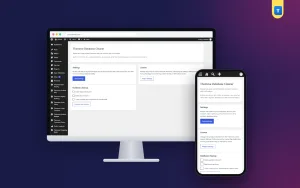
 −50%
Custom Content Types & Fields – Best Custom Post Type Plugin WordPress

✦ Key features
- Ready Services content type
- Ready Projects content type
- Ready Team Members content type
- Own dashboard menu for each type
- Archive page switch for all types
- Enable only the types you need
- Extra field box on posts, pages and types
- Your own field label and meta key
- Shortcode with id and key options
- Works with any WordPress theme
- Block editor and REST API ready
- Updates while the licence is active
Overview
Custom Content Types & Fields is the best custom post type plugin WordPress business sites can add without code. Switch on Services, Projects and Team Members, give each its own archive, and show an extra field anywhere with a shortcode.
Many business sites need more than posts and pages, and the best custom post type plugin WordPress owners can pick is one that adds structure without asking for code. Custom Content Types & Fields switches on three ready sections, Services, Projects and Team Members, and adds one extra field that you can print anywhere with a shortcode.
Each section gets its own menu in the dashboard, its own list of entries and its own archive page on the site. Your blog stays a blog. Your services stay with services. Your portfolio grows one project at a time. The plugin works with any WordPress theme and runs only in the dashboard and in the places where you use its shortcode or archive pages.
Best custom post type plugin WordPress sites can use: who it suits
The three content types are general, so many kinds of sites can use them. Here are common examples.
- Agencies and freelancers who sell packages and want a Services list and a Projects portfolio.
- Interior, construction and event companies that show finished work, one project per page.
- Coaching centres, tutors and clinics that list subjects, treatments or classes as services and introduce their staff as team members.
- Repair shops, caterers and photographers with a menu of services and a gallery of past jobs.
- Consultants and law or accounting offices that want a clean list of practice areas and a page for every partner.
- Developers who build client sites and want a quick way to add these sections without writing registration code each time.
The demo content you may see in a preview is only a demo. The plugin itself has no fixed design and no fixed niche.
Why posts and pages are not enough
WordPress starts with posts for news and pages for fixed content. A business site soon outgrows that. Services get mixed with blog posts. A portfolio becomes one long page that is hard to edit. Team members end up squeezed into an About page.
Separate content types fix this, and a simple custom post type WordPress plugin is the easy way to add them. Each kind of content has its own place in the dashboard and its own address on the site. Staff know where to click. Visitors find a tidy list instead of a long scroll.
The three ready content types
Services
Give every service its own page: a tutoring subject, a design package, a repair job, a catering menu. A Services archive lists them all. You can link single services from menus, ads and social posts.
Projects
Show your work one project at a time: a building, a website, an event, a wedding shoot. The Projects archive works as your portfolio and grows as you finish new work.
Team Members
Give each person a page with a photo and a role. The Team archive shows everyone together, which helps new clients know who they will deal with.
All three types use the standard WordPress editor. Each entry supports a title, the main content, a featured image, an excerpt and revisions. The types are also available to the block editor and the REST API, so they work with modern WordPress tools.
Back-end options: every setting explained
All settings sit on one screen, under Settings in the dashboard. Only administrators can open it. The screen has two boxes.
Box 1: Built-in content types
- Services checkbox. Turns the Services type on or off.
- Projects checkbox. Turns the Projects type on or off.
- Team Members checkbox. Turns the Team Members type on or off.
- Public archive checkbox. Enables archive pages for the enabled types. With it on, each type has a public list page. With it off, entries still have their own single pages, but there is no list page.
Existing posts and pages are not changed by any of these settings. If you only need Services, tick Services and leave the others off. They stay hidden until you want them.
Box 2: Generic custom field
- Field label. The name shown above the field when you edit content. The default is Extra information. Change it to something that fits your site, such as Price range, Duration, Location or Client name. It holds up to 60 characters.
- Meta key. The internal name under which the value is stored. The default is themeve_extra_info. You can use letters, numbers and underscores. Most users never need to change it.
The values are plain text. This is a simple single-line field, not a full custom-field builder. If you need repeaters, relationships or many field types, a dedicated field solution is a better fit. For one useful detail per item, this field is enough.
Save and apply
- Press Save settings. The enabled types appear at once in the dashboard menu.
- If a new archive address does not open, visit Settings › Permalinks and press Save once to refresh the address rules.
New menus in the dashboard
Every enabled type gets its own menu with an All list and an Add button. Staff write a service, a project or a team member page the same way they write a post. There is nothing new to learn.
The field box on the edit screen
- The field box appears on posts, pages and the three content types.
- It shows your own label as its heading.
- It holds a single line of text, up to 500 characters.
- It saves with the entry. It is protected by a security token and only users who may edit the entry can change it.
What visitors see on the front end
The plugin does not force a design. How lists and single pages look depends on your theme. Visitors may see the following.
- Archive pages for Services, Projects and Team Members, when archives are enabled. Link them from your main menu.
- Single pages for each entry, with the title, content, featured image and excerpt your theme normally shows.
- The extra field value, wherever you place the shortcode.
After you enable a type, open its archive and a single entry and check them. Then adjust your menus. If you want a special design, your theme or a developer can style these pages.
Show the field anywhere with a shortcode
Use this shortcode in any post, page, widget or block that accepts shortcodes:
- [themeve_custom_field] prints the field value of the current entry.
- [themeve_custom_field id="25"] prints the value from the entry with ID 25. This is useful on a landing page that pulls one price or one location from a service.
- [themeve_custom_field key="my_other_key"] prints a different stored value, if you saved one under another meta key.
The output is plain text, safely escaped. Put it in a sentence, a table cell or a heading, for example "Starting from [themeve_custom_field]".
This keeps one key detail in the same place for every service or project, instead of buried in the text.
Is it the best custom post type plugin WordPress owners need?
Be clear about what it is and what it is not. The three types are fixed: Services, Projects and Team Members. You choose which ones to enable, but you cannot create new types with your own names. There is one extra field, not a field builder.
For most business sites that is exactly the gap in a standard WordPress install. If you need many custom types, or very different field sets for each, you will want a different tool. If you want a tidy, fast way to add services, projects and a team, this custom post type WordPress plugin is built for that job.
Practical ways to use it
Interior design studio
Enable Services and Projects. Add four services, with the field labelled Starting from. Add twelve finished projects with photos and a location in the field. Link both archives in the menu. Each project page can show its location with the shortcode.
Coaching centre
Enable Services for courses and Team Members for teachers. Label the field Class duration. Each course page can show its length, and the Team page builds trust with parents.
Small agency
Enable all three. Use the field for Client name on projects. Show the same field on a case-study landing page by ID.
Tips for good results
- Use one image style and size for every project.
- Keep service titles short and clear.
- Link related services and projects to each other in the text.
- Add a new project whenever you finish good work, and update service pages when prices change.
How to set it up
- Go to Plugins › Add New › Upload Plugin, choose the zip file and press Install Now.
- Press Activate.
- Open the licence screen from the Settings menu and enter the licence from My Account › Licenses. The settings screen opens once the licence is active.
- Go to Settings and open the plugin's page.
- Tick the content types you need and decide if archives should be public.
- Type your field label, for example Price range, and press Save settings.
- Add your first service, project or team member from its new dashboard menu and fill in the field.
- Add the archive pages to Appearance › Menus and open them on the site to check.
Why choose it over registering types by hand
- No code and no child theme edits.
- The content stays when you change your theme, because it lives in the plugin and your database, not in theme files.
- Staff use the normal WordPress editor.
- Turn a section off in one click when you no longer need it.
- One short shortcode instead of custom template code.
- It works with any theme, including ours.
For many small firms this is the best custom post type plugin WordPress buyers can add without a developer. Keep in mind that archive and single page layouts come from the theme. A plain template will show plain pages. That is normal, and you can improve it over time.
What is included
- The custom post type WordPress plugin zip, ready to upload from Plugins › Add New.
- Three ready content types: Services, Projects and Team Members.
- Archive pages for each type, switchable from one setting.
- The extra field box with your own label and meta key.
- The [themeve_custom_field] shortcode with id and key options.
- Updates in Dashboard › Updates while your licence is active.
- Requirements: WordPress 6.2 or newer and PHP 7.4 or newer. Tested up to WordPress 7.1.
A licence is needed to use the plugin. Without an active licence nothing is added to your site, and only the lock screen and the licence screen open. Once the licence is active, everything above is available.
Keep every section alive
A structure only helps when you use it. Add a project when you finish good work. Update service prices when they change. Refresh team pages when people join or leave. A section that grows month by month shows visitors a business that is busy and doing well. The best custom post type plugin WordPress has for small firms only gives you the shelves. Your regular small updates fill them.
Custom Content Types & Fields is built on the official WordPress documentation standards, and you can browse more of our WordPress plugins.
Reviews
0.0
Write a review
★★★★★
0 reviews from buyersNo reviews yet — be the first to share your experience after buying.
Frequently Asked Questions
01Which content types are included?
Services, Projects and Team Members. You choose which ones to enable on one settings screen.
02Is this the best custom post type plugin WordPress owners can use for a business site?
It is built for business sites that need services, a portfolio and a team page without code. It has three fixed types and one extra field. If you need many custom types, a larger tool fits better.
03Can I create my own content types?
No. The three types are fixed. You choose which to enable.
04What is the extra field?
A single-line text field on posts, pages and the three types. You set the label and meta key, and show the value with the shortcode [themeve_custom_field].
05Does each type have its own page on the site?
Yes. With archives switched on, each type has a list page, and every entry has its own page. Your theme controls the look.
06Which is the best custom post type plugin WordPress theme users should pick to match their design?
This one uses your theme styling for archives and single pages. Check them after enabling a type and adjust your menus.
07Does it work with any theme?
Yes. It works on any WordPress site with WordPress 6.2 or newer and PHP 7.4 or newer.
08Does it need a licence?
Yes. Without an active licence nothing is added and only the lock and licence screens open.
Delivery & Support
1Place your orderAdd to cart, sign in and pay with bKash or Rocket.
2Payment verified automaticallyEnter your Transaction ID — the payment is matched automatically, usually within seconds.
3Get your productYour license key and download appear in My Account → Licenses.
- Secure automatic payment verification
- Delivery to your account & e-mail
- Friendly WhatsApp support
Refund Policy
This policy applies to every product in our store.
You get a refund when the product does not work as described and we cannot fix it, when your license will not activate your website, or when a manually delivered product is late and you cancel before delivery. A working license, or a single license already used on a live domain, is not refundable. Approved refunds go back to the number you paid from within one working day, minus the Send Money charge.
More items
View all →You may also like
−50%
 −50%
 −38%
 −50%
