 −50%
−50%
Global Code Manager – Header Footer Code WordPress Plugin

✦ Key features
- Header code box for every page
- Footer code box for every page
- One switch turns all code on or off
- Administrators only
- Safe from theme updates
- For analytics and verification tags
- For chat widgets and ad pixels
- No theme file editing
- Works with any WordPress theme
- All snippets in one place
- Code saved even when switched off
- Updates while the licence is active
Overview
Global Code Manager is a header footer code WordPress plugin for analytics, verification tags, chat widgets and pixels. Paste code into a header or footer box, switch it on, and it loads on every page without touching theme files.
A header footer code WordPress plugin gives you one safe place for the small pieces of code that almost every website needs. Global Code Manager lets administrators paste analytics, site verification tags, chat widgets and advertising pixels into a header box and a footer box. The code then loads on every page, and one switch turns all of it on or off.
You do not edit theme files, and you do not need a developer. The snippets stay in place when you update or change your theme. The plugin works with any WordPress theme and has a single settings screen with two boxes and one tick box.
Header footer code WordPress plugin: who can use it
- Shop owners who run Facebook or Google ads and need a tracking pixel on every page.
- Bloggers and publishers who add analytics and need to verify the site with a search tool.
- Businesses that add a live chat or support widget.
- Freelancers and agencies who manage client sites and want all snippets in one tidy place.
- Schools, clinics and local companies who were told to paste a code into the header and were not sure how.
- Developers who want a quick, clean way to add small scripts without a child theme.
It suits sites of any niche, because the plugin does not depend on what your site sells or publishes.
Why code snippets get messy
Sooner or later, every site owner is asked to add a snippet. Search Console wants a verification tag. Your analytics tool gives you a tracking code. A chat service sends a widget script. An ads helper sends a pixel.
Many people paste these straight into theme files. It works until the theme updates and the code disappears. Or until nobody remembers where a script came from. A dedicated place keeps every snippet visible, and safe from theme updates.
Header and footer boxes
Header snippet
The header box places your code inside the head of each page. This is where most verification tags and many analytics snippets belong. The code is added late in the head (priority 99), after the theme and other plugins have added their own items.
Footer snippet
The footer box places your code near the end of each page, just before the closing of the page. This is where chat widgets and some tracking scripts usually go. They load after your content, so they matter less for how quickly the first part of the page appears.
Adding header and footer code WordPress style is simple, and the instructions from each tool tell you which box to use. When in doubt, follow the tool's own guide.
Back-end options: every setting explained
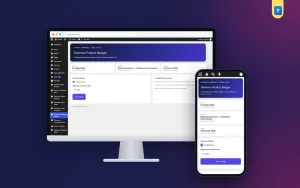
The plugin has one page under Settings in the dashboard. Only administrators can open it. The page has a short warning, two text areas, one tick box and a Save button.
- Safety note. Reminds you to use only trusted code, that unfiltered HTML may be unavailable on multisite or restricted hosting, and that you should take a backup before changing analytics or third-party snippets.
- Header snippet. A large text area, 8 rows high. Paste the code that belongs in the page head.
- Footer snippet. A second text area of the same size for code that belongs near the end of the page.
- Enable snippets. One tick box that controls everything. When it is off, nothing is added to your pages, even if the boxes contain code. Your code stays saved.
- Save settings. Stores both snippets and the switch.
How the code is saved
- If your account is allowed to use unfiltered HTML, which is normal for a single-site administrator, your code is saved exactly as you pasted it.
- If not, as on some multisite networks and locked-down hosts, the plugin cleans the code to the safe set of tags WordPress allows for posts. Script tags may be removed in that case.
This is why the safety note asks you to check your site after each change.
What visitors see on the front end
Visitors see nothing added by the plugin itself. They get whatever your snippets do: a chat bubble, a tracking script running quietly, or nothing visible for a verification tag. The plugin adds no styles and no scripts of its own. When the switch is off or the boxes are empty, the plugin outputs nothing at all.
The code loads on the public pages of your site. It is not shown inside the dashboard.
One switch for everything
If something on your site breaks after adding a snippet, turn the switch off and save. All added code stops loading at once. Then you can check whether a snippet caused the problem. Turn it back on when you are ready. You do not need to delete anything or search through theme files.
Admins only
A header footer code WordPress plugin should be strict about who may use it. Code in the header and footer can change how your whole site behaves. That is why only administrators can open this page. Editors, authors and other staff cannot see or change it.
Paste code only from sources you trust, such as the official dashboard of the tool you use. Never paste code sent by strangers or copied from random websites.
What you can add
- Site verification tags for search tools.
- Analytics tracking code.
- Chat and support widgets.
- Advertising and conversion pixels.
- Small style or font links that a service asks you to add.
- Meta tags requested by a platform.
Keep a short note of every snippet: what it is, where it came from and why you need it. When you stop using a tool, remove its code. Old scripts slow pages and may keep collecting data you no longer use.
Practical examples
A shop with ads
A shop owner needs to verify the site in a search tool and add a chat widget. The verification tag goes into the header box and the chat script into the footer box. After saving, both work on every page. A month later the theme updates and nothing is lost, because the code never lived in the theme.
A blogger
A blogger adds an analytics tracking code to the header. If the numbers look wrong later, the blogger can switch it off, compare, and switch it on again.
A freelancer with many clients
A freelancer installs the plugin on each client site. Every client has their snippets in the same place, so any site can be checked in a minute.
Safe habits for header and footer code
- Add one snippet at a time and check your site after each.
- Open the site in a private window to see the public view.
- Clear any page cache after saving, or the old page may keep showing.
- Review your list every few months and remove what you no longer use.
- Back up before changing analytics or ad scripts.
If something goes wrong
- Untick Enable snippets and save. If the site recovers, a snippet is the cause.
- Tick the switch again, and remove snippets one by one until you find the one that breaks the page.
- Copy a fresh version of that snippet from the official dashboard of the tool.
- If a tool cannot detect its code, check that it is in the right box, that the switch is on and that your cache is cleared.
With header and footer code WordPress sites need in one screen, every fix happens in one screen and without touching theme files.
How to set it up
- Go to Plugins › Add New › Upload Plugin, choose the zip file and press Install Now.
- Press Activate.
- Open the licence screen under Settings and enter the licence from My Account › Licenses.
- Open the plugin's page under Settings.
- Paste your first snippet into the header or footer box, following the tool's own instructions.
- Tick Enable snippets and press Save settings.
- Open your site in a private window and view the page source, or use the tool's checker, to confirm that the code is there.
- Clear your cache if you use a cache plugin.
Why a header footer code WordPress plugin beats editing theme files
- Your code survives theme updates and theme changes.
- All snippets live on one screen, so nothing is forgotten.
- A single switch stops everything at once.
- Only administrators can change the code.
- No file editing and no FTP.
- No child theme needed.
Be honest about its scope. It has two boxes and one switch. It does not have rules to show a snippet only on some pages, only for some devices or only for logged-out visitors. If you need that level of control, you will want a tag manager. For most small sites, one global place is all they need, and the simple setup is easy to teach to a colleague.
Pair it with privacy and search tools
Tracking code and privacy go together. Consent & Privacy Manager shows a cookie banner in your own words with Accept and Reject buttons. SEO Manager sets an SEO title, a meta description, a canonical address and a robots setting for each post. To learn why editing theme files directly is risky, see the WordPress documentation.
What is included
- The plugin zip, ready to upload from Plugins › Add New.
- A header code box and a footer code box.
- One switch to turn all code on or off.
- Administrator-only access to the settings.
- Updates in Dashboard › Updates while your licence is active.
- Requirements: WordPress 6.2 or newer and PHP 7.4 or newer. Tested up to WordPress 7.1.
An active licence is needed. Without it, no code is added to your pages, and only the lock screen and the licence screen open. Once the licence is active, the settings page is ready. A tidy header footer code WordPress plugin like this keeps every snippet in one place, safe from theme updates.
Global Code Manager is built on the official WordPress documentation standards, and you can browse more of our WordPress plugins.
Reviews
0.0
Write a review
★★★★★
0 reviews from buyersNo reviews yet — be the first to share your experience after buying.
Frequently Asked Questions
01What is a header footer code WordPress plugin used for?
It adds small pieces of code, such as analytics, verification tags, chat widgets and pixels, to every page without editing theme files.
02Who can edit the code?
Only administrators can open the settings page.
03Which box should I use?
Verification tags and many analytics snippets go in the header. Chat widgets and some trackers go in the footer. Follow the tool instructions.
04Why choose this header footer code WordPress plugin over editing my theme?
Your code stays when the theme updates or changes, and one switch turns everything off if a snippet causes trouble.
05What happens when the switch is off?
Nothing is added to your pages. Your saved code stays in the boxes.
06Can I show a snippet only on some pages?
No. Code loads on every public page. Use a tag manager for page rules.
07Will script tags be saved?
Yes for administrators who may use unfiltered HTML. On some multisite or locked hosts the code is cleaned and scripts may be removed.
08Does it need a licence?
Yes. Without an active licence no code is added and only the lock and licence screens open.
Delivery & Support
1Place your orderAdd to cart, sign in and pay with bKash or Rocket.
2Payment verified automaticallyEnter your Transaction ID — the payment is matched automatically, usually within seconds.
3Get your productYour license key and download appear in My Account → Licenses.
- Secure automatic payment verification
- Delivery to your account & e-mail
- Friendly WhatsApp support
Refund Policy
This policy applies to every product in our store.
You get a refund when the product does not work as described and we cannot fix it, when your license will not activate your website, or when a manually delivered product is late and you cancel before delivery. A working license, or a single license already used on a live domain, is not refundable. Approved refunds go back to the number you paid from within one working day, minus the Send Money charge.
More items
View all →You may also like
−50%
 −7%
−7%
 −50%
−50%
 −50%
−50%
