Sooner or later every site owner is asked to paste a small piece of code into the site, and then the question comes up: how to add header and footer code in WordPress without breaking anything? Google wants a verification tag. Your analytics tool gives you a tracking script. A chat service sends a widget. An ads helper asks for a pixel.
This guide explains what header and footer code is, where each snippet belongs, and three safe ways to add it. You will also find a checklist, common mistakes and examples for small shops and blogs in Bangladesh. No coding skill is needed to follow the steps.
What header and footer code means
Every web page has two special places for code that visitors never see. The header area, called the head, sits at the top of the page source. The footer area sits at the bottom, just before the page ends.
Tools that need to run on every page ask you to paste their code into one of these places. The code does its job quietly: it counts visitors, proves that you own the site, shows a chat button or records a purchase for your ads.
Most beginners who ask how to add header and footer in wordpress only need to know two things: which snippet goes in which place, and how to paste it without touching theme files. The rest of this guide covers both.
It also helps to know that the order of scripts can matter. A script that needs another script must load after it. If a tool works on one site but not on yours, a clash with another script is a common reason, and the footer or header placement is the first thing to test.
Which code goes where
Each tool says which place to use. If instructions are missing, these rules work for most cases.
Usually the header
- Site verification tags for search tools
- Analytics base code
- Ads and social media pixels
- Meta tags that tools ask you to add
Usually the footer
- Live chat and support widgets
- Scripts that are not needed to show the first part of the page
- Some tracking scripts that the vendor places at the bottom
Footer scripts load after your content, so they matter less for how quickly the page first appears. When the tool's instructions disagree with these rules, follow the tool.
Common reasons to add code
- Search Console verification: proves you own the site.
- Analytics: shows how many people visit and which pages they read.
- Facebook pixel: lets you measure and improve your Facebook ads.
- Chat widget: lets customers message you from any page.
- Custom styles or small scripts: a developer may give you a short snippet to add.
A small shop in Dhaka running Facebook ads often needs two of these on day one: a pixel in the header and a chat button in the footer.
Three ways to do it
There are three common ways to place a snippet. They differ in safety and effort.
- Edit the theme files by hand. You open the header and footer files and paste the code.
- Use a code box inside your theme options. Some themes include one.
- Use a small plugin made for this job. The code lives in a settings screen and not in your theme.
How to add header and footer code in WordPress by editing theme files
Many old tutorials show this method. You go to Appearance, then the theme file editor, open the header file and paste the code before the closing head tag. For the footer, you open the footer file and paste before the closing body tag.
It works, but it has real problems:
- When the theme updates, your code is erased.
- A single typing mistake can break the whole site.
- If you change the theme, you must add everything again.
- Nobody remembers later what each snippet does.
- Many hosts and security tools block the file editor for good reason.
If you must use this method, work in a child theme, take a backup first and keep a note of every change. For most owners, one of the other methods is safer.
Using your theme's built-in code box
Some themes have a Custom Code or Scripts section. It is easy to use, but it ties your snippets to that theme. If you switch themes next year, the snippets go with the old theme and your tracking stops without any warning.
Check one thing before you rely on it: ask yourself whether you plan to keep this theme for several years. If the answer is no, keep your snippets somewhere that does not depend on the theme.
How to add header and footer in WordPress with a plugin
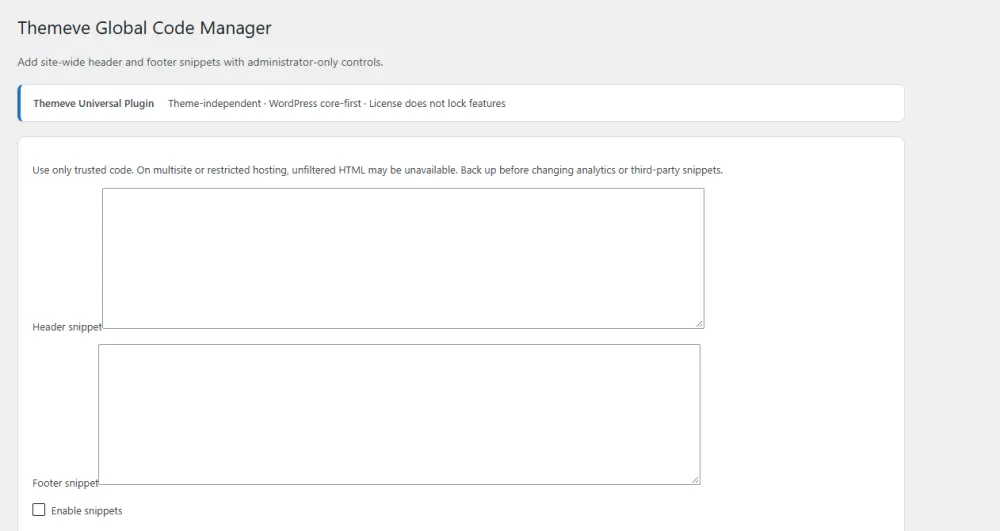
A header and footer plugin gives you two boxes in the dashboard, one for each place. You paste the code, save, and it loads on every page. Because it is a plugin, it keeps working when you change your theme.
When you compare plugins, look for this short list:
- One box for the header and one for the footer.
- An on and off switch for all code at once.
- Access for administrators only.
- No extra features that you do not need.
- Works with any theme.
The on and off switch deserves special attention. If a site breaks after you add a snippet, you can turn everything off in one click and find the cause.
A ready-made option
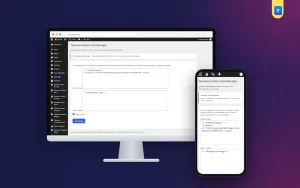
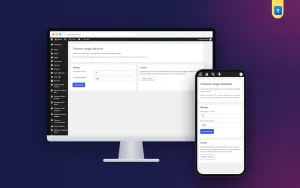
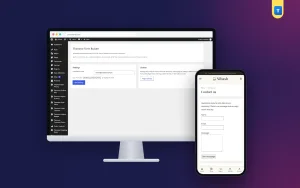
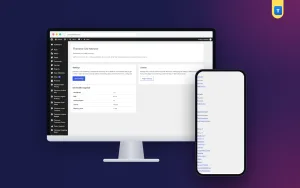
Global Code Manager is a small plugin built for exactly this job. It has a header box, a footer box and a single switch. Code you paste appears on every page, and it stays safe when your theme updates.
Only administrators can edit it, under Settings, then Global Code Manager. It works with any WordPress theme and does not need you to edit theme files. The header code is added late in the page head, after your theme and other plugins have added theirs. You can see the full details on the Global Code Manager page.
Step by step: add a snippet safely
These steps work with any header and footer tool.
- Take a backup of your site.
- Copy the snippet from the official dashboard of the tool you use. Do not copy it from a random website.
- Read the tool's instructions to find out whether it belongs in the header or the footer.
- Open the plugin settings in the WordPress dashboard.
- Paste the code in the correct box.
- Save the changes.
- Open your site in a private browser window.
- Look at the page source or use the tool's own test feature to confirm the code is there.
- Write a short note about what you added and why.
How to check that your code works
Pasting the code is only half of the job. Always confirm it is live.
- For verification tags, press the verify button in the search tool.
- For analytics, open your site and check whether the visit appears in the live report.
- For a pixel, use the helper tool the ads platform provides.
- For a chat widget, look for the chat button on the page.
- Test on a phone as well as a computer.
If nothing happens, check that you pasted the whole snippet, that you used the right box and that a cache plugin is not showing an old copy of the page. Clear the cache and try again.
Safety rules for pasted code
Code in the header and footer can change how your whole site behaves. A bad script can redirect visitors, show ads or steal data. Follow these rules:
- Paste code only from sources you trust.
- Never paste code sent by strangers in messages or comments.
- Let only administrators edit the code boxes.
- Do not add the same script twice.
- Remove code when you stop using a tool.
- Keep a short log of every snippet.
Old scripts slow your pages and may keep collecting data you no longer use. Cleaning up is part of good site care.
Privacy and speed
Tracking code raises privacy questions. If your visitors come from places with privacy laws, you may need a cookie notice. Check what each tool collects before you add it.
Speed matters too. Each script adds a request. Add only what you really use, and prefer the footer for anything that is not needed immediately. Test your page speed before and after a new snippet, so you see its real cost.
Mistakes to avoid
- Pasting into the wrong box. Follow the tool's instructions.
- Missing part of the snippet. Copy from the first tag to the last.
- Adding the same tracker in two places. It counts every visit twice.
- Using the theme file editor on a live site. One typo can take the site down.
- Forgetting a backup. Always keep one.
- Leaving old code behind. Remove what you no longer use.
- Using a visual editor that changes quotes. Paste into a plain code box.
How to add header and footer code in WordPress for a small shop
Here is a realistic plan for a Facebook-based clothing shop that is moving to its own website, with bKash, Nagad and cash on delivery for payments.
- Verify the site with the search tool by pasting the verification tag in the header box.
- Add the analytics code in the header box, so you can see which pages bring visitors.
- Add the Facebook pixel in the header box, so your ads can learn from real visits.
- Add the chat widget code in the footer box, so customers can ask about size and delivery.
- Save, then open a product page on your phone and check that the chat button appears.
- Place a test order and see whether the pixel records the event.
The whole job takes about fifteen minutes when you have each snippet ready. Keep the snippets in a text file on your computer, labelled with the tool name and date.
Keep a snippet register
A snippet register is a simple list that prevents confusion later. It can live in a notebook or a spreadsheet. For each snippet, record:
- The tool name and what it does
- The date you added it
- The place: header or footer
- Who asked for it or who set it up
- The account or email linked to the tool
- When you plan to review or remove it
Review the list every few months. If a tool is no longer used, remove its code and cancel the account. This keeps the site light and clean, and it helps the next person who works on your site.
What to do when you work with a freelancer
Many small businesses hire a freelancer for setup. A few habits protect you.
- Ask them to put snippets in the plugin and not in theme files.
- Ask for a list of everything they added.
- Keep the tool accounts in your own name, with your own email.
- Give administrator access only for the time needed, then remove it.
- Test the site together after the job is done.
These steps mean you can change freelancers later without losing your tracking or your accounts.
If you want to read more on the technical side, the official WordPress documentation is a good, reliable reference.
Frequently asked questions
How to add header and footer code in WordPress safely?
Use a small plugin with a header box and a footer box. Paste the code from the tool's own dashboard, save, then test the site in a private window. Take a backup before you start.
Do I need a developer to learn how to add header and footer code in WordPress?
No. If you can copy and paste, you can do it with a plugin. A developer helps only when the code itself needs changes.
Will my code disappear when the theme updates?
Not if it lives in a plugin. Code pasted into theme files is erased by theme updates, which is why a plugin is safer.
Can I use this method for any tool?
Yes, for most tools that give you a snippet for every page. Follow their instructions for the correct box and test the result.
Can I add code to only one page?
A simple header and footer plugin loads code on every page. If you need a script on one page only, ask your developer or use a tool made for page-specific code.
Is it safe to paste code from a website I found?
No. Only paste code from the official dashboard of a tool you trust. Unknown scripts can harm your site and your visitors.
What do I do if the site breaks after adding code?
Turn the code off with the main switch, or remove the last snippet you added. Then check the snippet for a missing piece and try again.
Does header and footer code slow my site?
Every script adds some load. Keep only the ones you need and prefer the footer for scripts that can wait.