 −50%
−50%
Stock Alerts – Low Stock Alert Plugin WordPress
✦ Key features
- Your own low stock level
- Low stock notice at the top of the WooCommerce admin
- Product name and quantity left
- Edit link straight to the product
- Clears itself after restock
- Email to the site admin on Themeve Commerce
- One email per product per day
- Works with WooCommerce and Themeve Commerce
- Uses the stock you already track
- Simple setup in one screen
Overview
Stock Alerts is a low stock alert plugin WordPress shops can use to catch products before they run out. Set your own low level and see the product, quantity left and an edit link in your admin.
Stock Alerts is a low stock alert plugin WordPress shop owners can use to get a warning before a product runs out. You set the stock level that counts as low for your shop, and the plugin tells you inside your admin when a product reaches it.
Many sellers only notice an empty shelf when a customer complains. An out-of-stock product costs more than one sale. Your Facebook ad keeps running and sends people to a page they cannot buy from. Buyers who were ready to order go to a competitor and may not return. A few days of warning prevents most of this, and that warning is what this plugin gives you.
Who can use a low stock alert plugin WordPress shops rely on
It suits any shop that tracks stock quantities. It runs on two kinds of store:
- A WordPress shop that runs on WooCommerce.
- A shop built on our Themeve Commerce plugin.
Shops that gain the most:
- Fashion shops with limited sizes, where the last two pieces of a popular colour disappear fast.
- Grocery and cosmetics shops with fast-moving items.
- Gadget sellers who import in batches and need time to reorder.
- Handmade and small-batch sellers who need to know when to start the next batch.
- Shops that sell by phone and Messenger, where an order can be taken for an item that is no longer on the shelf.
What you get at a glance
- Your own low stock level, set on one screen.
- A Low stock notice at the top of the WooCommerce admin.
- Product name and quantity left in the notice.
- An edit link straight to the product.
- The notice clears itself after you restock.
- An email to the site admin on Themeve Commerce stores.
- Works with the stock you already track. No new stock system to learn.
Light on your site
Stock Alerts adds nothing to your shop pages. Shoppers never see it, and it loads no script or stylesheet on the front end. All the work happens in the admin when a stock quantity changes. The list of low products is kept as a single small setting, so there is no extra table in your database.
Back end: every screen and option
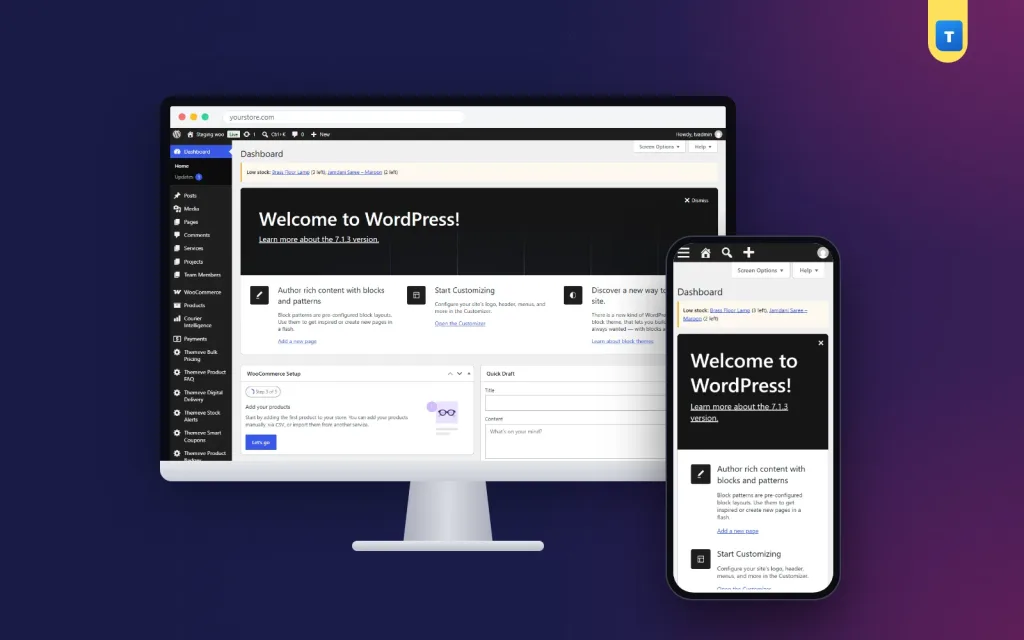
The Themeve Stock Alerts settings screen
After activation, Themeve Stock Alerts appears in the left admin menu. The screen has these parts:
- Header and status tiles. Three tiles show the plugin status, the supported platform (WooCommerce and Themeve Commerce) and the licence state.
- Enable feature checkbox. Tick it to watch stock levels. Untick it to stop the alerts.
- Warn when stock falls to or below. A number field for your low stock level. The sample value is 5, and you can set 0 or any higher whole number.
- Save settings button. Stores your choices.
- Compatibility and notes card. A side panel with a short description and a reminder that the licence must be active.
Choosing the right level
The level is one number for the whole shop, so choose it with your fastest-selling products in mind.
A small boutique might choose 2. A grocery shop that sells dozens a day might choose 20. Pick a number that gives you enough time to reorder from your supplier before the shelf is empty. Think about supplier lead time: if a restock takes four days and you sell five a day, a level of 20 is the right start.
Who can open the settings
On WooCommerce, users with the manage WooCommerce capability can open the screen and see the notice. On a Themeve Commerce store without WooCommerce, store administrators can open it.
The licence screen
The plugin needs an active Themeve licence. Until you activate it, no alert is raised and only the lock screen and License screen open. After you enter your licence, the settings become available. Updates arrive in Dashboard, Updates while the licence is active.
What the alert looks like
On WooCommerce
- When a product's stock quantity changes and falls to your level or below, the product is added to the alert list.
- A yellow Low stock notice appears at the top of the admin pages.
- The notice names each product with the quantity left, for example Face wash (4 left).
- Each product name is a link to its edit screen, so you can update the stock or pause ads in one click.
- When new stock arrives and the quantity goes back above your level, the product leaves the list and the notice disappears on its own. There is nothing to dismiss by hand.
On Themeve Commerce
- Every time a product is saved or its stock is synced, the plugin checks the quantity against your level.
- If the quantity is at or below the level, an email goes to the site admin address.
- The email gives the product name, its ID, the stock left and your level.
- Each product sends at most one email per day, so your inbox does not fill up.
- Once the stock is above your level again, the reminder resets.
What to know before you rely on it
A few honest limits help you plan your own routine around the plugin.
- Stock management must be turned on for the products you want to watch. A product with no stock quantity is ignored.
- On WooCommerce, the alert is raised when the quantity changes, for example after a sale or a manual update. A product that is already low and not touched will appear the next time its stock changes.
- The plugin does not send SMS, and it does not show anything to shoppers.
Why running out costs more than you think
- Ads keep spending money on a product nobody can buy.
- A ready buyer may go to a competitor and not come back.
- Cash on delivery shops may take a phone order for something that is no longer on the shelf, then cancel and lose trust.
- Last-minute restocking costs more than planned reordering.
Most of these problems can be avoided with a few days of notice. A good low stock alert for WooCommerce turns a surprise into a task on your list.
Turn this low stock alert plugin WordPress notice into a routine
Decide who acts on the notice and how. For example, the manager checks the admin each morning, places supplier orders for anything marked low, and pauses ads on products with very little left. A simple routine turns the alert into action.
Before a big campaign
Raise your low level a week before Eid or a large Facebook campaign, so warnings arrive earlier while sales are fast. After the campaign, set it back. Five seconds of planning can save a weekend of out-of-stock messages.
Share the job with your team
Tell everyone who works in the admin what the notice means. Staff who update stock after a delivery should check that the quantity is correct, because the notice is only as accurate as the numbers behind it. Once a month, count a few fast-moving products on the shelf and compare them with the quantity in the shop. Small gaps are easy to fix, and your alerts stay trustworthy.
A quick example
A cosmetics shop sets its low level to 5. On Thursday, a popular face wash drops to 4 after a busy morning. The owner opens the admin, sees the notice with the product name and quantity, and calls the supplier. New stock arrives on Saturday, the owner updates the quantity, and the notice disappears. The weekend campaign runs without a single out-of-stock complaint.
Setup in six steps
- Make sure WooCommerce or Themeve Commerce is installed and active.
- Go to Plugins, Add New, Upload Plugin. Choose the zip file and install it.
- Activate the plugin.
- Open the License screen and enter your licence.
- Open Themeve Stock Alerts in the left menu, enter your low stock level, make sure Enable feature is ticked and click Save settings.
- Check that stock management is on for your products, then update the stock of one test product below your level to see the alert.
Why use a plugin instead of checking stock by hand
Checking stock by hand works when you sell twenty products. It stops working at two hundred, and it fails on the busy day when you have no time to look. A notice that finds you is more reliable than a habit that depends on memory.
- You do not need to scroll through the product list looking for small numbers.
- The notice shows only what needs attention now.
- One shop-wide level is easy to understand and easy to change.
- It is a plain low stock alert plugin WordPress admins can learn in minutes, with no reports to read.
If you need a low stock alert for WooCommerce that stays out of the way, this fits. It is small on purpose. It does not run purchase orders, track suppliers or forecast demand. It warns you, and you decide what to do.
Works well with other Themeve plugins
- Order Analytics shows top products for any date range, which helps you set the right low level.
- Smart Order Automation runs rules on new orders, such as emailing the admin about large orders that may need extra stock.
What is included
- The plugin zip, ready to upload in Plugins, Add New.
- Updates in Dashboard, Updates while the licence is active.
- Documentation after purchase.
- Six months of support.
- Requirements: WordPress 6.2 or newer, PHP 7.4 or newer. Tested up to WordPress 7.1.
That is the everyday job of a low stock alert plugin WordPress stores can trust: small warnings that protect big sales days.
Stock Alerts is built on the official WordPress documentation standards, and you can browse more of our WordPress plugins.
Reviews
0.0
Write a review
★★★★★
0 reviews from buyersNo reviews yet — be the first to share your experience after buying.
Frequently Asked Questions
01What is a low stock alert plugin WordPress shops use it for?
It warns you when a product falls to your chosen stock level, so you can reorder or pause ads before it sells out.
02How do I set the low stock level?
Open Themeve Stock Alerts, enter a number in Warn when stock falls to or below, and save.
03Where does the alert appear?
On WooCommerce, as a Low stock notice at the top of the admin with the product name, quantity left and an edit link. On Themeve Commerce, as an email to the site admin.
04Does the notice clear by itself?
Yes, on WooCommerce. When you restock above your level, the product leaves the list.
05Does this low stock alert plugin WordPress admins install send emails?
On Themeve Commerce it emails the site admin, at most once a day per product. On WooCommerce it shows an admin notice only.
06Do I need stock management turned on?
Yes. Products without a stock quantity are ignored.
07Do shoppers see anything?
No. Alerts are for store staff only.
08Does it need a licence?
Yes. Until the licence is active, no alert is raised and only the lock and License screens open.
Delivery & Support
1Place your orderAdd to cart, sign in and pay with bKash or Rocket.
2Payment verified automaticallyEnter your Transaction ID — the payment is matched automatically, usually within seconds.
3Get your productYour license key and download appear in My Account → Licenses.
- Secure automatic payment verification
- Delivery to your account & e-mail
- Friendly WhatsApp support
Refund Policy
This policy applies to every product in our store.
You get a refund when the product does not work as described and we cannot fix it, when your license will not activate your website, or when a manually delivered product is late and you cancel before delivery. A working license, or a single license already used on a live domain, is not refundable. Approved refunds go back to the number you paid from within one working day, minus the Send Money charge.
More items
View all →You may also like
−50%
 −50%
−50%
 −50%
−50%
 −50%
−50%
