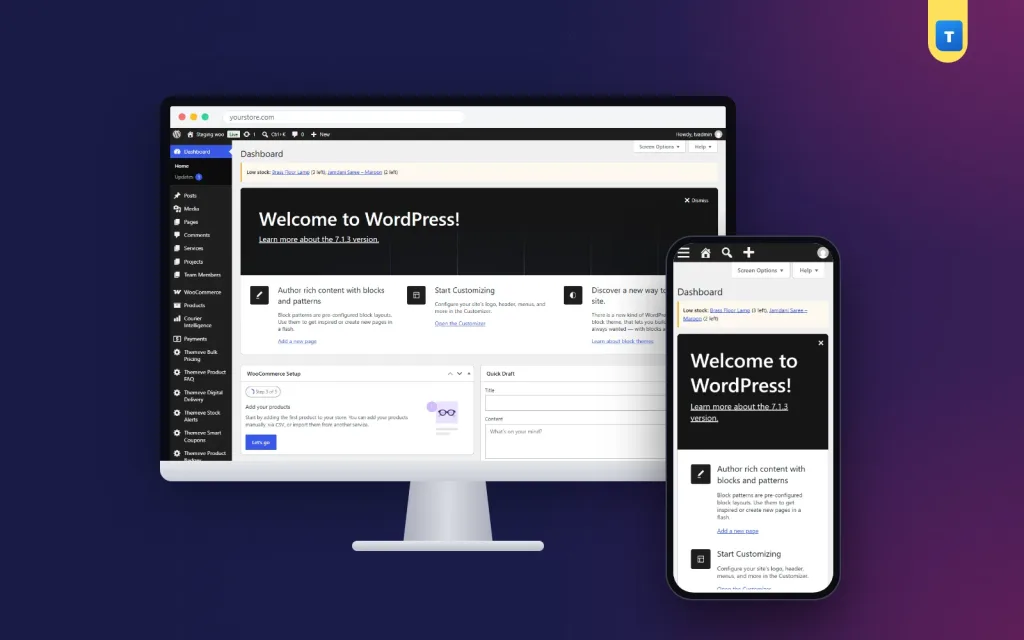
Many shop owners search for how to low stock WordPress theme settings can handle, and the honest answer is that a theme only shows your products, while the stock rules live in your shop plugin. This guide explains where low stock is set, how to read the numbers and how to get a warning before a product runs out.
It is written for small online shops in Bangladesh that sell on Facebook and on their own website. You will get a clear plan, step-by-step settings, a daily routine and a checklist you can copy. At the end there is a simple option for getting the warning inside your admin.
Why running out of stock costs more than one sale
An empty shelf does not only lose the order in front of you. It causes a chain of smaller problems.
- Your Facebook ad keeps running and sends people to a page where they cannot buy.
- Buyers who were ready to order go to another shop and may not return.
- If you accept orders by phone or message, you may promise something you no longer have.
- With cash on delivery, a cancelled order wastes your time and sometimes the courier fee.
- Your page reputation suffers when comments fill up with the question: is this available?
Most of these problems are avoidable with a few days of warning. That warning is what a low stock setup gives you.
What a theme does and what it does not do
A WordPress theme controls how your shop looks. It decides the product grid, the badges and the colours. It usually does not track your quantities. Stock counting is done by your shop system, such as WooCommerce or Themeve Commerce.
So when people ask how to low stock WordPress theme pages should show, they are really asking two separate things:
- How do I tell my shop system to track stock and treat a number as low?
- How do I show a message like Only 3 left on the product page?
The first is a shop setting. The second depends on your theme, because some themes show a stock label and others do not. Always set the shop side first. Without correct stock numbers, no theme can show the right message.
How to low stock WordPress theme shops need, step by step
Here is the standard way to turn on stock tracking and set a low level in WooCommerce.
- Go to WooCommerce, then Settings, then the Products tab, then Inventory.
- Tick Enable stock management.
- Set Low stock threshold. This is the number at which WooCommerce treats a product as low. A boutique might choose 2. A grocery shop might choose 20.
- Set Out of stock threshold, usually 0.
- Choose whether to hide out-of-stock items from the shop page.
- Choose whether to show stock quantity on the product page: always, only when low, or never.
- Save the changes.
Next, open a product, go to the Inventory tab and tick Manage stock. Enter the quantity you have. You can also set a different low stock threshold for that one product, which is useful for slow items.
Pick a sensible low number
A good low number depends on two things: how fast the product sells and how long your supplier takes.
- If you sell about 3 pieces a day and the supplier needs 5 days, your low number should be at least 15.
- If the product is a once-a-week seller and restocking takes two days, a low number of 2 is fine.
- Add a small cushion for Eid or campaign weeks, when sales speed up.
Show stock to buyers: the how to stock alert WordPress theme question
Some owners use the phrase how to stock alert WordPress theme pages can display, meaning a notice to the buyer, not to the owner. There are two kinds of alerts, and it helps to keep them apart.
- Owner alert: a warning inside your admin or inbox that a product is running low, so you can reorder.
- Buyer message: a label on the product page such as Only 2 left, which creates a little urgency.
For the buyer message, check your theme options for a stock label or badge. In WooCommerce you can also set Stock display format to show the remaining quantity only when it is low. Keep the message honest. If you say Only 2 left, it should be true.
WooCommerce email notifications for low stock
WooCommerce can send emails when stock is low or a product is out of stock. In the Inventory settings, you will find a Notification recipient box and two checkboxes for low stock and out of stock emails.
This is useful, but it has limits:
- Emails can land in spam or get buried under dozens of other messages.
- You get one email per event, so if you miss it, the warning is gone.
- If several people manage the shop, the email reaches only one inbox.
Many owners prefer a visible notice inside the admin that stays on screen until the problem is fixed. You see it every time you log in, whoever you are.
Build a simple daily stock routine
Settings only help if someone acts on them. Decide who does what, and write it down.
- Every morning, the manager opens the admin and checks for low stock warnings.
- For each product marked low, check what is left on the shelf and update the quantity if it is wrong.
- Place a supplier order for anything that will run out within your restock time.
- Pause Facebook ads on products with very little left.
- When new stock arrives, update the quantity the same day.
- Once a week, count a few products by hand and compare with the website.
This takes about ten minutes a day for a small shop, and it prevents most out-of-stock complaints.
A ready-made option inside your admin: Stock Alerts
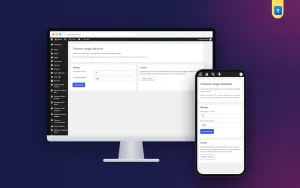
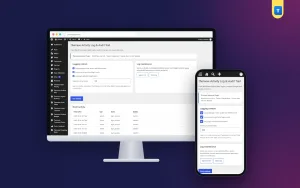
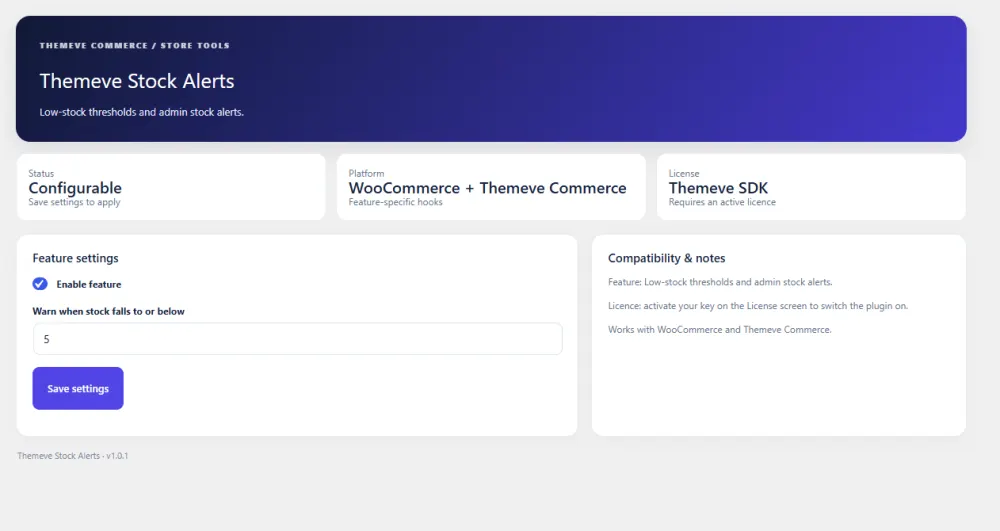
Stock Alerts is a low stock alert plugin for WooCommerce and Themeve Commerce. You set your own low level on one screen. When any product falls to that level, a Low stock notice appears at the top of the admin.
The notice shows:
- The product name.
- The quantity left.
- An edit link that takes you straight to the product.
When you restock and the quantity rises above your level, the notice clears itself. There is no list to clean by hand, so the admin always shows what needs attention right now. It uses the stock you already track, so there is nothing new to enter. You can see the full feature list on the Stock Alerts page.
Prepare for a big campaign
Sales speed changes in campaign weeks, so your low level should change too.
- A week before Eid or a large Facebook campaign, raise your low level so warnings arrive earlier.
- Check the top ten products by sales and order extra stock for them first.
- Agree a limit for each popular item, so one product does not sell out on the first day.
- After the campaign, set the low level back to normal.
Five seconds of planning can save a weekend of out-of-stock messages.
How to low stock WordPress theme shops should check before launch
Before you go live or start a campaign, run this checklist.
- Stock management is turned on in the shop settings.
- Every product has Manage stock ticked and a correct quantity.
- The low stock threshold is set for the shop, and for slow products where needed.
- Out-of-stock products are hidden or clearly marked on the shop page.
- Variations, such as sizes and colours, have their own quantities.
- Your theme shows a stock label, or you have decided not to show one.
- Someone is named to check warnings each day.
- Backorders are either off or clearly explained to buyers.
Common stock mistakes to avoid
- Forgetting variations. A T-shirt may have 20 in total but 0 in size L. Track each variation.
- Selling on Facebook and the website without updating both. If a parcel sells through a message, change the website quantity the same day.
- Setting the low level too low. A level of 1 gives no time to reorder.
- Allowing backorders by mistake. Buyers then order items you do not have.
- Never counting the shelf. Numbers drift from reality through returns, damaged items and gifts.
- Ignoring slow stock. A product that never reaches the low level may be tying up your money.
Handle variations, bundles and backorders
Stock gets tricky when one product has many versions. A few rules keep it clean.
- Variable products: turn on Manage stock for each variation, not only for the parent product. A shirt in five sizes and three colours needs fifteen separate quantities.
- Bundles and sets: decide which single item controls the stock. If a gift box contains three items, reduce each item when the box sells, or the numbers will drift.
- Backorders: allow them only for products you can really supply within a few days, and tell the buyer the waiting time on the product page.
- Returns: add returned items back to stock only after you have checked their condition.
If you sell in both Facebook messages and on the website, pick one place as the master record. Many small shops use the website quantity as the truth and update it whenever a message order is confirmed.
Use your sales to decide what to reorder
A low stock warning tells you what is running out. It does not tell you how much to buy. For that, look at your recent orders.
- Open the orders list and filter by the last 30 days.
- Note how many pieces of each warned product sold.
- Divide by 30 to get the daily average.
- Multiply by the days your supplier needs, plus the days until the next order.
- Add extra for a coming campaign or festival.
For example, a product sells 60 pieces a month, which is 2 a day. Your supplier takes 7 days and you reorder every 14 days. You need at least 2 x 21 = 42 pieces on the way, plus a cushion. This kind of simple count removes guessing and keeps your money from sitting in unsold boxes.
What to tell buyers when something is sold out
Even good shops run out sometimes. How you handle it matters.
- Mark the product as out of stock quickly, so nobody orders it.
- Write a clear line on the product page, such as Back in stock in about two weeks.
- Offer a similar item in the same category.
- If a buyer has already ordered, message them before they message you, and give the choice of waiting or a refund.
- Collect interest from buyers who ask, so you know how much to order next time.
Honest and early communication keeps trust, and trust brings repeat orders.
Who needs low stock alerts the most
Fashion shops with limited sizes, where the last two pieces of a popular colour disappear fast. Grocery and cosmetics shops with fast-moving items. Gadget sellers who import in batches and need time to reorder. Handmade and small-batch sellers who must know when to start the next batch.
Any shop that tracks stock can gain from an early warning, because the cost of a missed warning is always larger than the cost of setting it up.
If you want to read more on the technical side, the official WordPress documentation is a good, reliable reference.
Frequently asked questions
How to low stock WordPress theme shops can set up without coding?
Turn on stock management in the shop settings, enter a low stock threshold and add quantities to your products. No coding is needed. The theme only decides whether a stock label is shown.
What is a good low stock number?
Multiply your daily sales by the days your supplier needs, then add a small cushion. A fast seller may need 15 or more, while a slow seller may need only 2.
Does my theme send the low stock warning?
No. Themes control the look of the shop. The warning comes from the shop system or from a plugin such as Stock Alerts.
How to stock alert WordPress theme pages can show to buyers?
Use the stock display setting in WooCommerce to show the remaining quantity only when it is low, and check your theme options for a stock badge. Keep the message true.
Does Stock Alerts work with Themeve Commerce?
Yes. It works on WooCommerce and on Themeve Commerce, and it uses the stock quantities you already track.
Will the notice stay after I restock?
No. It clears itself once the quantity goes above your low level, so you do not need to dismiss it by hand.