 −50%
Activity Log – Best Activity Log Plugin for WordPress
✦ Key features
- Records logins with user and time
- Records failed logins
- Records content created, updated and deleted
- Records plugin activation and deactivation
- Choose which event groups to record
- Keep 100 to 5,000 entries, default 1,000
- Recent activity table with the latest 100 entries
- Export the full log as a CSV file
- Clear the log in one click
- No extra database tables
- Nothing added to public pages
- Works with any WordPress theme
Overview
Activity Log is the best activity log plugin for WordPress for teams that share a dashboard. It records logins, failed logins, content changes and plugin activation with the user and time, and exports the list as CSV.
Looking for the best activity log plugin for WordPress? Activity Log is a plain, quiet plugin that answers one question: who did what on your site, and when? It records logins, failed logins, content saves and deletes, and plugin activation and deactivation. Every entry carries the user name and the time.
It is made for site owners, shop managers, editors and freelancers who share a WordPress dashboard with other people. There is nothing to configure on the front end, because visitors never see it. All the work happens in one admin screen that you can learn in five minutes.
Why a WordPress site needs an activity log
As soon as more than one person works on a website, questions start. Who deleted that page? When was this product description changed? Did someone install a new plugin last week? Without a record, the answers depend on memory, and memory is not reliable.
A log replaces guesswork with facts. It also helps with security. A failed login at three in the morning, or a plugin that nobody remembers adding, shows up as a clear line in the list.
- Find out who removed a page, post or product.
- See when a plugin was switched on or off, often the first clue when something breaks.
- Spot password-guessing attempts from the failed login entries.
- Keep a simple monthly record of staff activity.
- Settle "I did not touch it" arguments with a timestamp.
Who can use the best activity log plugin for WordPress
The plugin works on any WordPress site and with any theme. It does not need WooCommerce or any other add-on. These are the people who get the most from it:
- Online shops where several staff add products and handle orders.
- News and blog sites with many authors and editors.
- Agencies and freelancers who manage client websites and want a clear record of their own work.
- School, clinic, club and company sites where an office team shares one dashboard.
- Any owner who wants to know what happens on the site while they are away.
Light on your site
Activity Log has no front-end code. It adds nothing to your pages, so it cannot slow down what visitors load. The plugin has one small admin stylesheet that loads only on its own settings screen.
Entries are stored in a single WordPress option, not in extra database tables. The list is capped at the number you choose, so it never grows without limit. When the cap is reached, the oldest entries are dropped as new ones arrive.
What the log records
Seven event types are recorded. Each one is saved with the user, the time in UTC and a short detail line.
Logins and failed logins
Every successful login is saved with the user name and the time. Failed logins are saved too, with the user name that was typed. This helps you notice password-guessing attempts, or a staff member who keeps getting locked out.
Content created, updated and deleted
When a post, page, product or any other content type is created, updated or deleted, the log shows who did it and when. The detail line holds the content type, the ID number and the title. If something disappears or changes unexpectedly, you can see the moment it happened.
Revisions and autosaves are skipped, so the list is not filled with noise every time someone types in the editor.
Plugin activation and deactivation
Plugins change how your whole site works. The log records when a plugin is activated or deactivated, and by whom. The detail line shows the plugin file name.
What it does not record
Activity Log does not record changes made on settings screens. It is also a record, not a lock. It shows what happened but it does not stop anyone from doing something. Pair it with good access control so each person can only do what they need.
Back-end options, screen by screen
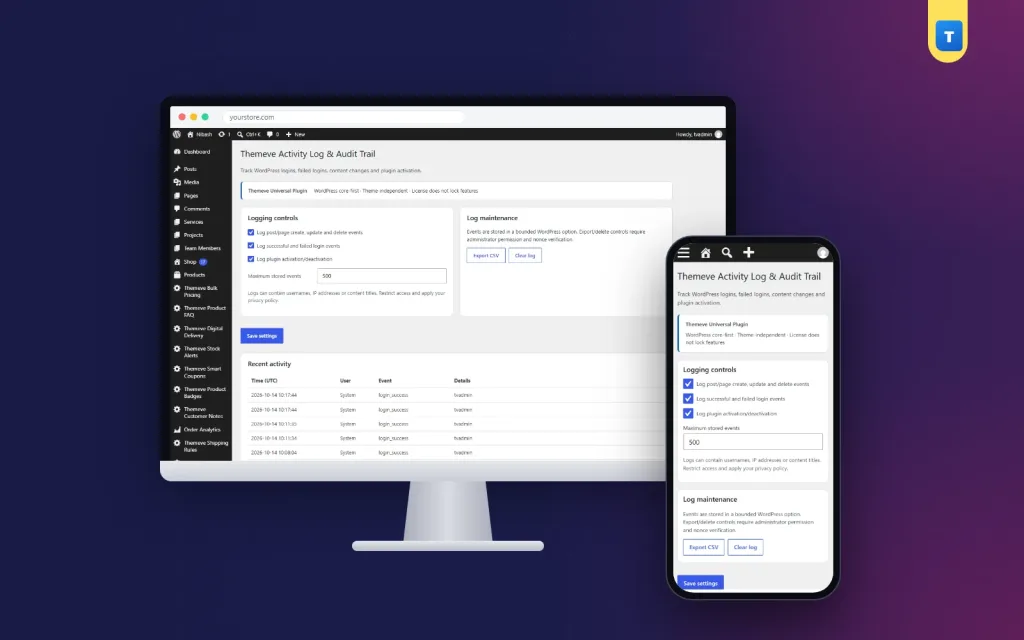
Everything lives on one admin screen under Settings. It has three parts: logging controls, log maintenance and the recent activity table.
Logging controls
- Log post/page create, update and delete events. A tick box. Turn it off if you only care about logins.
- Log successful and failed login events. A tick box. Turn it off if your host already keeps login records.
- Log plugin activation/deactivation. A tick box. Keep it on to see who changes your plugin list.
- Maximum stored events. A number field from 100 to 5,000. The default is 1,000. A small site can keep a few hundred entries. A busy shop with many staff may prefer a higher number.
- A short privacy note reminds you that logs can hold user names and content titles, so access should stay limited.
All three event groups are on by default. Press Save settings to apply your choices.
Log maintenance
- Export CSV. Downloads the whole log as a file named themeve-activity-log.csv. The columns are time_utc, user, event and details, so it opens in any spreadsheet.
- Clear log. Deletes all stored entries in one click. A confirmation box asks you to confirm first, and reminds you to export if you need the data.
Both buttons are for administrators only and are protected with a security check, so a stray link cannot trigger them.
Recent activity
Below the settings sits a table with four columns: Time (UTC), User, Event and Details. It shows the latest 100 entries, newest first. If nothing has been recorded yet, the screen says so. The full list, up to your cap, is available through the CSV export.
What visitors see
Nothing. Activity Log is a back-end tool. There are no widgets, shortcodes, banners or badges on your public pages, and no cookies are added for visitors.
How it helps you run the site
A shop owner finds that a popular product page has disappeared. Instead of asking every staff member, the owner opens the log and sees that the product was deleted the day before by a new staff account. The owner restores it from the trash and explains the process to the new team member. The whole thing takes five minutes.
Other everyday uses are just as simple:
- After a site goes down, check the plugin entries for the last change before the problem.
- Before a staff member leaves, export the log and keep it with your business records.
- When a client asks what you changed this month, send them the CSV.
- When you see a burst of failed logins, change the password of that account and think about adding a login limit.
A good habit is to look at the log once a week. Check for failed logins at odd hours and for changes nobody mentioned. Export a CSV at the end of each month.
Give everyone their own account
A log is only as useful as the accounts behind it. If several people share one admin login, every entry shows the same name and the record tells you very little. Create a separate account for each staff member, family member and freelancer, and remove accounts when people leave.
With personal accounts in place, an activity log for WordPress becomes a fair record of who did what. That protects honest staff as much as it protects the site.
Set up the best activity log plugin for WordPress in five steps
- In your dashboard, go to Plugins, then Add New, then Upload Plugin. Choose the zip file and install it.
- Activate the plugin.
- Enter your licence key on the License screen. Recording starts as soon as the key is active.
- Open the Activity Log screen under Settings. Choose the events to record and the number of entries to keep, then save.
- Log out and log back in. Your first entry appears in the Recent activity table.
Why a dedicated log beats the alternatives
You could ask your host for server logs, but those are hard to read and rarely show who edited a page. You could rely on post revisions, but revisions do not show deletions, logins or plugin changes. A dedicated activity log for WordPress puts the answers in one place, in plain words, with a CSV export you can keep.
- One screen, no learning curve.
- Choose what to record and how much to keep.
- Export and clear are one click each.
- No extra database tables and no front-end load.
- Works with any theme and needs no other plugin.
Pair it with access tools
A log shows what happened. To control what people can do, use a role and access tool so each person sees only the menus they need. A login-limit and security-header tool covers the basics of protecting the sign-in page. Together they give a small team a calm, clear way to manage a shared site. When people ask which is the best activity log plugin for WordPress, the honest answer is the one you will actually open every week, and a single plain screen makes that habit easy.
Licence, updates and requirements
Activity Log needs an active licence key. Without it, nothing is recorded and only the lock screen and the License screen open. Enter the key from your account and recording starts. Updates arrive in Dashboard, then Updates, while the licence is active.
- WordPress 6.2 or newer, tested up to WordPress 7.1.
- PHP 7.4 or newer.
- Works with any WordPress theme.
- Six months of support.
What is included
- The plugin zip file, ready to upload in Plugins, then Add New.
- Your licence key and lifetime updates while the licence is active.
- Documentation after purchase.
- Unlimited re-downloads from your account.
Activity Log is built on the official WordPress documentation standards, and you can browse more of our WordPress plugins.
Reviews
0.0
Write a review
★★★★★
0 reviews from buyersNo reviews yet — be the first to share your experience after buying.
Frequently Asked Questions
01What does the best activity log plugin for WordPress need to record?
At minimum, logins, failed logins, content changes and plugin changes, each with the user and time. Activity Log records all of these.
02Is Activity Log the best activity log plugin for WordPress for a small team?
It suits small teams well. It has one screen, three event switches, a size limit and a CSV export, with no learning curve.
03Does it record settings changes?
No. Settings screen changes are not recorded.
04Can I choose what to record?
Yes. Turn content, login and plugin events on or off, and set how many entries to keep from 100 to 5,000.
05Can I export or clear the log?
Yes. Export the whole log as a CSV file, or clear it in one click after a confirmation.
06Does it stop people from making changes?
No. It records what happens. Use roles and access settings to control what people can do.
07Does it need a licence?
Yes. Without an active licence key nothing is recorded and only the lock and License screens open.
Delivery & Support
1Place your orderAdd to cart, sign in and pay with bKash or Rocket.
2Payment verified automaticallyEnter your Transaction ID — the payment is matched automatically, usually within seconds.
3Get your productYour license key and download appear in My Account → Licenses.
- Secure automatic payment verification
- Delivery to your account & e-mail
- Friendly WhatsApp support
Refund Policy
This policy applies to every product in our store.
You get a refund when the product does not work as described and we cannot fix it, when your license will not activate your website, or when a manually delivered product is late and you cancel before delivery. A working license, or a single license already used on a live domain, is not refundable. Approved refunds go back to the number you paid from within one working day, minus the Send Money charge.
More items
View all →You may also like
−50%
 −50%
 −50%
 −50%
