 −50%
−50%
Smart Order Automation – WooCommerce Order Management Plugin

✦ Key features
- Triggers: new order, status change, payment completed
- Conditions: source, status, payment method, order total
- Email the store admin or the customer
- Add order notes automatically
- Change order status automatically
- Flag orders for review
- Ready-made rule templates
- Safe Preview test mode (on by default)
- Test one rule against a chosen order
- Runs once per order and event
- Ignores unfinished checkout drafts
- Daily action limit and loop protection
- Execution log with CSV export
Overview
Smart Order Automation is a WooCommerce order management plugin that runs simple rules on new and changed orders. Send emails, add notes, change status or flag orders, and test every rule safely first. It also works with Themeve Commerce.
A WooCommerce order management plugin should take the small, repeated jobs off your team. Smart Order Automation does this with simple rules. You write a rule once, and the plugin sends the email, adds the note, changes the status or flags the order every time the rule matches.
This WooCommerce order management plugin works on WooCommerce orders and on Themeve Commerce orders. Every rule can be tested safely before it touches a real order. It is made for shops that handle many orders a day and want fewer forgotten steps, fewer mistakes and calmer busy days.
The Routine Work That Eats Your Day
Look at what your team does after an order arrives. Someone emails the owner about big orders. Someone adds a note for the packing team. Someone moves paid orders to processing. Someone checks unusual orders before they ship.
Each job takes a minute. Across fifty orders a day, it adds up to hours. These jobs follow simple rules. If the total is above a set amount, tell the owner. If payment is complete, move the order on. A computer does this kind of work well, and it never forgets.
Who Can Use This WooCommerce Order Management Plugin
- Cash on delivery shops that want to check large or unusual orders before shipping.
- Fashion and gadget sellers who move paid orders to processing by hand today.
- Grocery and food shops that need a clear note for the packing team on each order.
- Store managers who want a record of every automatic action.
- Agencies that set up shops for clients and want safe, repeatable order rules.
- Shops that run both WooCommerce and Themeve Commerce during a move.
How Rules Are Built
Every rule has three parts: a trigger, conditions and one action. Here is what each part offers.
Triggers: when the rule runs
- A new order is created.
- An order status changes.
- A payment is completed.
Conditions: which orders the rule applies to
- Order source: all supported stores, WooCommerce only, or Themeve Commerce only.
- Order status: any status, or one of pending, processing, on hold, shipped, completed or delivered, cancelled, returned, failed and refunded.
- Payment method contains: a payment method ID such as cod.
- Minimum order total: in taka, with no minimum by default.
- Maximum order total: in taka, with no maximum by default.
Conditions are optional. Leave them empty and the rule applies to every order that matches the trigger.
Actions: what happens
- Email store admin: sends a message to the notification address you set.
- Email customer: sends a short message to the buyer.
- Add order note: writes a note on the order for your team.
- Change order status: moves the order to the status you choose.
- Flag order for review: marks the order so your team checks it before it ships.
Each rule performs one clear action. If you need two things to happen, create two rules. This keeps every rule easy to read and easy to test.
Back End Screens of the WooCommerce Order Management Plugin
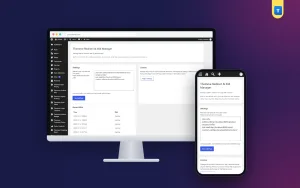
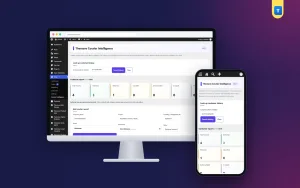
After activation, a Smart Automation menu appears in the left admin menu. It has four screens. It keeps all its tools in one place, like a small WooCommerce order management system inside your admin.
Overview
- Automation status: shows whether the engine is on and whether test mode is active.
- Rule templates: one-click starters such as a cash on delivery alert, a high-value order alert and a cancelled-order note. Pick one, edit it later and save.
- Recent executions: the latest outcomes at a glance, with a link to the full log.
Rules
- Create or edit a rule: give it a name, choose the trigger, set the conditions, choose the action and add a message or detail.
- Enable this rule: a checkbox that lets you save a rule switched off.
- Your rules list: shows every rule with a count. You can enable, pause, test or delete each one.
- Test rule: dry-run a single rule against an order you choose and see exactly what it would do.
- Design tips: a short side panel with advice, such as starting with one action.
Deleting a rule keeps its old log entries, so your history stays complete.
Execution Logs
- Every run records the rule, the order and the result.
- The latest events are kept on your own site.
- Logs hold order IDs and outcomes only, not customer details.
- Export the log as a CSV file.
When a buyer says they never got an email, the log tells you whether it was sent and when.
Settings
- Automation engine: a switch that pauses all event-triggered rules without deleting them.
- Safe Preview: test mode. Rules only write to the log. Nothing is changed and nothing is emailed. It is on by default.
- Store notification email: the address used by the Email store admin action.
- Maximum live actions per day: a daily safety limit, from 1 to 10,000.
- Safety notes: a side panel that lists what the plugin does and does not do.
Front End: What Visitors See
There is no front-end screen. Your shop pages stay exactly as they are and nothing is added to them. Customers see only the result of a rule, for example an email you chose to send them. Everything else happens in the admin.
Built to Be Safe for Your Orders
Automation should never surprise you. These safeguards are part of this order management plugin for WooCommerce.
- Each rule runs once per order and event, even when WordPress fires several hooks for one change. A customer never gets the same email three times.
- Rules never act on unfinished checkout drafts, so abandoned checkouts cannot trigger emails or status changes.
- A daily limit caps how many live actions can run in one day.
- Loop protection stops a rule from triggering itself again and again through status changes.
- Safe Preview is on by default, so a new rule cannot change anything until you switch it off.
Test Before You Go Live
Turn on Safe Preview and place a test order. The log shows what each rule would have done. When the log looks right, switch Safe Preview off. You can also dry-run one rule against a chosen order at any time, without touching the others.
Rules Shops Like
- Big cash on delivery order: when a new order is above your usual limit, email the store admin and flag the order for review. Your team calls the buyer before shipping. The most expensive mistakes stop here.
- Paid online note: when payment is completed, add a note that says paid online, ready to pack.
- Move paid orders on: when payment is completed, change the status to processing.
- Thank-you message: when an order is marked completed, email the customer a short thank-you.
- Cancelled order note: when an order is cancelled, add a note so the stock team knows.
How This WooCommerce Order Management Plugin Fits Your Store
Rules behave the same on WooCommerce orders and Themeve Commerce orders. The source condition lets you limit a rule to one system, which helps during a move between the two.
Emails go out through your site's normal WordPress mail. For steady delivery, pair the plugin with an SMTP mail setup on your site.
To see how your rules change results over time, use a sales report that shows order health and top products by date range.
A Practical First Week
On day one, keep Safe Preview on and add the cash on delivery alert template. On day two, read the log and adjust the minimum total to match your normal order size.
On day three, add a rule that writes a paid online note when payment is completed. By the end of the week, add a status rule that moves paid orders to processing, and switch Safe Preview off for the rules you trust.
Go slowly. Add one rule at a time and read the log after each change. A small set of clear rules does more for your team than a long list of rules nobody remembers. This is how a good WooCommerce order management plugin earns its place in a busy shop.
Setup Steps
- Go to Plugins, then Add New, then Upload Plugin. Choose the plugin zip and click Install Now.
- Click Activate. A Smart Automation menu appears.
- Open Settings. Set your store notification email and check the daily limit. Leave Safe Preview on.
- Open Overview and add a template rule, or open Rules and build your own.
- Place a test order and read the Execution Logs.
- Use Test rule on a real order to see what a single rule would do.
- When the log shows what you expect, switch Safe Preview off.
- Check the log again after the first live day.
You need WordPress 6.0 or newer and PHP 7.4 or newer. It is tested up to WordPress 7.1.
Why Choose It Over Doing It by Hand
Hand work is slow and depends on memory. A simple WooCommerce order management system add-on like this one replaces forgotten steps with fixed rules. You also get proof of what happened.
- Three triggers, five actions and clear conditions.
- Ready-made rule templates for common cases.
- Safe Preview and single-rule dry-run.
- Once-per-order protection against repeat emails.
- Daily limit and loop protection.
- A full log with CSV export.
- Works with two order systems.
It does not try to replace your whole store. It handles the order tasks that repeat, and leaves the rest to you.
What Is Included
- The plugin zip, ready to upload.
- Rules with triggers, conditions and actions.
- One-click rule templates.
- Safe Preview and Test rule.
- Execution log with CSV export.
- Settings for the engine, notification email and daily limit.
- Updates from your dashboard for the life of your account.
- Documentation after purchase.
- Support for six months.
Start with Safe Preview on. Add one template rule and read the log. Within a day you will see which routine jobs you can stop doing by hand.
Smart Order Automation is built on the official WordPress documentation standards, and you can browse more of our WordPress plugins.
Reviews
0.0
Write a review
★★★★★
0 reviews from buyersNo reviews yet — be the first to share your experience after buying.
Frequently Asked Questions
01What does a WooCommerce order management plugin like this do?
It runs rules for you. A rule has a trigger, optional conditions and one action, such as an email, a note, a status change or a review flag.
02Can a rule change the order status by itself?
Yes. Change order status is one of five actions, with emailing the admin, emailing the customer, adding a note and flagging for review.
03Will customers get the same email twice?
No. Each rule runs once per order and event, even when several hooks fire for the same change.
04How do I test a rule safely?
Safe Preview is on by default, so rules only write to the log. You can also run Test rule on one chosen order.
05Does this WooCommerce order management plugin work with Themeve Commerce?
Yes. Rules work on WooCommerce and Themeve Commerce orders, and the source condition can limit a rule to one of them.
06Why are some emails not arriving?
The plugin uses your site's normal WordPress mail. An SMTP mail setup makes delivery more reliable.
07Can a rule loop forever?
No. Loop protection and a daily action limit stop runaway rules.
Delivery & Support
1Place your orderAdd to cart, sign in and pay with bKash or Rocket.
2Payment verified automaticallyEnter your Transaction ID — the payment is matched automatically, usually within seconds.
3Get your productYour license key and download appear in My Account → Licenses.
- Secure automatic payment verification
- Delivery to your account & e-mail
- Friendly WhatsApp support
Refund Policy
This policy applies to every product in our store.
You get a refund when the product does not work as described and we cannot fix it, when your license will not activate your website, or when a manually delivered product is late and you cancel before delivery. A working license, or a single license already used on a live domain, is not refundable. Approved refunds go back to the number you paid from within one working day, minus the Send Money charge.
More items
View all →You may also like
−50%
 −38%
−38%
 −50%
−50%
 −50%
−50%
