If you typed "how to order management wordpress theme" into a search box, you most likely want one thing: a way to handle a growing number of orders without losing track of them. This guide explains what order management really means, what a theme can and cannot do, and how to set up a clear routine for your shop.
The advice fits a small online shop in Bangladesh that sells through a website and Facebook, takes bKash, Nagad and cash on delivery, and sends parcels by courier. You will find steps, checklists and common mistakes, so you can improve your process this week.
What order management means
Order management is everything that happens between a customer pressing the order button and the parcel reaching their door. It is not one task. It is a chain of small jobs.
- The order arrives and is recorded.
- Payment is checked, or cash on delivery is confirmed.
- Stock is checked and the items are picked.
- The parcel is packed and handed to the courier.
- The customer is told where the parcel is.
- Delivery, return or cancellation is recorded.
When one link breaks, the customer feels it. A missed order, a wrong item or a late message each cost you a repeat buyer.
How to order management wordpress theme: what a theme can do
A WordPress theme controls how your shop looks. A good e-commerce theme gives you a clear product page, a simple cart, a short checkout and a layout that works on a phone. Those parts matter, because a confusing checkout creates incomplete and wrong orders.
A theme is not an order system on its own, though. The orders themselves are handled by an e-commerce engine such as WooCommerce or a commerce plugin that comes with your theme. The theme shows the shop. The engine records and processes the orders.
So when you plan your order management, think in two layers:
- The theme: design, product pages, checkout layout, mobile view.
- The order engine and plugins: order list, statuses, emails, rules, reports.
Choose a theme that supports your engine well, then add the plugins that fill the gaps.
How to order management wordpress theme: features to look for
Some theme features directly reduce order problems. Check these before you buy or switch.
- A short checkout. Fewer fields mean fewer mistakes. Ask for name, phone, address and district, and little else.
- A clear phone number field. You will call buyers, so make sure it is required and easy to fill.
- Payment choices that fit your market. bKash, Nagad and cash on delivery should be easy to find and clearly labelled.
- Good product variations. Size and colour must be selectable, so you do not have to ask again by phone.
- Fast loading on mobile. Most buyers order from a phone on a mobile connection.
- Clear order confirmation page. The buyer should see that the order was received.
Set up your order statuses first
Statuses are the labels on each order, such as pending, processing, on hold, completed, cancelled and refunded. They are the backbone of order management, so decide what each one means for your team.
A simple scheme for a small shop looks like this:
- Pending payment: the order is placed but not paid.
- On hold: waiting for a phone call or confirmation.
- Processing: confirmed and ready to pack.
- Completed: delivered and paid.
- Cancelled: the buyer or the shop stopped the order.
- Refunded: money returned.
Write these meanings on one page and share it with everyone who touches orders. When two people use one status in two ways, your reports and your stock both become wrong.
Build a daily order routine
Good order management is mostly a habit. A short routine, done at the same times each day, beats a long process that nobody follows.
Morning
- Open the order list and filter by new orders.
- Call or message every cash on delivery buyer to confirm.
- Move confirmed orders to processing.
- Check stock for the items ordered.
Afternoon
- Pack orders and add the courier tracking number.
- Hand parcels to the courier and note the time.
- Reply to customer questions.
Evening
- Update delivered, returned and cancelled orders.
- Look at the day's sales and note any problem orders.
- Plan tomorrow's stock and packing.
Keep stock and packing in step with orders
Orders go wrong when stock is wrong. A buyer pays for an item that sold out an hour ago, and now you must apologise and refund. Prevent this with a few simple habits.
- Turn on stock management for every product that has limited units.
- Set a low stock level, so you are warned before an item runs out.
- Count real stock once a week and fix any difference.
- Pack orders in the order they arrive, oldest first.
- Put a small packing slip in each parcel with the order number.
When someone asks how to order management wordpress theme choices affect packing, the honest answer is that the theme only helps by making variations and quantities clear at checkout. The rest is your process.
Handle cash on delivery with care
Cash on delivery helps many Bangladeshi buyers trust a new shop, but it also brings returns. A refused parcel costs you the product, the packing and the delivery fee.
These habits reduce the damage:
- Confirm every order by phone before dispatch.
- Ask for a small advance on large orders.
- Keep a note of buyers who often refuse parcels.
- Check the delivery address and district for mistakes.
- Record every return with a reason.
Over a few months, these notes show which areas, products and buyers cause most returns. Then you can act on facts.
Where repeated tasks waste your time
Look closely at what your team does after each order. You will usually find the same small jobs again and again.
- Emailing the owner when a large order arrives.
- Adding a note for the packing team.
- Moving paid orders to processing.
- Marking unusual orders for a second look.
Each job takes a minute. At fifty orders a day, they take hours, and a tired person will miss some. These jobs follow simple rules, so they are a good fit for automation.
How to order management woocommerce plugin rules work
The next step after the basics is to let software handle the repeated jobs. An automation plugin works with rules, and each rule has three parts.
- Trigger. The moment the rule runs: a new order, a status change or a completed payment.
- Conditions. Which orders it applies to: the payment method, the status, the order total.
- Action. What happens: send an email, add a note, change the status or flag the order.
A few examples show how simple this can be:
- If an order total is above a set amount, email the owner.
- If payment is complete by bKash, move the order to processing.
- If a cash on delivery order arrives, add a note: call to confirm.
- If an order is unusual, flag it for review before it ships.
Test every rule before it goes live
Automation is only helpful if it behaves. A rule that sends the wrong email to every customer does more harm than good. Test before you trust.
- Run new rules in a preview mode first, where actions are only written to a log.
- Test one rule against one real order and read the result.
- Start with a few rules, not twenty.
- Check that customers do not get the same email twice.
- Set a daily limit, so a mistake cannot run all night.
Also keep a log of what each rule did. If a customer asks why they received a message, you can look it up.
A ready-made option: Smart Order Automation
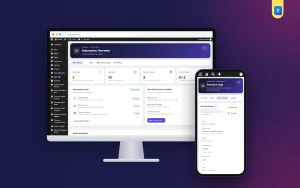
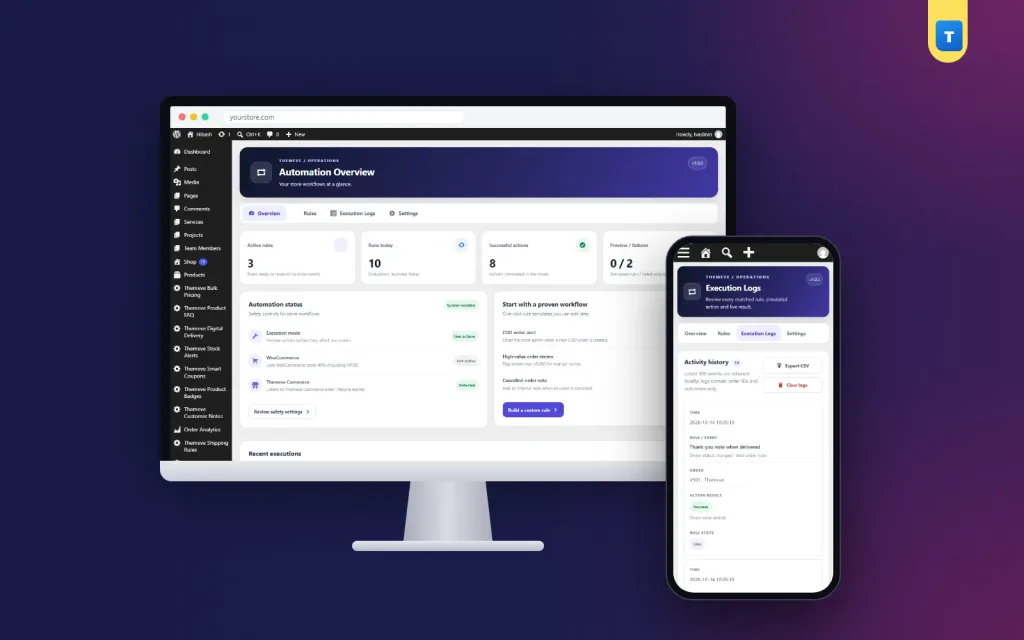
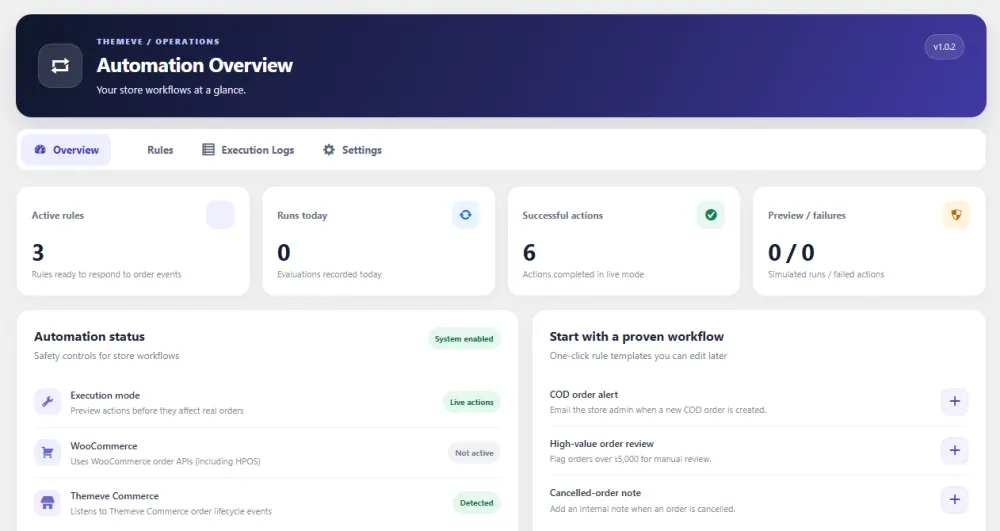
Smart Order Automation is a plugin built for this kind of work. It runs on WooCommerce and on Themeve Commerce, so it fits most shops that use a Themeve theme.
You build rules with a trigger, conditions and one action. Triggers are a new order, a status change and a completed payment. Conditions include the source, status, payment method and order total. Actions are emailing the admin, emailing the customer, adding an order note, changing the order status and flagging the order for review.
Safe Preview is on by default, so rules only write to the log until you are ready. Each rule runs once per order and event, unfinished checkout drafts are ignored, and loop protection plus a daily limit stop runaway rules. The execution log can be exported as a CSV file. Ready-made templates give you a starting point.
Track couriers, returns and customer messages
An order is not finished when the parcel leaves your shop. Keep the courier name and tracking number on the order, so you can answer a customer in seconds. When a parcel comes back, change the status and write the reason in a note.
Messages matter as much as parcels. Buyers want to know three things: the order was received, it has been sent, and when it will arrive. Send these three updates every time. A short message at each step prevents most "where is my order" calls.
- Order received: thank the buyer and repeat the items and total.
- Order shipped: give the courier name and tracking number.
- Order delivered: ask for feedback and offer help if something is wrong.
Keep the tone short and polite. Customers do not need long emails about a simple order.
Use weekly numbers to improve your process
Once orders flow smoothly, look at the figures once a week. You do not need a complicated report. Four numbers are enough: total orders, completed orders, cancelled or returned orders, and the average time from order to dispatch.
If the dispatch time is rising, your packing step is slow. If returns are rising, look at confirmation calls and delivery addresses. If cancelled orders are many, look at the price, the delivery fee or the product page. Each number points to one part of the chain.
Many shop owners first learn how to order management wordpress theme and plugin settings fit together only after they read a few weeks of numbers. Be patient, change one thing at a time and compare the next week.
Common order management mistakes
- Too many statuses. Keep the list short and clear.
- No owner for each step. Decide who confirms, who packs and who updates the courier.
- Skipping phone confirmation. It costs a minute and can save a return.
- Automating a bad process. Fix the routine first, then automate it.
- Never reading the reports. Weekly numbers show problems early.
- Unreliable email. If your site mail goes to spam, customers never see your updates. An SMTP mail setup helps.
A simple setup checklist
- Choose a theme with a short checkout and a good mobile view.
- Install your order engine and test a full order from start to finish.
- Write down the meaning of each order status.
- Set up your payment methods and courier details.
- Create a daily routine for morning, afternoon and evening.
- List your repeated tasks and pick the three most frequent.
- Turn those three into rules and test them in preview mode.
- Check your order list and reports every week.
- Adjust one thing at a time.
If you follow this list, you learn how to order management woocommerce plugin rules fit into a calm daily routine, without a big change to your shop. You can read the features of Smart Order Automation and decide if it suits your own orders.
If you want to read more on the technical side, the official WordPress documentation is a good, reliable reference.
Frequently asked questions
Is "how to order management wordpress theme" a question about a theme or a plugin?
Both matter. The theme controls how your shop looks and how easy checkout is. A plugin or e-commerce engine records and processes the orders. You need a good theme and the right plugins.
Can a WordPress theme manage orders by itself?
Not usually. A theme is about design. Orders are managed by WooCommerce or another commerce plugin. Some Themeve themes come with Themeve Commerce, which handles orders and works with the theme.
What does a WooCommerce order management plugin do?
It runs rules for you. A rule has a trigger, optional conditions and an action, such as an email, a note, a status change or a review flag.
Will customers get the same email twice?
Not with Smart Order Automation. Each rule runs once per order and event, even if several hooks fire for the same change.
How do I test a rule safely?
Use preview mode first, so actions are only written to the log. You can also run a rule against one chosen order before you turn it on.
Why are some of my order emails not arriving?
WordPress sends mail through your server, and many hosts have weak mail delivery. An SMTP mail setup usually makes delivery more reliable.
Can a rule loop forever?
No. A good automation plugin has loop protection and a daily action limit, so a mistake cannot repeat without end.