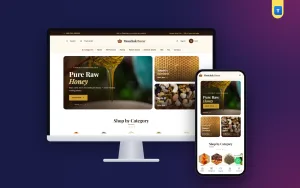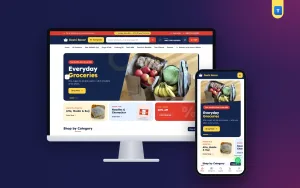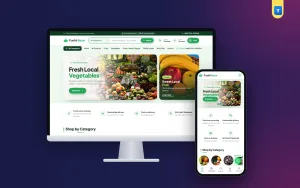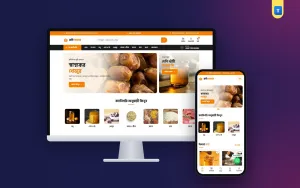
Good grocery website UI design is mostly invisible. Shoppers do not notice it; they just find what they want, add it to the cart and pay without thinking. Bad UI is very visible: tiny buttons, confusing menus, prices that change at the last step. This guide explains the user interface patterns that work for grocery and healthy food shops, with a special look at premium products such as honey, nuts and dates.
Whether you design the shop yourself or choose a ready theme, use this as a checklist for every screen: header, homepage, product card, product page, cart, checkout and account.
Principles of grocery website UI design
Four principles guide almost every decision:
- Clarity first. Every screen has one main action, and it is obvious.
- Consistency. Buttons, colours and card layouts look the same everywhere.
- Feedback. When a buyer adds an item, the cart count changes and a small message confirms it.
- Forgiveness. Changing a quantity or removing an item is easy, and nothing is lost by accident.
The header
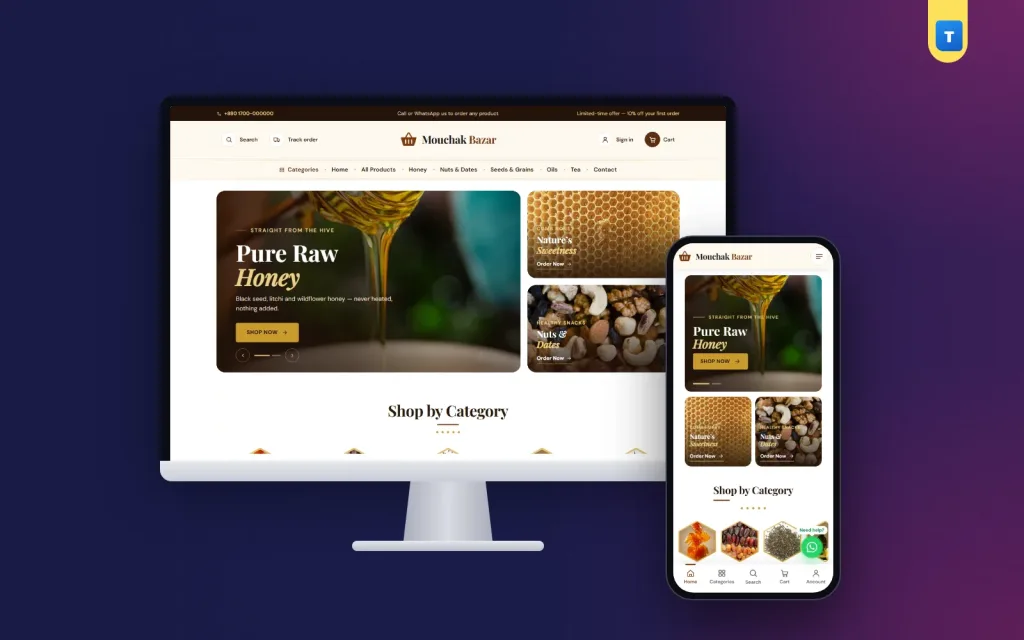
The header is the most used part of the interface. It should hold the logo, search, account, saved items and cart. On desktop, a menu row below it lists the main categories. A "Categories" panel with small pictures helps buyers who browse instead of search.
Premium shops sometimes place the logo in the middle with the menu centred below, framed by thin lines. This looks elegant and works well when the catalogue is small. Large supermarkets usually need the logo on the left and a big search box in the centre.
The homepage
A grocery homepage should help buyers start shopping in one tap. A proven order is:
- a slider with one to three offers, plus one or two smaller banners;
- category pictures;
- featured or best-selling products;
- a block that explains why you are different;
- your story, with a few real figures;
- reviews and a short FAQ.
For honey and healthy food, the "why we are different" and "our story" blocks matter more than in a normal grocery shop. Buyers pay a premium because they trust the source, so show it.
Product cards
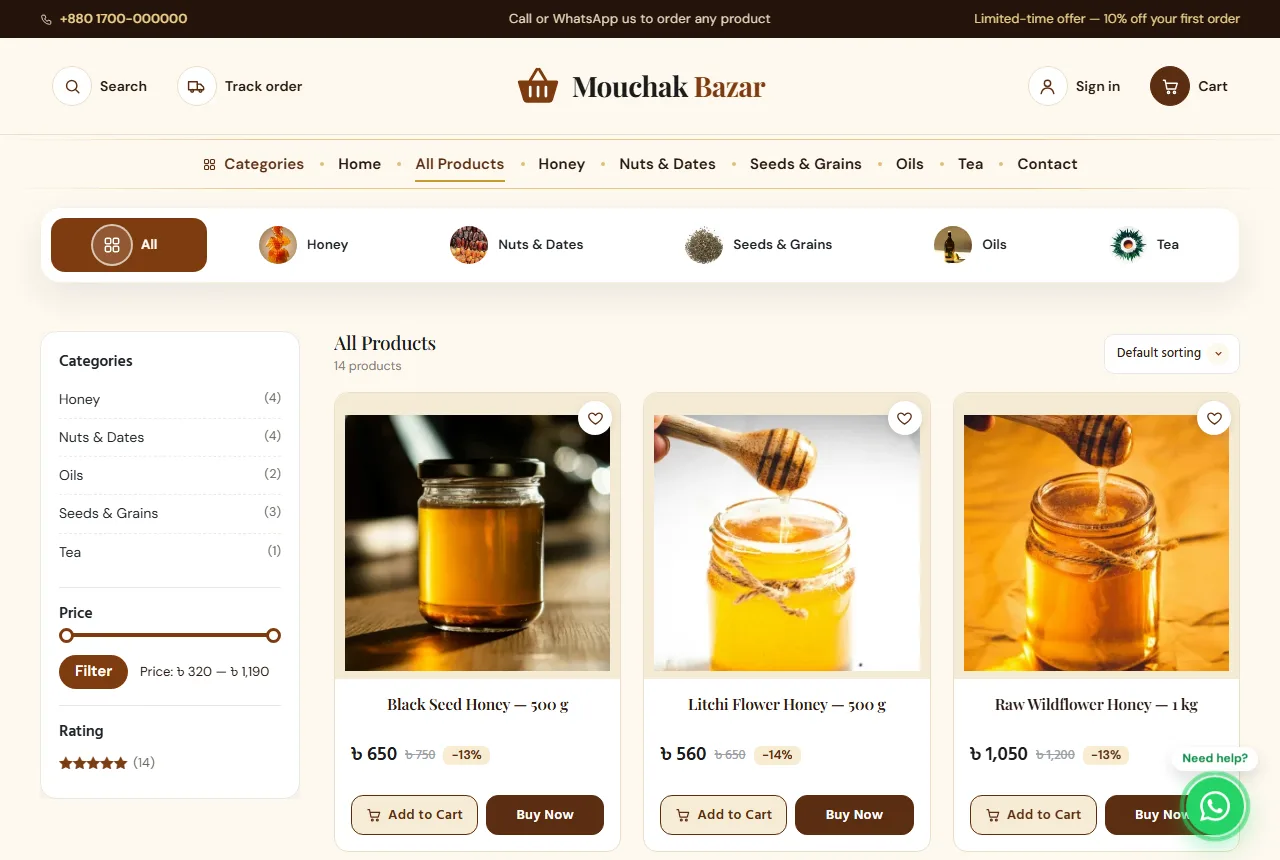
The product card is the smallest but most important UI element in grocery website UI design. It needs:
- a square photo with the same background as other cards;
- the name and size, such as "Black seed honey 500 g";
- the price, and the old price if on sale;
- a clear Add to Cart button, and optionally Buy Now;
- a heart icon to save the item.
Keep the text left-aligned or centred, but the same on every card. Avoid putting more than two buttons on a card.
Product pages
Put the gallery on the left (or top on phones), and the name, price, size choice, quantity and buttons on the right. Use four photos: the jar or pack, the label, the product itself and a lifestyle shot. Hover zoom on desktop and a full-screen viewer on phones help buyers check quality.
Below, tabs for Description, FAQ and Reviews keep the page tidy. For honey, the FAQ tab can answer crystallisation, storage and purity questions before buyers ask.
Cart and checkout
The cart should show each item with photo, size, quantity controls and price, then the subtotal, delivery charge and total. Never surprise buyers with a new charge at the last step.
The checkout is where most orders are lost. For an ecommerce website for grocery store buyers in Bangladesh, a short local form works best: name, mobile number, an optional second number, district and upazila from lists, a short address, delivery type and payment method. Remove country, state and postcode fields if you only deliver locally. Show a coupon box on the checkout page.
Mobile UI patterns
Most grocery orders come from phones, so mobile UI deserves extra care:
- a bottom tab bar with home, categories, search, cart and account;
- a side drawer for the full menu;
- cards two per row;
- buttons at least 44 pixels tall;
- a floating WhatsApp button that does not cover the cart;
- no pop-ups on first visit.
Colour and typography
Pick one main colour, one accent colour for buttons and neutral greys for text. Honey and healthy food shops look premium with warm chocolate browns and gold accents; fresh produce shops look best with greens. Supermarkets often use strong navy and red.
Use a classic serif such as Playfair Display for headings if you want an upscale look, and a clean sans-serif such as DM Sans for body text. Keep body text at 15 to 16 pixels and lines short enough to read comfortably.
Accessibility basics
Good grocery website UI design works for everyone. Keep enough contrast between text and background, give every image an alt text, label form fields clearly and make sure the site works with keyboard navigation. Use real text, not text inside images, for prices and offers.
Language and microcopy
Small words matter. "Add to cart" and "Buy now" are clearer than creative alternatives. Error messages should say what to fix: "Please enter an 11-digit mobile number". If many buyers read Bangla, offer the interface in Bangla, with an English switch for others.
Order tracking and accounts
A Track Order page that only needs the order number and mobile number removes a common pain. Accounts should be optional or quick: a mobile number or email and a password. After the first order, offer to save the address for next time.
Common UI mistakes
- Different card designs on different pages.
- Hidden delivery charges.
- Tiny, low-contrast price text.
- Menus with more than ten top items.
- Forms that clear themselves after an error.
Google's guide to helpful content is a good reminder that pages should serve people first.
Testing your UI
Ask three people who have never seen your shop to buy a jar of honey on their phone while you watch silently. Note where they hesitate. Fix the biggest problem, then test again. This simple test finds more problems than any tool.
A UI checklist
- Header: logo, search, account, saved items, cart.
- Homepage: offers, categories, products, story, reviews, FAQ.
- Cards: same layout everywhere, clear price and button.
- Product page: four photos, zoom, tabs.
- Cart: no surprise charges.
- Checkout: short, local, with a coupon box.
- Mobile: tab bar, big buttons, no pop-ups.
Applying these patterns with Mouchak
The Mouchak honey and healthy food theme for WordPress uses these grocery website UI design patterns. It has a centred logo and menu with a Categories picture panel, a slider with two stacked banners, honeycomb category frames, "why we are different" and "our story" blocks, a 4-photo gallery with zoom, Description, FAQ and Reviews tabs, a district and upazila checkout, order tracking, a phone tab bar and a WhatsApp button. Every homepage block can be switched on or off, and the shop can switch between English and Bangla.
Navigation and information architecture
Before you draw a single screen, list your categories and pages. A healthy food shop might have Honey, Nuts & Dates, Seeds & Grains, Oils and Tea as categories, plus About, Our Story, Blog, FAQ, Delivery, Return & Refund, Track Order and Contact. Keep the main menu to six or seven items and put the rest in the footer. Every product should be reachable in three taps from the homepage.
Search that understands shoppers
Search is often the fastest path to a product. Show suggestions as the buyer types, with a small photo and the price. Make search tolerant of spelling mistakes and both languages if you use them. If a search finds nothing, show popular products instead of an empty page.
Filters and sorting
For small catalogues, a price filter and sorting by popularity and price are enough. Larger shops can add filters for size, origin or diet type, such as "sugar-free" or "organic". Always show how many products match, and let buyers clear filters with one tap.
Empty states and errors
Good UI plans for the moments when nothing is there: an empty cart, no search results, an empty saved list. Use these moments to help: suggest best sellers, show a "Continue shopping" button and keep the tone friendly. Error messages at checkout should appear next to the field, in plain words, and never clear what the buyer already typed.
Trust elements in the interface
Premium food needs visible trust. Place small trust lines near the Add to Cart button: "Cash on delivery", "Replace if damaged", "Delivered in 2–3 days". Show payment logos in the footer, and keep your phone number and address visible. On the product page, a short "How we source this" note can do more than any badge.
Speed is part of the UI
A beautiful interface that takes eight seconds to appear is a bad interface. Compress images, lazy-load photos below the first screen, avoid heavy sliders and keep plugins few. Measure speed on a phone over mobile data, because that is how most buyers will see your shop.
Designing for repeat orders
Healthy food buyers often reorder the same items every month. Saved items, a quick "Buy again" path from the account page and stored addresses turn a five-minute order into a one-minute order. Small UI details like these grow a shop more than any new banner.
Grocery website UI design for small screens
On a phone, every pixel counts. Keep the header compact with the logo, search icon and cart. Move secondary links into the drawer. Make the Add to Cart button sticky at the bottom of the product page, so buyers can add the item after scrolling through photos and reviews. Use bottom sheets instead of pop-ups for choices such as size, because they are easier to reach with a thumb.
Using colour to guide action
Reserve your strongest accent colour for the main action: Add to Cart, Buy Now and Place Order. Use calmer colours for secondary buttons such as "Continue shopping". When every button is bright, nothing stands out. Sale prices can use a warm red, but keep it for real discounts only.
Images and performance together
Grocery shops are image-heavy. Use the same aspect ratio for all product photos so the grid stays tidy, serve images in modern formats such as WebP and set image sizes so the page does not jump while loading. A tidy, stable grid is a sign of quality that buyers feel even if they cannot name it.
From wireframe to launch
Start with simple sketches of the five key screens: homepage, category, product, cart and checkout. Test them with a few buyers before choosing colours and fonts. Then build, test again on real phones and launch. After launch, keep improving one screen at a time based on what buyers do, not on what looks trendy. That is the heart of good grocery website UI design.
Content blocks that support the UI
Interface and content work together. A short blog with recipes, such as honey lemon tea or a dates and nuts snack, gives buyers ideas and links straight to products. Use the same card design in blog posts as in the shop, so recipes lead naturally to the cart. Keep posts short, with one clear photo and a list of products used. Over time, these posts also bring visitors from search, and every one of them lands in a familiar, easy interface where buying the ingredients takes only a few taps.
Recipe posts also give buyers a reason to return between orders.
Frequently asked questions
What is the most important part of grocery website UI design?
The product card and the checkout. Most buying decisions happen on cards, and most lost orders happen at the checkout.
Should a small shop use a mega menu?
No. A simple menu with a Categories panel is enough for most small and medium shops.
How many photos should a product have?
Three to four: the pack, the label, the product itself and one lifestyle photo.
Is dark design good for food?
Dark footers and bands can look premium, but keep product areas light so food looks fresh.
Do I need a separate mobile design?
You need a design that works on phones first. A good responsive theme adapts the same pages for every screen.