If you have ever asked a hosting company for help, you have probably heard the question, "Can you send me your system information?" Many site owners do not know what that means. So what is system information, and why does everyone ask for it first?
In simple words, system information is a short list of facts about the place where your website lives. It tells you which version of WordPress you run, which version of PHP your server uses, how much memory you have, and what you have installed. This guide explains each item in plain English, shows you where to find it, and tells you what to do with it.
What is system information in WordPress?
Every WordPress site sits on top of several layers. There is the WordPress software itself. Under it there is PHP, the language WordPress is written in. Under that there is a database that stores your posts, pages and orders. And all of it runs on a server that has limits for memory, file size and time.
System information is a report of those layers and their settings. A developer, a plugin author or a hosting support agent reads it to understand your setup in a minute or two. Without it, they have to guess, and guessing wastes days.
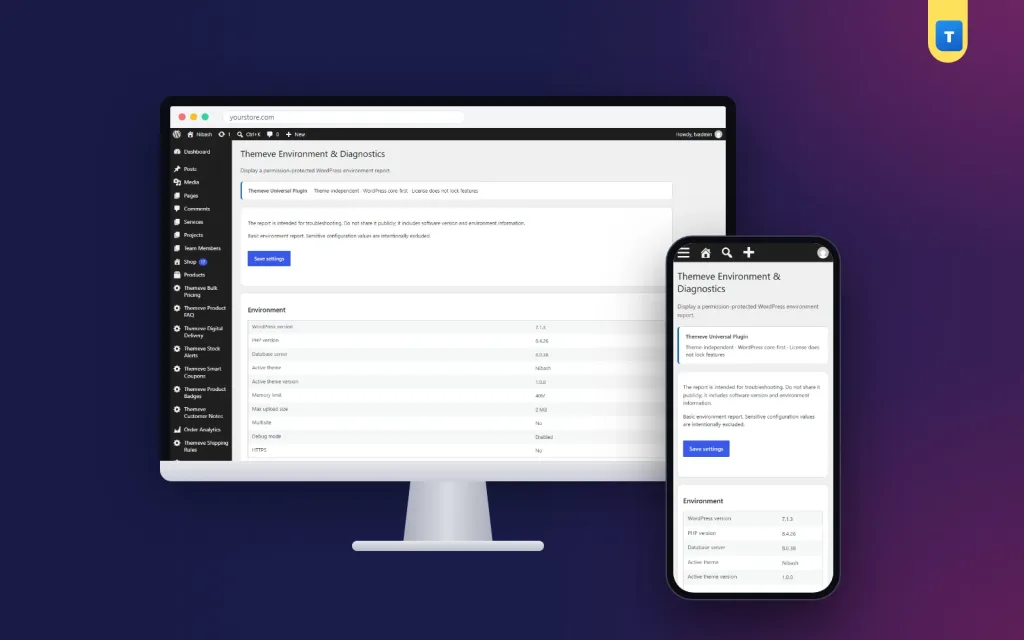
A good report usually contains:
- WordPress version
- PHP version
- Database server version
- Active theme and its version
- List of active plugins
- Memory limit
- Maximum upload size
- Whether the site is a multisite
- Whether debug mode is on
- Whether the site uses HTTPS
Why support teams ask for it first
Most WordPress problems come from a small number of causes. A plugin needs a newer PHP version than your server has. A theme file is too big for the upload limit. Two plugins clash with each other. A memory limit is too low for a heavy page.
Each of these causes shows up in your system information. When a helper sees the report, they can often say what is wrong in one reply. When they do not see it, the conversation looks like this:
- You describe the problem in your own words.
- The helper asks which PHP version you use.
- You do not know, so you search for an answer.
- The helper asks about plugins, then memory, then the theme.
- Two days pass and nothing is fixed.
Sending the facts at the start cuts that loop. It also shows the helper that you take the problem seriously, which usually gets you a faster and better answer.
The main items explained one by one
Here is what each part means, in the order that most support agents check them.
WordPress version
This is the version of the core software. Newer versions fix security holes and add features. Older versions may not work with new plugins. If your version is far behind, update it, after taking a backup.
PHP version
PHP is the engine that runs WordPress. Plugins and themes state the lowest PHP version they support. Newer PHP versions are also faster and safer. If your host still runs an old version, you can usually switch it in the hosting control panel.
Database version
Your content lives in a database, normally MySQL or MariaDB. The version matters less day to day, but a few plugins have a minimum requirement. Support teams check it when a plugin fails during installation.
Active theme and version
Your theme controls the design and often adds its own features. If a bug was fixed in a later release of your theme, the version number tells the helper straight away that you need to update.
Active plugins
This list is the first place to look when something breaks after an update. Plugin conflicts are one of the most common causes of errors. The list also helps you spot plugins you no longer use.
Memory limit
This is the amount of memory one request may use. Heavy plugins, page builders and large imports need more. A low limit causes white screens and messages about exhausted memory.
Maximum upload size
This is the largest file you can upload to the media library or the theme installer. If a theme zip or a video will not upload, this number is usually the reason.
Multisite, debug mode and HTTPS
- Multisite: tells the helper whether your install hosts one site or a network of sites.
- Debug mode: shows error messages. It is useful while testing but should be off on a live site.
- HTTPS: shows whether your site uses a secure connection. Without it, browsers show warnings to your visitors.
Where to find system information in WordPress by hand
WordPress has a built-in page for this. Log in as an administrator, open the Tools menu and choose Site Health. Then open the Info tab. You will see sections for WordPress, server, database, active theme, active plugins and more.
This page is good, but it is long. It contains many items that most helpers do not need, and copying only the useful lines takes effort. Some owners also find the Site Health menu hard to locate, especially if a staff member has hidden parts of the dashboard.
Other ways to find single items:
- Your hosting control panel often shows the PHP version and lets you change it.
- The Plugins page lists installed plugins and their versions.
- The Appearance page shows the active theme.
- The bottom of the dashboard shows the WordPress version in the footer.
How to check PHP version WordPress shows you
People often search for how to check php version wordpress, because this is the number support teams ask for most. There are three easy routes.
- Site Health: go to Tools, Site Health, then the Info tab, and open the Server section. The PHP version is listed there.
- Hosting panel: most panels have a section called PHP settings or Select PHP version. It shows the current version and lets you change it.
- A system info plugin: a small plugin can put the PHP version on one screen, next to the other facts.
Once you know the number, compare it with the requirement on the plugin or theme page. If your version is lower, ask your host to raise it. Test the site afterwards, because very old plugins may not work on the newest PHP.
What is system information used for in daily work?
You do not need to wait for a failure. Careful site owners check it at several points.
- Before installing a plugin or theme: compare the stated requirements with your PHP and WordPress versions.
- Before a big update: note the current versions so you can describe your setup if something goes wrong.
- After moving to a new host: confirm that PHP, memory and upload limits are what you expect.
- When an upload fails: check the maximum upload size.
- When a client reports an error: check that debug mode is not left on by mistake.
- When asking for help in a support ticket: paste the report into your message.
What is system information telling you when things go wrong?
Here are real situations and the line in the report that explains them. Reading it gets easier with practice.
- "The link you followed has expired" when uploading a theme. The upload limit is smaller than the zip file.
- A plugin says it needs a newer PHP version. Your PHP version is lower than the plugin requires.
- The site shows a white screen after importing demo content. The memory limit is too low for the import.
- Browser shows "Not secure". HTTPS is switched off or not set up correctly.
- Warnings appear on live pages. Debug mode is on.
- The site broke right after an update. The plugin list shows what changed, and which plugin was updated.
A shop owner in Dhaka, for example, cannot upload a new theme. The report shows a very small upload limit. She sends that one line to her hosting provider, and they raise it the same day.
How to read the numbers without being a developer
Many beginners ask what is system information worth if the numbers look strange. You do not need to understand every value. You only need a rough idea of what is healthy. These are practical guidelines, not strict rules.
- PHP version: use a version that is still supported by the PHP project. Ask your host which versions they offer.
- Memory limit: 256 MB suits most small business sites. Shops and page builders may need more.
- Upload size: 64 MB is enough for most themes and images. Raise it if you upload large files often.
- Debug mode: should say disabled on a live site.
- HTTPS: should say yes for every public site.
When one number looks off, do not change settings blindly. Write it down and ask your host or developer what is safe for your site.
Keep your system information private
Knowing what is system information also means knowing it is private. A report contains technical details about your server. It does not include passwords, but it does reveal versions and plugin names. That is information an attacker could use to look for weak points.
Follow these simple habits:
- Share the report only with your host, your developer or the plugin author you are asking for help.
- Never post it in an open Facebook group or a public forum thread.
- Send it in a private message or a support ticket instead.
- Do not leave debug mode on, because it can show file paths to visitors.
- Only administrators should be able to open the report.
A ready-made option for site owners
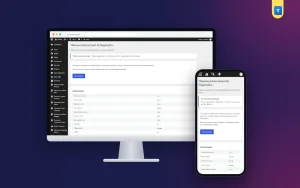
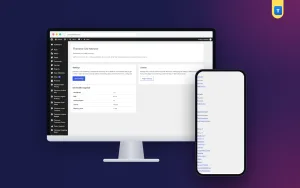
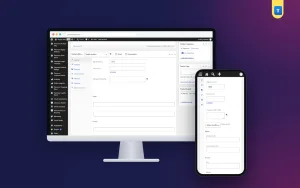
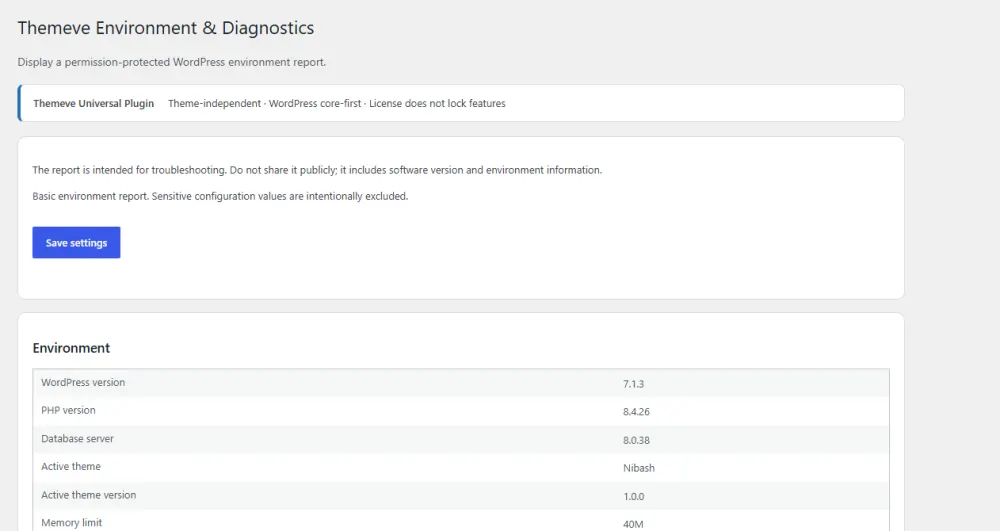
If you want the facts on one clean screen, Environment Diagnostics is a simple WordPress plugin built for this. It shows your WordPress version, PHP version, database version, active theme, memory limit, upload size, debug mode, HTTPS status and the list of active plugins.
It is read-only, so it changes nothing on your site. Only administrators can open it, under Settings, then Environment and Diagnostics. The report is ready to copy into a support request. It works with any WordPress theme and adds nothing for your visitors.
It will not fix problems by itself. It gives you the facts so that you or your helper can fix them quickly. If that sounds useful, you can read more on the Environment Diagnostics page.
A simple checklist before you contact support
Use this list to prepare a message that gets a quick answer.
- Write down what you were doing when the problem started.
- Copy the exact error message, or take a screenshot.
- Note what changed recently, such as an update or a new plugin.
- Copy your system information report.
- Say which pages or functions are affected.
- Take a backup before trying any fix.
- Send everything in one message, not in pieces.
A message like this saves a full day of back-and-forth. Hosting teams and developers notice and appreciate it.
Mistakes to avoid when using system information
- Ignoring old PHP versions. They run slowly and miss security fixes.
- Changing settings without a backup. Always keep a copy first.
- Leaving debug mode on. It can expose details to the public.
- Sharing the report in public groups. Keep it between you and your helper.
- Keeping unused plugins active. Each one adds risk and slows the site.
- Updating everything at once. Update one item at a time, so you know what caused a problem.
If you want to read more on the technical side, the official WordPress documentation is a good, reliable reference.
Frequently asked questions
What is system information on a WordPress site?
It is a report of the technical facts about your site and server: WordPress version, PHP version, database version, theme, plugins, memory limit, upload limit and a few security settings. Support teams use it to find the cause of a problem quickly.
Where do I find system information in WordPress?
Open Tools, then Site Health, then the Info tab, as an administrator. A small system info plugin can show the same facts on one screen that is easier to copy.
Is it safe to share my system information?
It is safe to share with your host, developer or plugin author in a private message. Do not post it publicly, because it reveals versions and plugin names.
Can it fix my site by itself?
No. It only reports facts. You or your helper still decide what to change, for example raising the PHP version or the upload limit.
What is system information used for before installing a plugin?
You compare it with the plugin's requirements. If your PHP or WordPress version is lower than required, the plugin may fail, so you update first.
Does checking it slow my website?
No. A read-only report is generated only when an administrator opens it. Visitors never load it.
Which PHP version should I use?
Use a version that is still supported and that your plugins and theme accept. Ask your host which versions they offer, and test the site after any change.