 −27%
−27%
Plugins
Elementor Pro Plugin 1 Year with Library Access – Elementor Pro Buy in Bangladesh
৳400
৳550Save 27%
 −50%
−50%
✦ Key features
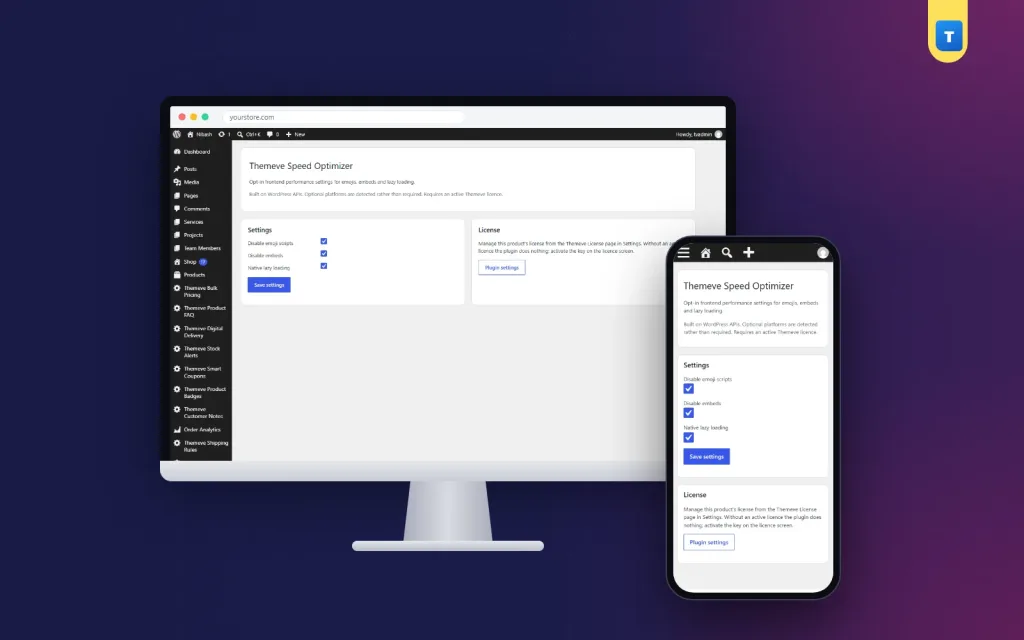
Speed Optimizer is a lightweight speed optimization plugin for WordPress that removes small things your pages load but rarely need. It switches off the WordPress emoji script and styles, switches off the embed script and oEmbed discovery, and adds native lazy loading to images that do not have it yet.
Every option is off until you turn it on, so nothing changes on your site until you decide. There is one short settings screen with three checkboxes. It works with any theme on any WordPress site, from a blog to a busy online shop.
A WordPress page loads more than the text and photos you see. Core adds an emoji script and styles to every page, so older browsers can show emoji. It also adds an embed feature, so other WordPress sites can embed your posts and you can embed theirs. Each piece is small, but each is one more thing to load on every visit.
On a fast office connection, nobody notices. On a mobile connection outside the city, every request counts, and many of your visitors browse exactly that way.
It suits all of them because it only removes core extras and adds a standard browser feature.
Modern phones and browsers show emoji on their own. The extra script WordPress adds is mostly for very old browsers. When you tick this option, the plugin removes the emoji detection script and the emoji styles from your public pages and from the admin screens. Emoji in your posts still display normally on current devices.
Most shop and business sites never use the WordPress embed feature. When you tick this option, the plugin removes the oEmbed discovery links and the embed script from your page head, and it stops WordPress from trying to discover embeds on its own.
Test your pages after you switch this on. If a feature you use depends on embeds, switch the option off again.
Lazy loading tells the browser to load an image only when the visitor scrolls near it. Pages with many product photos or blog images benefit most, because the first screen can appear sooner, and a visitor who never scrolls to the bottom never downloads those images.
When you tick this option, Speed Optimizer adds the standard lazy loading attribute to images that WordPress outputs from your media library and that do not have it yet. Images that already have it are left alone.
The plugin adds one screen under Settings, called Themeve Speed Optimizer. Only administrators can open it. It has two cards.
A short note and a button that opens the Themeve licence screen, where you enter or check the licence for this website.
Until your licence is active, no option is applied. The dashboard shows a lock icon with a Speed Optimizer screen and an Enter licence button, plus the licence screen. After activation, the settings open.
Nothing on the page looks different. Visitors do not see a new design or a new button. They may notice that the page feels lighter. These are the only changes in your page source:
All three options start switched off. Turn them on one at a time, check your pages, and keep what works for your site. If a theme or plugin depends on one of these features, switch that option off and everything returns to how it was. Nothing is deleted and nothing is changed in your database.
This speed optimization plugin for WordPress trims scripts and adds lazy loading. It is not a page cache and it does not compress images. For many small sites these trims are a good first step. Larger sites may also want caching from their hosting provider.
Used as a website speed optimization WordPress plugin, it covers the small extras, not the large ones. Image size is often the biggest factor on shop sites. Image Optimizer, another Themeve plugin, sets the JPEG quality WordPress uses on upload and scales down very large photos. Site Monitor shows your WordPress version, PHP version, active plugins and memory limit on one screen.
A speed optimization plugin for WordPress is only useful if you can see the result. Test a few key pages with a free speed testing tool before you switch anything on.
Turn on the options, then test the same pages again. Real numbers from your own site tell you more than any promise, and they help you decide what to try next. Test the homepage, a product or post page and, on a shop, the checkout.
Here is a simple case from a small online shop.
A clothing shop has a long homepage full of product photos. The owner switches on all three options. The emoji and embed extras disappear from every page, and photos further down the homepage load only when shoppers scroll to them. The owner tests the homepage on a phone and sees the first screen appear sooner.
This website speed optimization WordPress plugin handles the first part of the job. Good habits handle the rest.
Each step is small, and together they make a real difference for visitors on mobile data.
Because every option is separate, finding a problem is easy. Switch one option off, save, and reload the page. If the problem goes away, you know which option caused it.
If a problem stays after you switch an option off, clear any cache your host or another plugin keeps, then reload.
The gain from each option is different on every site. That is why we suggest testing before and after, and not trusting a number from someone else's site.
Setting up a speed optimization plugin for WordPress should take minutes, and this one does.
WordPress 6.2 or newer and PHP 7.4 or newer are required. Updates arrive in Dashboard, Updates while your licence is active.
Many speed tools bring caching, minification, database tools and a long list of settings. That can be too much for a small site, and a wrong setting can break a page. Speed Optimizer keeps to three safe, clear options.
Speed Optimizer is built on the official WordPress documentation standards, and you can browse more of our WordPress plugins.
No reviews yet — be the first to share your experience after buying.
No. It switches off the emoji and embed scripts and adds lazy loading. It does not cache pages or compress images.
Three things: the emoji script and styles, the embed script and discovery links, and lazy loading on images. Each has its own checkbox.
Yes, on current phones and browsers, which show emoji on their own.
The option removes the WordPress embed script and discovery links. Test your pages after you switch it on, and switch it off again if something you use stops working.
No. Every option is off until you turn it on.
Yes. It only removes core extras and adds a standard browser feature.
Test key pages with a speed testing tool before and after you turn options on.
Yes. Without an active licence no option is applied, and only the lock screen and licence screen open.
You get a refund when the product does not work as described and we cannot fix it, when your license will not activate your website, or when a manually delivered product is late and you cancel before delivery. A working license, or a single license already used on a live domain, is not refundable. Approved refunds go back to the number you paid from within one working day, minus the Send Money charge.
−27%
 −50%
−50%
 −50%
−50%
 −50%
−50%
