Picking the best speed optimization plugin WordPress has to offer is easier when you know what a plugin can and cannot fix. Many site owners install the first tool they find, tick every box, and then wonder why the site still feels slow or, worse, why something on the page stopped working.
This guide to finding the best speed optimization plugin WordPress owners can use explains how speed work really happens on a WordPress site, which jobs a plugin should handle, which jobs belong to your host and your images, and how to test the result. The examples are written for small online businesses in Bangladesh, where many visitors browse on a mobile connection and every extra request costs time.
What is speed optimization, in plain words?
If you are asking what is speed optimization, the short answer is this: it is the work of making a page appear and respond sooner. It means sending fewer files, sending smaller files, and sending them in a better order.
A visitor does not care about your server settings. They care about three things:
- How soon they see something on the screen.
- How soon the page reacts when they tap.
- Whether the layout jumps around while loading.
Every speed tool, free or paid, tries to improve one of these three things. If a tool cannot explain which one it improves, be careful with it.
Why speed matters for a small shop
Most shoppers in Bangladesh open your link from Facebook on a phone. The connection may be shared, the signal may drop, and the phone may be a few years old. A page that loads in two seconds on your office Wi-Fi can take eight seconds in a lane in Mirpur or a town far from Dhaka.
Slow pages cost you in simple ways:
- Visitors leave before the product photo appears.
- Fewer people reach the cart and the bKash or Nagad payment step.
- Search engines treat page experience as one signal among many, so a slow site gives you nothing extra to stand on.
- Your Facebook ad money is spent on clicks that never see the page.
What a plugin can fix and what it cannot
This is the most useful thing to understand before you compare tools. A plugin works inside WordPress. It cannot change the building your site lives in.
Jobs a plugin can do
- Remove scripts and styles your pages load but rarely need.
- Add lazy loading so images load only when the visitor scrolls near them.
- Store ready-made copies of pages (page caching).
- Combine or shrink CSS and JavaScript files (minification).
- Compress images when they are uploaded.
Jobs a plugin cannot do
- Make a weak, overloaded server fast.
- Fix a theme that loads ten sliders and six font files.
- Repair a database that has years of leftover data.
- Replace a 4 MB photo with a good 150 KB one, if you never resize it first.
So the best choice is not the plugin with the longest feature list. It is the one that does the jobs you need, does them safely, and leaves everything else alone.
How to choose the best speed optimization plugin WordPress site owners can trust
Use this list when you compare options. Each point protects you from a common mistake.
- Everything starts switched off. A plugin that changes your site the moment you activate it can break a menu, a slider or a payment button without warning. You want to turn features on one at a time.
- Each option is explained in one sentence. If you cannot tell what a switch does, do not enable it.
- It plays well with your theme. A good tool does not depend on one theme or page builder.
- It does not duplicate your host. Many hosts already offer server caching. Two caching layers can clash.
- It leaves existing work alone. If your theme already lazy loads images, the plugin should not add a second layer.
- The settings screen is short. A page with sixty switches is how people end up breaking their own site.
- You can undo it. Turning an option off should bring the old behaviour straight back.
The quick wins that give the most for the least risk
Before you install the best speed optimization plugin WordPress has on offer, look at the safe, small changes. They rarely cause trouble and they add up.
Remove the emoji script
WordPress adds a small script and a block of styles to every page so very old browsers can display emoji. Current phones and browsers handle emoji by themselves, so this extra code is mostly dead weight. Removing it saves a request on every visit, and your emoji still show normally.
Remove the embed script
WordPress also loads an embed script so that you can paste a link to another WordPress post and have it appear as a card. It also adds discovery links so other sites can embed your posts. If you never use these, they are extra code for nothing.
Lazy load your images
Lazy loading tells the browser to fetch an image only when the visitor scrolls close to it. On a shop page with forty product photos, the first screen can appear much sooner, and visitors who never scroll to the bottom never download the rest.
Fix image size first
No plugin can rescue a page full of huge photos. Resize product images to the size your theme really displays, and save them as JPEG or WebP at a sensible quality. A phone photo straight from the camera is often 3 to 6 MB. Your page needs 100 to 200 KB.
A simple speed checklist you can follow today
Work through this list in order. Test after every step so you know what helped.
- Measure the page you care about most (the home page or your top product page). Write down the load time and the page size.
- Delete plugins you do not use. Deactivated plugins are harmless to speed, but unused active ones are not.
- Resize and compress the largest images.
- Turn on lazy loading for images.
- Remove the emoji and embed scripts.
- Check that your theme does not load fonts and icon packs you never use.
- Ask your host about server-side caching and the PHP version. Newer PHP versions run WordPress noticeably faster.
- Measure again and compare with the first numbers.
Caching, minification and the risk of doing too much
Page caching and minification are the features most people think of first. They can help a lot, but they are also where most speed plugins cause problems.
Caching saves a finished copy of a page, so WordPress does not rebuild it for every visitor. This is very useful for blog posts and landing pages. It is risky for carts, checkout pages and account pages, which must stay personal for each visitor. A badly set cache can show one customer another customer's cart.
Minification and file combining shrink code, but they can break scripts that depend on loading in a set order. If your menu stops opening or your slider disappears after you enable them, that is the cause.
The safe rule is simple. Add one feature, check the home page, a product page, the cart and checkout on a phone, then add the next. If something breaks, switch off the last change. Even the best speed optimization plugin WordPress offers cannot fix a cache setting that does not suit your shop.
Speed advice for Bangladeshi online shops
Local conditions change what you should do first.
- Test on mobile data. Do not judge speed on Wi-Fi. Open your site on a phone using mobile data and watch the first screen.
- Keep the first screen light. One clear banner and a few products load faster than a rotating slider with five large images.
- Host near your visitors. A server close to Bangladesh or Singapore usually answers faster than one on another continent.
- Be careful with chat and tracking scripts. Messenger chat, pixel scripts and analytics each add requests. Keep only the ones you really use.
- Protect the payment step. After any speed change, place a test order and walk through bKash, Nagad and cash on delivery.
A ready-made option when you search for the best speed optimization plugin WordPress offers
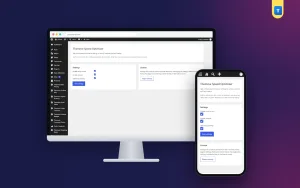
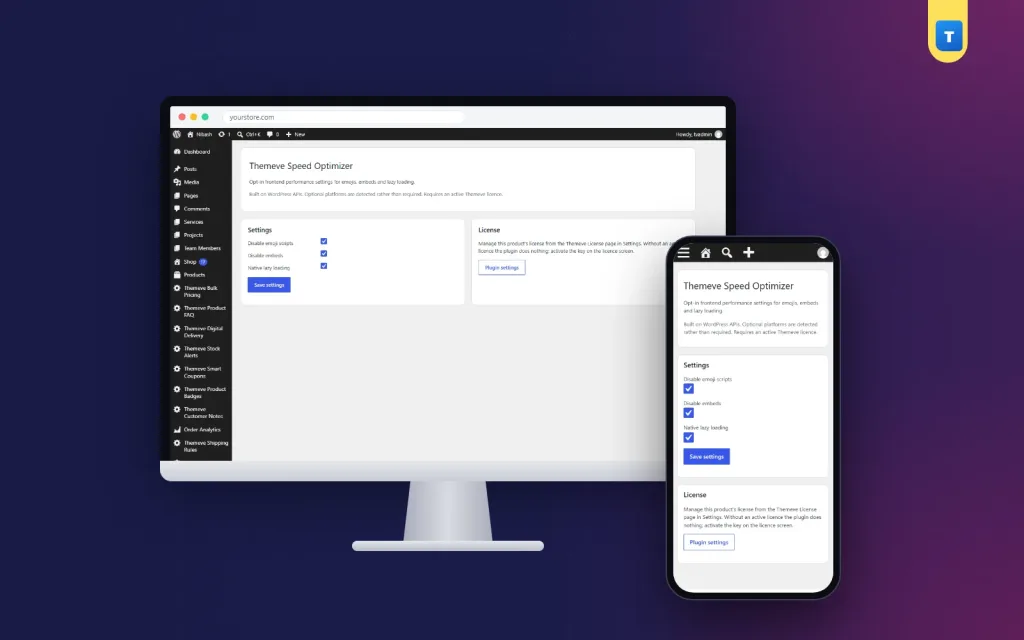
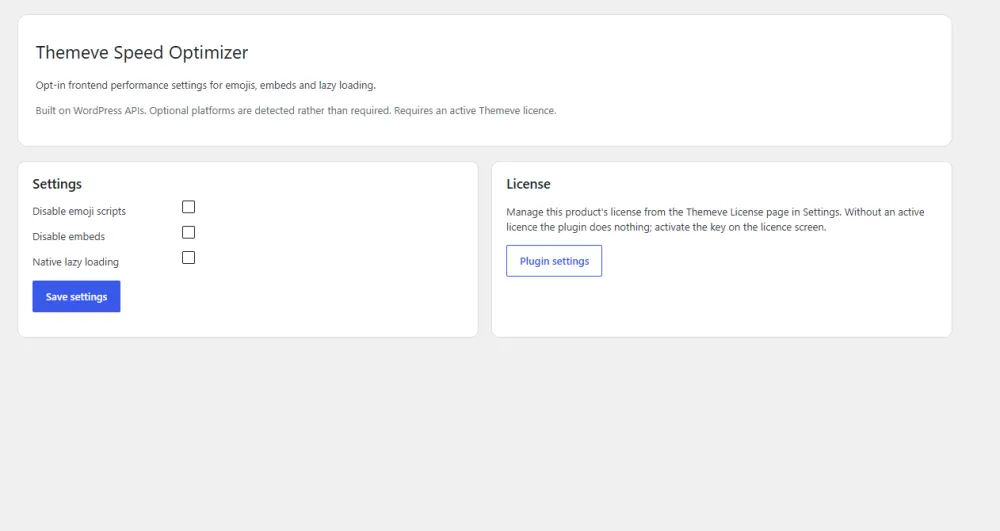
Speed Optimizer is a light plugin built for the quick wins described above. It does a few things and does them plainly:
- Switches off the WordPress emoji script and the emoji styles.
- Switches off the embed script and the oEmbed discovery links.
- Adds native lazy loading to images that do not have it yet, and leaves existing lazy loading alone.
Every option is off until you turn it on, so nothing changes on your site until you decide. The settings are on one short screen, it works with any WordPress theme, and it does not need a page cache to do its job.
It is not a full caching suite, and it does not compress images. If you want those, use your host's caching and an image tool alongside it. For many small shops, though, removing the dead weight and lazy loading the photos is a safe first step.
How to test whether speed work really helped
Do not trust a feeling. Use numbers, and test the same page the same way each time.
- Pick two pages: the home page and one product page.
- Run a free online speed test on each, and write down load time, page size and number of requests.
- Make one change.
- Clear any cache, then test again.
- Keep a small table of before and after. If a change gave no gain, you can leave it off.
Run each test two or three times and look at the middle result. Single results move around because of network and server load.
Then do a human check. Open the site on a real phone, scroll, tap the menu, add a product to the cart and begin checkout. A fast page that does not work is worse than a slow one that does.
Common mistakes to avoid
- Installing three speed plugins. They fight each other. Use one tool per job.
- Turning on every switch at once. You will not know which one broke the site.
- Chasing a perfect score. A score of 100 means little if your visitors already see the page quickly. Aim for a page that feels fast on a mid-range phone.
- Ignoring images. Large photos cause more slow pages than any script.
- Skipping backups. Always take a backup before changing speed settings.
- Testing only the home page. Product, cart and checkout pages matter more for sales.
Keeping the site fast over time
Speed is not a one-time job. Sites slow down again as you add photos, plugins and scripts.
- Check your main pages once a month, because the best speed optimization plugin WordPress offers still needs you to watch the results.
- Resize every new image before you upload it.
- Review plugins every few months and remove the ones you no longer use.
- Update WordPress, your theme and your plugins, after a backup.
- Re-test after any big change, such as a new theme or a new ad pixel. If you use Speed Optimizer, switch its options on one at a time here as well.
If you want to read more on the technical side, the official WordPress documentation is a good, reliable reference.
Frequently asked questions
What is the best speed optimization plugin WordPress users should pick first?
Start with the one that does the fewest risky things. A light plugin that removes unused scripts and adds lazy loading is a safe first choice. Add caching later, if your host does not already provide it.
What is speed optimization and does every site need it?
It is the work of making pages load and respond sooner. Every site benefits, but small changes are enough for many sites. You do not need a long list of tools to get a noticeable gain.
Can a plugin make a slow host fast?
No. A plugin can reduce what your pages load, but it cannot make a weak server answer faster. If your server is slow even on a plain page, talk to your host or move to a better plan.
Will removing the emoji script break my emoji?
No. Current phones and browsers display emoji on their own. The WordPress script is only there for very old browsers.
Is lazy loading good for every image?
It suits images below the first screen. Images at the very top should load straight away. Native lazy loading handles most pages well, and you should always check the top of the page after you switch it on.
Which is the best speed optimization plugin WordPress shops can use alongside a page builder?
Choose a tool that does not rewrite your builder's code. Plugins that only remove unused core scripts and add image lazy loading are the least likely to clash with a builder. Test the pages you built after you enable each option.
How often should I test my site speed?
Once a month is enough for most sites, and again after any big change such as a new theme, a new plugin or a new set of ads.