A WooCommerce product fields plugin gives every important product detail its own place in the editor. This woocommerce product fields plugin guide is for Bangladeshi online shops that add products every week, often with more than one person doing it, and that struggle to keep sizes, weights, warranty terms and expiry dates consistent across hundreds of items.
We will look at why structured product data matters, how to plan fields for your type of shop, how to keep entries consistent, and how Advanced Product Editor adds ready field sets in WooCommerce and Themeve Commerce.
The problem with description-only products
Most small shops start by writing everything in the product description. It works for the first twenty products. Then details start to drift. One product mentions the fabric in the first line, another in the last. Some mention warranty, others forget. When a buyer asks a question, staff scroll through paragraphs to find the answer, or worse, guess.
Descriptions are for selling: telling a story, describing how a product feels and why someone would want it. Facts like size, weight and warranty belong in fields, where they are entered the same way every time and found instantly.
What custom product fields give you
Custom product fields turn loose details into structured data. Each fact has a labelled box. Staff know exactly what to fill in, and anyone can read the value later without searching. When you update many products, you know where each detail lives.
Structured data also helps with the work behind the scenes: answering buyer questions faster, checking expiry dates on stock, printing accurate invoices and comparing products. It is a small habit that pays off as your catalogue grows.
Planning fields by shop type
Think about the questions buyers ask most for each kind of product. For clothing, it is size, colour and material. For electronics, brand, model and warranty. For groceries, unit, weight and expiry. For furniture, dimensions, material and weight. For digital products, the download link and how long the licence lasts.
Those questions tell you which fields you need. Start with three or so per type. Too many fields slow down product entry and often get left empty.
Agreeing on formats
Consistency matters more than the number of fields. Agree on formats before you start: sizes as S, M, L, XL; weights with units, like 500 g; warranty in months; dimensions as length by width by height in centimetres. Write the formats down and share them with everyone who adds products.
How the WooCommerce product fields plugin works
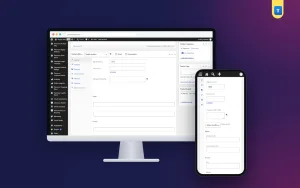
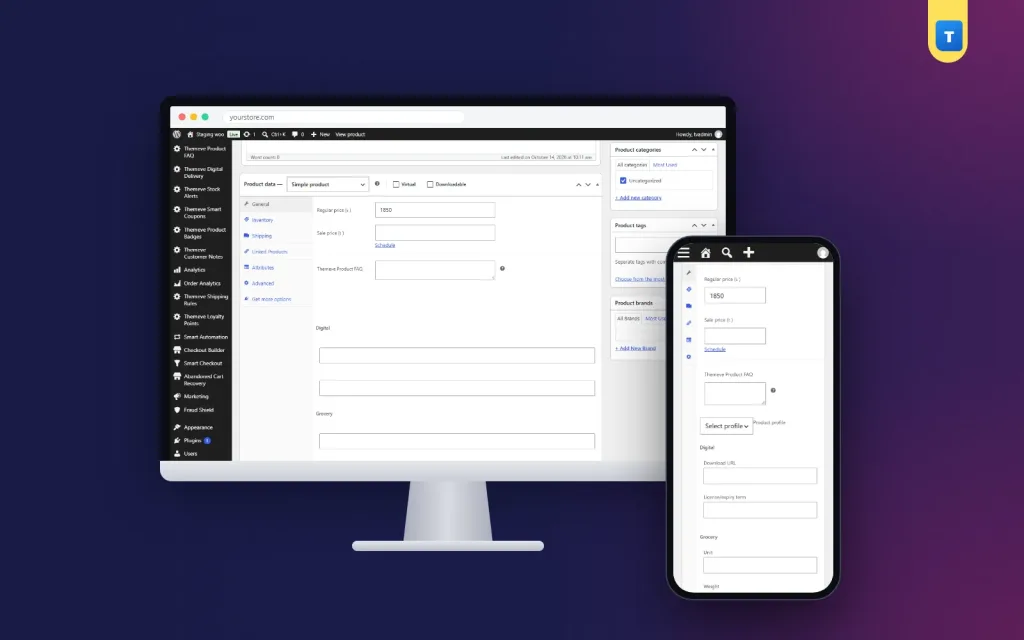
Advanced Product Editor adds five ready product profiles to the product editor. Choose a profile for each product and the matching fields appear. Digital products get a download URL and a licence or expiry term. Grocery products get unit, weight and expiry date. Fashion products get size, colour and material. Electronics get brand, model and warranty. Furniture gets dimensions, material and weight.
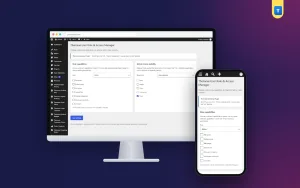
The fields appear in the WooCommerce product editor and in the Themeve Commerce product studio, and the values are saved with the product. Settings live under Settings, Themeve Advanced Product Editor. Different products can use different profiles, which suits shops that sell across categories.
What it does not do
The plugin adds and stores fields; it does not redesign your product page. How the values appear to shoppers depends on your theme. Until you know your theme shows them, keep key facts in the product description as well, so buyers still see them.
Setting it up
Upload the zip from Plugins, Add New, Upload Plugin, and activate it. The plugin needs an active Themeve licence key. Until the key is entered, the fields are not added and only the lock screen and License screen open. Paste the key from My Account, Licenses, and the profiles appear in the product editor. While the licence is active, updates arrive in Dashboard, Updates.
Open one of your best sellers, choose its profile, fill in the fields and save. Repeat for your top twenty products, then make the fields part of adding every new product. The WooCommerce documentation explains the product editor if your team is new to it.
Using fields in daily work
Fields help most when your team uses them. When a buyer asks about warranty on Messenger, staff open the product and read the warranty field. When planning a grocery promotion, check expiry dates first and promote items that need to sell sooner. When a buyer asks for dimensions, the furniture fields have the answer ready.
Make it a rule that a product is not published until its fields are filled in. That one rule keeps your catalogue clean as it grows.
Fields, descriptions and FAQs together
Each part of a product page has a job. The description sells. The fields store facts. A FAQ answers questions in plain language. Product FAQ shows questions and answers under each product, which works well alongside structured fields.
For content beyond products, such as services, projects or team members, Custom Content Types & Fields adds ready content types and a field box for posts, using the same idea of structured information.
Examples from different shops
A grocery shop uses the grocery profile for every packaged item. Each morning, staff check expiry dates on products with low stock and decide what to promote. A gadget shop uses the electronics profile so warranty answers are always accurate. A furniture maker uses the furniture profile and copies dimensions straight into delivery notes, so riders know whether a sofa will fit through a door.
A fashion page with mixed stock uses fashion fields for clothes and furniture fields for a small range of home décor. One store, several profiles, every product with the right details.
Keeping data clean over time
Review your catalogue every few months. Look for empty fields on older products and fill them in. Fix entries that break your format rules. When you change a supplier, update brand and warranty details for affected products.
Clean data makes everything easier later: bulk price changes, new campaigns, moving to a new theme or shop system. The time you spend now saves much more in the future.
Training new staff
Write a one-page guide for adding products: which profile to choose, what each field means, and the formats to use. Show new staff two or three good examples. Check the first ten products they add and give feedback. Within a week, they will add products the same way as everyone else.
Good habits at the start prevent hours of cleanup later, especially when your catalogue grows from dozens to hundreds of products.
Choosing the right profile for mixed products
Some products sit between categories. A smartwatch strap might feel like fashion, but buyers ask about compatibility and brand, which suits electronics. A wooden spice rack is furniture, but buyers may care about material more than dimensions. Choose the profile whose fields answer the questions buyers actually ask about that product.
When in doubt, look at your messages. If people ask about warranty, use electronics. If they ask about size and colour, use fashion. If they ask whether it fits a space, use furniture. The profile is a tool for answering questions, not a strict category label.
Keep a short list of these decisions so everyone on your team chooses the same profile for similar items. Consistency matters more than finding the perfect match, because it lets anyone find any detail quickly.
Product data and your suppliers
Much of the information in your fields comes from suppliers: brand, model, warranty terms, ingredients, weights. Ask suppliers for these details in writing when you buy new stock, and enter them as soon as products arrive. A supplier invoice or catalogue is often the most accurate source.
When details change, such as a new warranty policy or a different material, update the fields right away. Buyers trust shops whose details match what arrives in the parcel.
Common mistakes
The first mistake is adding too many fields and leaving most of them empty. A WooCommerce product fields plugin works best with a few fields that are always filled in. The second is skipping format rules, so the same detail appears in five different styles.
The third mistake is assuming every theme displays the fields automatically. Check your product page, and keep key facts in the description if needed. The fourth is never reviewing old products.
Frequently asked questions
Which product types are included?
Digital, grocery, fashion, electronics and furniture.
Can each product use a different profile?
Yes. Choose the profile per product.
Will shoppers see the fields?
That depends on your theme. The plugin stores the fields with the product; it does not redesign the product page.
Does it work in Themeve Commerce?
Yes. The fields appear in the Themeve Commerce product studio.
WooCommerce Product Fields Plugin guide: final thoughts
Good product data is quiet work that makes everything else easier. Choose a few fields per product type, agree on formats, fill them in for every product and review them regularly. Your team answers faster, your catalogue stays tidy and your buyers get accurate details. To add ready product profiles in WooCommerce or Themeve Commerce, try Advanced Product Editor.