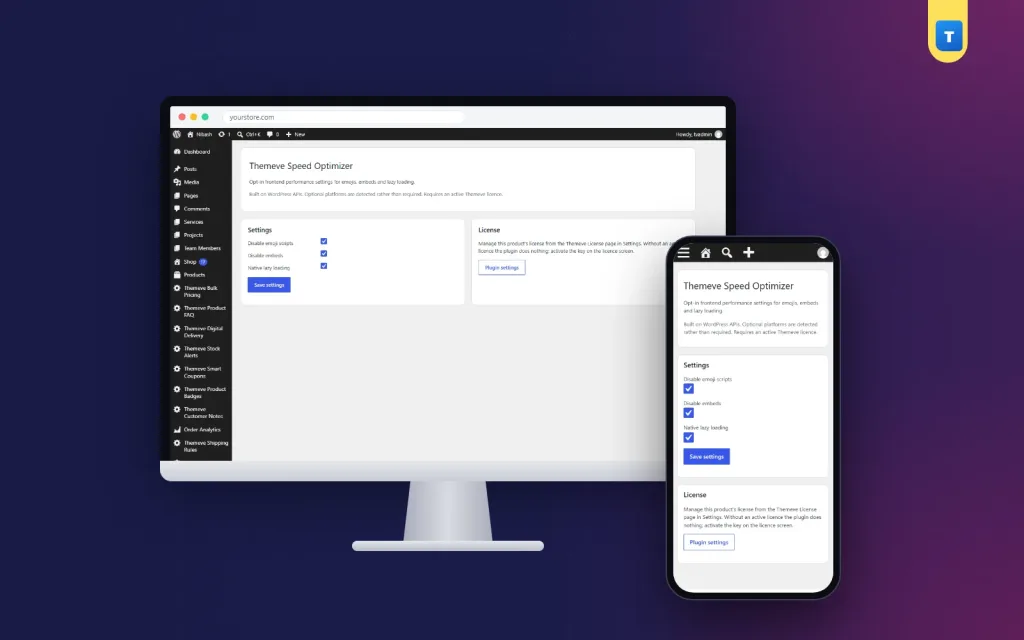
A WordPress speed optimization plugin can remove small things your pages load but do not need, and that is often the easiest first step towards a faster site. This wordpress speed optimization plugin guide is for owners of shop, blog and business websites in Bangladesh whose visitors browse mostly on phones and mobile data, where every extra request makes a page feel slower.
We will look at what slows WordPress down, which fixes are simple and safe, how to measure progress, and how Speed Optimizer handles three of those fixes with switches you control.
Why page speed matters
Visitors are impatient. When a page takes too long to show anything, many tap back and try another result. On a shop site, that is a lost sale; on a blog, a lost reader. Speed also affects how pleasant a site feels to use, which shapes whether people come back.
In Bangladesh, many visitors use mid-range phones on mobile data that can be fast one minute and slow the next. A page that loads quickly on your office Wi-Fi may feel heavy on a bus outside the city. Designing for those visitors helps everyone.
What slows WordPress down
The biggest factors are usually large images, too many plugins loading their own scripts, a heavy theme, and slow hosting. Smaller factors add up too: extra scripts and styles that WordPress or plugins add to every page, even when the page does not use them.
Fixing the big factors often needs work: compressing images, removing plugins you do not need, choosing a lighter theme or better hosting. Fixing the small factors can be as simple as switching something off. It makes sense to do the simple fixes first and measure, then tackle the bigger ones.
Should you disable emojis in WordPress?
WordPress adds an emoji script and a small block of styles to every page so that very old browsers can show emoji. Current phones and browsers display emoji on their own, so for most visitors that script does nothing useful. When people search how to disable emojis WordPress, this is the script they want to remove.
Removing it saves a request and a little code on every page. Emoji in your posts still show normally on modern devices. It is one of the safest small trims you can make.
The embed script
WordPress also adds an embed script and discovery links so that WordPress posts can be embedded in other WordPress posts. Most shop and business sites never use this. Removing it is another small, safe trim, as long as you check that the embeds you rely on still work.
Lazy loading images
Lazy loading tells the browser to wait before loading images that are far down the page. The browser loads them when the visitor scrolls near them. Pages with many images, such as shop homepages and long blog posts, benefit the most, because the first screen appears sooner and visitors who never scroll to the bottom never download those images.
Modern browsers support lazy loading natively, with a simple attribute on each image. WordPress adds it to many images already, but some themes and plugins output images without it.
How the WordPress speed optimization plugin works
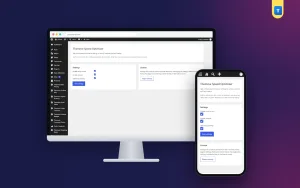
Speed Optimizer adds a short settings screen under Settings, Themeve Speed Optimizer, with three options. The first switches off the WordPress emoji script and styles. The second switches off oEmbed discovery and the embed script. The third adds native lazy loading to images that do not have it yet, leaving images that already have it alone.
Every option is off until you turn it on. That means nothing changes on your site right after activation. You decide what to switch on, test it, and keep what works. If a theme or plugin depends on one of these scripts, switch that option off and your site returns to how it was.
What it does not do
Speed Optimizer is not a page cache and does not compress images. It handles simple trims and lazy loading. For image sizes, Image Optimizer sets JPEG quality on upload and scales down huge photos. For caching, check what your hosting provider offers.
Setting it up
Upload the zip from Plugins, Add New, Upload Plugin, and activate it. The plugin needs an active Themeve licence key. Until the key is entered, no option is applied and only the lock screen and License screen open. Paste the key from My Account, Licenses, and the settings become available. While the licence is active, updates arrive in Dashboard, Updates.
Before switching anything on, test your homepage, a product or post page and your contact page with a free speed testing tool, and write down the results. Then turn on one option, check your pages for anything broken, and test again. Repeat for each option.
Measuring speed properly
Speed tests vary from run to run, so test each page two or three times and look at the typical result. Test on mobile settings, because that is how most of your visitors browse. Focus on how quickly the first content appears and how quickly the page becomes usable, not just a single score.
Keep a simple log: date, page, result and what you changed. Over a few weeks, you will see which changes helped your site and which made little difference. Google's Search Central documentation explains why page experience matters for visitors.
Bigger steps after the simple wins
Once the small trims are done, look at images. Resize photos before uploading, so a product photo is not five thousand pixels wide. Remove plugins you installed once and never used. Check whether your theme loads features you do not use, such as sliders or animations, and turn them off in the theme settings.
Watch your site's health too. Site Monitor shows your WordPress version, PHP version, active plugins and memory limit on one screen. An outdated PHP version or a long list of active plugins is often a clue to where speed is being lost.
Tips for Bangladeshi websites
Choose hosting with servers close to your visitors when you can. Keep your homepage focused: a few strong product sections load faster and convert better than an endless page. Compress Bangla web fonts or use system fonts where possible, because large font files slow the first screen.
Test on a real mid-range phone on mobile data, not only on your computer. What feels instant on Wi-Fi may feel slow on a busy network, and that is the experience many of your visitors have.
A worked example
Imagine a small clothing shop with a long homepage: a banner, six product sections and a blog strip at the bottom. The owner tests the homepage on mobile settings three times and notes the typical time until the first content appears. Then the owner turns on the emoji option, checks the homepage and a product page, and tests again. Then the embed option, then lazy loading.
After lazy loading, the product photos in the lower sections load only when shoppers scroll to them, so the first screen has less to download. The owner keeps all three options on, writes the new results in the log, and moves on to resizing the large banner image, which turns out to be the biggest single file on the page.
None of this needed a developer. Each step took a few minutes, and each was easy to undo. That is the right way to work on speed for a small site: one change at a time, with numbers before and after.
Speed and plugins
Every plugin you add can load its own scripts and styles. Before installing a new one, ask whether you really need it and whether another plugin already does the same job. Once a quarter, review your plugin list and remove anything you no longer use. Fewer plugins usually mean fewer requests, fewer updates and fewer things that can break.
Common mistakes
The first mistake is switching on many changes at once and then not knowing which one broke something. Change one setting at a time. The second is expecting a WordPress speed optimization plugin to fix everything. Trimming scripts helps, but large images and slow hosting need their own fixes.
The third mistake is chasing a perfect score instead of a faster experience for real visitors. The fourth is installing several overlapping speed plugins that fight each other. Keep your setup simple and test after every change.
Frequently asked questions
Will removing the emoji script hide emoji?
No. Current phones and browsers show emoji on their own.
Is it safe to switch off the embed script?
For most sites, yes. Test your pages after switching it on and turn it off again if an embed you use stops working.
Does it cache pages?
No. It trims scripts and adds lazy loading. Caching usually comes from your hosting provider.
Does anything change right after activation?
No. Every option is off until you turn it on.
WordPress Speed Optimization Plugin guide: final thoughts
A faster site starts with simple, safe changes and honest measurement. Remove scripts you do not need, lazy-load images, test before and after, then move on to images, plugins and hosting. Small improvements add up, especially for visitors on mobile data. To make the first three trims with simple switches, try Speed Optimizer.