Choosing the best contact form plugin for WordPress looks hard because the list of options is long and every one claims to do everything. In practice, most small sites need a form that is easy to place, checks what visitors type, stops fake submissions and delivers each message to a real inbox.
This guide shows what to look for, which features matter and which ones you can ignore, how to set up a form step by step, and how to fix the usual problems, such as messages that never arrive. The examples fit small businesses in Bangladesh, where customers often compare a Facebook page, a phone number and a website before they write to you.
Why a contact form still matters
Many visitors will not call and do not want to open Messenger. Some are at work, some prefer writing, and some want to send a detailed question once instead of chatting back and forth. A form gives them a quiet, simple way to reach you.
It also helps you:
- You get the details you need (name, email, message) in one place.
- You do not publish your email address for spam bots to collect.
- Your site looks more professional than one with only a phone number.
- You keep a record of enquiries that is easier to search than chat messages.
What a good contact form must do
Whatever tool you pick, check that it handles these jobs:
- Collects the right fields. Name, email and message are enough for most enquiries.
- Validates the input. Empty fields and invalid email addresses are caught before sending.
- Blocks fake submissions. Some check, such as a nonce, should confirm the form was sent from your page.
- Shows clear messages. A thank-you after success and a plain error if something fails.
- Emails you reliably. Each message goes to the address you choose.
- Sets Reply-To. When you press Reply, the answer should go to the visitor, not to yourself.
- Fits your theme. The form should look like part of your site.
How to pick the best contact form plugin for WordPress
Use these questions when you compare tools. They keep you from paying for or installing features you will never use.
- Is it simple to place? A single shortcode or block is easier to manage than a builder with many screens.
- Is it light? A form plugin that loads large scripts and styles on every page slows your whole site.
- Is it safe? Look for input checks, a security token and no open doors for spam.
- Does it send mail well? Many hosts block or delay form emails. A tool that supports your host's mail settings, or an SMTP plugin, avoids lost messages.
- Is it up to date? Choose tools that are still updated by their developers.
- Do you need extras? File uploads, payment fields and multi-step forms are useful only if your business really uses them.
The best contact form plugin for WordPress is the one that matches your needs, so write your needs down before you compare. A small service business and a large shop with quote forms need different things.
Features worth paying for, and features you can skip
Worth having
- Field validation and a clear error display.
- Spam protection that does not annoy real visitors.
- An email to you with Reply-To set to the sender.
- A shortcode or block you can place anywhere.
- Styling that follows your theme.
Often not needed
- A drag-and-drop builder with dozens of field types, if you only need three fields.
- Payment fields inside a contact form. Use your shop for payments.
- Large add-on packs that load extra scripts.
- Built-in marketing tools, if you already have a mailing list tool.
The best contact form plugin for Elementor users
Many sites in Bangladesh are built with Elementor, so a common question is the best contact form plugin for Elementor. There are two honest routes.
- The page builder's own form widget. Convenient, and it follows your design. The form is tied to the builder, so if you change builders later, you rebuild the form.
- A separate form plugin with a shortcode. Place the shortcode in Elementor's Shortcode widget. The form works independently of the builder, and you can reuse it on other pages and widget areas.
Whichever route you pick, test the form on a phone, check the spacing inside your Elementor sections and send a real test message. Builders add their own styles, so a form can look slightly different from what you expect.
When you search for the best contact form plugin for Elementor, judge it by the same list as any other site: it should be light, safe, simple to place and reliable at sending mail.
Set up the best contact form plugin for WordPress in eight steps
- Install and activate the plugin from your dashboard.
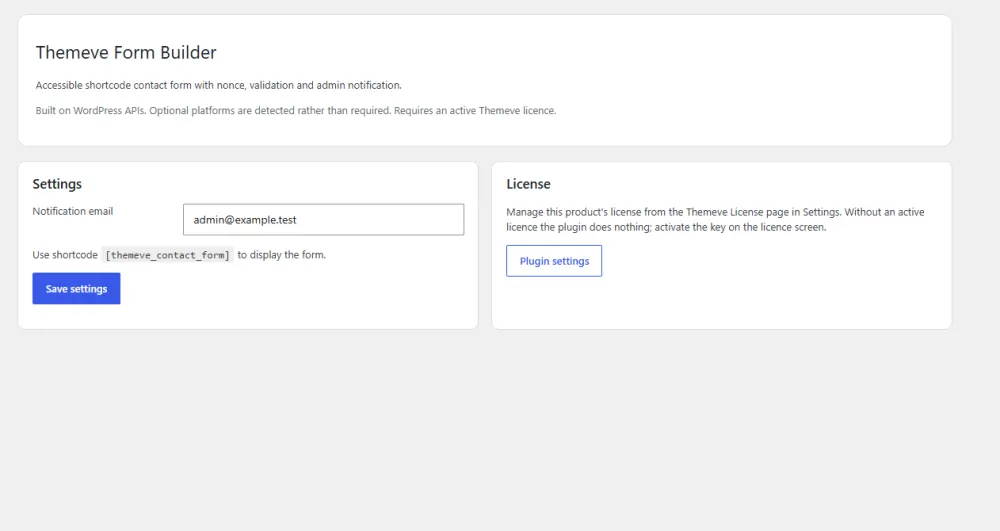
- Open its settings. Set the email address that should receive messages.
- Create a Contact page if you do not have one: Pages, Add New.
- Add the shortcode or block to the page body and publish.
- Add a short note above the form: your reply time, working hours and any other way to reach you.
- Link the page from your main menu and footer.
- Send a test message and check that it arrives in your inbox, including the spam folder.
- Press Reply and check that the reply is addressed to the sender.
How to write a contact page that gets used
The form is only half of the page. A few small touches make people more willing to write.
- Say who you are and what you can help with in one sentence.
- Promise a realistic reply time, for example "within one working day", and keep it.
- List other ways to reach you: phone, WhatsApp, Messenger, address.
- Keep the form short. Three fields get filled in more often than eight.
- Put the form above the fold on mobile.
- Show a clear confirmation after sending.
Why contact form emails go missing, and how to fix it
This is the most common complaint. The form says "message sent", but nothing arrives. Work through this list:
- Check the spam folder. Mail from a form often lands there.
- Check the receiving address. A typo in settings sends mail nowhere.
- Use an address on your own domain for the sender where possible. Free webmail senders are often rejected.
- Ask your host. Some hosts limit or block outgoing mail.
- Add an SMTP plugin. Sending through a real mail account is more reliable than the server's default.
- Test again after each change.
Make the form easy for everyone to use
A form that is hard to use loses messages quietly, because people simply close the page. Check these points:
- Each field has a visible label, not only grey text inside the box.
- Buttons and fields are large enough to tap with a thumb.
- Error messages say exactly what to fix, for example "Please enter a valid email address".
- Text has good contrast against the background.
- The form works with the keyboard, using Tab and Enter.
- The page loads quickly on mobile data.
These small details cost nothing and raise the share of visitors who finish the form.
Keeping spam under control
Any public form will attract spam. A good setup uses layers:
- A security token (nonce) that confirms the form came from your page.
- Validation of all fields on the server, not only in the browser.
- An extra check such as a hidden trap field or a simple question, if spam grows.
- Rate limits on the number of submissions from one address.
Avoid hard puzzles. A form that frustrates real customers loses real orders.
Review the spam folder of your form inbox once a week. If real messages end up there, adjust your mail settings. If spam grows, add one extra layer at a time and test each change by sending a normal message yourself.
A ready-made option that keeps it simple
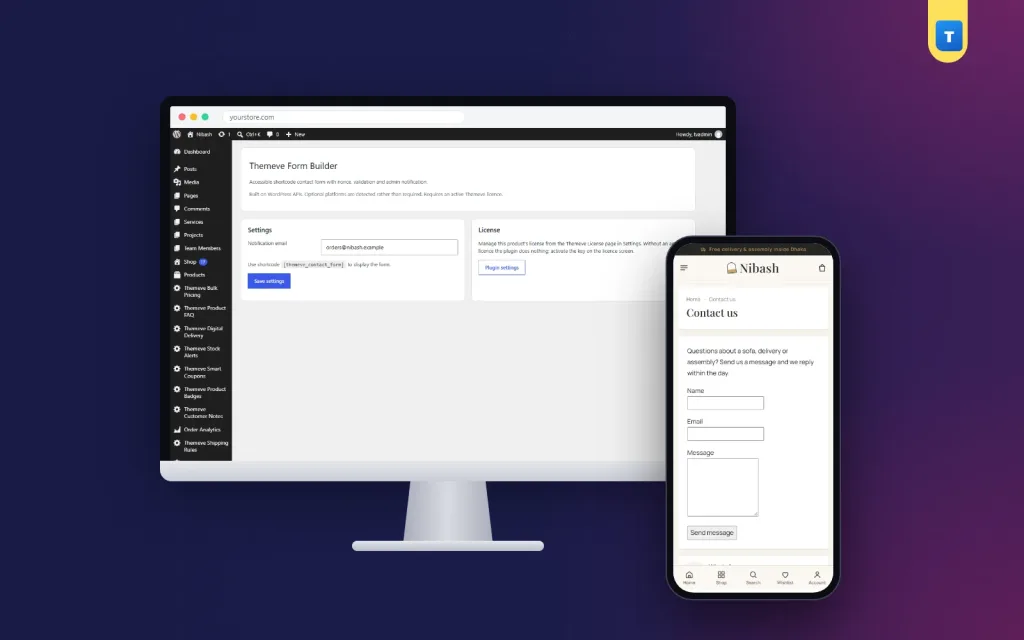
Contact Form is a simple WordPress contact form plugin for sites that need one thing done well: let visitors send a message. It does the essentials:
- Name, email and message fields.
- One shortcode, [themeve_contact_form], to place the form on any page, post or widget area that accepts shortcodes.
- Every field validated, with clear thank-you and error messages.
- A security check that stops forged submissions.
- Each message emailed to the address you choose, with Reply-To set to the sender.
The form uses your theme's styling, so there is nothing to design or maintain, and it works with any WordPress theme.
It is a plain three-field form. It has no file uploads, payment fields or multi-step logic, so if you need those, pick a larger tool. For a business site, a service page or a small shop, the simple version covers most enquiries.
You can read more about Contact Form on its product page. Using the shortcode inside a builder's Shortcode widget is also an easy route if your site is built with Elementor.
What to do with the messages you receive
A form is only useful if someone answers. Build a small routine:
- Check the inbox at fixed times, for example morning and late afternoon.
- Reply to simple questions the same day, even if only to say you will follow up.
- Save common answers (prices, delivery areas, payment methods) in a note, so you can paste them fast.
- Move real orders and leads into your usual system: a sheet, a CRM or your order screen.
- Delete spam and old messages you no longer need, to protect visitors' privacy.
Tell visitors in your privacy policy that you use their message only to answer them.
Contact form ideas for Bangladeshi businesses
- Online shops: add a line telling customers to include their order number and phone number.
- Service providers: invite visitors to describe the job and the area they are in.
- Agencies and freelancers: ask for a short project description and a budget range in the message.
- Schools and clinics: give a phone number for urgent matters, and use the form for general questions.
- Cash on delivery stores: remind customers that you will confirm the order by phone before dispatch.
Answer quickly. A reply on the same day often decides who gets the order.
A final checklist before you publish
- You have picked the best contact form plugin for WordPress for your needs, not the one with most features.
- The form shows on desktop and on a small phone.
- All three fields are marked and validated.
- A test message reaches the right inbox.
- Reply-To points to the visitor.
- A thank-you message appears after sending.
- The page is linked in the menu and the footer.
- You have a plan to answer within one working day.
If you want to read more on the technical side, the official WordPress documentation is a good, reliable reference.
Frequently asked questions
What is the best contact form plugin for WordPress if I only need a simple form?
A light plugin with name, email and message fields, a shortcode and server-side validation is enough. Extra builders and add-ons only slow the site.
What is the best contact form plugin for Elementor?
Either the builder's own form widget or a separate plugin placed with a shortcode. Choose the shortcode route if you want the form to stay when you change your design later.
Do I need a spam plugin for my contact form?
Not at the start. A form with a security token and server-side checks stops most forged submissions. Add more layers only if spam grows.
Why am I not receiving the messages from my form?
The cause is usually the spam folder, a wrong receiving address or a host that blocks outgoing mail. Check them in that order, and try an SMTP plugin if needed.
Is the best contact form plugin for WordPress free or paid?
It can be either. Free tools cover the basics, and paid ones add support, extra field types and integrations. Pay only for features you will use, and check that the tool is still updated. A small business site rarely needs more than a simple, well-made form.
How many fields should a contact form have?
Three is a good start: name, email and message. Add more only when you really need the information.
Can I use the same form on more than one page?
Yes. A shortcode can be placed on any page, post or widget area that accepts shortcodes.