If you want to know how to add product badge in WooCommerce, you have three practical routes: use the built-in sale badge, add a custom badge with a small code snippet, or install a plugin. This guide explains each route in plain steps, so you can pick the one that fits your shop and your comfort level.
A badge is a small label on a product card, such as "Sale", "New" or "Free Delivery". It looks like a minor detail, but on a busy shop page it often decides which product gets a look. Below you will find the reasons to use badges, the exact steps, the mistakes to avoid and ideas for Bangladeshi shops.
What a product badge is and why it matters
A product badge is a short piece of text, usually in a coloured shape, placed on or near the product image. It tells the shopper one fact in two or three words.
Shoppers scroll fast, especially on phones. A grid full of similar photos blurs together. A small label gives the eye something to stop on, and it says that something is happening now.
- Sale: the price has dropped.
- New Arrival: the product is fresh in the shop.
- Free Delivery: shipping costs nothing on this order.
- COD Available: the buyer can pay on delivery.
- Limited Stock: only a few are left.
- Eid Offer: a seasonal campaign is running.
Used well, a badge also reduces questions. If the card already says "COD Available", fewer people will message to ask.
The default badge WooCommerce already has
Before adding anything, know what you already have. WooCommerce shows a "Sale!" badge on any product that has a sale price. You do not need to do anything to get it.
To use it, follow these steps:
- Open the product in the editor.
- In the Product data box, enter a price in the Sale price field.
- Optionally set the sale dates.
- Update the product.
The badge appears on the product card and on the product page. Its look depends on your theme. That is the limit of this method: you get one badge for one reason, and you cannot add "New" or "Free Delivery" this way.
How to add product badge in WooCommerce with a code snippet
If you are comfortable with a little code, you can add your own text to every product card. The idea is to hook into the place where WooCommerce prints the product title in a list and print a label before it.
Follow these steps carefully:
- Make a full backup of your site first.
- Use a child theme, or a snippets plugin, so that your change survives theme updates.
- Add a function that prints a span with your text, and hook it to the loop item action.
- Add a few lines of CSS to give the span a background colour, rounded corners and small white text.
- Check the result on a phone and a computer.
This method gives you full control, but it has costs. A small typing mistake can break your site. Each change needs a developer or a lot of care. And if you want a different badge on different products, the code becomes longer.
How to change sale badge text in WooCommerce
Many shop owners ask how to change sale badge text in WooCommerce because the word "Sale!" does not fit every campaign. You may prefer "Eid Offer" or a Bangla word. There are two common ways.
- Use a filter in code. WooCommerce passes the badge HTML through a filter named woocommerce_sale_flash. A short function that returns your own span replaces the default text.
- Use a translation tool. Some translation or text-change plugins can replace the single word "Sale!" with another word across the shop.
Either way, keep the new text short. Anything longer than three words will not fit on the badge, especially on phones.
Remember that this only changes the sale badge. It still shows only on products with a sale price, so it cannot replace a store-wide message such as "Free Delivery".
How to add product badge in WooCommerce with a plugin
For most shop owners, a plugin is the safest route. There is no code to write, and you can change the text at any time. When you compare plugins, check this list:
- Can you set your own text without code?
- Does it work with your theme's product card?
- Can you switch it off without losing your text?
- Does it load extra scripts or large files on your shop pages?
- Is it simple enough that a helper can use it?
The general steps are the same for most plugins:
- Install and activate the plugin from the Plugins page.
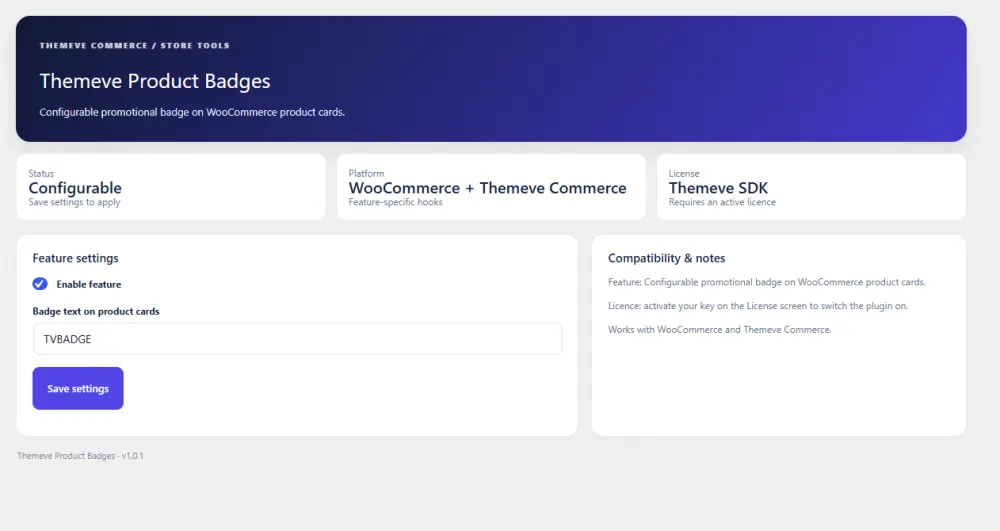
- Open its settings screen.
- Type your badge text.
- Switch the badge on and save.
- Open your shop page and check how it looks.
Always test on a staging copy first if your shop is busy, and check your category pages too.
Design tips for badges that work
A badge is small, so every detail counts.
- Keep the text to two or three words. "Free Delivery" works. "Free Delivery All Over Dhaka This Week" does not.
- Use strong contrast. White text on a dark or saturated background reads well on phones.
- Use a small, clear font size. It should not fight with the product title or price.
- Place it consistently. The same position on every card feels tidy.
- Do not use too many colours. One or two badge colours are enough.
- Write in the language of your buyers. Use English, Bangla or a mix, but be consistent.
Badge ideas for shops in Bangladesh
The best badge speaks to a real worry of local buyers. These ideas have a clear purpose.
- COD Available: removes the fear of paying before receiving the product.
- Free Delivery: removes the biggest cause of dropped carts.
- Eid Offer, Puja Offer, Winter Sale: ties the shop to the season.
- New Arrival: useful for fashion pages that add products often.
- Original Product: useful for gadgets and cosmetics, where buyers worry about fakes. Use it only when it is true.
- Limited Stock: use it honestly, and only when stock is truly low.
These ideas also show how to add product badge in WooCommerce in a way that helps the buyer rather than just decorates the page. Honesty matters. A "Limited Stock" label on a product that is always available will cost you trust.
A ready-made option for WordPress shops
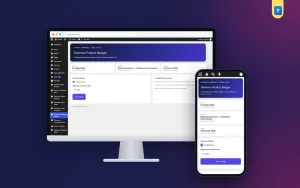
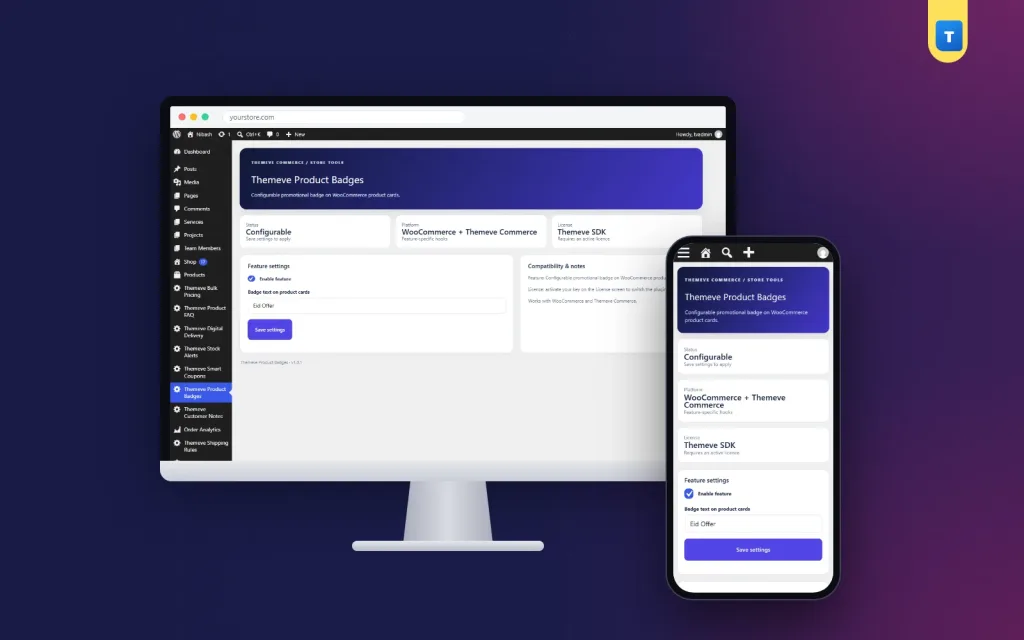
If you want the plugin route without a long search, Product Badges does one job: it shows your own text on every product card in your shop lists. You type the text once, switch it on and the badge appears.
What it offers:
- Your own badge text, changed any time.
- A clean rounded badge, white bold text on an indigo background.
- One setting that changes the whole shop, with no editing of single products.
- An on and off switch that keeps your text when it is off.
- No JavaScript and no extra stylesheet on your shop pages.
- Works on WooCommerce, and on Themeve Commerce where the theme's product card supports it.
It suits fashion pages, grocery shops, gadget sellers and gift shops that run store-wide campaigns. Note that it shows one text on every card. For different labels on different products, use the sale price badge or a custom method. See the Product Badges plugin page for details.
Shop list badges and product page badges
Badges can appear in two places, and they do different jobs. It helps to decide which one you need before you choose a method.
- Shop list badges show on the cards in the shop page, category pages and search results. They help the shopper choose what to open.
- Product page badges show once the shopper is already looking at one item. They add a last push, such as "Free Delivery".
If you only want to know how to add product badge in WooCommerce for campaigns, start with the shop list. That is where most people decide to click or scroll on. You can add a product page message later with a short line in the description if needed.
Also think about your theme. Some themes draw the product card in their own way, so a badge may sit in a slightly different spot. Always check your own pages after switching it on, including the category pages and the search page.
How to test a badge before customers see it
Testing takes ten minutes and saves embarrassment.
- Open your shop page on a phone and read the badge at arm's length.
- Open it on a computer and check that the text is not cut off.
- Open a category page and a search results page.
- Try a product with a very long title, and one with no image.
- Switch the badge off, and check that the page returns to normal.
- Switch it on again, and confirm that your text is still there.
If you use a caching plugin, clear the cache after each change. Otherwise you may keep seeing the old version and think the badge is broken.
How to see if badges help your sales
A badge is a small change, so measure it with care. Compare like with like.
- Note your orders and shop page visits for one normal week before the badge.
- Switch the badge on and keep other things steady for a week.
- Compare the number of clicks on products and the number of orders.
- Count the messages that ask a question the badge already answers, such as delivery charge.
Do not expect a huge jump from a label alone. Its job is to make your offer easy to notice, and the offer itself still has to be good. Never assume a badge alone will raise sales; treat the numbers as a guide, and change the text if it does not help.
Mistakes to avoid
- Editing theme files directly. Your changes vanish after the next theme update.
- Using too many badges. If every card has three labels, nothing stands out.
- Leaving old badges on. An "Eid Offer" label in the middle of winter looks careless.
- Long text. It wraps, covers the image or is cut off on small screens.
- Not testing on mobile. Most of your shoppers use phones.
- Weak contrast. Light text on a light background cannot be read.
- Making claims you cannot keep. "Free Delivery" must really be free.
How to plan a badge campaign
- Pick one message for the campaign, such as "Eid Offer".
- Check that the offer is real and that your prices and delivery match it.
- Write the badge text and keep it under three words.
- Switch it on a few days before the campaign starts.
- Mention the offer on Facebook and in your messages, using the same words.
- Switch the badge off or change it as soon as the campaign ends.
- Note your orders during the campaign, and compare them with a normal week.
Using the same words everywhere is a small thing that works well. When a shopper sees "Eid Offer" in your post and then on the shop page, the message sticks.
Quick checklist
- You know whether you need a sale badge or a store-wide badge.
- You made a backup before changing anything.
- The text is short, true and readable.
- The badge looks right on a phone.
- You have a date to remove or change it.
If you want to read more on the technical side, the official WordPress documentation is a good, reliable reference.
Frequently asked questions
How to add product badge in WooCommerce without coding?
Use a plugin. Install it, open its settings, type your badge text, switch it on and save. Then check your shop page to see the badge on the product cards.
How to change sale badge text in WooCommerce?
You can use the woocommerce_sale_flash filter in code to return your own text, or use a text-replacement plugin to change the word "Sale!" across your shop. Keep the new text short.
Can I add a different badge to each product?
Yes, with custom code or a plugin that supports per-product labels. A store-wide badge plugin shows the same text on every card, which is ideal for campaigns.
Will a badge slow down my shop?
A badge made of simple HTML and a little CSS is very light. Check that a plugin does not load extra scripts or large images, because those add to page weight.
Where does the badge show on the product?
This depends on your theme and the method. Badges usually appear on the product image corner or near the title on cards in shop lists.
Can I use Bangla text in a badge?
Yes. Your site fonts must support Bangla, and the text should stay short. Check how it looks on a phone before you publish.