Learning how to set cash on delivery woocommerce stores can use takes about ten minutes, because WooCommerce already includes this payment method. The harder part is setting it up so that it helps sales without leading to a pile of refused parcels.
This guide walks through the basic setup step by step, then shows how to control who sees cash on delivery, how to test it, and how to avoid the mistakes that cost shops money. It is written for small online shops in Bangladesh, where COD is still the most trusted way to pay.
What cash on delivery means for an online shop
Cash on delivery, or COD, means the buyer pays when the parcel arrives. The courier collects the money and passes it to you, usually after a few days and after taking a fee.
It has clear advantages:
- Buyers who do not trust a new shop feel safe, because they pay only after they see the parcel.
- People without a card or a mobile wallet can still order.
- It is easy to explain on a Facebook page or by phone.
It also has costs. Some buyers refuse parcels, some are unreachable and some give a wrong address. You pay for packing and delivery both ways. A good setup keeps the advantages and reduces these costs.
Before you start: what you need
Check these points first, so the setup goes smoothly.
- WooCommerce is installed and your shop pages (shop, cart, checkout) exist.
- Your shipping zones and rates are set up, at least for the main areas you deliver to.
- Your currency is set to Bangladeshi taka.
- You have an admin account on the site.
- You know which courier will carry COD parcels and what they charge.
If shipping is not set, COD cannot work properly, because WooCommerce needs to know where an order is going.
How to set cash on delivery woocommerce step by step
Follow these steps in your WordPress admin.
- Go to WooCommerce, then Settings, then Payments.
- Find Cash on delivery in the list of payment methods.
- Switch it on, or click Manage to open its settings.
- Tick Enable cash on delivery.
- Change the Title if you want, for example "Cash on delivery".
- Write a short Description, such as "Pay in cash when your parcel arrives."
- Add Instructions. These appear on the thank-you page and in the order email.
- Under Enable for shipping methods, choose where COD is allowed. Leave it empty to allow it everywhere.
- Click Save changes.
Menu names can change slightly between WooCommerce versions, but the path stays the same: Payments, then Cash on delivery.
How to add cash on delivery in WooCommerce for specific shipping
Sometimes you want COD only for some delivery options. For example, you may allow it for home delivery inside Dhaka but not for far districts. If you are wondering how to add cash on delivery in woocommerce for only some zones, use the shipping method setting.
- Create a shipping zone for each area, for example Dhaka and outside Dhaka.
- Add a shipping method to each zone, such as flat rate.
- Open the Cash on delivery settings.
- In Enable for shipping methods, select only the methods where COD should appear.
- Save and test with an address in each zone.
This gives you a first level of control. For finer rules, such as order total or district, you need extra logic, which we cover below.
Extra settings worth knowing
The COD settings screen also has an option to accept COD for virtual products, such as downloads or bookings. Most physical shops leave it off. If you sell only physical goods, keep it off, so that COD is not offered where no courier is involved.
Another point is the order status. Some shops want COD orders to start as processing, others prefer on hold until a call is made. Choose the one that fits your team, and use it every time.
Finally, remember your shipping rate. If a courier charges extra for COD collection, add it to your delivery fee or your product price. Otherwise it quietly eats your profit.
Write a clear title and message
Buyers often leave the checkout when they are unsure. Use plain words and tell them what to expect.
- Title: "Cash on delivery".
- Description: "Pay in cash to the courier when you receive your parcel."
- Instructions: "Keep the exact amount ready. Our team may call to confirm your order."
The last line matters. If buyers know a call is coming, they answer their phone, and your confirmation rate improves.
Test the checkout before you go live
Never trust a setting you have not tested. Place a real test order the way a buyer would.
- Open your shop in a private browser window.
- Add a product to the cart and go to checkout.
- Fill in a Bangladesh address and phone number.
- Check that Cash on delivery appears and that the description is clear.
- Place the order.
- Open the order in the admin and confirm the status is correct.
- Check that you and the buyer received the order email.
- Delete or cancel the test order.
Repeat the test on a phone. Most of your buyers will use one, and layout problems often show up there first.
What the buyer should see after ordering
After checkout, the thank-you page is your last chance to build trust. Show the order number, the total to pay, the expected delivery time and a phone number for questions. Repeat the same details in the order email.
A buyer who knows exactly how much cash to keep ready is far less likely to refuse the parcel. A buyer who expected a different price is far more likely to. This small step costs nothing and reduces returns.
Understand the order status for COD
With cash on delivery, WooCommerce usually sets a new order to processing, or to on hold for some order types. The money is not received yet, so do not treat the order as paid.
A useful routine is:
- New COD order arrives as processing.
- Your team calls the buyer to confirm.
- If confirmed, pack and send the parcel.
- When the courier reports delivery and payment, mark the order completed.
- If the parcel returns, mark it cancelled or refunded and add a note with the reason.
Keeping statuses honest makes your sales reports true.
Why you may need to limit cash on delivery
Allowing COD for every order, everywhere, is easy but risky. The loss is small on a cheap item and large on an expensive one. A refused phone or a sofa set can wipe out the profit of many other orders.
Many shops start to limit COD in one of these ways:
- No COD for very small orders, because delivery costs more than the profit.
- No COD for very large orders, which must be paid in advance by bKash, Nagad or card.
- No COD for districts where the courier has many returns.
- A small handling fee for COD, to cover the courier charge.
Many owners ask how to set cash on delivery woocommerce rules like these without writing code. The answer is a small rules plugin, covered below. Standard WooCommerce does not have these rules in its COD settings. You can do the work by hand with phone calls, but that becomes hard when orders increase.
How to set cash on delivery woocommerce rules by total and district
To control COD by cart total, district or fee, you can add a small plugin, or custom code if you have a developer. A plugin is usually safer, because it keeps working after WooCommerce updates.
When you compare options, look for these abilities:
- Hide COD below a minimum order total.
- Hide COD above a maximum order total.
- Hide COD for a list of districts or cities.
- Add an optional handling fee with your own label.
- Show a notice on the checkout page that explains the rule.
- Pause all rules with one switch during a sale.
A ready-made option: Smart Checkout Rules
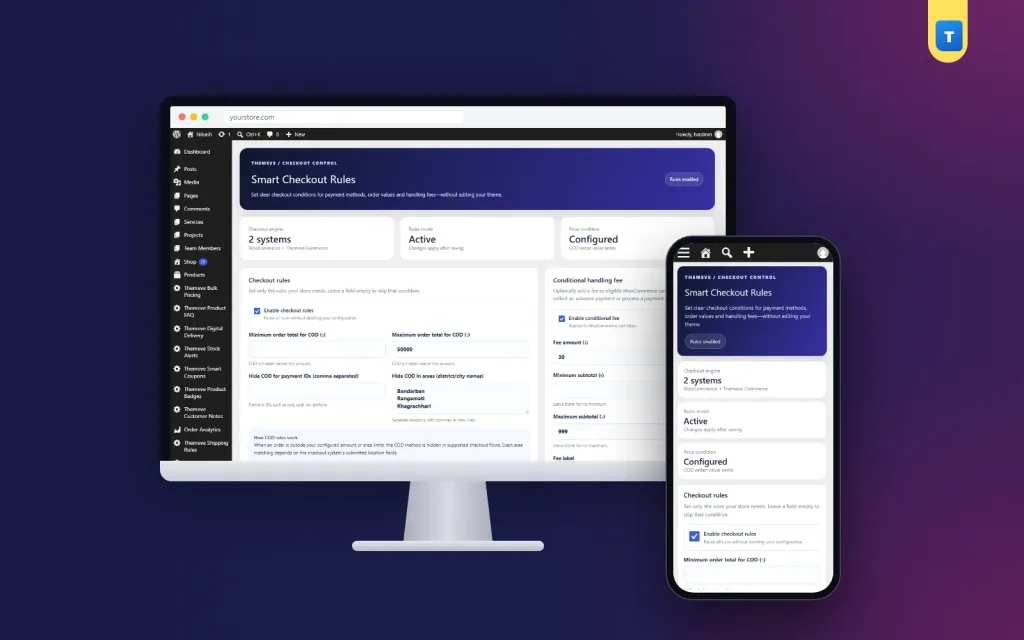
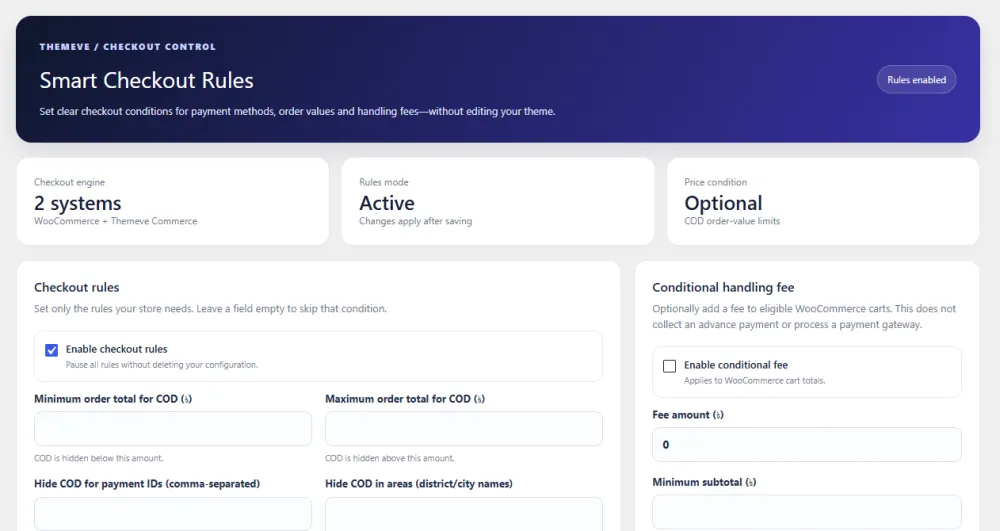
Smart Checkout Rules is a cash on delivery rules plugin that works on WooCommerce and on Themeve Commerce. All settings are on one screen called Smart Checkout in the admin menu.
You can hide COD below a minimum order total or above a maximum, and hide it for listed districts or cities. It checks city, postcode, district and thana, and can treat extra payment IDs as COD. You can also add an optional handling fee with your own label and show an optional notice at checkout.
If a buyer still tries COD where it is not allowed, they see a clear message to pick another method. One switch pauses every rule and keeps your settings. The plugin does not take payments itself. Your existing methods, such as bKash or Nagad, still do that.
An example of balanced COD rules
Take a clothing shop that delivers across the country. The owner decides on these rules:
- COD is hidden for orders below 500 taka, because the courier fee is too high for such a small cart.
- COD is allowed from 500 to 8,000 taka.
- Above 8,000 taka, buyers must pay by bKash or Nagad first.
- COD is hidden for two districts where nearly half of the parcels came back.
- A small handling fee is shown for COD orders, with a clear label.
Buyers in the middle range still pay at the door, so the shop does not lose them. Only the riskiest orders are redirected. After a month, the owner checks returns and adjusts the numbers. This is how Smart Checkout Rules is meant to be used: small steps, checked against real data.
Reduce COD returns outside checkout
A returned parcel is not only a lost sale. You pay the courier for the trip, the item may be damaged, and your stock sits on a truck instead of on your shelf. Count the full cost once, and the effort of a confirmation call looks small.
Checkout rules are one tool. Your process matters too.
- Call every COD buyer before dispatch and confirm the address.
- Send an SMS or message with the order summary and total.
- Use photos and size charts, so buyers know what they order.
- Write delivery time honestly. Long waits cause refusals.
- Keep a list of repeat refusers and ask for advance payment.
- Track returns by district, product and courier.
Over time this record tells you where the real problems are.
Common mistakes with cash on delivery
- Enabling COD before shipping is set. Orders arrive with missing delivery details.
- No test order. Problems are found by customers instead of by you.
- Unclear delivery fee. A surprise fee at the door causes refusals.
- Treating COD orders as paid. Your numbers become wrong.
- Setting limits too tight. You lose good buyers along with bad ones.
- Never reviewing returns. Rules need adjusting as your shop grows.
If you remember only one thing, remember this: turn COD on, test it like a buyer, then watch your returns for a month. The first setup is quick. The real gain comes from reading the results and adjusting your limits a little at a time. Shops that do this keep the trust that COD brings, and lose much less money on refused parcels.
If you want to read more on the technical side, the official WordPress documentation is a good, reliable reference.
Frequently asked questions
How to set cash on delivery woocommerce shops need for the first time?
Go to WooCommerce, Settings, Payments, open Cash on delivery, tick enable, add a title and instructions, choose shipping methods and save. Then place a test order to check it.
Does WooCommerce include cash on delivery by default?
Yes. Cash on delivery is built into WooCommerce, so you do not need a plugin to turn it on. A plugin is only needed for extra rules.
Can I hide cash on delivery for big orders?
Not with the default settings. A rules plugin such as Smart Checkout Rules lets you set a maximum order total. Above it, COD is hidden and buyers choose another method.
Can I allow COD only in some districts?
Yes. You can use shipping zones for a basic split, or a rules plugin to hide COD for a list of districts or cities.
Can I charge a fee for cash on delivery?
Yes, with a plugin that adds a handling fee. Give the fee a clear label so buyers are not surprised at checkout.
Why does cash on delivery not show at checkout?
Check that it is enabled, that the shipping method is allowed in its settings, that the cart has a shippable product and that no rule hides it.
Does cash on delivery work with Themeve Commerce?
Yes, Smart Checkout Rules works on both WooCommerce and Themeve Commerce. The total and district rules work on both, and the handling fee applies to WooCommerce carts.