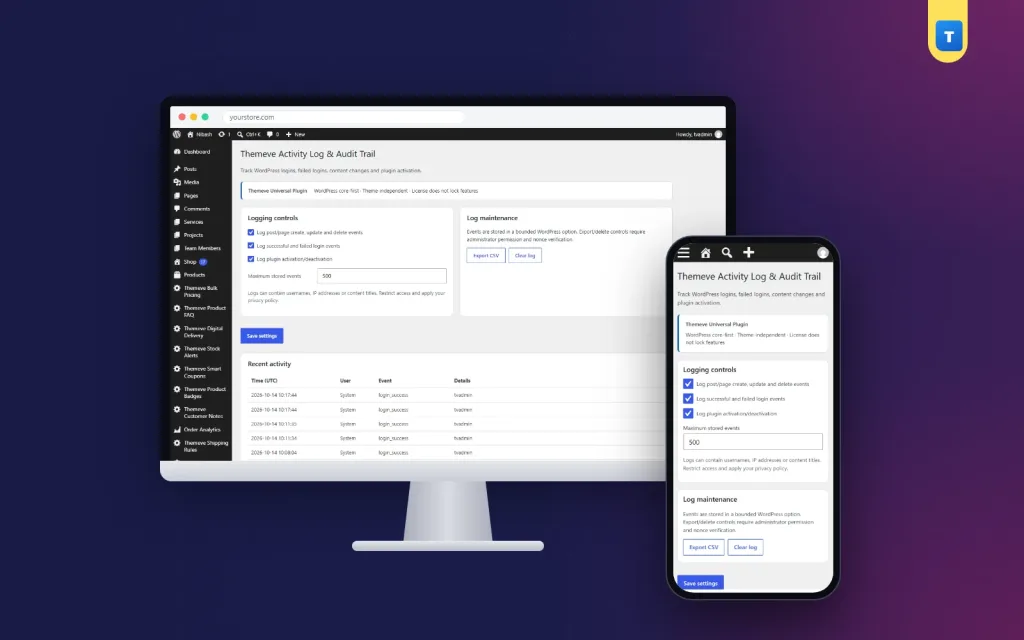
A WordPress activity log plugin keeps a record of who logged in, who changed content and who switched plugins on or off. This wordpress activity log plugin guide is for owners of shops, news sites and business websites in Bangladesh where several people work in the admin, and where questions like who deleted this page come up more often than anyone would like.
We will look at why a log matters, what is worth recording, how to review it, how it helps with security and teamwork, and how Activity Log records these events with the user and time.
Why multi-user sites need a record
When one person runs a site, they know everything that happens. Once a second or third person joins, that changes. Staff add products, editors change posts, a freelancer installs a plugin, someone deletes a page by mistake. Days later, nobody remembers exactly what happened.
Without a record, problems turn into arguments and guesses. With a record, they become simple facts: this page was deleted on Tuesday at 3 pm by this account. Facts make problems quicker to fix and conversations calmer.
What a WordPress audit log should cover
A useful wordpress audit log does not need to record every click. It needs the events that answer real questions. Logins tell you who was in the admin and when. Failed logins show password-guessing attempts and locked-out staff. Content saves and deletes show who changed or removed posts, pages and products. Plugin activation and deactivation show who changed how the site works.
Those four kinds of events answer most of the questions small teams ask. Recording far more often makes the log harder to read without adding much value.
How long to keep entries
Keep enough history to cover the period in which problems are usually discovered. For many small sites, a few weeks to a few months is enough. Export older entries if you want a long-term record, and keep the live log short and readable.
How the WordPress activity log plugin works
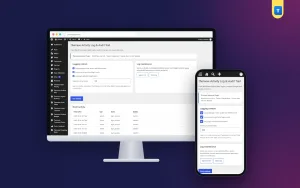
Activity Log adds a screen under Settings, Activity Log & Audit Trail. It records logins, failed logins, content saves and deletes, and plugin activation and deactivation, each with the user and the time. You choose which of these events to record and how many entries to keep, so the log stays a manageable size.
You can export the log as a CSV file at any time, for example at the end of each month, and clear it in one click when old entries are no longer needed.
What it does not record
Changes to settings screens are not recorded. The log also does not stop anyone from making changes; it records what happened. Use roles and permissions to control who can do what, and use the log to see what was done.
Setting it up
Upload the zip from Plugins, Add New, Upload Plugin, and activate it. The plugin needs an active Themeve licence key. Until the key is entered, nothing is recorded and only the lock screen and License screen open. Paste the key from My Account, Licenses, and recording starts. While the licence is active, updates arrive in Dashboard, Updates.
Choose the events you want and the number of entries to keep. Then log out and back in, edit a test post, and check that both actions appear. The WordPress documentation explains users and roles, which helps you read the log.
Reviewing the log in five minutes a week
Once a week, open the log and scan it. Look for failed logins at strange hours or many failed attempts in a row. Look for content deletions nobody mentioned. Look for plugins activated or deactivated without a reason you know. Most weeks, everything will look normal, and that is reassuring too.
If something looks odd, ask the person involved. Often there is a simple explanation. If an account was used when its owner says they were not working, change that account's password at once.
Activity logs and security
A log is one of the best early warning signs. A burst of failed logins means bots are guessing passwords. A login from an account that should be inactive means that account may be compromised. A plugin activated late at night by an unknown user is a serious warning.
Combine the log with protection. Security Center blocks an IP after five failed logins, adds security headers and lets you switch off XML-RPC. Together, prevention and a clear record cover a lot of ground for a small site.
Activity logs and teamwork
A log is not about catching people out. It is about making work transparent. When everyone knows changes are recorded, people are a little more careful, and mistakes are fixed quickly without blame. New staff learn faster when their changes can be reviewed together.
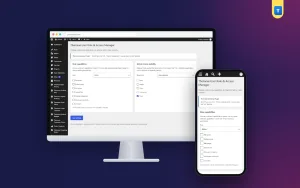
Give each person their own account, never a shared login. A log is only useful if each entry belongs to a real person. Limit what each role can do with User Role & Access Manager, which can add capabilities to a role or hide admin menus for a role.
A worked example
Imagine a news site with four writers and one editor. One morning, a popular article is missing. The editor opens the log and sees that the article was deleted late the night before by a writer's account. The writer explains they meant to delete a draft with a similar title. The editor restores the article from the trash within minutes.
The next week, the log shows twenty failed logins on one account in a single hour. The editor asks the writer, who says they were not trying to log in. The editor changes the account password, and the failed attempts stop. Two problems, both solved quickly because the facts were already recorded.
Exporting for your records
At the end of each month, export the log as CSV and save it with your other business records. If you ever need to look back further than the live log keeps, the export has the answer. Exports are also useful before and after big changes, such as a redesign or a change of staff.
Store exports privately. They contain usernames and times, which are internal business information.
Tips for Bangladeshi teams
Many small businesses share one admin login among family members or staff to save time. It feels simple, but it makes every log entry meaningless and removes access control. Create separate accounts, even for family. When a freelancer or agency works on your site, give them a separate account and remove it when the job ends; the log then shows exactly what they did.
During busy seasons, more people may work in the admin. That is exactly when a clear log helps most.
Using the log after a problem
When something goes wrong, start with the log before you start asking people. Note the time the problem was first noticed. Then read the log backwards from that moment. Look for content changes, deletions or plugin changes shortly before. Very often, the cause is right there: a plugin activated an hour earlier, or a page edited by mistake.
Once you find the likely cause, undo it carefully. Restore deleted content from the trash, deactivate a suspicious plugin or revert an edit using the revision history. Then check the site again. If the problem disappears, you have your answer. Write a short note about what happened and how you fixed it, so the team learns from it.
If the log shows nothing unusual, the cause may be outside your site, such as a hosting problem. That is useful information too, and it tells you who to contact next.
Setting expectations with staff
Tell your team that the site keeps an activity log and explain why: to fix mistakes quickly and to keep the site safe. Most people are comfortable with that when it is explained openly. Make it clear that mistakes are normal and that the log helps fix them, not punish them.
Common mistakes
The first mistake is shared logins, which make a WordPress activity log plugin far less useful. The second is never reading the log. Set a weekly reminder. The third is keeping too much history in the live log, which makes it hard to read; export and clear instead.
The fourth mistake is treating the log as a punishment tool. Use it to fix problems and learn, and your team will support it.
Frequently asked questions
Which events are recorded?
Logins, failed logins, content saves and deletes, and plugin activation and deactivation.
Are settings changes recorded?
No.
Can I export the log?
Yes, as a CSV file, and you can clear it in one click.
Can I limit the log size?
Yes. Choose how many entries to keep.
WordPress Activity Log Plugin guide: final thoughts
When several people share a website, a clear record turns mysteries into facts. Record the events that matter, give everyone their own account, read the log weekly and export it monthly. Problems get solved faster and security warnings get noticed sooner. To keep that record on your WordPress site, try Activity Log.