Finding the best redirect plugin for WordPress is easier when you first understand what a redirect does and when you need one. Every site changes over time. Pages move, products get renamed, and old links are left behind in Facebook posts, WhatsApp messages and search results.
This guide explains how redirects work, the difference between the common types, and what to look for before you install anything. You will get step-by-step instructions, a planning method for site moves, a checklist and answers to common questions. It is written for shop owners, bloggers and small business teams in Bangladesh, and it works for any WordPress site.
What a redirect is and why it matters
A redirect sends a visitor from one web address to another. When someone clicks an old link, the server answers with a short message that says the page has moved, and the browser opens the new address.
Without a redirect, that visitor sees a "page not found" error. Most people do not search again. They leave.
Redirects protect you in these situations:
- You rename a product or change its address.
- You move a blog post to a new category.
- You delete a page and want to send people to a close match.
- You redesign the site and change the link structure.
- You merge two similar pages into one.
- You move to a new domain name.
Each redirect keeps a link alive. That includes links inside Facebook posts and old messages that you can never edit again.
301 and 302: the difference in plain words
You will often see two numbers. Both are redirects, but they say different things.
- 301 means permanent. The page has moved for good. Browsers and search engines learn the new address over time.
- 302 means temporary. The page is away for a short while, for example during a sale or maintenance. The old address will return.
For most site changes, such as a renamed product or a new link structure, 301 is the right choice. Use 302 only when you really plan to bring the old address back.
When you need a redirect plugin
You can add redirects by editing server files, but that is risky for beginners. One typo in a server file can take down the whole site. A plugin keeps the work inside the WordPress dashboard, where mistakes are easy to see and fix.
You probably need a plugin if any of these are true:
- You have changed any page address in the past year.
- Your Google Search Console or analytics show "not found" pages.
- You shared product links on Facebook, then renamed those products.
- You plan a redesign or a move to another theme.
- You manage the site for a client and need to show them what changed.
What to look for in the best redirect plugin for WordPress
Redirect plugins range from tiny tools to large suites with many options. A longer feature list is not always better. Use these questions.
- Does it use proper 301 redirects? This is the main job.
- Is it easy to read? You should be able to see all your redirects at a glance.
- Does it log not found requests? A 404 log shows which broken links visitors really hit.
- Are matches exact? Loose pattern matching can redirect pages by accident.
- Does it slow the site? A redirect tool should be light.
- Does it work with any theme? It should not depend on a page builder.
- Can you back up your list? A plain, copyable list is easy to keep in a note.
Pick based on your real needs, because the best redirect plugin for WordPress on a busy news site is not the best one for a ten-page business site. A site with fifty moved pages needs a simple list. A site with thousands of changing addresses may need pattern rules.
Plan your redirects before you change anything
The best time to plan redirects is before the move, not after. A short plan prevents most problems.
- List your old addresses. Export them from your sitemap, or copy them from your pages list.
- Decide the new address for each one. Pair every old page with the closest new page.
- Prefer close matches. Send a deleted product to a similar product or its category, not to the homepage.
- Avoid chains. If A goes to B and B goes to C, change A to point to C directly.
- Write everything in one list. A simple table of old and new is enough.
- Test after saving. Open the old addresses and check where they land.
This work takes an hour for a small site. It saves visitors, and it keeps your links working.
How to add a 301 redirect, step by step
The exact screens differ between tools, but the steps are nearly the same everywhere.
- Install and activate your redirect plugin.
- Open its settings page in the dashboard.
- Enter the old path, for example /old-product/.
- Enter the full new address where the page now lives.
- Choose 301 if the tool asks.
- Save.
- Open the old address in a private browser window and confirm that it lands on the new page.
Always use the path of the old page, which starts with a slash, and the full web address of the new page. Check for spelling mistakes, trailing slashes and capital letters, since these can stop a match.
Use the 404 log to find missing pages
A 404 log is a list of requests that ended in "not found". It shows what visitors actually try to open. This is more useful than guessing.
Check it every few weeks. Look for these patterns:
- Old product links that still get visits.
- Typos in links from your own posts.
- Pages you deleted long ago but that other sites still link to.
- Links from Facebook or WhatsApp that point to old addresses.
- Strange addresses that are only bots. You can ignore these.
Pick the addresses that appear most often and add redirects for those first. That turns lost visitors into found ones.
Redirect tips for shops in Bangladesh
Many shops here begin on Facebook, then grow to a website. Links travel in Messenger chats, group posts and WhatsApp, so old addresses stay alive for years.
- Before you rename a product that you shared widely, add a redirect from the old address first.
- When a product sells out for good, send the old link to a similar item, so the shopper can still order by bKash, Nagad or cash on delivery.
- If you change from one theme to another, check that product and category addresses stayed the same. If not, add redirects.
- Keep a note of every address you change. A shared sheet works well.
- Tell your team before changing addresses, so nobody shares the old ones again.
A ready-made option: Redirect Manager
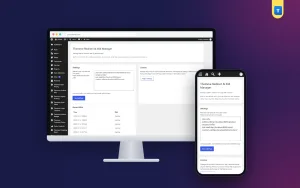
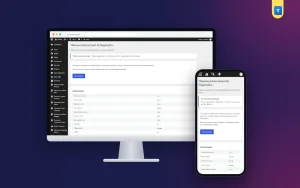
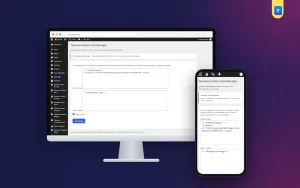
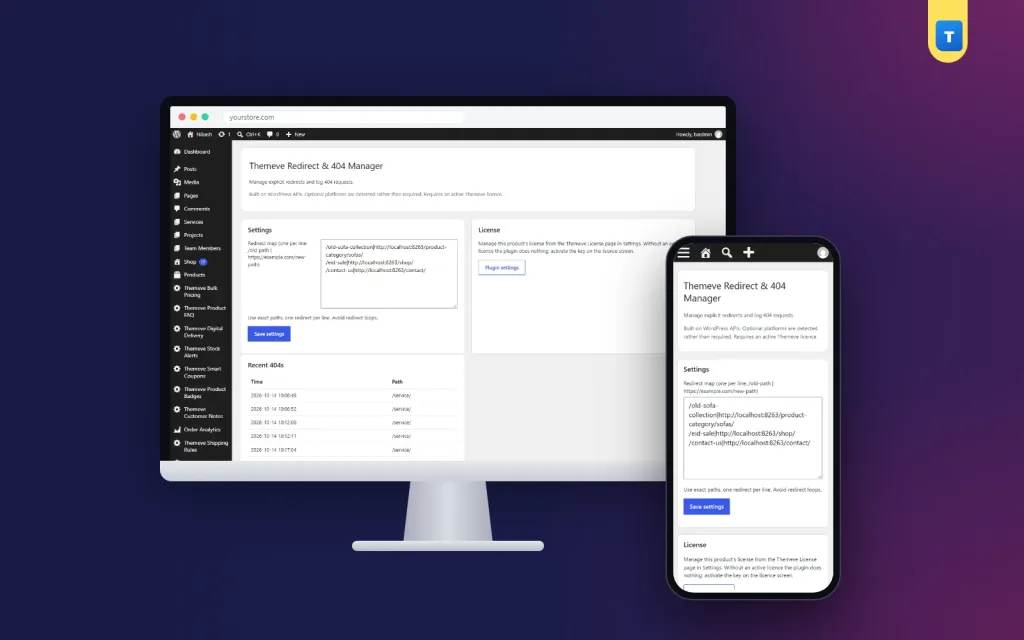
If you want a small tool that does this one job well, Redirect Manager is one option. It is built for site owners who move pages, rename products or change link structure.
Here is how it works:
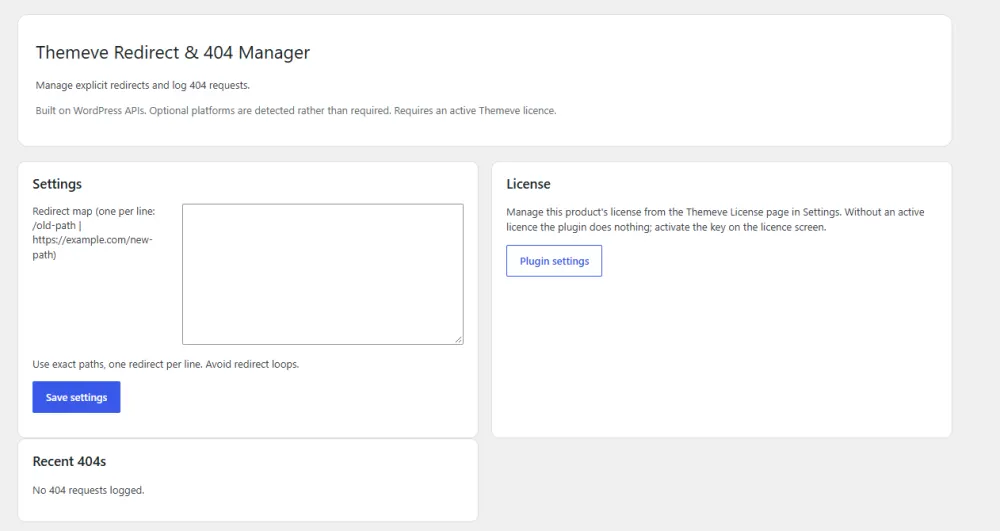
- Open Settings and then Themeve Redirect Manager.
- Write one redirect per line: the old path, a vertical bar, then the new full address.
- Save, and the 301 redirect works straight away.
It also logs 404 not found requests, so you can see which broken links people hit. Matches are exact, so a redirect never fires by accident. Because every redirect is a plain line, you can read the list at a glance and copy it into a note for safekeeping. It works with any theme.
It does not offer wildcard or pattern rules, so it suits sites that need a clear list of moved pages. Whether it is the best redirect plugin for WordPress for your site depends on how many addresses you change and how you like to manage them.
It is worth a look if you prefer a plain list over a crowded screen. Read more on the Redirect Manager page.
Redirects during a redesign or domain move
The riskiest time for broken links is a big change. A new theme, a new structure or a new domain can break hundreds of addresses at once. Treat the move as a project with three stages.
Before the move
- Save a full list of your current page addresses.
- Note which pages get the most visits, and protect those first.
- Decide the new address for each important page.
On the day
- Add your redirects before you switch the site live, if you can.
- Open ten of the most important old addresses and check where they land.
- Look at the home page, the shop page, your top categories and your top posts.
After the move
- Check the 404 log daily for the first week, then weekly.
- Add redirects for any old address that still gets visits.
- Update links you control, such as menus, your Facebook page and your email signature.
Do not rely on redirects forever as the only fix. Where you can, change the links themselves, so visitors reach the right page in one step. The redirect is the safety net for links you cannot edit.
Common mistakes to avoid
- Sending everything to the homepage. Visitors who wanted a specific page feel lost. Send them to the closest match.
- Creating redirect chains. Each extra step slows the visit. Point old addresses straight to the final page.
- Creating loops. If A points to B and B points back to A, the page will never open. Test every redirect.
- Using 302 for permanent moves. Use 301 when the move is permanent.
- Forgetting to test. Always open the old address after saving.
- Deleting redirects too soon. Old links can live for years. Keep the redirects.
- Redirecting live pages. Do not redirect a page that still works.
How to keep your redirect list tidy
A small list is easy to manage. A long list gets messy if nobody looks at it. A few habits keep it clean.
- Review the list every three to six months.
- Remove lines that point to pages which no longer exist.
- Fix any redirect that points to another redirect.
- Keep a copy of the list outside your site, in a note or a spreadsheet.
- Add a short comment in your own notes about why each redirect exists.
When you hand the site to someone else, give them this list. It explains years of changes in one page.
A tidy list also helps when something breaks. If a customer reports a dead link, you can search the list in seconds and see whether a redirect exists. If it does not, you add one line and the problem is solved. That is much faster than hunting through settings screens or server files, and it means a small mistake never stays live for long.
A checklist for choosing the best redirect plugin for WordPress
- List the pages that have moved or will move.
- Decide if you need exact matches or pattern rules.
- Choose a plugin that uses 301 redirects.
- Check that it logs 404 errors.
- Make sure the redirect list is easy to read and copy.
- Add redirects, then test each old address.
- Check the 404 log after one week.
- Review the list every few months.
If you want to read more on the technical side, the official WordPress documentation is a good, reliable reference.
Frequently asked questions
What is the best redirect plugin for WordPress?
It is the one that fits your site. For most small sites that means a light plugin with proper 301 redirects, a readable list and a log of not found pages. Larger sites with many changing addresses may need pattern rules.
Do redirects hurt my site speed?
One redirect adds a very small delay. Long chains add more, so point each old address straight to the final page.
Should I use a 301 or a 302 redirect?
Use 301 when a page has moved for good. Use 302 only when the move is temporary and the old address will return.
Will redirects keep my search position?
Nobody can promise that. A 301 redirect helps search engines learn the new address and keeps visitors from landing on an error page, which is worth doing in any case.
How do I choose the best redirect plugin for WordPress for a small shop?
Look for simple 301 redirects, exact matches, a 404 log and a list you can read easily. Test with a few real old links before you rely on it.
Can I redirect a deleted product?
Yes. Send the old address to a similar product or to its category. That gives the shopper something useful to see.
How many redirects is too many?
There is no fixed number. A few hundred simple redirects are fine for most sites. The real risk is long chains and loops, not the count.