Learning how to add coupon WooCommerce style is one of the quickest ways to run a real sales campaign on your own website. You create a code, set the discount and the rules, and your buyers type it at checkout to get the offer.
This guide shows the full process for a small shop in Bangladesh. You will see the exact steps, the settings that matter, the mistakes to avoid and a few campaign ideas for Eid, Boishakh and first-order offers. Near the end, there is also a simple fix for a very common problem: buyers who forget the code at the last moment.
What a coupon does in an online shop
A coupon is a code that gives the buyer a discount when they enter it on the cart or checkout page. The discount can be a percentage, a fixed amount off the cart, or a fixed amount off one product. It can also give free delivery.
Shops use coupons for several reasons:
- To bring back buyers who visited but did not order.
- To reward first-time buyers.
- To clear slow stock.
- To make a festival campaign feel special.
- To track which Facebook post or influencer brought the sale, by using a different code for each.
Used with care, coupons grow sales. Used carelessly, they eat into your margin. So decide the goal before you create the code.
Plan the offer before you create the code
Before you learn how to add coupon WooCommerce screens ask for, spend five minutes on these questions. They decide whether the offer helps your profit or hurts it.
- What is the goal: more first orders, bigger carts, or faster stock clearance?
- How much can you give away and still make a profit?
- Who can use it: everyone, new buyers only, or one group?
- For how long is it valid?
- How many times can it be used in total, and by one person?
A simple example: you sell panjabis with a 35% margin. A 10% coupon is safe. A 30% coupon leaves almost nothing once you pay the courier, so set a minimum cart amount or skip it.
How to add coupon WooCommerce shops need, step by step
Here is the standard path in WooCommerce.
- Log in to your WordPress admin.
- Go to Marketing, then Coupons. On older versions, it is under WooCommerce, then Coupons.
- Click Add coupon.
- Type the coupon code, for example EID10. Short, clear codes work best. Use capital letters so buyers type them the same way.
- Add a short description for your own use, such as Eid campaign 10% off.
- In General, choose the discount type and enter the amount.
- Set the expiry date.
- Open the Usage restriction and Usage limits tabs and fill them in. These are explained below.
- Click Publish.
Your coupon is now live. Test it yourself before you announce it.
Discount types
- Percentage discount: takes a percent off the cart, for example 10%.
- Fixed cart discount: takes a fixed amount off the whole cart, for example 100 taka.
- Fixed product discount: takes a fixed amount off each chosen product.
Percentage coupons suit most shops. Fixed cart coupons work well with a minimum order amount, such as 100 taka off orders above 1,500 taka.
Set the rules so the coupon does not hurt you
The rules are where careful shop owners save money.
Usage restriction tab
- Minimum spend: the cart must reach this amount. This protects your margin and also lifts the average order.
- Maximum spend: rarely needed, but useful to stop very large carts using a small offer.
- Individual use only: tick this if the coupon must not combine with others.
- Exclude sale items: tick this so buyers do not stack a coupon on top of products already discounted.
- Products and categories: limit the coupon to chosen items.
- Allowed emails: restrict the coupon to named buyers, handy for loyal customers.
Usage limits tab
- Usage limit per coupon: total number of times it can be used. For a flash offer, set 50 or 100.
- Usage limit per user: usually 1.
- Limit usage to X items: useful for percentage coupons on large carts.
How to create coupon in WordPress without WooCommerce
Many people search for how to create coupon in WordPress and expect a built-in feature. Plain WordPress has no coupon system. WordPress is the content platform, and coupons belong to the shop plugin you use.
That means your path depends on your shop system:
- With WooCommerce, use the Coupons screen described above.
- With Themeve Commerce, create the coupon in its own coupon area, with the amount, limits and expiry date.
- If you only run a blog and want to show offers from other websites, that is a different job. You would add a simple text block or a custom post type, and the buyer applies the code on the seller's site.
For a normal online shop, the answer is the same: install your shop plugin, then create the coupon inside it.
Campaign ideas that work for Bangladeshi shops
- Eid offer: EID10 for 10% off, valid for the last two weeks before Eid. Add a minimum cart of 1,500 taka.
- Pohela Boishakh: BOISHAKH for free delivery on orders above a set amount.
- First order: WELCOME for new buyers, limited to one use per person.
- Facebook page followers: FBFAN, shared only in your page posts and stories, so you can see how many sales came from Facebook.
- Win-back: a personal code sent by message to buyers who have not ordered in three months.
- Payment offer: a small coupon for buyers who pay in advance by bKash or Nagad, which helps you avoid failed cash on delivery orders.
Keep the message short. One code, one clear benefit, one end date.
Test every coupon before you announce it
- Open your shop in a private browser window, so you see what a new visitor sees.
- Add a product that qualifies and go to the cart.
- Enter the coupon code and check that the discount matches your plan.
- Try a cart below the minimum amount. The coupon should be refused with a clear message.
- Try a sale item if you excluded sale items.
- Try using the coupon a second time with the same email, if you set a per-user limit.
Ten minutes of testing prevents the worst mistake of all: a public offer that does not work.
Why buyers forget coupon codes
This is the part most guides skip. You post the code on Facebook, in a story, on a banner. A day later, the buyer reaches your checkout, sees the coupon box and cannot remember the code. Some go back to search for it. Many leave.
Others never saw your post at all. They would use a coupon if they knew one existed, and a small reminder at checkout would win the order.
You can reduce this loss with a few habits:
- Show the code on your homepage banner and product pages during the campaign.
- Repeat it in your order confirmation messages for the next purchase.
- Pin the offer post at the top of your Facebook page.
- Show the code directly on the cart and checkout pages, where the buyer decides.
A ready-made option for the checkout reminder
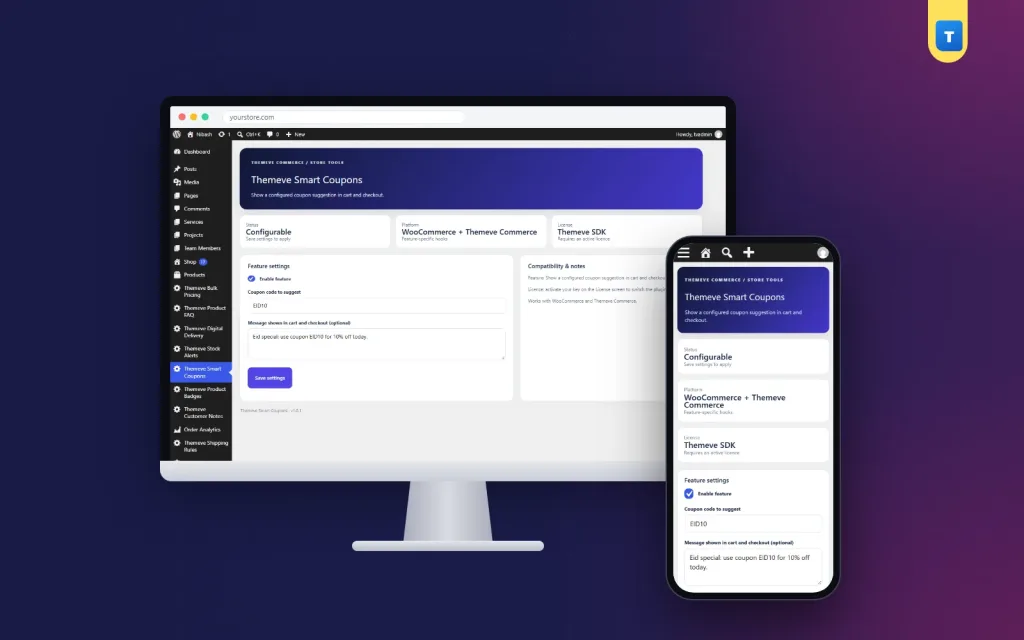
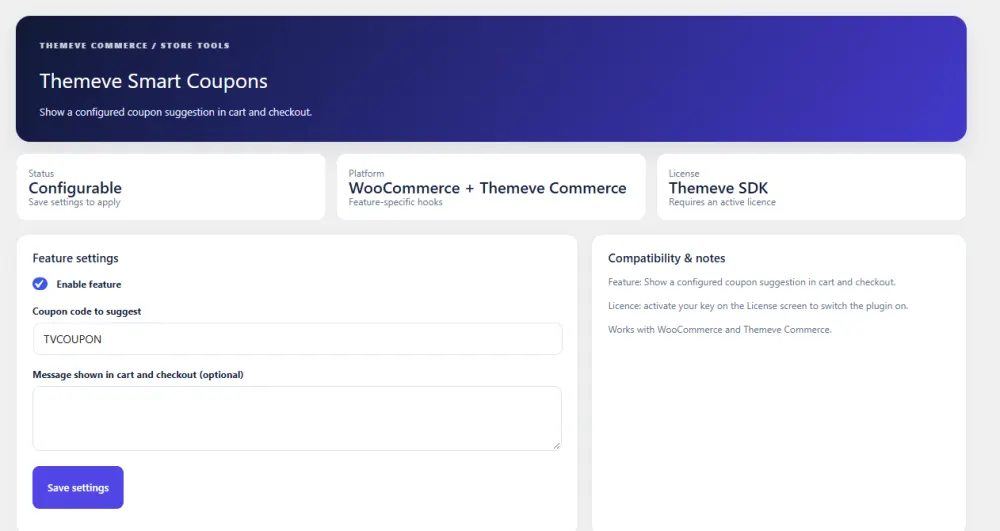
Smart Coupons is a small plugin built for exactly that last point. You type a short message, such as Use coupon code: EID10, and every shopper who reaches the cart or checkout sees it.
What it covers:
- The WooCommerce block cart and checkout.
- The WooCommerce classic checkout.
- The Themeve Commerce cart and checkout.
- A message in your own words, which you can change for each campaign in seconds.
It shows the code; it does not create or apply it. You still create the coupon the normal way, with the amount, limits and expiry date you want, then type the same code in the plugin message. Your coupon rules stay exactly as you set them. More details are on the Smart Coupons page.
Common mistakes when you add a coupon
- No expiry date. A code without an end date lives forever, and old Facebook posts keep sending buyers to a discount you stopped offering.
- No minimum spend. A 10% coupon on a 200 taka cart barely covers the packing, never mind the courier.
- Stacking by accident. A coupon on top of a sale price can push the final price below your cost. Use Exclude sale items and Individual use only.
- Codes that are hard to type. Avoid codes like X7Q9ZK. Use words people remember, such as EID10 or WELCOME.
- Typing mistakes in the code. A coupon created as EID10 and announced as EID-10 will fail. Copy and paste the same text everywhere.
- Forgetting to tell the team. If your support person does not know about the offer, buyers who message you get the wrong answer.
A simple weekly coupon routine
You do not need a big marketing plan. After you know how to add coupon WooCommerce makes simple, a small routine is enough for most shops. Write it on a card and stick it near your desk.
- Monday: decide whether a coupon is needed this week, and which product or buyer group it is for.
- Tuesday: create the coupon, set the limits and test it in a private window.
- Wednesday: publish the offer on Facebook, the homepage banner and the checkout message.
- Weekend: check how many times the code was used and how many orders came with it.
- Next Monday: remove the expired code from banners and messages, and write down what worked.
After a month, you will see which offers bring orders and which only reduce your profit. Keep the first kind and drop the second.
How to add coupon WooCommerce users will actually find
Creating the coupon is only half the job. The other half is putting it where buyers will see it. A coupon nobody knows about gives no result, and a coupon buyers cannot remember gives half a result.
Think of three places:
- Before the visit: your Facebook post, story or message that brings people to the site.
- During the visit: a banner on the homepage and a note on the product page.
- At the decision point: the cart and checkout, where the buyer is ready to pay and the discount can still tip the choice.
Cover all three, and your offer works much harder with the same discount.
Keep your coupons honest and your margins safe
- Only show codes that work. Check the expiry date and limits before you write the message.
- Change or remove the message when the campaign ends. A failed code frustrates buyers more than no code at all.
- Do not run many coupons at once. Two or three active codes are easy to manage and easy to explain.
- Track results. In the Coupons screen, you can see how many times each code was used.
- Compare the extra sales against the discount you gave. If the numbers do not leave profit, change the offer.
It also helps to combine coupons with other offers carefully. An automatic bulk discount for big carts and a coupon for special moments can work together, but do not allow both to stack without a limit.
If you want to read more on the technical side, the official WordPress documentation is a good, reliable reference.
Frequently asked questions
How to add coupon WooCommerce stores can use for free delivery?
Create a new coupon and tick the Allow free shipping box in the General tab. Make sure a free shipping method exists in your shipping zone and that it is set to work with a coupon.
Can I limit a coupon to one product or category?
Yes. In the Usage restriction tab, choose the products or categories that the coupon applies to. You can also exclude items.
Why does my coupon say it is invalid?
The usual reasons are an expired date, a reached usage limit, a minimum spend that the cart does not meet, or a restriction on products or emails. Check each tab of the coupon.
How to add coupon WooCommerce buyers can only use once?
Set the Usage limit per user to 1 in the Usage limits tab. For extra safety, add a limit on the total number of uses as well.
How do I create a coupon in WordPress if I have no shop plugin?
Plain WordPress has no coupon feature. You need a shop plugin such as WooCommerce or Themeve Commerce, and you create the coupon inside it.
Does Smart Coupons create the coupon code for me?
No. It only shows your message on the cart and checkout. You create the coupon in your shop system, then type the same code in the plugin message.