Knowing how to improve WordPress security is one of the most useful skills a site owner can learn, and most of it does not need a technical background. Most hacked sites were not attacked by a clever person. They were caught by a bot that tried a weak password, an old plugin or an open door nobody remembered to close.
This guide gives you a clear order of work. You will see the real risks, the fixes that matter most, a checklist you can finish in an afternoon, and a plan for keeping the site safe afterwards. The examples fit small online businesses in Bangladesh, where one hacked shop can mean lost orders, a damaged Facebook page link and a long wait to recover.
Why WordPress sites get attacked
WordPress runs a very large share of all websites. That makes it a popular target, in the same way a common lock is worth learning to pick. Attackers do not choose your shop by name. They run automated tools that visit thousands of sites and test the same known weak spots.
The usual goals are simple:
- Send spam emails from your server.
- Hide links to other sites inside your pages.
- Redirect your visitors to a scam page.
- Steal customer details or order information.
- Use your server to attack other sites.
A small site is not safer because it is small. It is often easier, because small sites are updated less often.
The most common ways sites are broken into
Before you fix things, know what you are fixing. In practice, most break-ins come from a short list:
- Weak or reused passwords. Bots try common passwords on the login page all day.
- Old plugins and themes. A known flaw stays open until you update.
- Nulled or pirated themes and plugins. These often carry hidden code that gives someone else access.
- The default "admin" username. It gives attackers half of the login for free.
- Poor hosting. If many sites share one weak server and one is hacked, others can follow.
- Too many admin accounts. Every extra account is one more password that can leak.
How to improve WordPress security: the order that matters
Do the jobs in this order. The first few give you the biggest gain for the least effort.
- Take a full backup, and store a copy away from the server.
- Update WordPress, your theme and every plugin.
- Remove plugins and themes you do not use.
- Fix passwords and usernames.
- Limit login attempts.
- Add security headers and close unused entry points.
- Lock down file settings and user roles.
- Set up monitoring and a regular routine.
The sections below explain each step in plain words.
Step 1: Back up before you change anything
If you are learning how to improve WordPress security, treat the backup as step zero. A backup is not a security tool, but it is your safety net. If a change breaks the site, or the site is hacked, a clean backup lets you recover in an hour instead of a week.
- Back up the files and the database.
- Keep at least one copy outside your hosting account, for example on your computer or in a cloud drive.
- Test a restore once. A backup you have never restored is only a hope.
- For an active shop, back up daily. For a small blog, weekly is usually enough.
Step 2: Keep everything updated
Updates fix flaws that are already public. The longer you wait, the longer your site is open to anyone who reads the notes.
- Turn on automatic updates for minor WordPress releases.
- Update plugins and themes at least once a week.
- Read the update notes for major releases, and take a backup first.
- Replace any plugin that has not been updated by its developer for more than a year.
Only install themes and plugins from the developer or a trusted marketplace. A pirated copy of a paid theme is the easiest way to hand your site to a stranger.
Step 3: Strong passwords and sensible usernames
Passwords decide how to improve WordPress security faster than any other single change, because this one area stops more attacks than any other. Work through the list below.
- Use a long password: three or four unrelated words, with numbers, works well and is easier to remember than random symbols.
- Never reuse a password from email, Facebook or your bank.
- Do not use "admin" as a username. Create a new administrator with a different name and delete the old one.
- Give each team member their own account. Do not share one login.
- Give people only the role they need. A writer needs the Author role, not Administrator.
- If your host or a plugin offers two-step login, switch it on for admins.
Step 4: Limit login attempts
Your login page is public. A bot can try hundreds of passwords a minute, and a strong password is your first defence. Limiting attempts is the second.
The idea is simple. After a small number of wrong guesses from the same address, that address is blocked for a while. A real person who mistyped a password can try again later. A bot is stopped.
Also look at the log, if your tool keeps one. A long list of failed logins for a username that does not exist tells you bots are probing the site. A list of failed logins for your real admin name tells you to change that username and strengthen the password straight away.
Step 5: Security headers
Security headers are short instructions your site sends to every visitor's browser. They cost nothing and add a layer of protection. Three are worth having on a normal WordPress site:
- X-Frame-Options stops other sites from loading your pages inside a frame. This blocks tricks where a visitor clicks on something they cannot see.
- X-Content-Type-Options tells the browser not to guess a file's type. This closes a class of attacks that disguise harmful files.
- Referrer-Policy controls how much of your page address is passed on when a visitor follows a link to another site.
Headers are a small part of the work, but they cost nothing. You can add them in your server settings or with a plugin. After adding them, load your home page, a product page and the checkout, and check that nothing looks broken.
Step 6: Close doors you do not use
Every open feature is a possible way in. Close the ones you do not need.
- XML-RPC. This is an older way for apps to talk to WordPress. It is also a popular route for password guessing, because one request can try many passwords. If you do not use apps that rely on it, switch it off.
- File editing in the dashboard. The built-in theme and plugin editor lets anyone with admin access change code. You can disable it in your configuration file.
- Directory listing. Make sure visitors cannot browse the contents of your folders.
- Unused user accounts. Delete old staff and test accounts.
- Old copies of the site. Remove test folders and backup zips left in the public web folder.
How to add security to a WordPress website without a big plugin
Many people search for how to add security to wordpress website projects and end up with a heavy suite that runs scans all day and slows the server. For a small site, that is often more than you need. A short, steady list does more:
- Strong, unique passwords and a renamed admin account.
- Weekly updates for the core, theme and plugins.
- Login attempts limited and failed logins logged.
- Three basic security headers.
- XML-RPC switched off if you do not use it.
- Daily or weekly off-site backups.
- HTTPS on every page.
If you do want a bigger tool later, such as a web firewall or a malware scanner, add it after these basics. Tools cannot protect a site whose admin password is "123456".
A ready-made option for the basics
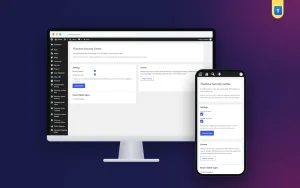
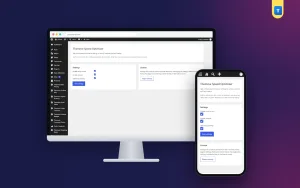
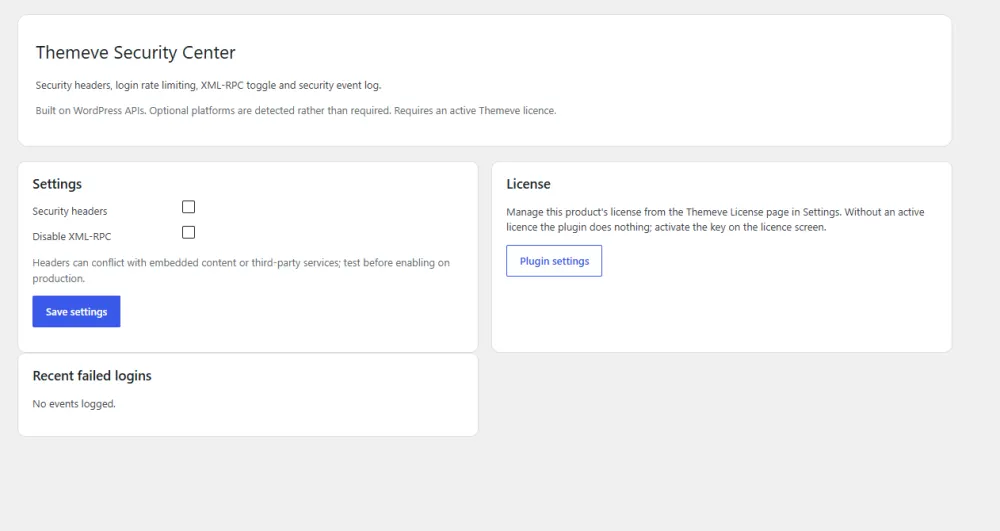
Security Center is a simple WordPress security plugin built around the basic steps above. It does a few jobs, plainly:
- Blocks an IP address for a while after five failed logins, then lifts the block.
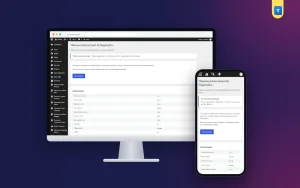
- Logs failed login attempts, so you can see who has been trying.
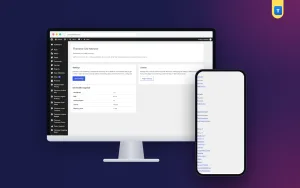
- Adds the X-Frame-Options, X-Content-Type-Options and Referrer-Policy headers.
- Lets you switch off XML-RPC.
For small sites, it is a practical way to add security to a WordPress website without extra weight. It has one simple settings screen and no heavy dashboard, and it works on any WordPress site, from a small blog to a busy shop.
It is not a malware scanner or a full firewall, and it will not replace backups or updates. Treat it as the first layer: it handles the login page, the headers and XML-RPC, so you can spend your time on the rest of the list.
How to improve WordPress security on a Bangladeshi online shop
If you sell through bKash, Nagad or cash on delivery, your site holds names, phone numbers and addresses. That is private information, and people trust you with it.
- Never store payment secrets in plain text. Use the official payment gateway plugin, and never email transaction passwords.
- Check order emails. If order emails stop arriving or you receive odd ones, look for a problem straight away.
- Watch your Facebook link. If your site is flagged as unsafe, Facebook can block links to it, and your ads will stop working.
- Use a hosting plan with isolation. Cheap shared plans that put hundreds of sites on one account are riskier.
- Protect your email. Your admin email can reset your site password. Give that email a strong password too.
Signs your site may already be hacked
Check for these every few weeks:
- Your home page redirects to another site on mobile only.
- Google shows strange titles or Japanese or pharmacy text in your search results.
- New admin users you did not create.
- Your host sends a warning about spam or high load.
- Files you do not recognise in the uploads folder.
- Your browser or Facebook shows a "deceptive site" warning.
If you see any of these, do not panic. Take the site offline if you can, change every password, restore a clean backup, update everything, and then look at the log to find how it happened.
A simple routine to keep the site safe
- Weekly: update plugins and themes, glance at the failed login log.
- Monthly: review user accounts, remove unused plugins, test a backup restore.
- Every three months: change admin passwords and check your security headers.
- After any change: open the home page, a product page and the checkout on a phone.
- If you use Security Center: read the failed login log during your weekly check.
Keep a short note of what you changed and when. If something goes wrong, you will know where to look.
If you want to read more on the technical side, the official WordPress documentation is a good, reliable reference.
Frequently asked questions
How to improve WordPress security if I am not technical?
Start with the simple jobs: strong passwords, weekly updates, off-site backups and limiting login attempts. These four stop most attacks and need no coding.
How to improve WordPress security on a very small budget?
Most of the work costs nothing. Updates, good passwords, removing unused plugins and clean backups are free. A light plugin for login limits and headers is a small cost compared with the loss from a hacked shop.
How to add security to wordpress website projects that are already live?
This is a common question for owners who built the site first and thought about safety later. Take a backup first, then work through the checklist one step at a time. After each step, open the home page and checkout to confirm everything still works.
Do I need more than one security plugin?
No. Several overlapping plugins can slow the site and clash with each other. Use one tool for login protection and headers, and add other tools only when you have a clear need.
Is HTTPS enough to make my site secure?
No. A padlock in the address bar is a good start, but it is only a start. HTTPS protects data travelling between the visitor and your server. It does not stop password guessing, old plugins or malware, so you still need the other steps.
How often should I update WordPress and plugins?
Check once a week. Security fixes are released on no fixed schedule, and waiting leaves the flaw open.
What should I do first if my site is hacked?
Change all passwords, restore a clean backup, update everything and remove unknown users and files. Then add login limits and the other steps so the same door stays closed.