Learning how to use checkout field editor for WooCommerce starts with one question: what does your shop really need to ask a buyer at the last step? Every extra box slows the order, and every missing box can cost you a parcel that comes back undelivered.
This guide explains what checkout fields are, which ones to keep, which to remove, and how to add the few that matter. It covers the built-in options in WooCommerce first, then shows when an add-on makes more sense. The examples are written for small shops in Bangladesh, but the method suits any store.
What a checkout field editor does
A checkout field editor lets you change the form that buyers fill in before they pay. You can usually do four things:
- Remove a field you do not need.
- Make a field optional or required.
- Rename a label so it is easier to understand.
- Add a new field, such as a note for the courier.
The default WooCommerce form asks for name, address, phone, email and a few extras. That is fine for a global store, but a shop selling shirts in Dhaka has different needs. A tidy form means fewer abandoned checkouts and fewer delivery problems.
First, decide what your shop needs to know
Before you touch any setting, list what you need from every order. Be strict. If you never use a piece of information, do not ask for it.
A short test for each field:
- Do I use this answer to pack, ship or contact the buyer?
- Would the order fail without it?
- Can I get the same answer another way, for example by phone?
If the answer to all three is no, remove the field. For a typical Bangladeshi shop the essential list is short:
- Full name
- Mobile number
- Full address with district
- Delivery instructions
- Email, if you send receipts by email
How to edit checkout fields WooCommerce gives you by default
If you want to know how to edit checkout fields WooCommerce already allows, start with the settings that need no extra software. On the classic checkout, the WordPress Customizer has a WooCommerce section with a Checkout page. Several fields can be set to hidden, optional or required there. The usual candidates are:
- Company name
- Address line 2
- Phone
Open Appearance, then Customize, then WooCommerce, then Checkout. Change each field to the option you want and publish. Test the result with a real order, on a phone, before you tell anyone.
The order notes box is handled differently. On the classic checkout it is switched off with a short code snippet, and on the block checkout the Checkout block has a setting for the note field. Some shops remove the box because buyers type long messages that nobody reads. Others keep it and rename the label. Both are fine, as long as the choice is deliberate.
These built-in options cover removal and basic changes. They do not let you add new fields. For that you need either a small code snippet or an add-on.
Fields worth adding for Bangladesh shops
Addresses here are often described rather than numbered. Near the mosque, third floor, blue gate. A single address box struggles with this. The most useful extra field is usually a delivery instructions box.
Other fields that can help:
- Delivery instructions: landmarks, preferred time, a second contact.
- Reference or note: a gift message, a purchase reference or the name of the person who recommended you.
- Alternate phone number: a family member who can receive the parcel.
- Payment number: the bKash or Nagad number used, if you confirm manually.
Do not add all of them. Each field should earn its place. Two good fields beat six that buyers skip.
Which fields to remove
Removing fields is the quickest way to speed up checkout. Look at the form on a phone, where space is tight, and ask what you can drop.
- Company name: hide it unless you sell to businesses.
- Address line 2: hide it if one address box is enough.
- Postcode: consider making it optional if your couriers do not need it.
- Order notes: remove it if you add a clearer delivery instructions field.
- Country: if you only sell inside Bangladesh, set the country once and hide the choice.
Make one change at a time, then test. If orders drop after a change, undo it.
How to use checkout field editor for WooCommerce add-ons step by step
Add-ons differ, but the workflow is almost always the same. Follow these steps for any plugin.
- Back up first. Save a copy of your site or at least export your settings.
- Install and activate the plugin on a staging copy if you have one.
- Open the plugin screen from the WordPress admin menu.
- Review the default fields and note which ones appear.
- Add or change one field and save.
- Place a test order on a phone and on a computer.
- Check the order screen to confirm the answers were saved.
- Check the courier workflow, so your team can copy the answer to the booking.
Always test both a successful order and a case where the buyer leaves a field empty or types too much text. Errors should be clear and polite.
Before you start: how to use checkout field editor for WooCommerce safely
The checkout is the most sensitive page of your shop. A mistake there stops sales at once. Treat every change as a small project and protect yourself.
- Take a backup of your files and database before you change anything.
- Pick a quiet hour for changes, not the middle of a sale.
- Keep a note of every change and the date, so you can undo it.
- Test with cash on delivery and with a mobile wallet, since each can behave differently.
- Ask a friend to place an order from their own phone and tell you what felt confusing.
If something breaks, switch the plugin off, clear any cache and check the page again. Most problems come from a cached page showing the old form.
Three example setups
Here are three simple forms for different shops. Use them as a starting point.
A clothing shop on Facebook
Fields: name, mobile number, full address, delivery instructions. Removed: company name, address line 2, order notes. The delivery box has the example "Near the school gate, call before coming". The form is short and quick on a phone.
A grocery and household shop
Fields: name, mobile number, address, preferred delivery time in the delivery instructions, and an alternate phone number. Buyers often want evening delivery, so one clear box prevents calls.
A gift shop
Fields: name, mobile number, address, delivery instructions and a reference or gift message. The buyer can write who the gift is for. The team prints the message on a card before packing.
In each case the pattern is the same: a short form, one box for delivery details, and one optional note.
Validation: making sure the answers are useful
A field is only useful when buyers fill it in properly. Validation helps by checking the answer before the order goes through.
- Set a maximum length so nobody pastes a long story.
- Mark essential fields as required, and optional ones as optional.
- Write the error message in plain words, for example: "Please keep the note under 120 characters."
- Test the message on a phone screen.
Do not force buyers to answer questions that do not apply to them. A required field that confuses people is a reason to abandon the order.
Checkout wording that helps buyers
Labels matter more than most owners think. A good label tells the buyer exactly what to type. A vague label gets vague answers.
- Use "Delivery instructions" instead of "Notes".
- Add a short example in the placeholder text, such as "Near City Mosque, 3rd floor, blue gate".
- Say "Mobile number" instead of "Phone" if you need a number that can receive calls and SMS.
- Keep labels short, ideally two or three words.
- Write in the language your customers use. Many shops use both Bangla and English labels.
Read your form out loud as if you were a first-time buyer. Anything that makes you pause should be rewritten.
Classic checkout versus block checkout
WooCommerce has two checkout types. The classic checkout is a shortcode-based page that many plugins support. The block checkout is newer and built from blocks in the editor. Field changes work differently on each.
Before you install any add-on, find out which checkout your page uses:
- Open the checkout page in the WordPress editor.
- Look for a block called Checkout, or a shortcode called woocommerce_checkout.
- Read the add-on description to see which one it supports.
Many add-ons, including small ones, work on the classic checkout only. Switching back to the classic checkout is a normal WooCommerce setting, so this is not a problem if you plan for it.
A ready-made option with two useful fields
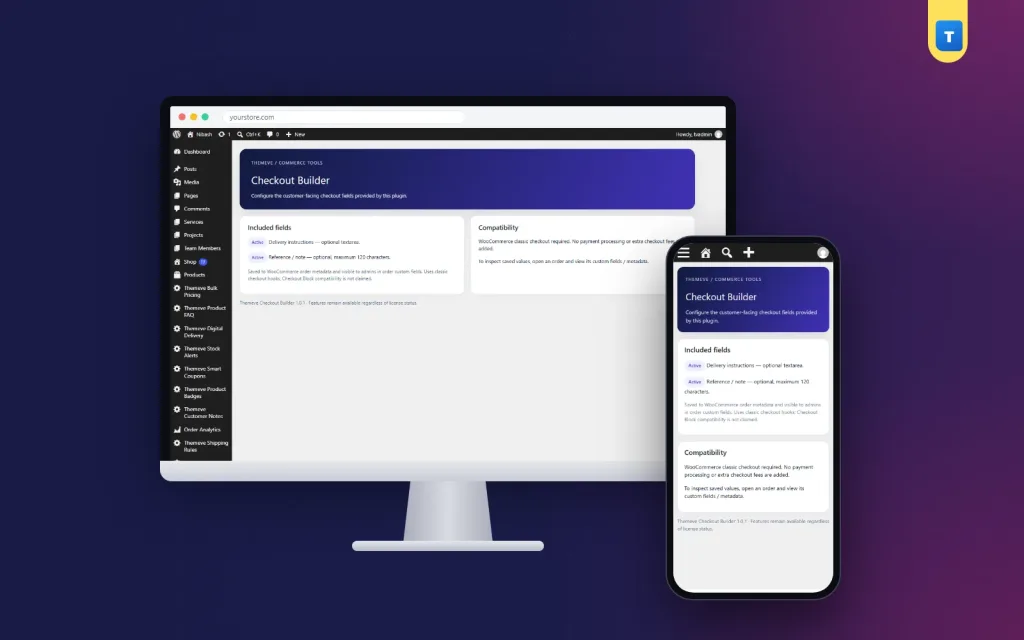
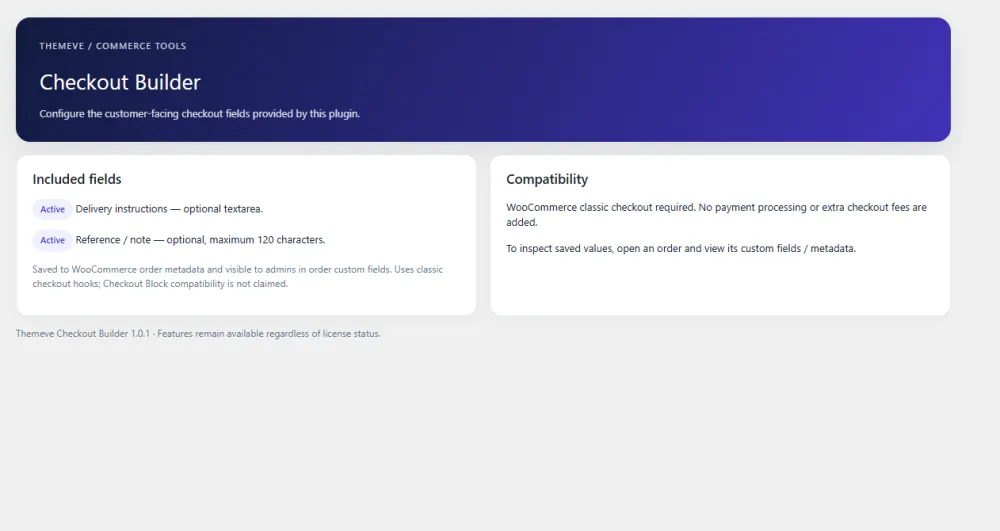
If you need delivery details and a note, and nothing more, Checkout Builder keeps the job simple. It adds a Delivery instructions field and a Reference / note field to your checkout and saves both with every order.
Buyers write landmarks or a gift message. Your team reads the text on the order screen and copies it to the courier booking. The note field is limited to 120 characters and shows an error if it is longer. Both fields are optional. There is no setup beyond activation.
It is not a drag-and-drop builder and it does not create custom fields beyond these two. It works on the WooCommerce classic checkout and on the Themeve Commerce checkout. See the full details on the Checkout Builder page.
Using the answers after the order
A new field is only half the work. The answer must reach the person who needs it. Think about the path of an order in your shop:
- The buyer places the order and types the delivery instructions.
- Your team opens the order and reads the text.
- They copy the instructions to the courier booking or print them on the label.
- The rider reads the same words and finds the address.
If your courier booking is done in another system, check that you can copy and paste easily. Some shops add a line to the packing slip so the text travels with the parcel. Track how many parcels come back as "address not found" for a month before and after the change. A drop in that number shows the field is working.
Common mistakes to avoid
- Adding too many fields. Every extra box lowers the number of completed orders.
- Making everything required. Only require what you truly need.
- Skipping tests on mobile. Most buyers use a phone.
- Forgetting to show the answer to staff. Check that the field appears on the order screen.
- Changing many things at once. You will not know which change helped or hurt.
- Ignoring the courier. Make sure the delivery text can reach the rider.
A checklist before you go live
- I know which checkout type my page uses.
- I removed fields I never use.
- My labels are short and clear.
- The delivery instructions field has an example.
- Required fields are limited to what I need.
- Error messages are polite and plain.
- I placed a test order on a phone.
- I can read the answers on the order screen.
- My courier workflow uses the delivery text.
If you want to read more on the technical side, the official WordPress documentation is a good, reliable reference.
Frequently asked questions
How to use checkout field editor for WooCommerce if I am not a developer?
Start with the WooCommerce settings in the Customizer to hide or require standard fields. For new fields, use a plugin with a simple screen, follow its steps, and test with a real order on your phone.
How to edit checkout fields WooCommerce stores use without code?
Use the Customizer for company, address line 2 and phone. For new fields, install an add-on. Both routes need no code, but always test the result.
Can I add a delivery instructions field to my checkout?
Yes. A small add-on can place a delivery instructions box on the checkout and save the text with each order. Your team then reads it on the order screen.
Will extra fields reduce my sales?
Too many fields can. A few useful ones, such as delivery instructions, usually reduce failed deliveries and calls, which saves money.
Do these changes work on the block checkout?
It depends on the tool. Many add-ons only support the classic checkout. Check the plugin description before you install it.
How to use checkout field editor for WooCommerce on a phone-first shop?
Keep the form short, use clear labels and test every change on a phone. Remove optional boxes that buyers rarely fill in.