Knowing how to create custom post type in WordPress lets you organise a website the way your business really works. By default WordPress gives you posts and pages. That is enough for a simple blog, but it is not enough for a site that has services, projects, team members, products, courses or events.
This guide explains what a custom post type is, when you need one and the three ways to create one: with code, with a general-purpose builder plugin, and with a ready-made plugin. You will also get a planning checklist and the mistakes to avoid. You do not need to be a developer to follow it.
What a custom post type is
In WordPress, everything you write is stored as a "post" of some type. A blog article is the type "post". A static page is the type "page". A custom post type is a new type you add for a different kind of content.
A custom type usually gets its own:
- Menu item in the admin area, so staff find it quickly.
- List screen, separate from your blog posts.
- Archive page on the front of the site, such as /services/.
- Single page for each item.
- Optional extra fields, categories or tags.
The result is a cleaner site for you and for your visitors.
Why posts and pages are not enough
Look at the problems that appear on a growing business site:
- Services are written as blog posts and mix with news.
- The portfolio is one long page that is hard to update.
- Team members are squeezed into an About page.
- Staff do not know where to add new items.
- Menus, search and layouts get confusing.
When each kind of content has its own place, everything becomes easier. A tutor lists subjects as Services. A photographer keeps Projects. A clinic shows its Team Members with photos and roles.
Plan before you build
A little planning saves hours later. Answer these questions on paper first:
- What kind of content am I adding? Give it a clear name, such as Services or Projects.
- How many items will there be? Five or five hundred?
- What details does each item need? Price range, duration, location, photo, role?
- Should visitors see a list page (an archive)?
- Who will add and edit these items?
- How will the items appear in menus and search?
The answers decide which way of how to create custom post type in WordPress suits you best.
How to create custom post type in WordPress with code
The standard method uses a WordPress function called register_post_type. Developers place it in a small plugin or in the theme's functions file. The steps are these:
- Choose a short, lowercase name without spaces, called the "slug". Keep it under 20 characters, for example "service".
- Write a labels list: the singular and plural names that appear in the admin area.
- Set the arguments: public or not, whether it has an archive, which editor features it supports (title, editor, featured image) and the menu icon.
- Hook the function to the init action so it loads when WordPress starts.
- Save the file, open Settings, then Permalinks, and click Save to refresh the address rules. Skip this and the new pages may show a "not found" error.
This route gives the most control and adds no extra plugin. But it has real risks for non-developers. A typo can break the site, and if you place the code inside your theme, the post type disappears when you change theme. Put code in a small plugin, not the theme, so the content survives a redesign.
Things to decide in the code
- Public. Should visitors see these items at all?
- Has archive. Do you want a list page?
- Supports. Title, editor, thumbnail, excerpt, custom fields.
- Rewrite slug. The word in the web address, like /projects/.
- Show in REST. Needed if you use the block editor for this type.
How to make custom post type in WordPress with a builder plugin
If you prefer not to write code, many plugins let you build a type through a form. You enter a name, tick the features you want and click save. The plugin writes the code in the background. This method suits people who need several custom types with their own names and fields.
Its drawbacks are worth knowing. Some builder plugins are large, with many screens you will never use. If you stop using the plugin, your custom types may vanish from the admin area, though the data stays in the database. Always check what happens to your content if you remove the tool.
How to create custom post type in WordPress without code
Most small business sites do not need unlimited custom types. They need three: Services, Projects and Team Members. For that case, a focused plugin is simpler than a general builder. You switch on what you need, and the structure is ready.
It is the easiest way for a shop owner or an agency to add organised sections without code, and it keeps the admin screen simple for staff who just want to add content.
A ready-made option
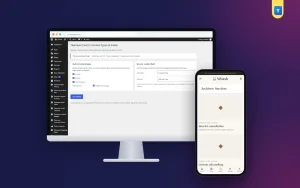
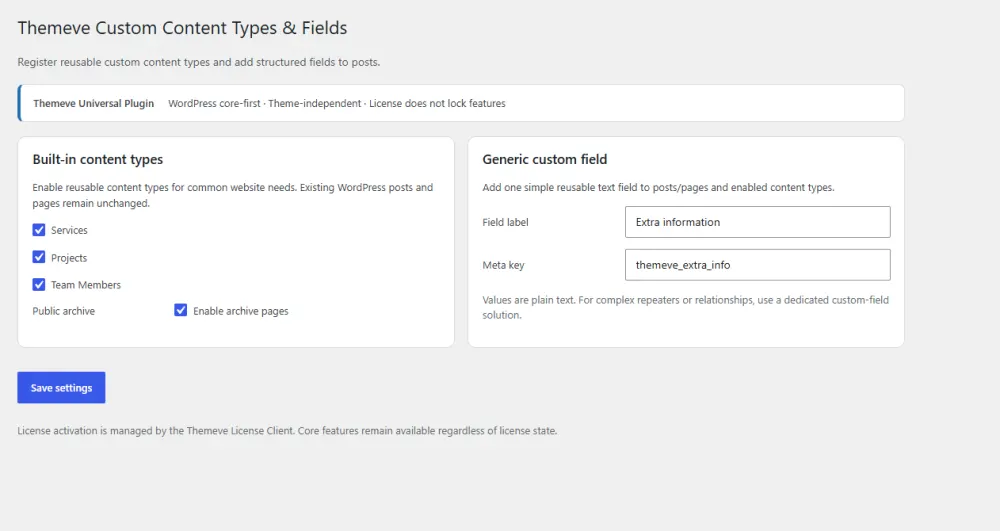
Custom Content Types & Fields is a custom post type plugin that switches on ready Services, Projects and Team Members sections. Each enabled type gets its own admin menu and its own archive page. You open Settings, choose the types you need and leave the others off.
It also adds an extra field box to posts, pages and the three types. Give the field a label such as Price range, Duration or Location, then show its value anywhere with the shortcode [themeve_custom_field]. It works with any WordPress theme.
One limit to note: the three types are fixed, so you cannot create types with your own names. If you need that, use the code or builder method above. Details are on the Custom Content Types & Fields page.
Examples of custom post types for small businesses
Here are practical ideas to show how a custom type fits a real business.
Tutoring and coaching
Services: each subject or class level has a page with fee range and duration. Team Members: teachers with photos and subjects.
Interior and design studio
Projects: every finished job, with photos, location and year. Services: design packages and what each includes.
Clinic or diagnostic centre
Services: tests and treatments. Team Members: doctors with specialty and visiting hours.
Event and wedding photographer
Projects: each wedding or event, with a short story and gallery. Services: packages with duration and price range.
Restaurant and catering
Services: catering menus for parties and offices. Projects: past events with photos.
Show your content on the site
Creating the type is half the job. Visitors must also be able to reach it. After you add a type, do the following:
- Add the archive page to your main menu, for example "Services".
- Add a few items to each type before you publish the menu link. An empty page looks unfinished.
- Open one single item and one archive page on a phone and a computer.
- Link to the most important items from your homepage.
- Add the archive to your sitemap and share the link on Facebook and WhatsApp.
How each archive and single page looks depends on your theme, so check them after switching a type on and adjust the layout if needed.
Custom fields: add the details that matter
A custom field is a small box for one piece of information. The editor, title and image cover the basics. Fields add structure, such as price range, duration, location or phone number. Using a field has an advantage over typing the detail into the text: it appears in the same place every time and is easy to find.
Plan which details your visitors compare. If they always ask "how long does it take?" or "where is it?", make that a field. Keep the number of fields small. Three useful fields beat ten unused ones.
Common mistakes to avoid
- Putting the registration code in the theme, which loses the type after a redesign.
- Forgetting to save Permalinks after adding a type.
- Using long or unclear names for the slug.
- Creating too many types for content that could be a simple category.
- Enabling a type and never adding content.
- Changing the slug later without redirects, which breaks old links.
- Adding fields nobody reads.
- Not testing on a phone.
When a category or a page is enough
Not every group of content needs a new type. Use a normal category when the items are all articles with the same layout, such as news and tips. Use a page when you have one fixed item, such as a single About page.
Create a custom type when the items are a different kind of thing, need their own fields or layout, or will grow over time.
A worked example: adding a Services section
Let us walk through a real case. A small design studio in Dhaka wants a Services section with six packages. Here are the steps, whichever method you choose.
- Write the six service names and a short description for each in a document.
- Decide the details every service shares: price range, time needed and what is included.
- Create or switch on the Services type.
- Add the six services one by one, each with a photo and the shared details.
- Add "Services" to the main menu and link it from the homepage.
- Open the archive on your phone. Check that the titles are readable and the photos load fast.
- Ask a friend to find a particular service without help. If they struggle, adjust the menu.
This takes one afternoon, and the result is a clear section that is easy to update. When a seventh service appears next month, staff simply add one more item.
Mapping content to the right place
If you are unsure how to sort your content, use this simple map:
- News, tips and updates: normal posts.
- About, Contact, Terms: pages.
- Things you sell or offer as a service: Services.
- Past work you want to show: Projects.
- People who work with you: Team Members.
Keeping the admin area tidy
Each new type adds a menu item for your staff. Too many menu items confuse people. Enable only what you use, give staff accounts the roles they need and write a short note on where each kind of content goes. A new team member should be able to add a service without asking anyone.
If you came here asking how to make custom post type in WordPress in the quickest safe way, start with the smallest option that covers your content. You can always move to a larger tool later, because the content you create stays in your database.
Finally, remember that people read on phones. When you plan fields and layouts, keep the text short, use clear photos and put the most important detail first. A good structure helps, but a clear, simple page is what makes a visitor call you or send a message.
Checklist before you go live
- Names are short and clear.
- Only the types you need are switched on.
- Permalinks saved after the change.
- Menu links point to the right archive.
- At least three items added to each type.
- Photos are sized and compressed for mobile.
- Staff know where to add and edit items.
- You have a recent backup.
If you want to read more on the technical side, the official WordPress documentation is a good, reliable reference.
Frequently asked questions
How to create custom post type in WordPress without coding?
Use a plugin. A general builder lets you create types through a form. A ready-made plugin lets you switch on fixed types such as Services, Projects and Team Members.
What is a custom post type?
It is a new kind of content in WordPress, separate from posts and pages, with its own admin menu and its own archive page.
Do I need to know how to make custom post type in WordPress with PHP?
No. Code gives the most control, but plugins cover the common cases for business sites without any programming.
Why do my new pages show "not found"?
The address rules need refreshing. Open Settings, then Permalinks, and click Save. This fixes the problem in most cases.
Will my content disappear if I change my theme?
If the type was added through the theme, it may vanish from the admin area. Types added by a plugin stay, because they do not depend on the theme.
How many custom post types can I have?
There is no strict limit, but fewer is simpler. Create a new type only when content truly differs from posts and pages.
Does a custom post type help SEO?
It can help indirectly. A clear structure, good titles and separate pages for each service make your site easier to understand for visitors and for search engines.