Knowing how to add custom product fields in WooCommerce lets you store important details, such as size, warranty or expiry date, in a clean box instead of burying them in a long description. This guide explains the options, shows the steps and helps you pick the right method for your shop.
It is written for small online shops in Bangladesh that sell clothes, gadgets, groceries, furniture or digital files. You will see what custom fields are, when you need them, three ways to add them, a worked example and a checklist. A ready-made option comes near the end.
What custom product fields are
A custom field is an extra box on the product edit screen where you enter one specific detail. WooCommerce gives you standard boxes for name, price, description, stock and weight. Anything else, such as material, brand, model or warranty, has no place to go unless you add a field.
Examples of custom fields:
- Fabric or material for a shirt.
- Warranty period for a phone.
- Expiry date for packaged food.
- Dimensions for a sofa.
- Download link and licence term for a digital product.
Each value is saved with the product, so it stays there when you change the price, swap photos or duplicate the product.
Why shops need custom fields
Most shops start by writing every detail in the product description. One product says 100% cotton in the first line, another hides it in the last paragraph, and a third forgets it. When a buyer asks about warranty or weight, staff must read the whole description to find the answer, if it is there at all.
Structured fields fix this.
- Each detail has its own box, so it is entered the same way every time.
- Your team finds answers faster when buyers ask questions.
- Mistakes drop, because a missing box is easy to notice.
- Invoices, stock plans and reports can use the same values.
- Some themes can read the fields and show them in a neat table.
Decide which fields you really need
Do not add twenty fields because you can. Every extra box adds work for whoever enters products. Think about what buyers ask most, and what you need for your own records.
- Open your last 20 Facebook comments and messages. Write down the questions about products.
- Group them by product type: clothes, electronics, food and so on.
- For each type, keep only the three to five most common details.
- Decide which fields are required for every product and which are optional.
- Write the exact format for each: for example, warranty in months, weight in grams.
A short, clear list is easier to keep consistent than a long one that nobody follows.
How to add custom product fields in WooCommerce: three ways
There are three common methods. Each has a place.
Method 1: the built-in Custom Fields box
WordPress has a hidden Custom Fields panel on the product edit screen. To show it, open the product, click Screen Options at the top and tick Custom Fields. A new box appears where you can type a name and a value, such as material and cotton.
This needs no plugin, but it has weak points. The name must be typed exactly the same way each time. There are no dropdowns. Your theme will not show the values unless someone edits the theme code. It suits one-off tests, not a real store.
Method 2: code in your theme or a small plugin
A developer can add fields with a few lines of PHP using WooCommerce hooks. This gives full control, but you need someone who can write and maintain the code. If you change themes, the code can disappear. For most small shops this is more than needed.
Method 3: a product fields plugin
A plugin gives you ready boxes in the normal product editor. You enter the values like any other product detail. This is the easiest route for a shop owner without a developer, and it keeps working when you change the theme, if the plugin is built to store its data separately.
How to add custom product fields in WooCommerce with a plugin
The exact screens differ by plugin, but the process is almost always the same.
- Install and activate the plugin from the Plugins screen.
- Open any product for editing.
- Find the new section for extra fields, usually under the main description or in a separate tab.
- Choose the product type or profile that matches the item.
- Fill in the boxes that appear.
- Click Update, then view the product on the front end.
- Repeat for your other products, or edit them in small batches.
Start with five products of different types. Check each one on the shop page and the product page before you fill in the whole catalogue.
A worked example for a fashion and gadget shop
Imagine a lifestyle page in Dhaka that sells T-shirts and wireless earbuds. Before fields, the descriptions look different every time. After fields, each product has a fixed structure.
- T-shirt: size S, M, L, XL; colour navy; material 100% cotton.
- Earbuds: brand named on the box; model number; warranty 6 months.
When a buyer messages asking whether the earbuds have a warranty, the support person opens the product, looks at one box and answers in ten seconds. When the owner trains a new staff member, the fields work as a checklist for adding products correctly.
How to add custom field in WooCommerce product page layouts
Many people ask how to add custom field in WooCommerce product page templates so that buyers can see the values too. This is a separate step from storing them. There are three common results:
- Values stay in the admin only. Useful for internal use, such as supplier details or cost notes.
- Values show in the product tabs. For instance, an Additional information table showing material and size.
- Values show inside the short description or a custom block. This needs a theme that supports it, or a small template change.
Whatever method you pick, test the product page on a phone. Most Bangladeshi shoppers browse on mobile, and a long table of details can push the buy button far down the page.
Which fields suit which type of shop
Use this as a starting point and adjust it to your own buyers.
- Clothing page: size, colour, material, wash care. Add a size chart note if buyers often ask about fit.
- Grocery or cosmetics: unit, weight, expiry date, storage note. The expiry date is the most valuable field here, because it helps you sell older stock first.
- Electronics and gadgets: brand, model, warranty, voltage. Buyers compare these before they pay.
- Furniture: length, width, height, material, weight. Dimension questions arrive all day, and a clear answer prevents returns.
- Digital products: download link, version, licence term. Keep the link private and do not paste it into the public description.
- Handmade items: made-to-order days, material, care note.
If you sell across several of these groups, keep a separate field list for each, so staff never see boxes that do not apply to the product in front of them.
Train your team to enter data the same way
Good fields only help if people fill them in the same style. A little training goes a long way.
- Show the team one perfect product as the model.
- Write the format next to each field: months for warranty, grams for weight, DD-MM-YYYY for dates.
- Ask staff to copy the style, not invent a new one.
- Check the first ten products each person enters.
- Fix wrong values straight away and explain why.
This matters most when you hire part-time helpers during Eid or other busy seasons. A clear model product saves you from correcting dozens of entries later.
Mistakes to avoid with custom fields
- Too many fields. If entering one product takes ten minutes, your team will skip boxes.
- No format rules. One person writes 6 months, another writes six month warranty. Agree on a single style.
- Important facts only in fields. If your theme does not show them, buyers will not see them. Keep key facts in the description as well until you check.
- Losing data after a theme change. Fields saved by theme code may vanish. Store them with a plugin or in standard product data.
- Using fields for pricing. Price changes belong in the price boxes or variations, not in a custom text box.
- No backup before bulk edits. Take a backup before you change dozens of products at once.
A ready-made option: Advanced Product Editor
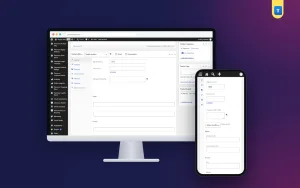
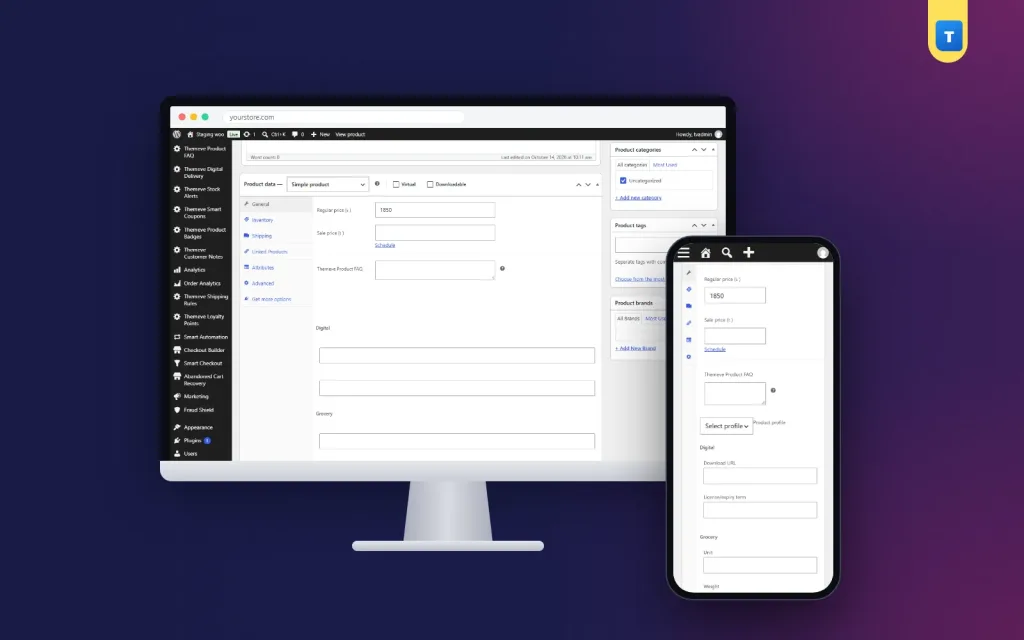
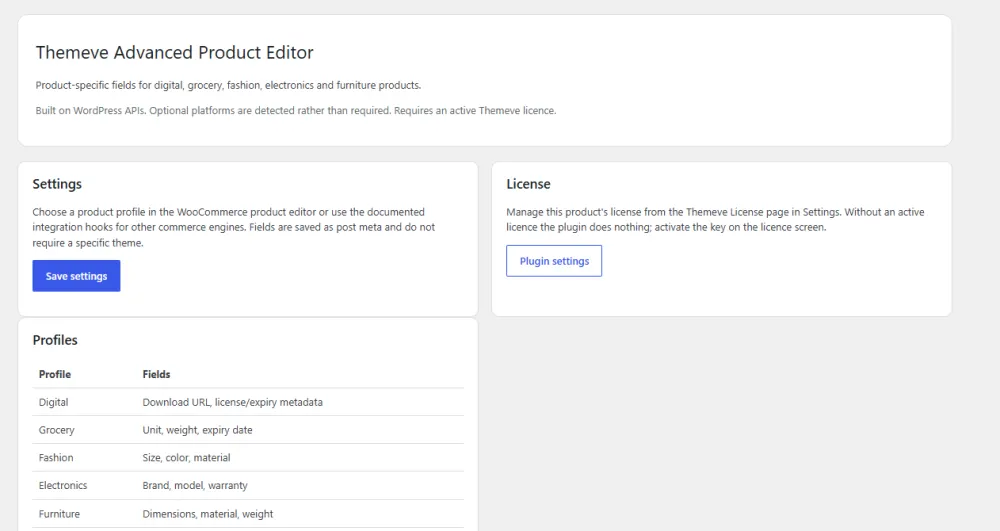
Advanced Product Editor is a WooCommerce product fields plugin that gives each product the right extra fields for its type. You choose a profile and the editor shows the matching boxes. Everything is saved with the product.
The five ready profiles are:
- Digital: download URL and licence term.
- Grocery: unit, weight and expiry date.
- Fashion: size, colour and material.
- Electronics: brand, model and warranty.
- Furniture: dimensions, material and weight.
Each product can use its own profile, so a T-shirt and a table lamp can sit in the same store with different fields. It works in the WooCommerce product editor and in the Themeve Commerce product studio.
It adds and stores fields; it does not redesign your product page. How the details appear to shoppers depends on your theme. You can read more on the Advanced Product Editor page.
When fields are not the right tool
Custom fields store facts about a product. They are not the answer to every problem.
- If the buyer must choose something, such as a size or colour, use product variations, so the choice changes the price and stock.
- If the buyer must type something, such as a name for printing, use an input option on the product page.
- If you need to filter the shop by a value, use product attributes, because they work with shop filters.
Picking the right tool at the start saves you from rebuilding the catalogue later. When in doubt, test with three products before you commit.
Keep your product data tidy as the shop grows
- Write a one-page guide for adding products, with the fields and formats you agreed.
- Give every new staff member a trial product to fill in, and check it.
- Review a few random products each month for missing or odd values.
- Use the same units across the catalogue: grams or kilograms, not both.
- When you add a new product type, create its field list before you add the products.
- Keep a spreadsheet backup of key values such as warranty and expiry dates.
Clean data saves hours when you later change themes, run reports or move to a new shop system.
Checklist before you publish a product
- Name, price and photos are correct.
- The right product type or profile is selected.
- All required fields are filled, using the agreed format.
- Stock quantity and weight are entered.
- The key facts also appear in the description if your theme does not show the fields.
- The product page looks right on a phone.
- A test order works with your delivery and payment options.
If you want to read more on the technical side, the official WordPress documentation is a good, reliable reference.
Frequently asked questions
How to add custom product fields in WooCommerce without coding?
Use a product fields plugin. It adds boxes to the normal product editor, and you simply fill them in. The built-in Custom Fields panel also needs no code, but it is basic and easy to misuse.
Will custom fields show on the product page automatically?
Not always. Storing a value and showing it are different jobs. Some themes display the fields, while others need a template change. Keep key facts in the description until you check.
Do custom fields slow down my shop?
A few fields per product have almost no effect on speed. Problems appear only with hundreds of fields per product or very large catalogues on weak hosting.
Can I use different fields for different products?
Yes. With product profiles, a shirt can have size and colour, while a phone has brand, model and warranty.
What happens to my fields if I change the theme?
Fields saved by a plugin or in standard product data stay. Fields created by theme code may disappear, so avoid that method for important data.
How to add custom product fields in WooCommerce for digital products?
Choose a digital profile or field set with a download URL and a licence term, then enter the values for each product. Use WooCommerce downloadable settings as well if you need secure delivery.